
Take creative control of your next video project by using song stems, and increase the production value of your video edits.
One way to bring a professional workflow to your video edits is by using song stems (also known as music stems or submixes.) We’re going to dive into some of the creative ways you can use song stems, but first let’s learn exactly what a stem is.
Song Stems
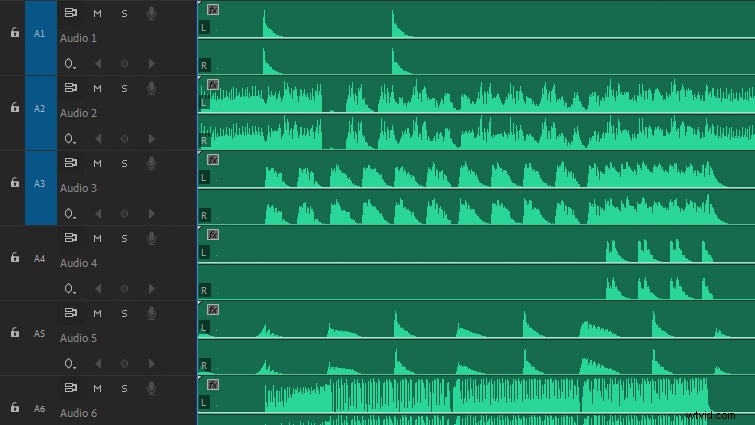
In order to define song stems, we need to think of our song as a complete mix. Stems are essentially portions of the mix, usually various instrument groups — bass, drums, piano, vocals, etc. When you stack all of these stems on top of each other in an edit timeline, they play back just as the complete song would.
However, when you have access to each individual stem track, you can customize the song even more to suit your video project. Using stems opens a lot of creative possibilities. Let’s take a look at a few.
Interviews and Film Dialogue
When you’re editing a video with dialogue and music, more often than not, you’ll have to drastically lower the volume of the entire music track to ensure the dialogue comes across clearly. This is no longer the case when you’re using song stems. Now, you can easily fade the more distracting musical elements in and out (such as drum hits or heavy bass.)
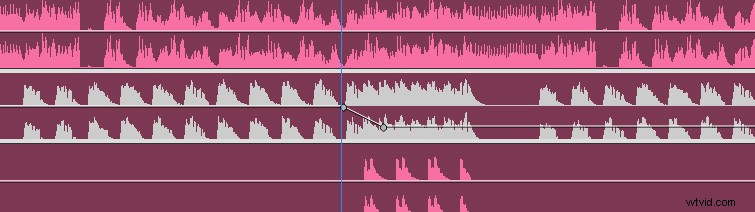
This is great for interviews; it allows you to customize the mix to match the visuals and sounds of your project. One of my favorite tricks is to create suspense by slowly raising the volume of various stem tracks.
Song Remixes
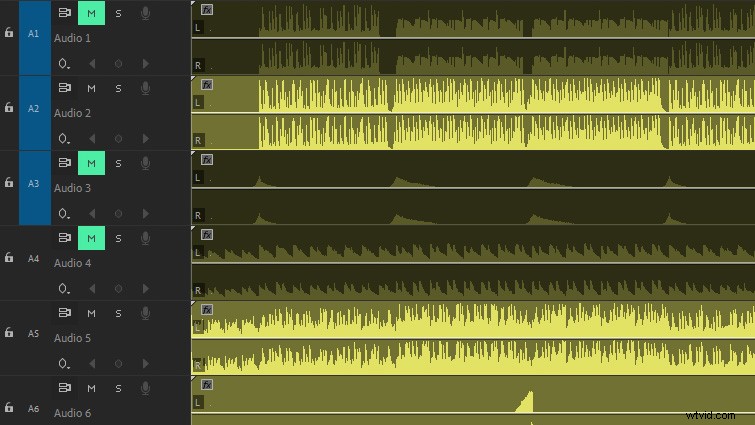
Another great use for stems is creating your own song remixes. You can easily do this by enabling or disabling various stem tracks for the song you’re working with. This allows you to quickly create variations of a song that keep to a similar theme (such as disabling the vocals and piano to get a mix that emphasizes the lows). It’s a great way to get more mileage out of a single song.
Target Audio Effects
Along the same lines as remixing a song, stems allow you to selectively apply audio effects. For example, in Adobe Premiere Pro, you can apply the audio effect Studio Reverb to a specific stem track, which allows you to affect something like vocals, without applying the unwanted reverb to the rest of the song mix.
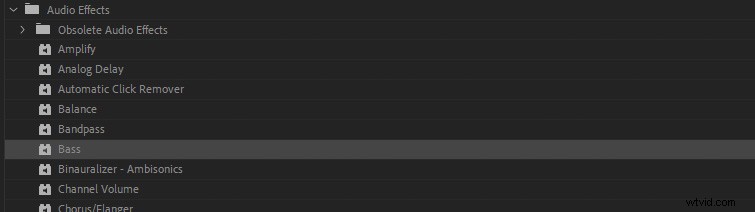
Another example would be using the bass effect to increase or decrease bass on specific instrument tracks. You can really get creative when mixing various effects. A few of my favorite audio effects in Premiere Pro are Vocal Enhancer, Flanger, and Studio Reverb.
Splice Together Songs
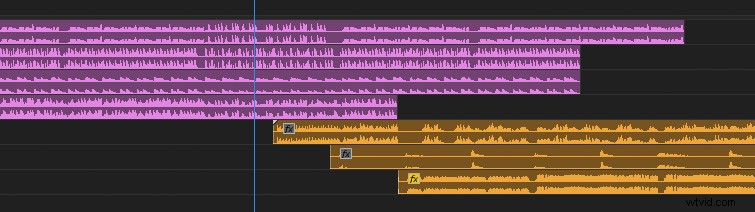
Stems also give you the creative ability to splice two songs together. In theory, you can do this with any two songs, but it’s much easier if songs have the same number of beats per minute (BPM). You can mix and match various stem audio tracks atop each other in your timeline, or easily fade stem tracks in and out from one song into another — which is helpful when you need to transition into another song and keep your story momentum moving.
Prolong Song Elements
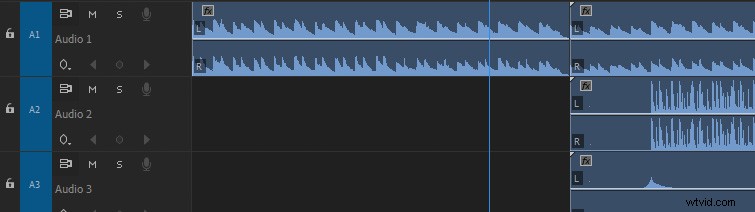
Because stems give us access to different pieces of a song, it’s easy to prolong sections to fit our edit. A great example would be a song’s intro or outro. You can select the audio tracks that play in the beginning or end and duplicate them before and after the song. This will give you a longer lead-in or -out. (It works great for opening or ending title credits.) You’ve likely heard a similar effect used by DJs on the radio, as they sometimes will loop a stem at the beginning of a song.
Looking for more articles on working with audio? Check these out.
- Download, Prep, and Import Song Stems to Your Favorite NLE
- WAV vs MP3: Why You Need Hi-Res Audio for Your Video
- Creative Ways to Use Music Loops in Your Videos
- Audio Tips: How to Remove Vocals in a Song Using Stems
- Tutorial: Removing Audio Pops and Recording Audio Differently