
Quick Rundown
Use Runway Gen‑4.5 when you need precise shot execution.
Craft your prompts as shot directions: specify camera angle, movement, subject action, and timing.
Replace vague adjectives like “cinematic” or “dramatic” with concrete visual instructions the model can execute.
Start with image‑to‑video for vertical output. Avoid text‑to‑video if you need 9:16.
Keep clips short and intentional. Plan around the 10‑second limit before you generate.
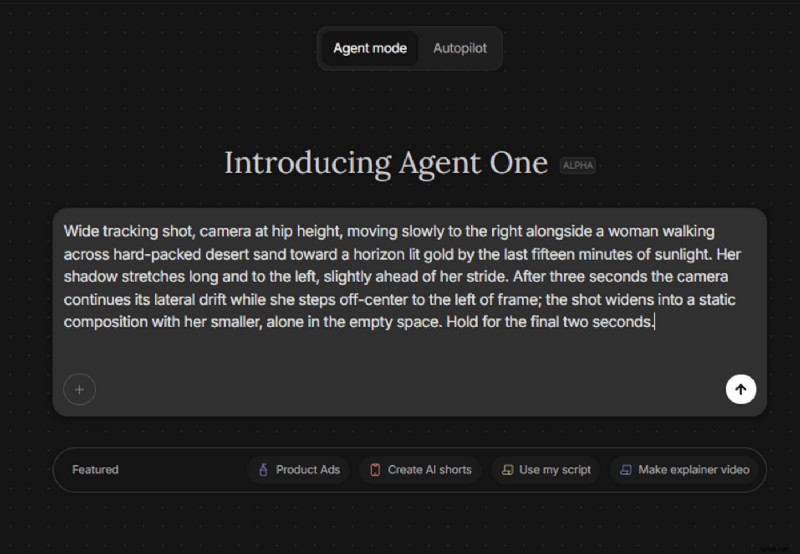
Use the InVideo Agent One to skip prompt engineering. Give it the goal, and let it structure the shot logic for you.
The Cup That Vanishes
Imagine your character holding a cup. They turn their head; the cup leaves the frame for half a second. The camera follows back, and the cup appears in the wrong hand—or gone entirely. Repeating the same prompt a dozen times, the cup sometimes survives and sometimes disappears. The failures cluster around moments when the model must remember something it can’t currently see.
Runway’s December 2025 release of Gen‑4.5 is the first version where that failure mode is noticeably smaller. It’s not solved—just reduced.
Independent reviews highlight three recurring holes in complex scenes:
- Objects that disappear after occlusion
- Effects that arrive before their causes, like a door swinging open before the handle moves
- “Success bias,” where a loosely aimed kick still finds the goal because the model has learned that kicks tend to score
Everything Runway shipped in Gen‑4.5 makes sense once you accept what they were optimizing for.
What Runway Shipped, and What They Gave Up
Read the Gen‑4.5 specs as a list, and they look incremental. Read them as an argument, and they’re sharper.
The numbers:
- 2 to 10 seconds per generation
- 720p resolution
- 24 or 25 frames per second
- Text‑to‑video locked to 16:9 (1280x720)
- Image‑to‑video supports 16:9, 9:16, 1:1, 4:3, 3:4, and 21:9 ultrawide
- 12 credits per second on the Runway API
- No native audio
- Same speed and throughput as Gen‑4
Every decision saved compute and capacity for one thing: detailed, sequenced, inside camera direction. That focus is why Gen‑4.5 more often returns the shot you describe.
How to Prompt Runway Gen 4.5
Wasting Gen‑4.5 starts with prompts that ask the model to “choose.” For example: “Cinematic shot of a woman walking through a desert at sunset, beautiful lighting, photorealistic, dramatic mood.” Every word forces the model to guess. “Cinematic” could mean any number of lenses, movements, or moods. The result is an averaged, mushy image.
Instead, give the model explicit, executable instructions. For instance:
“Wide tracking shot, camera at hip height, moving slowly to the right alongside a woman walking across hard‑packed desert sand toward a horizon lit gold by the last fifteen minutes of sunlight. Her shadow stretches long and to the left, slightly ahead of her stride. After three seconds the camera continues its lateral drift while she steps off‑center to the left of frame; the shot widens into a static composition with her smaller, alone in the empty space. Hold for the final two seconds.”
Every line describes a concrete action the model can perform: lens height, camera movement, subject gait, lighting geometry, and a two‑beat structure. Replace feelings with named camera moves, lighting, and actions.
When you start from a still image, your first three sentences should focus on motion—what moves and how—rather than describing the world’s appearance. Use the @ syntax from Gen‑4 to tag reference images and maintain character consistency. Paint specific trajectories with Motion Brush if you need a particular object to move along a custom path.
How Runway Fits Inside the InVideo Workflow
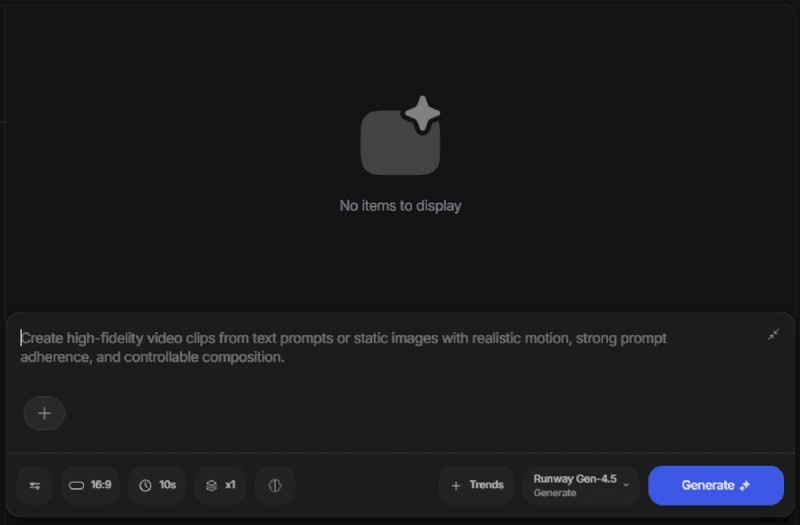
Here’s how to integrate Runway 4.5 with InVideo:
- Log in or sign up on InVideo and start a new project. From the ‘Agent & Models’ panel, select Runway.
- Draft a prompt that follows the guidance above. For example: “Wide tracking shot, camera at hip height, moving slowly to the right alongside a woman walking across hard‑packed desert sand toward a horizon lit gold by the last fifteen minutes of sunlight. Her shadow stretches long and to the left, slightly ahead of her stride. After three seconds the camera continues its lateral drift while she steps off‑center to the left of frame; the shot widens into a static composition with her smaller, alone in the empty space. Hold for the final two seconds.”
- Review the output and make additional edits if needed.
Agent One for the Win
InVideo’s Agent One removes the bottleneck of prompt engineering. Instead of learning to structure cinematic prompts, users give the model a goal, and Agent One translates it into precise camera language. The result is faster production cycles for ads, social videos, explainer content, and branded campaigns.
Let’s Get Generating
The model’s limits are shifting. The real constraint now is the language you bring to the prompt window. Runway 4.5 is the first version where that language is read verbatim. Most users will initially think it’s incremental, but a few will notice that the bottleneck has moved. When the bottleneck shifts, the question stops being “which model?” and starts being “do you know how to direct?” Begin your journey on InVideo today.
Frequently Asked Questions
-
What is Runway Gen 4.5?
Runway Gen 4.5 is the latest video model from Runway, announced December 1, 2025. It supports text‑to‑video and image‑to‑video generation, producing 2‑10‑second clips at 720p, 24 or 25 fps, and currently tops the Artificial Analysis Video Arena leaderboard at 1,247 Elo. Its core differentiator is prompt adherence to detailed, sequenced camera direction inside a single prompt window.
-
What’s new in Runway Gen 4.5 compared to Gen 4?
Runway Gen 4.5 improves motion quality—objects exhibit realistic weight and momentum; multi‑element composition—occlusion, depth, and lighting hold up better with more subjects; and frame‑to‑frame consistency—hair, fabric weave, and surface specularity drift less. Speed and throughput remain the same as Gen 4.
-
Does Runway Gen 4.5 generate audio?
No. Gen 4.5 outputs silent video. Add audio in a separate pass, either via Veo 3.1 or Seedance 2.0 within the same workspace, or through a traditional audio workflow.
-
How long can a Runway Gen 4.5 clip be?
Each generation is limited to 2‑10 seconds. For longer clips, stitch multiple generations together. Alternatives for longer single shots include Seedance 2.0 (up to 15 seconds) or Kling 3.0 multi‑shot sequences.
-
How much does Runway Gen 4.5 cost?
On the Runway API, Gen 4.5 runs at 12 credits per second. On the Standard plan ($12 per user per month billed annually), 625 monthly credits equate to roughly 25 seconds of Gen 4.5 video. Some sources cite 25 credits per second for the web app in certain configurations; confirm pricing for your specific plan.
-
Is Runway Gen 4.5 better than Sora 2 or Veo 3.1?
“Better” depends on the job. Gen 4.5 wins blind‑preference benchmarks for shot‑level visual fidelity and prompt adherence to camera direction. Veo 3.1 excels with native audio and lip sync. Kling 3.0 offers 4K and multi‑shot capabilities. Seedance 2.0 shines with multimodal references in a single pass. Choose by the specific requirement.
-
Why does my Runway Gen 4.5 prompt produce generic-looking output?
Likely because the prompt describes a feeling rather than a shot. Replace adjectives like “cinematic” or “dramatic” with named camera moves, lighting, and subject actions in sequence.
-
Does Runway Gen 4.5 support character consistency across shots?
Yes, via the @ reference system from Gen 4. Upload a reference image, tag it in the prompt, and the model will maintain the character’s appearance across generations. For synchronized facial performance, pair it with Act‑Two.
-
Can I use Runway Gen 4.5 for vertical video?
Image‑to‑video supports 9:16 vertical natively at 720x1280. Text‑to‑video is locked to 16:9; for vertical text‑to‑video, generate a still first and route through image‑to‑video.
-
Where does Runway Gen 4.5 still fail?
Object permanence in scenes with five or more discrete objects; causal sequencing where effects precede causes; success bias where actions succeed even when the prompt asks for failure; complex crowd or industrial scenes with many simultaneous moving elements.
-
Is Runway Gen 4.5 worth it for short‑form social content?
For shots where camera direction or motion fidelity matters and a single 10‑second clip is the unit, yes. For dialogue‑heavy talking‑head content, Veo 3.1 is preferable due to native lip sync. For multi‑shot product walkthroughs, Kling 3.0 or Seedance 2.0 may fit better. Within a workspace that offers all four, use Gen 4.5 for the shots that benefit most from its strengths.
-
How do I access Runway Gen 4.5?
Runway Gen 4.5 is available on all paid Runway plans (Standard and higher), via the Runway web app, the Runway API, and inside InVideo’s model menu alongside Veo 3.1, Seedance 2.0, and Kling 3.0.