

Published July 14, 2025 – Proven Solutions
The resolution of an image directly influences its file size, and modern iPhones routinely capture large photos that can quickly fill your device’s storage. If you don’t need to print your photos, resizing them before saving can free up significant space without losing the moments you cherish.
Below are trusted, step‑by‑step methods to resize photos on an iPhone, ensuring you keep more images on your device while preserving quality.
How to Reduce Photo Size on iPhone
- Method 1: Resize via Email
- Method 2: Use Dedicated Apps
Method 1: Resize via Email
This approach is straightforward, though it doesn’t allow custom dimensions. It’s best when you need a quick, general size reduction.
Open the Photos app, select the images you want to resize, tap Share (or the Action icon on iPhone 7), and choose Mail. The Mail app offers four presets: Small, Medium, Large, and Actual Size. Pick the preset that matches your needs, then tap Send to email the resized photos to yourself.
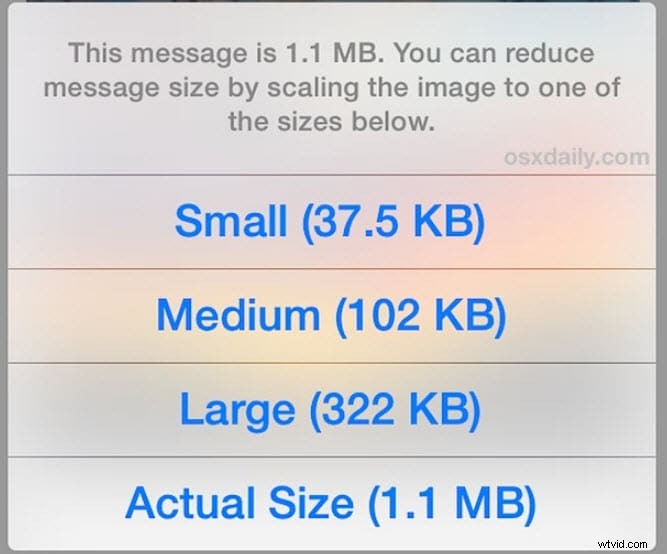
Image source: OS X Daily
While simple, this method limits control over the final dimensions, which may not suit all use cases.
Method 2: Use Dedicated Apps
Paid or free, apps give you precise control over resizing, cropping, and compression, making them ideal for preserving image quality.
1. Image Size
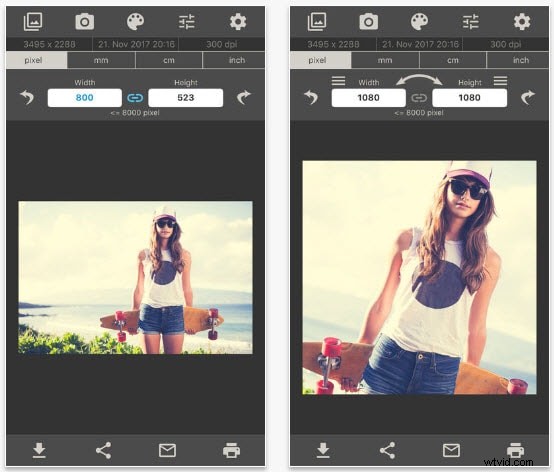
Image Size is a free download that offers ad removal for $3.99. Resize an image by opening it, selecting the desired output size, and using the cropping tool to trim unwanted parts. Once resized, choose to Save, Send, or Share.
2. PhotoShrinker
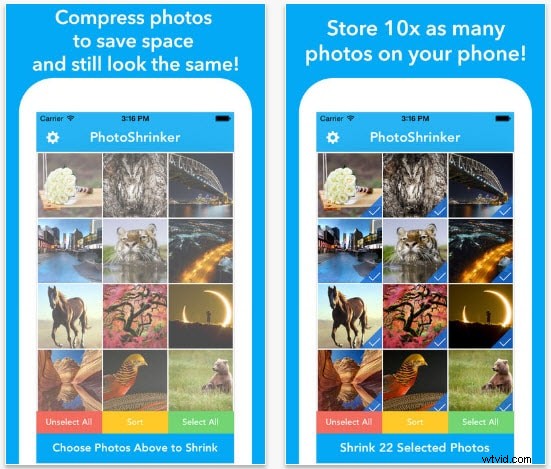
PhotoShrinker automatically compresses photos to about one‑tenth of their original size, freeing substantial space. For $3.99 you can also delete unwanted images. The app is best for quick compression, not for detailed editing.
3. Reduce
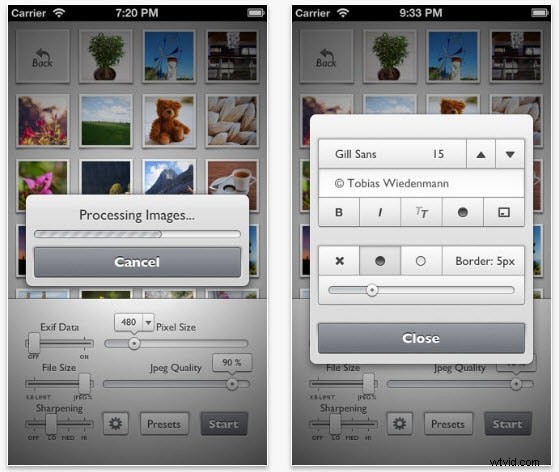
Reduce supports batch resizing, exact dimension selection, and even sharpening for images that appear slightly blurred after resizing. It auto‑detects JPEG quality and can add borders to help distinguish photos from backgrounds.
Conclusion
Maintaining photo quality is paramount. Choose a resizing method that lets you produce clear images while trimming file size. Although app‑based solutions may involve a small fee, they offer superior control and flexibility compared to the email method.
Share your favorite resizing technique in the comments and let friends know these efficient ways to manage photo storage on iPhones.
Ollie Mattison
Ollie Mattison is a writer and a lover of all things video.
Follow @Ollie Mattison