
How to Resolve Windows 10 Photos App Crashes Quickly

Jan 06, 2026 • Proven solutions
Windows 10 Photos is a core feature for storing and enjoying memories. When it crashes, you lose quick access to those moments. Below are five reliable, step‑by‑step methods to bring the app back online.
- Use the built‑in Windows Troubleshooter
- Restore the default Pictures library
- Reset the Photos app
- Repair the app package via PowerShell
- Reinstall the app from the Microsoft Store
1. Run the Windows Troubleshooter
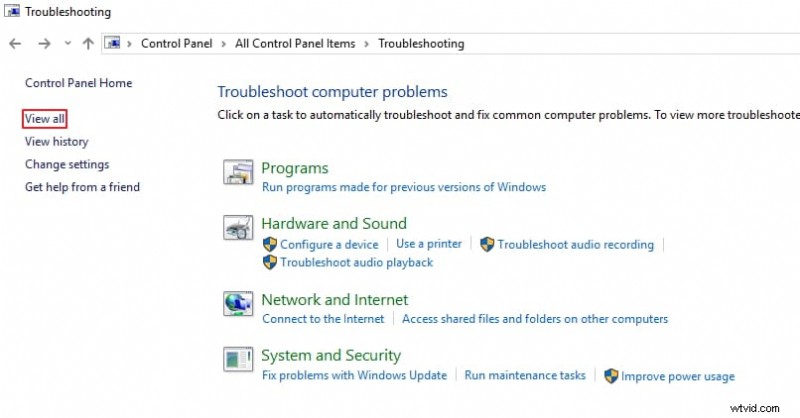
The Windows Troubleshooter identifies and fixes common app issues.
- Press Windows + X and choose Control Panel (or search for it).
- Click Troubleshooting → View All → Windows Store Apps → Next.
- Follow the prompts; the tool will scan and repair any problematic store applications.
2. Restore the Default Pictures Library
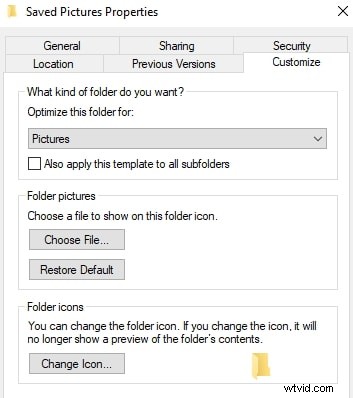
Corrupted library settings can cause the Photos app to fail.
- Open File Explorer (Windows + E) and right‑click the left pane to enable Show Libraries.
- Right‑click Pictures → Properties → Restore Defaults.
- Click Apply and then OK to confirm.
3. Reset the Photos App
Resetting restores the app to its original state, clearing corrupted data.
- Open Settings → Apps & Features.
- Find Photos, click Advanced options → Reset.
- Restart Windows to complete the reset.
4. Repair the App Package with PowerShell
Repairing the package fixes underlying component issues.
- Right‑click the Start button → Windows PowerShell (Admin) and type
PowerShellthen press Enter. - Execute:
Get-AppXPackage -AllUsers | Foreach {Add-AppxPackage -DisableDevelopmentMode -Register "$($_.InstallLocation)\AppXManifest.xml"} - Wait a few minutes, then restart the computer.
5. Reinstall the Photos App
If the previous steps fail, reinstalling provides a fresh copy.
- Open PowerShell (Admin) and run:
Get-AppxPackage *Microsoft.Windows.Photos* | Remove-AppxPackage. - After removal, reboot the system.
- Open the Microsoft Store, search for Microsoft Photos, and click Install.
After following these methods, the Photos app should function normally. If problems persist, consider updating Windows or contacting Microsoft support.
Conclusion
Windows 10 Photos crashes are usually due to a minor configuration or package issue. By systematically applying the troubleshooting steps above, most users can restore seamless photo viewing without needing advanced technical skills.
Author
Shanoon Cox – writer and video enthusiast
Follow @ShanoonCox