
When you share videos on Instagram, Facebook, or other social‑media platforms, the platform’s automatic cropping can cut off essential parts of your content. Adding a border to your video ensures the entire frame stays visible and gives your footage a polished look.
Part 1: How to Add Borders to Video Online?
Below are some of the most reliable online editors that let you add borders—white, black, or custom colors—to your videos. Each tool is explained with clear, step‑by‑step instructions and noted limitations.
1. Kapwing
Kapwing is a browser‑based editor that supports photos, GIFs, and videos. While it doesn’t have a dedicated “border” tool, resizing the canvas automatically creates a frame around your footage.
Step 1: Upload Your Video
Launch Kapwing and click Upload File to bring your video in from your computer, or paste a URL directly.
Step 2: Add a Border
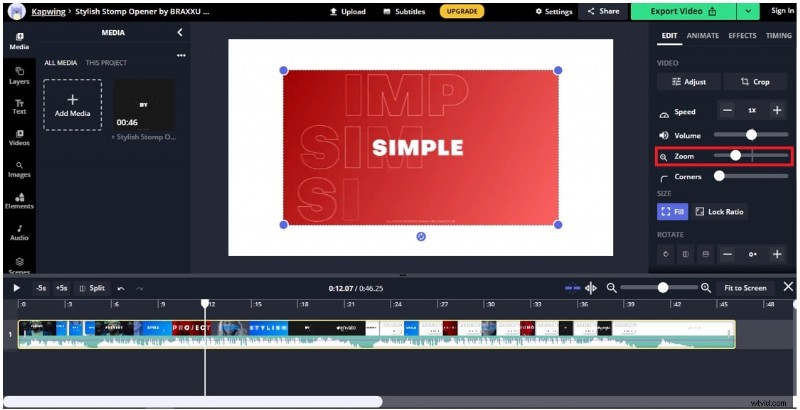
Use the Zoom slider to shrink the video and reveal the surrounding canvas.
Step 3: Choose a Background Color
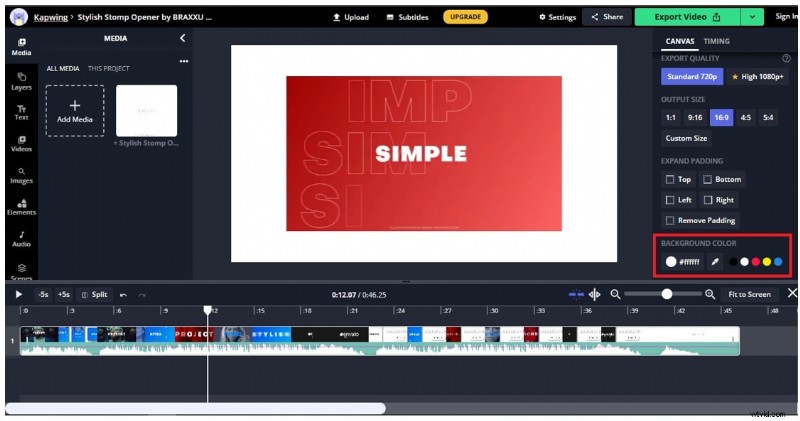
Click the border area and pick a color with the Background Color picker.
Step 4: Export Your Video
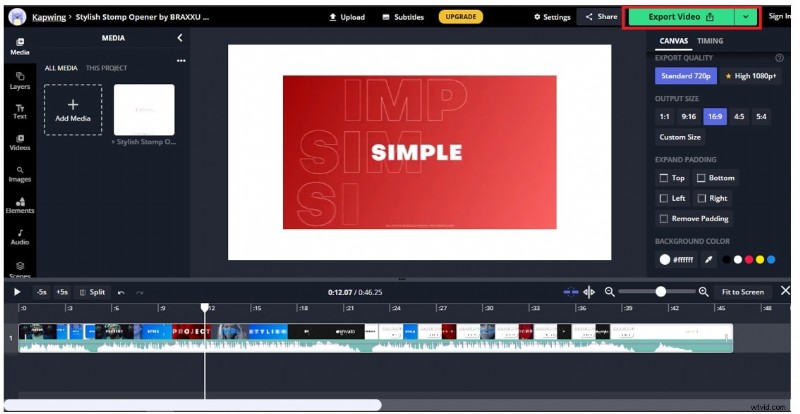
Once satisfied, click Export Video to download the finished file.
Limitations
Free tier caps file size at 250 MB and restricts export length to 60 minutes.
2. Canva
Canva’s intuitive interface lets you add borders with minimal effort, plus it offers a wide array of stock media and music tracks.
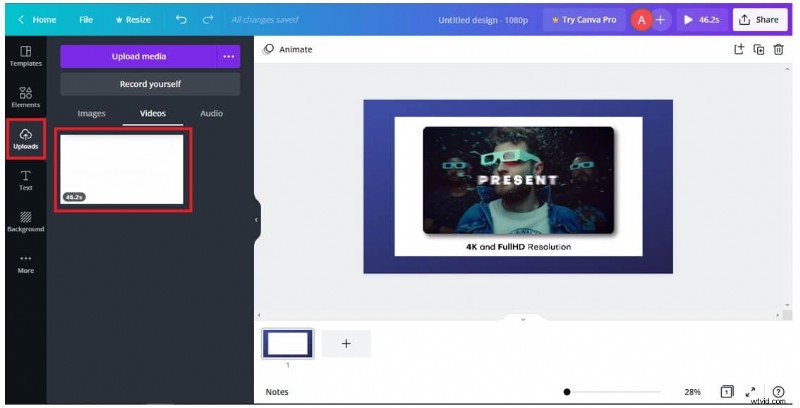
Step 1: Upload Your Video
Open Canva, click Upload, and select your video file.

Step 2: Select a Background
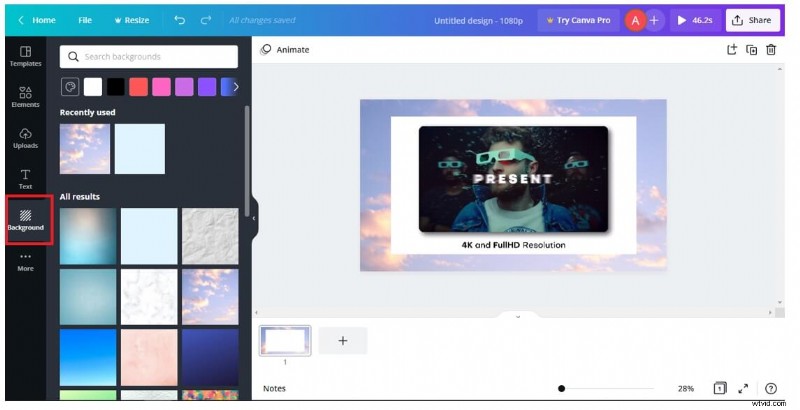
From the left‑hand menu, click Background and choose the desired color or pattern.
Step 3: Apply the Border
Return to Uploads, drag your video onto the canvas, and the background will appear as a border.
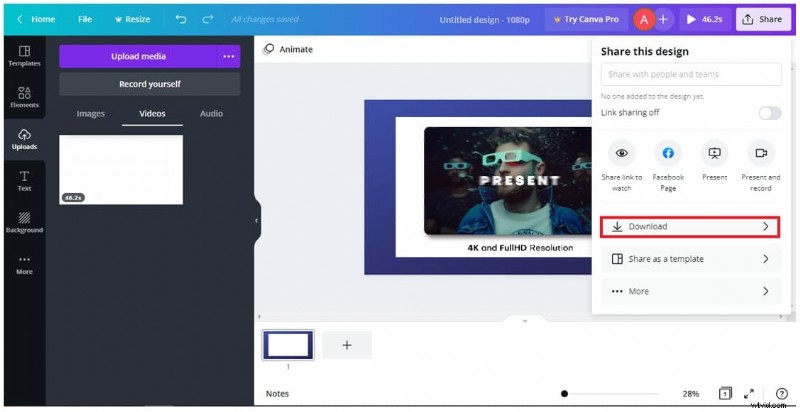
Step 4: Download
Click Share → Download to export the edited video.
Limitations
Canva stores projects online only; persistent local storage is absent, and over‑designing can occur when using pre‑made templates.
3. Flexclip
Flexclip offers a drag‑and‑drop interface with support for 20+ video formats. It’s ideal for quick edits.
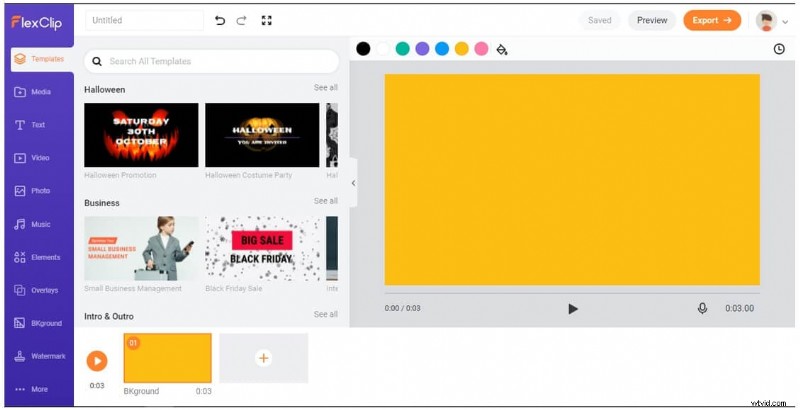
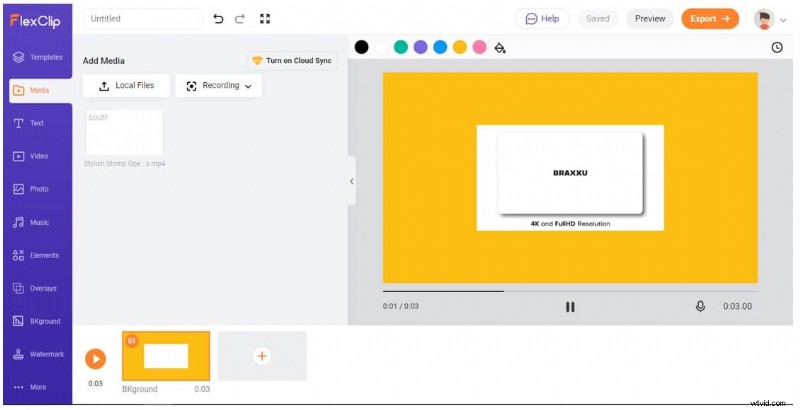
Step 1: Choose a Blank Canvas
Open Flexclip and select an empty background.
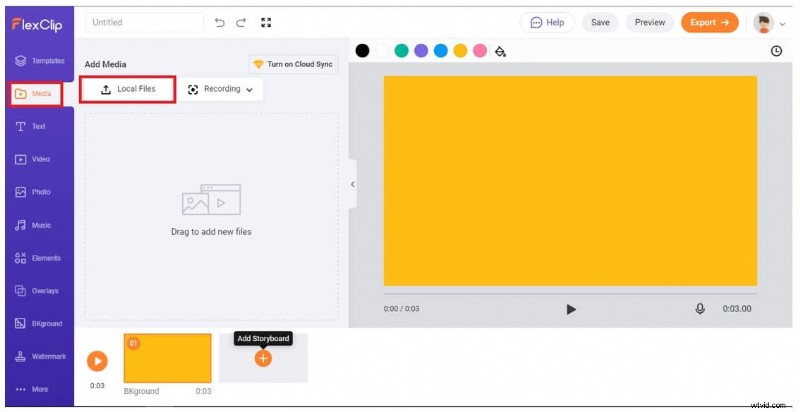
Step 2: Upload Media
Click Media → Local Files to import your video.
Step 3: Add Border and Export
Drag the video onto the timeline, then click Export to download the bordered clip.
Limitations
Flexclip lacks advanced editing features typical of professional software and imposes some file‑size constraints.
4. Lunapic
Lunapic is a straightforward tool for adding simple borders quickly.
Step 1: Upload Your Video
Open Lunapic, click Choose File, and select your video.
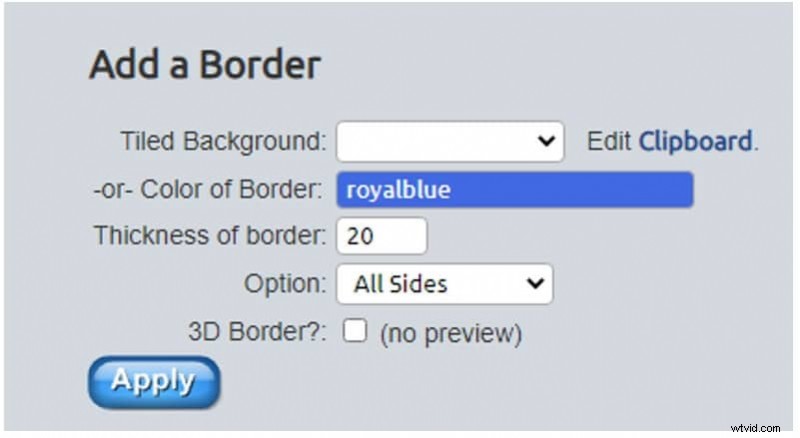
Step 2: Apply a Border
Navigate to the Apply a Border section, adjust width and color, then click Apply.
Limitations
Only basic editing tools are available; complex visual effects are limited.
5. Abraia
Abraia excels at resizing videos before applying borders, providing a clean slate for customization.
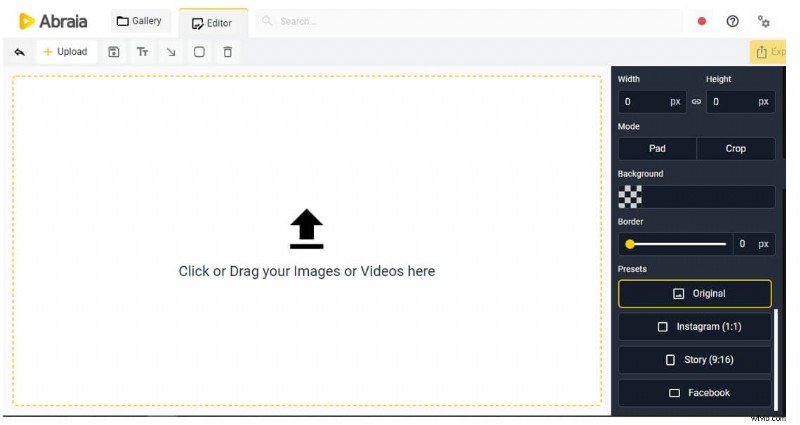
Step 1: Upload Your File
Drag the file into the browser window or click to select.
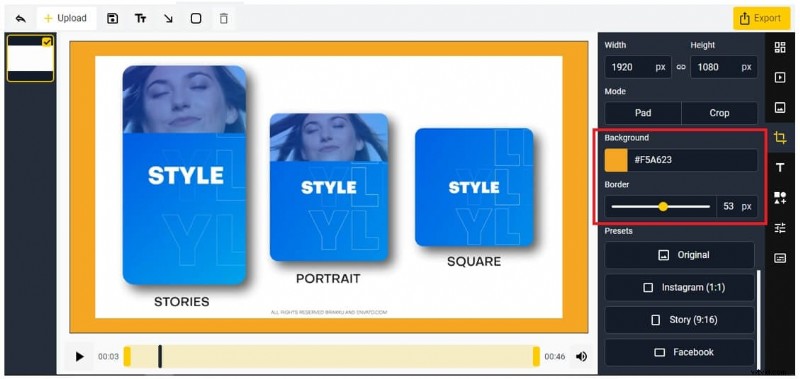
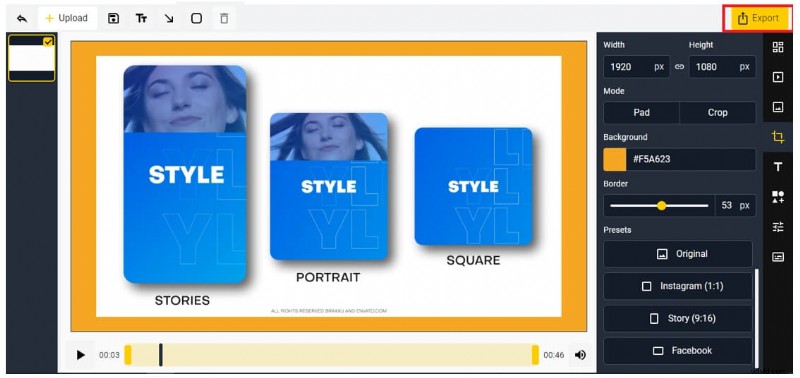
Step 2: Add Border Settings
Configure border width and background color in the dedicated panel.
Step 3: Export
Click Export to download the finished video.
Limitations
Borders are added indirectly by resizing, which may alter aspect ratios.
6. Typito
Typito’s real‑time preview feature lets you fine‑tune borders as you edit.
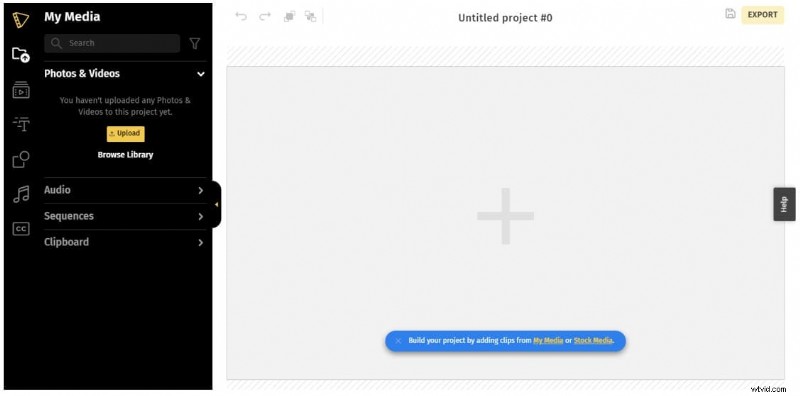
Step 1: Upload
Open Typito and click Upload to import your video.
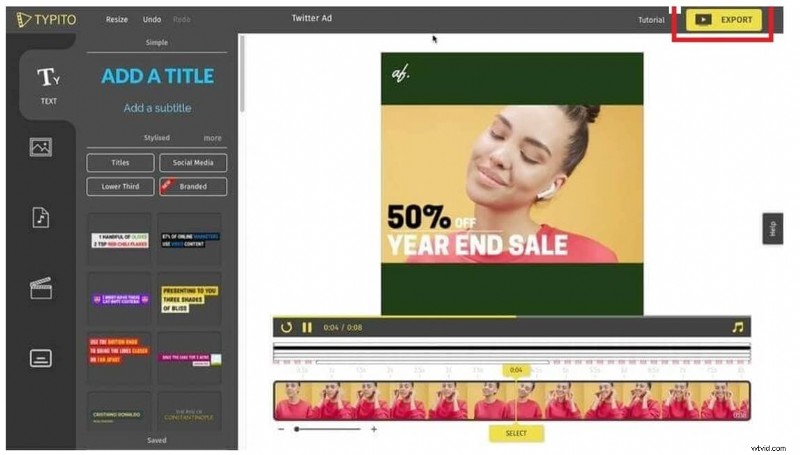
Step 2: Resize & Export
Use the Resize tool, then click Export to download.
Limitations
Free tier adds a watermark; removal requires a paid plan.
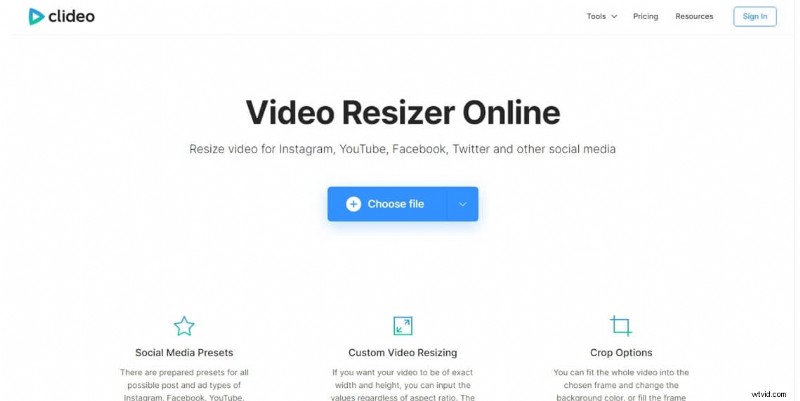
7. Clideo
Clideo offers a quick, web‑based interface for adding borders and other edits.
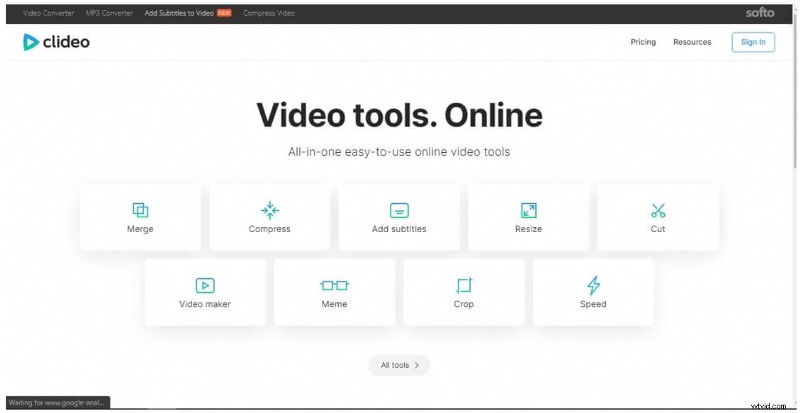
Step 1: Open Clideo
Navigate to Clideo and select the Resize tool.
Step 2: Choose Video
Click Choose file to upload your clip.
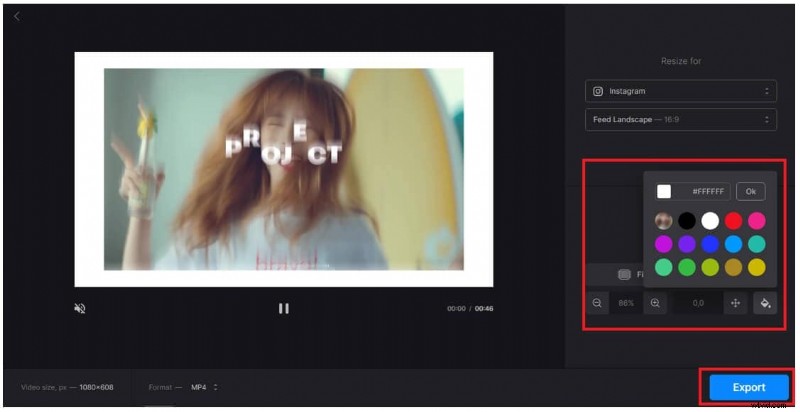
Step 3: Add Border
Zoom out to reveal the border, set its color, then click Export.
Limitations
File‑size caps apply, and only MP4 format is supported.
8. Wofox
Wofox combines basic editing (trim, cut) with a simple border‑addition feature.
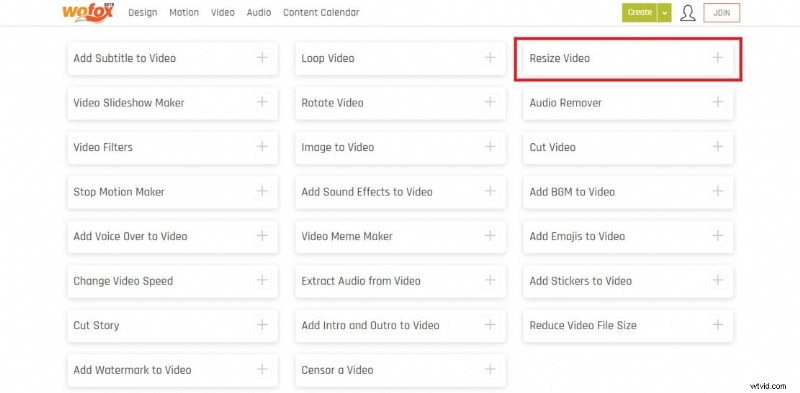
Step 1: Choose Resize Video
On the Wofox homepage, click Resize Video.
Step 2: Upload
Click Upload to import your video.
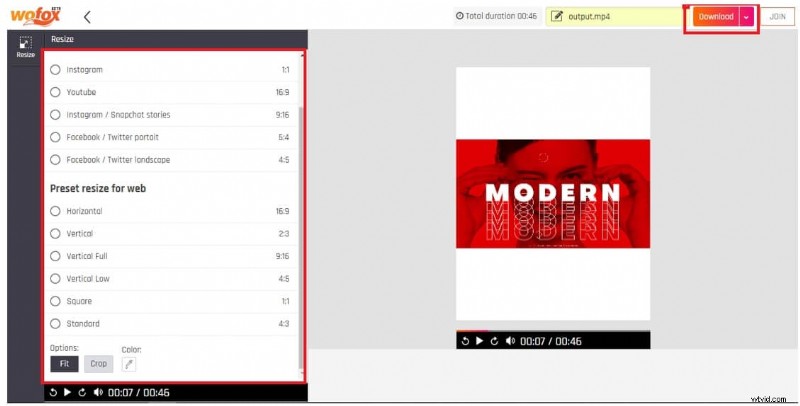
Step 3: Resize & Download
Adjust the size using the left‑hand controls, then click Download to export.
Limitations
Processing can be slower than competitors and may stall on larger files.
9. Fastreel
Fastreel is a lightweight editor that supports borders, music, filters, and clip merging.
Step 1: Open Fastreel
Go to Fastreel and select Resize a Video under Video Editing Tools.
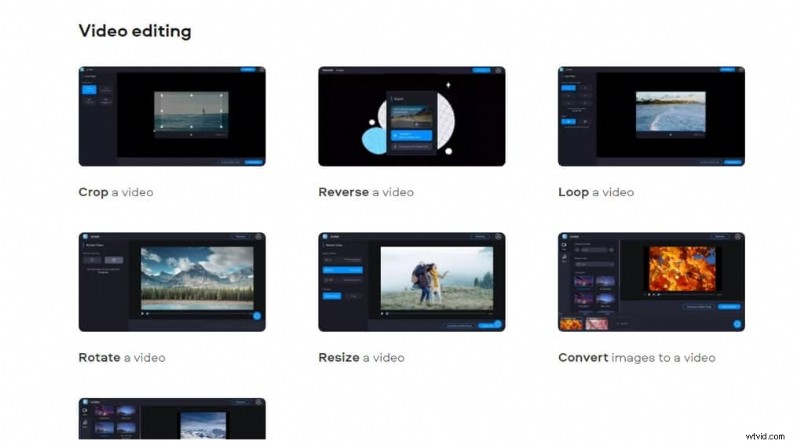
Step 2: Upload
Click Add the File to bring in your video.

Step 3: Export
Choose the desired platform format (Instagram or Facebook) and click Export Result.
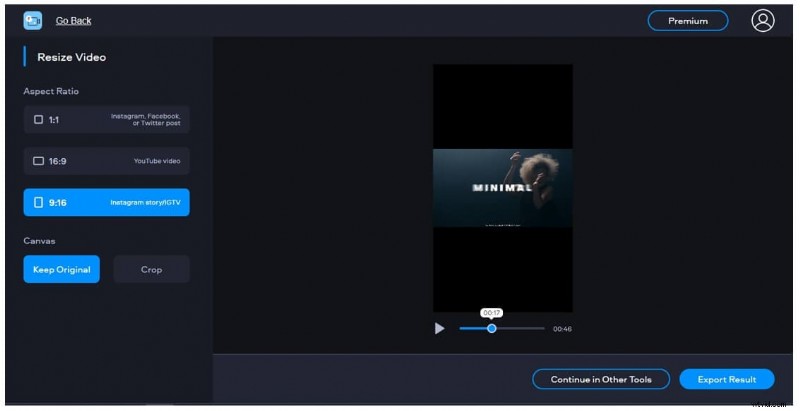
Limitation
Only black borders are available; color customization is not supported.
10. InVideo
InVideo provides professional templates that allow you to layer borders, images, and music over your footage.
Step 1: Upload Media
Open InVideo, click Upload Media, and import your file.
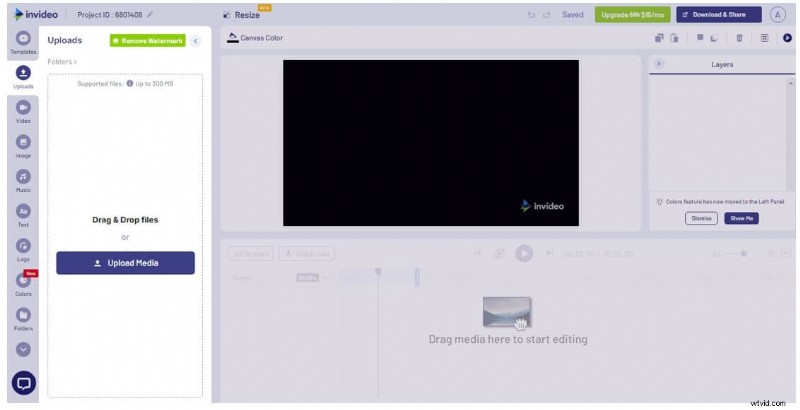
Step 2: Pick a Template
Browse the Videos or Image sections for a border template that fits your style.
Step 3: Drag onto Timeline
Place the imported video onto the timeline, then click Download & Share to export.
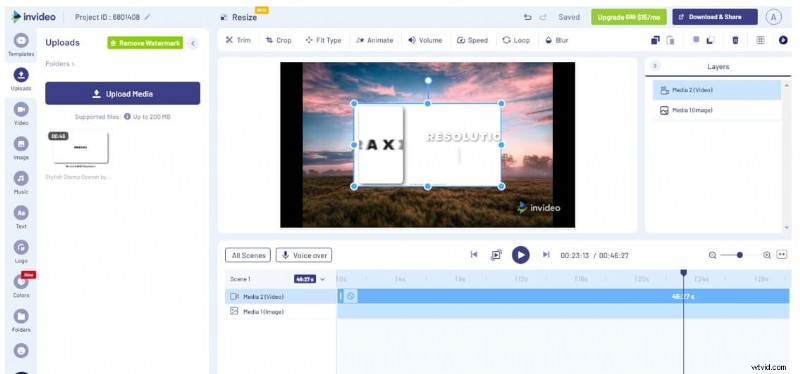
Limitations
Even the Business plan caps exports at 60 per month.
Part 2: Adding Borders with Wondershare Filmora
Filmora remains a top choice for creators who need more control than a simple online editor offers. Below is a concise workflow to add borders using Filmora.
Step 1: Import Your Media
Launch Filmora, go to the File tab, and select Import Media to bring your video into the project.
Step 2: Apply a Border Effect
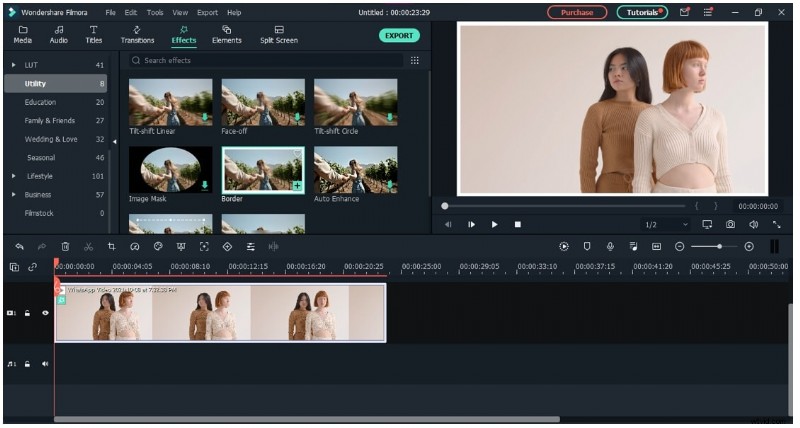
Navigate to Effects → Utility and drag the Border effect onto the timeline. You can also search “border” in the search bar for faster access.
Step 3: Customize the Border
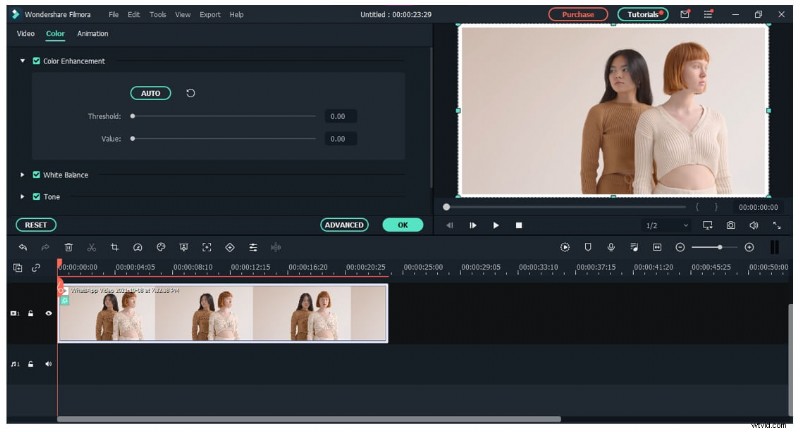
Double‑click the video clip on the timeline to open the customization panel. Adjust Color, Size, Blur, Opacity, and Duration as desired, then click OK.
Step 4: Export
Click the Export button at the top, choose your format, and save the video to your device.
Conclusion
Social‑media platforms automatically crop videos, risking loss of critical content. Adding a border protects your footage and keeps the entire story intact. While desktop software like Filmora offers granular control, the online tools listed above provide quick, cloud‑based solutions for most users. Choose the method that best fits your workflow and give your videos the border they deserve.