
Amazon Prime Video has become the go-to destination for on‑demand entertainment, offering a vast library of movies, series, and exclusive originals. Whether you’re a viewer or a creator looking to distribute content on the platform, understanding the technical requirements—especially the aspect ratio—is essential for a flawless viewing experience.
If you’re unsure about Amazon’s Prime aspect ratio specifications, this article covers all the key details you need to know.
In this article
Part 1 The importance of Amazon Prime Video
Amazon Prime Video is included automatically with an Amazon Prime membership, delivering a host of benefits that go beyond simple streaming:
- Access to original content that isn’t available elsewhere.
- High‑definition, HDR, and 4K video in a single library.
- Instant availability of licensed titles—no waiting lists.
- Device‑agnostic playback on game consoles, smart TVs, Blu‑ray players, mobile devices, set‑top boxes, and Fire TV.
- Offline viewing via downloadable videos.
- Live streaming of sports, events, and more.
- Purchase or rent of titles beyond the Prime catalogue.
- Parental controls to keep children safe from inappropriate content.
- Up to six additional profiles and simultaneous playback on three devices.
- Watch Party feature that lets you stream with up to 99 friends.
Part 2 Standard of Amazon Video Aspect Ratio
When streaming online, the video’s aspect ratio—its width divided by its height—determines how the content fills the screen. Amazon Prime Video accepts a range of standard ratios to ensure optimal display across devices:
- 16:9 (HD)
- 4:3 (Standard Definition)
- 2.20:1 (Film standard)
- 2.40:1 (Blu‑Ray films, 1920×800)
- 1.85:1 (UK and US widescreen releases)
- Other accepted ratios: 1.66:1, 2:1, 2.35:1, and 2.39:1
For detailed guidelines, refer to Amazon’s Prime Video Direct documentation.
Part 3 How to change the size of a video on Amazon Prime
While the Amazon app doesn’t provide a manual aspect‑ratio adjustment, you can use your playback device’s settings to switch to the desired ratio. Typical options include:
- 4:3 for legacy SD or VHS content
- 10:9 for standard displays
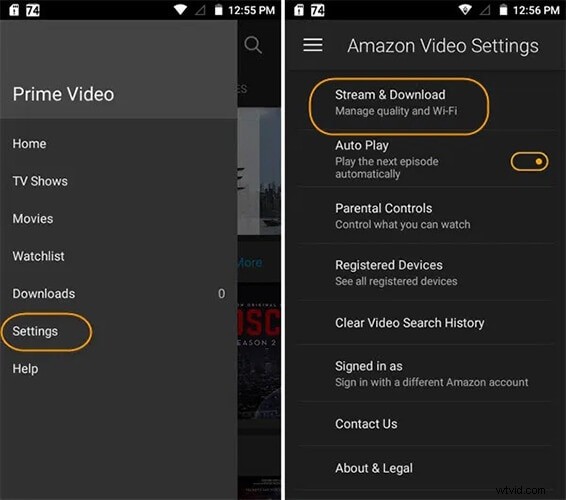
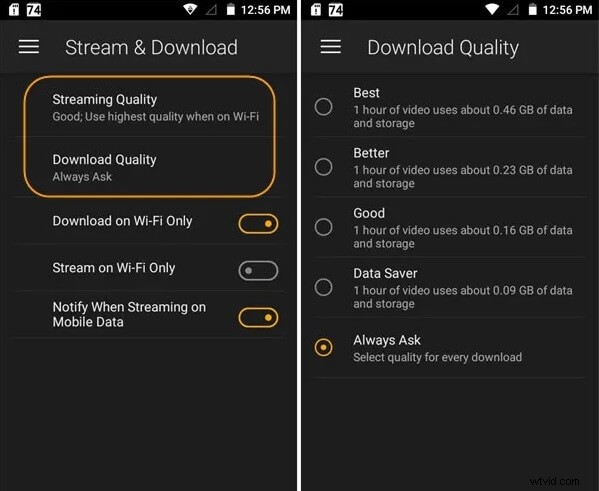
To adjust the streaming quality:
- Open the Amazon app and go to Prime Video.
- Navigate to Settings > Video > Streaming Quality.
- Select the desired bitrate or quality level.
For more advanced editing, use reliable software to convert the video to a 16:9 widescreen format before uploading.
Part 4 Why are Prime movies not full screen?
Common reasons for a non‑full‑screen display include:
- Device incompatibility with certain resolutions.
- Misaligned screen and video aspect ratios (e.g., a 2400×1080 device displaying a 16:9 video).
- App scaling settings that differ between operating systems.
Solutions:
- Use the device’s native scaling or zoom options where available.
- Crop or resize the video using editing software such as Wondershare Filmora to match the device’s native resolution.
- Verify the video’s container format and codec compatibility with the playback device.
Wondershare Filmora offers a user‑friendly interface to adjust resolution and aspect ratio, ensuring your content displays correctly on any device.
Conclusion
Optimizing your video’s aspect ratio is as vital as the content quality itself. By adhering to Amazon’s recommended ratios and using the tools mentioned, you can guarantee a seamless viewing experience that engages audiences and maximizes reach on Prime Video.