
While most messaging apps ship with preset stickers, GIFs let you express emotions with richer motion and detail. This step‑by‑step guide shows how to transform a GIF into a sticker that works on Discord, WhatsApp, and Telegram, using trusted tools such as Wondershare UniConverter, AConvert.com, and Filmora.
In this article
- How to Convert a GIF into a Sticker
- Converting a GIF to a Discord Sticker
- Turning a GIF into an Animated WhatsApp Sticker
- Creating a Telegram Sticker from a GIF
- Customizing GIF Stickers with a Video Editor
How to Convert a GIF into a Sticker
Using a dedicated GIF‑to‑sticker converter is the simplest way to turn a GIF file into a sticker‑ready format. Wondershare UniConverter (available for macOS and Windows) lets you edit, resize, and export GIFs to the WebP format required by most platforms.
Follow these steps to create a WebP sticker from a GIF:
Step 1 – Install UniConverter
Download and install Wondershare UniConverter on your PC or Mac.
Step 2 – Create the GIF
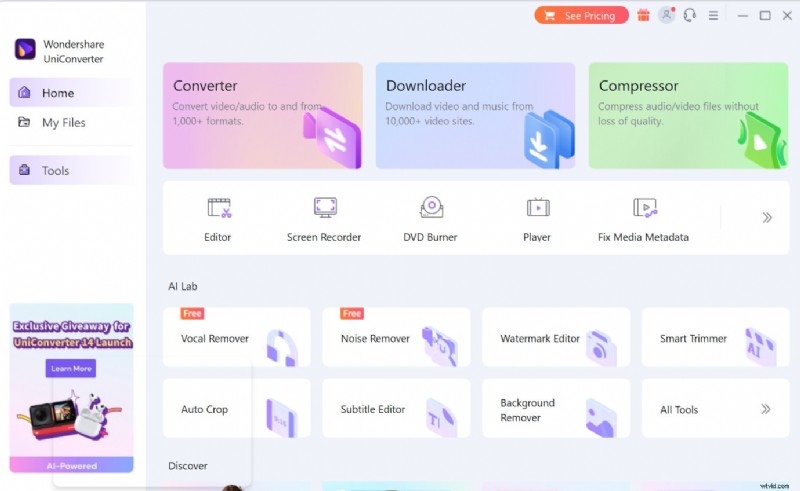
Launch the app, click Tools, then choose GIF Maker. Select Photos to GIF or Videos to GIF, add your media, adjust frame rate and output settings, and click Create GIF.
Step 3 – Convert to WebP
Return to the home screen, select Image Converter, choose WEBP as the output format, add the newly created GIF file, and press Convert.
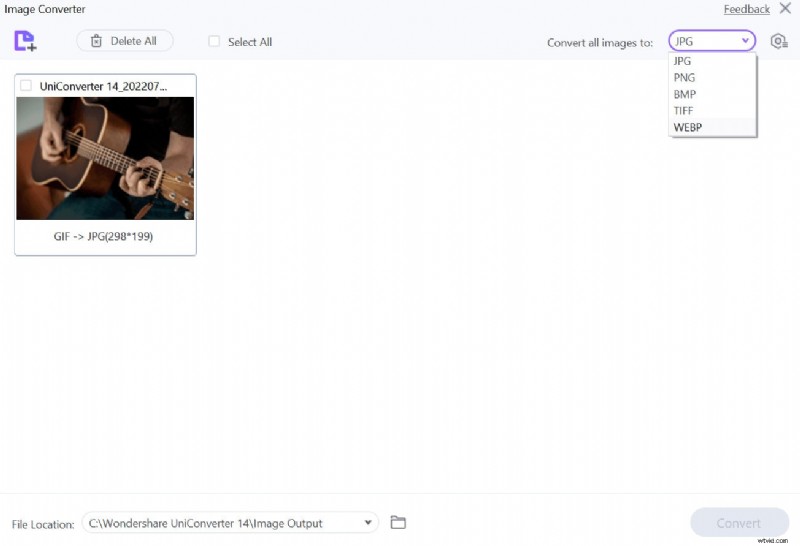
Once converted, you can upload the WebP file to any platform that supports sticker uploads.
Converting a GIF to a Discord Sticker
Discord’s help center specifies that custom stickers must be in APNG or WebP format and sized 320 × 320 px. UniConverter does not export APNG, so an online converter is the quickest solution.
Use AConvert.com to change your GIF to APNG:
Step 1 – Upload the GIF
Open AConvert, click File, then Choose File to select your GIF.
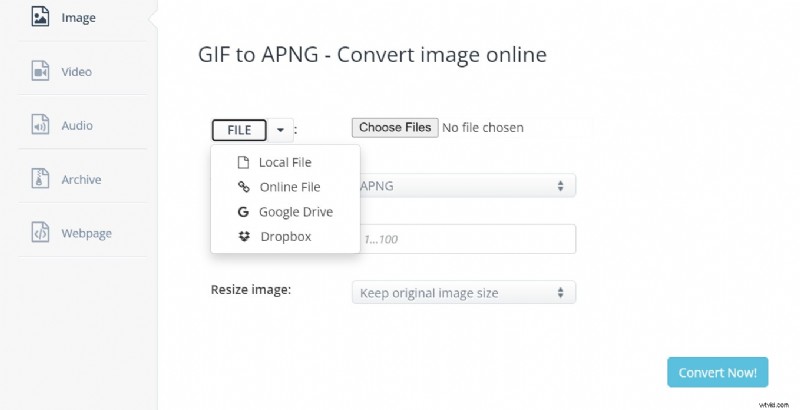
Step 2 – Set Output
Choose APNG as the output format, adjust dimensions (default 320 × 320 px), and click Convert Now.
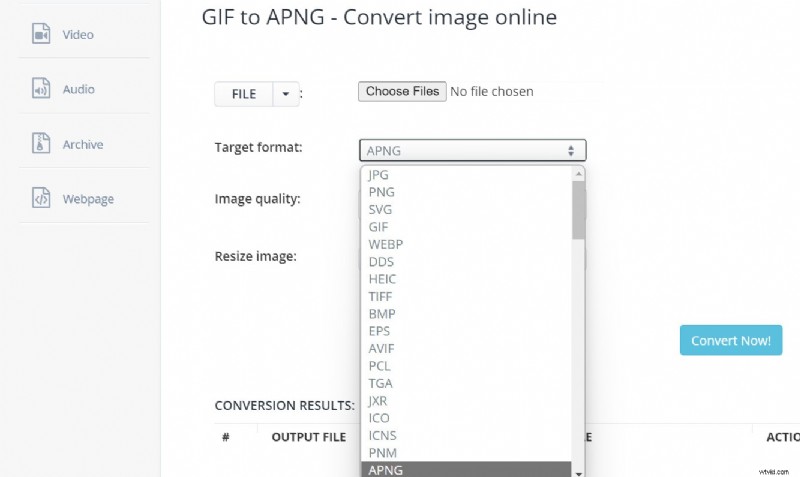
After download, upload the APNG file to your Discord server under Server Settings > Emoji & Stickers.
Turning a GIF into an Animated WhatsApp Sticker
WhatsApp accepts stickers in WebP format at 512 × 512 px. The simplest route is to use UniConverter or a dedicated GIF‑to‑WebP tool to resize and export your GIF.
Steps for creating a WhatsApp sticker:
Step 1 – Prepare the GIF
Open UniConverter, convert your GIF to WebP, and set the canvas size to 512 × 512 px.
Step 2 – Add to WhatsApp
Open WhatsApp on your phone, tap the paperclip icon in a chat, select Sticker, then + to upload the WebP file.

Ensure the final file is under 100 KB to avoid upload errors.
Creating a Telegram Sticker from a GIF
Telegram stickers are also WebP images, sized 512 × 512 px. You can use UniConverter to produce the correct file, then publish it via the official @Stickers bot.
Steps:
Step 1 – Convert GIF to WebP
Use UniConverter or Filmora to create a 512 × 512 WebP image from your GIF.
Step 2 – Start a New Pack
Open the @Stickers bot, type /newpack, and follow the prompts to name your pack.
Step 3 – Add Stickers
Send the WebP file to the bot, assign an emoji, and repeat until you reach the desired number of stickers (up to 120).
Step 4 – Publish
Type /publish to finalize the pack. The bot will give you a shareable URL.
Customizing GIF Stickers with a Video Editor
For users who want full creative control, Wondershare Filmora offers robust editing features that let you craft polished GIF stickers from scratch.
Highlights:
- AI‑driven Sticker Generator for quick creation from prompts.
- Offline editing—no internet required.
- Export to GIF, MP4, WebM, or other formats.
- Trim, overlay text, stickers, and apply color or speed adjustments.
Workflow:
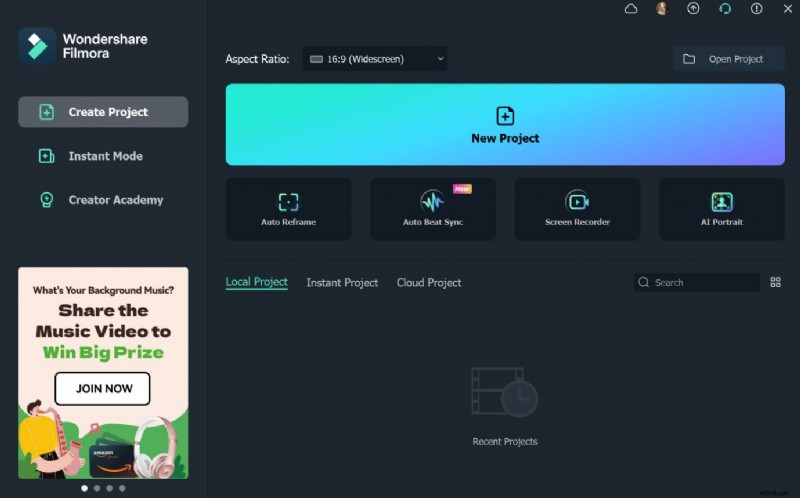
Step 1 – Import Media
Open Filmora, click New Project, then Import Media or drag and drop your video or image.
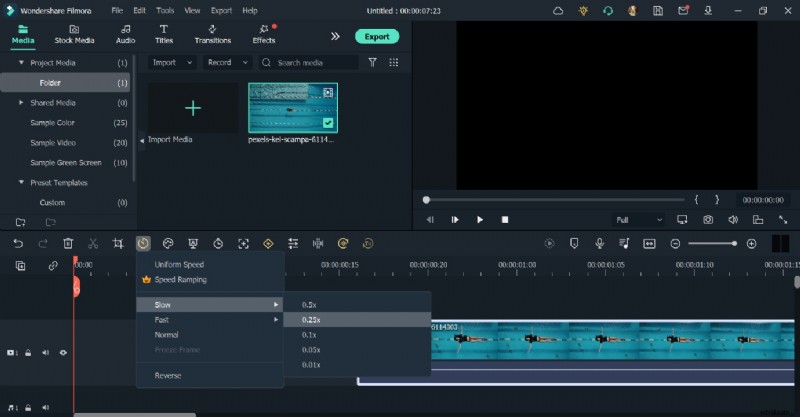
Step 2 – Edit
Drag the clip to the timeline, add text or stickers, adjust speed, and crop as needed.
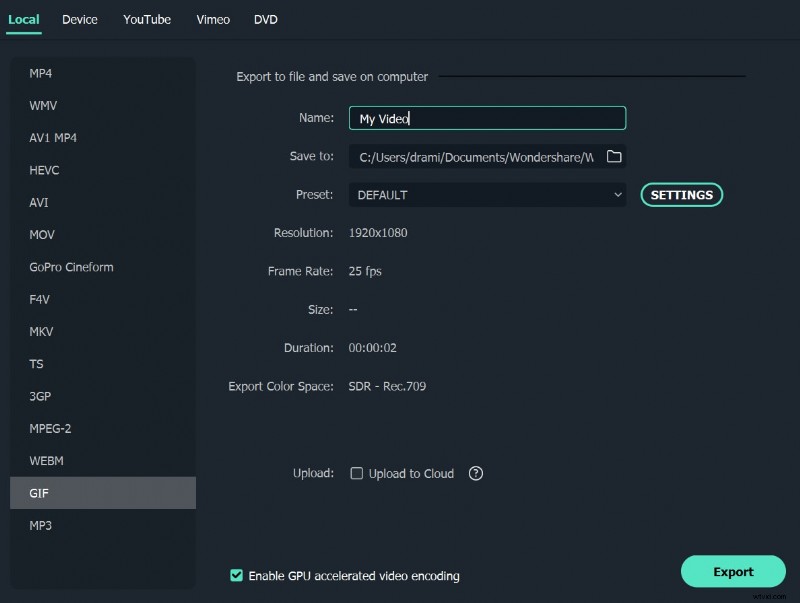
Step 3 – Export as GIF
Click Export, choose Local > GIF, and set the output size to 512 × 512 px.
The resulting GIF can then be converted to WebP (using UniConverter or EZGIF) and uploaded to your messaging app.
Adding GIF Stickers with Filmora Mobile
Filmora’s mobile app mirrors many desktop features, including a rich sticker library and Giphy integration for animated stickers.
Steps:
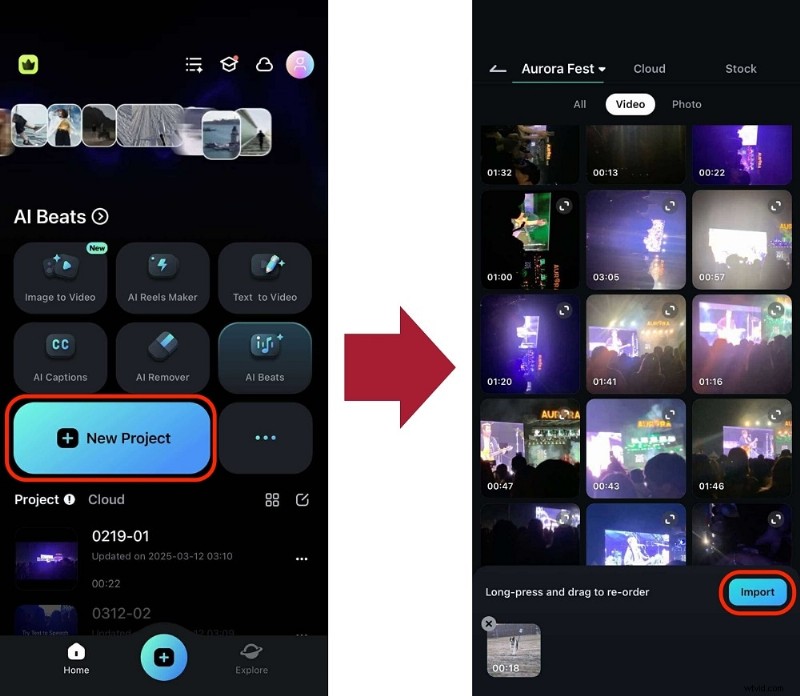
Step 1 – New Project
Import your video or image.
Step 2 – Apply Stickers
Open the Stickers tab, browse or search for animated stickers, and drag them onto the timeline.
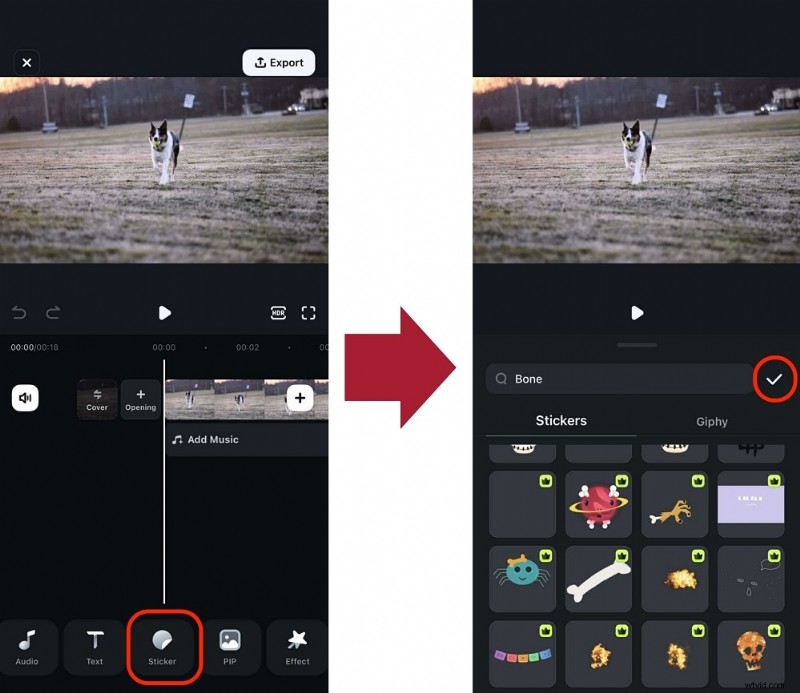
Export and share directly via WhatsApp, Telegram, or Discord.
Final Thoughts
With a few clicks and the right tools, you can turn any GIF into a polished sticker that fits the specifications of Discord, WhatsApp, or Telegram. Remember to match the required dimensions (320 × 320 px for Discord, 512 × 512 px for WhatsApp and Telegram) and format (APNG or WebP) before uploading.
FAQ
-
How do I convert a GIF to a sticker?
Upload the GIF to a converter like EZGIF or Filmora, adjust size and frame rate, then export to WebP. The WebP file can be uploaded to most sticker‑supporting platforms.
-
How do I add a GIF sticker to Discord?
Convert the GIF to WebP or APNG using EZGIF or AConvert. In Discord, go to Server Settings > Emoji & Stickers and upload the file.
-
How can I make a GIF into a Telegram sticker?
Export the GIF as a 512 × 512 WebP file via EZGIF or Filmora. Use the @Stickers bot to create a new pack and upload the WebP file.
-
How do I upload a sticker to Telegram?
After converting to WebP, start the @Stickers bot, type
/newpack, add your stickers one by one, assign emojis, then publish the pack.