
This type of search is based on the input of an image file and returns results that relate to the image. Search engines like Google and TinEye can be used to perform reverse image searches. Some websites allow users to perform a reverse image search, including Reddit.
Search engines let you find images directly linked to your search terms through image searches, which are already familiar to many of us. However, there's another kind of image search you can use when you already own an image and need to locate similar images, determine its source or origin, or verify its validity. A reverse image search tool is available for Android and iOS devices and desktop and laptop computers.
This article will discuss how to perform a reverse image search android by using different ways. There could be many ways of doing this, but we will discuss those that are the easiest and deliver accurate results. As you are already aware, Google Chrome is readily available on all android devices, so we will discuss how to perform a reverse image search on Android using google chrome.
You can check more articles
- Ways to Reverse Search Pics on Facebook here>>
- Ways to Reverse Search Pics on Instagram here>>
- Ways to Reverse Search Pics on iPhone here>>
This article contains 3 methods:
- Method 1: Using Google Image Search
- Method 2: If Image is Already Present On Your Phone
- Method 3: Using Bing Image Search
Method 1: Using Google Image Search
This is quite an easy method to perform a reverse image search. Suppose you are present on a webpage and you saw an image there. You want to check if the image is plagiarized or copied from any other source. Or you may want to check if someone is copying images from your website without your consent. The follow some simple steps, and you can do the reverse image search easily.
- First of all, open the google chrome browser on your android phone.
- It is pre-installed on almost all android phones.
- Now open the webpage with the image that you want to search with.
- Now tap and hold on to the image for a few seconds until a pop-up menu appears on your screen.
- Now tap on the "Search Google For This Image" or "Search with google lens" option from the menu.
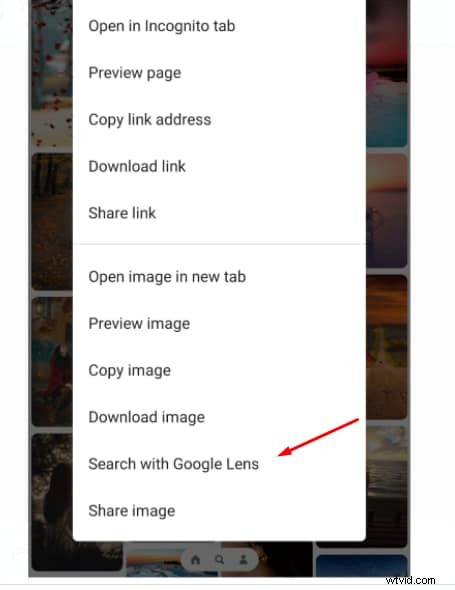
- In just a few seconds, the search results for that image will appear on your screen.
Method 2: If Image is Already Present On Your Phone
In this case, you will need to open the desktop version of the search page on your phone first if the image you want to search is on your phone rather than on a web page.
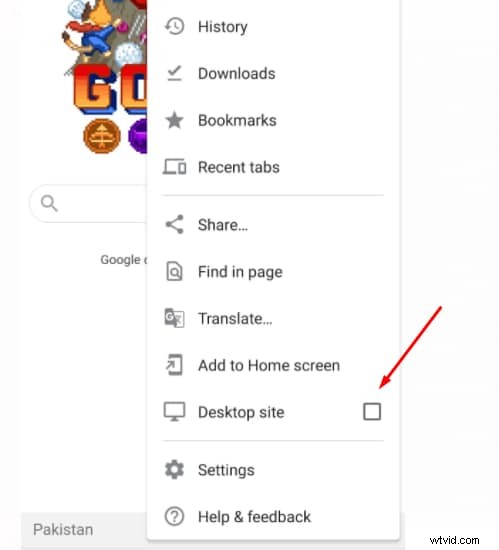
- First of all, click on the three dots on the right side of google chrome from your Android and then check the desktop site option. It will switch you to the desktop version on Android.
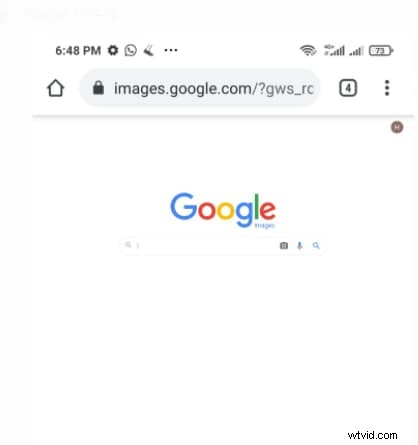
- Once you have switched to the desktop version, go to images.google.com, and you will see a lens icon and other search options.
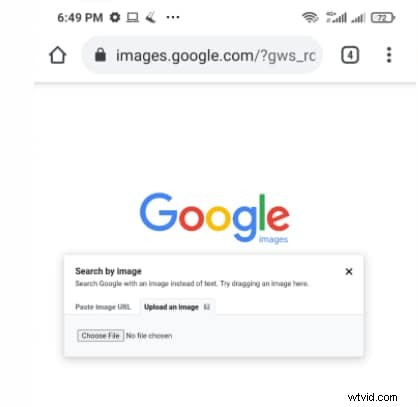
- Tap "Upload an image" in the search by image box, then tap "Choose File." Find and upload the file from your phone.
- Now, wait for a few seconds, and the search results for your image will appear on your screen.
Method 3: Using Bing Image Search
The third method you use to perform a reverse image search on Android using chrome is through bing. Bing is also a search engine just like google, and its features are quite similar to google.
- First of all, open google chrome on your android phone and go to bing.
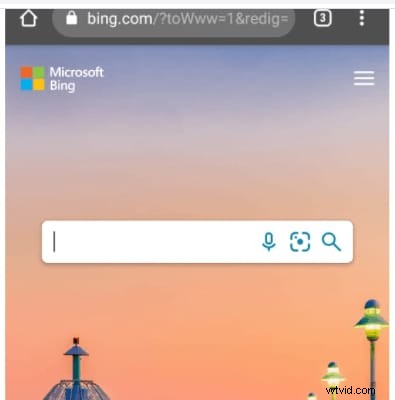
- Now click on the lens icon present on the right side of the search bar.
- It will ask for permission to access your camera. You need to allow permissions so that bing.com can use the camera of your mobile phone.
- Now either you can click the image and search it or get an option to select an image from your mobile gallery.
- Now all you need to do here is, select the image, and in just a few seconds, you will see the results for your searched images.
Final Verdict
Reverse image search is a very useful option to find images on the Internet. There was a misconception that it could only be performed using a desktop computer, but with the advancement of technology, mobile phones can now do this. In this article, we shared 3 different methods with you to perform the reverse image search on your phone.