
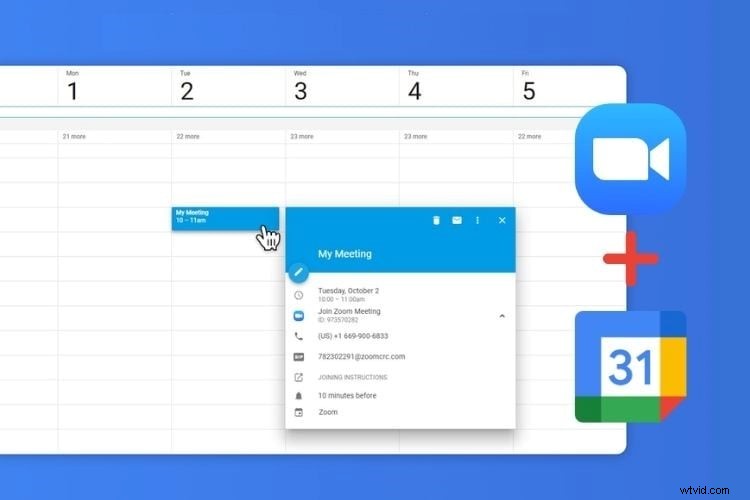
Zoom’s robust feature set—remote meetings, training, and personal video chats—has become a staple for professionals and families alike. With the new Zoom for Gmail add‑on, you can schedule, join, and manage Zoom meetings directly from Gmail and Google Calendar on both desktop and mobile devices.
Whether you prefer Google Meet or Zoom, the integration lets you add a Zoom meeting link to any calendar invite with a single click. After installing the free add‑on from the Google Workspace Marketplace, the Zoom icon appears in Gmail’s sidebar and the “Add Conferencing” button in Calendar, making scheduling frictionless and reliable.
In this guide
- Install the Zoom add‑on for your Google account
- Start a Zoom meeting from Gmail
- Advanced features
- Insert Zoom links into Calendar events manually
- Record your Zoom call
- Create a recurring meeting template
Part 1: Install the Zoom add‑on for Google
The Zoom for Gmail add‑on bridges your Gmail account with Zoom, enabling you to launch and manage Zoom sessions right from the web client.
Steps to install:
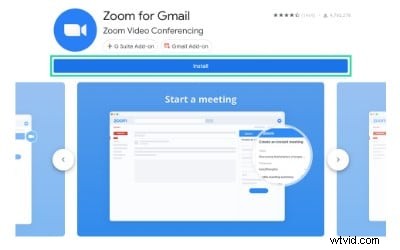
Step 1: Visit the Google Workspace Marketplace
Search for “Zoom for Gmail” and click Install. Follow the prompts to authorize access to your Google account.
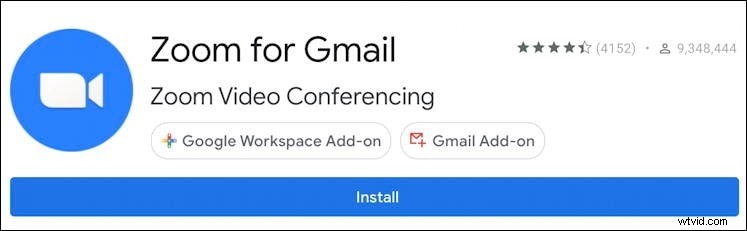
Step 2: Confirm the installation
A pop‑up will confirm that the add‑on has been added. No separate Zoom login is required at this point.
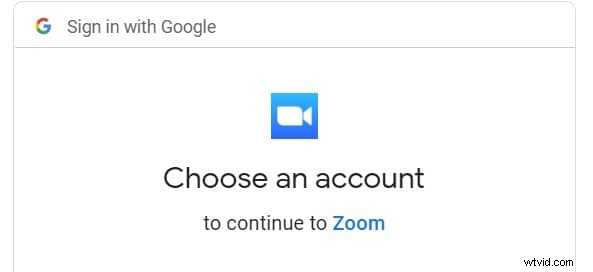
Step 3: Sign in to Gmail
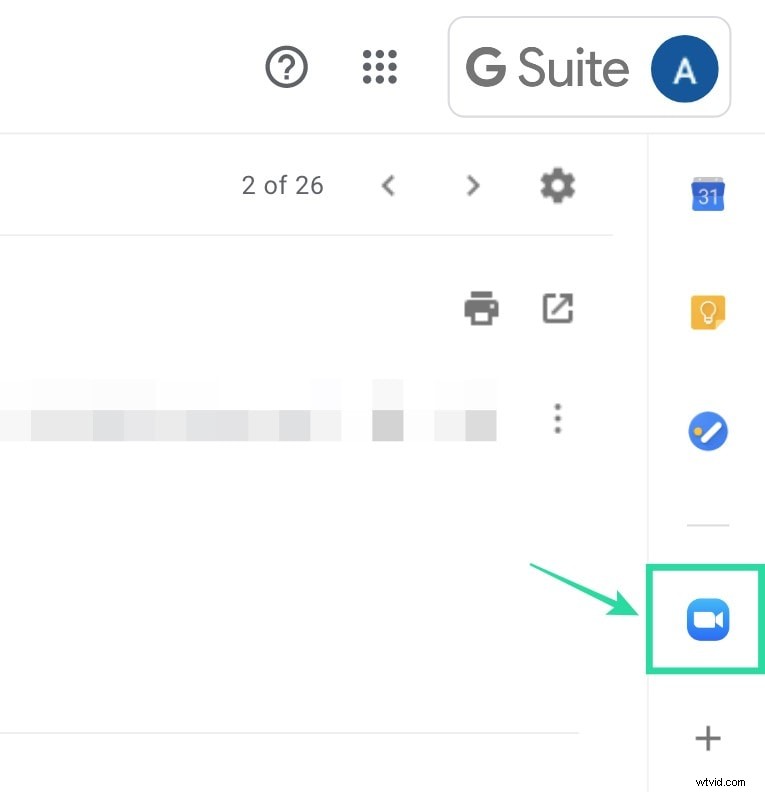
Open Gmail. A new Zoom icon appears in the right sidebar. Click it, then sign into your Zoom account and click Authorize to grant Gmail permission.
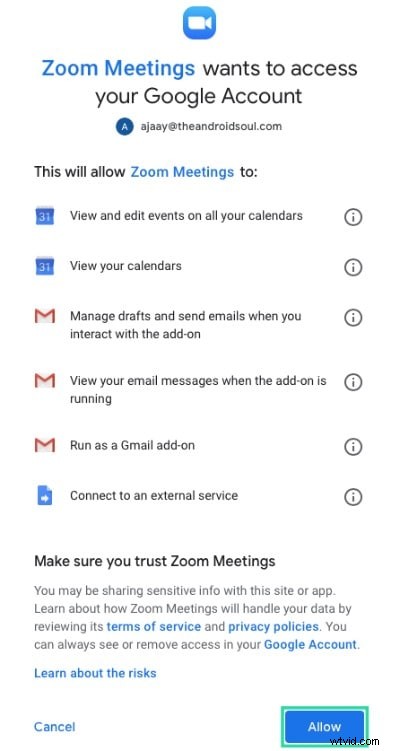
Step 4: Grant admin approval (if required)
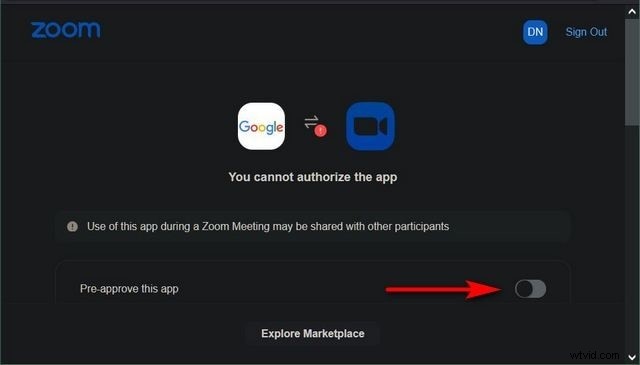
For G‑suite users, you may need your administrator’s approval. Click Request pre‑approve and follow the on‑screen instructions.
Part 2: Start a meeting from Zoom for Gmail
Once the add‑on is installed, you can schedule a Zoom meeting directly from Gmail or Calendar. The meeting title will automatically populate from the email subject line or Calendar event name.
Steps to use the add‑on:
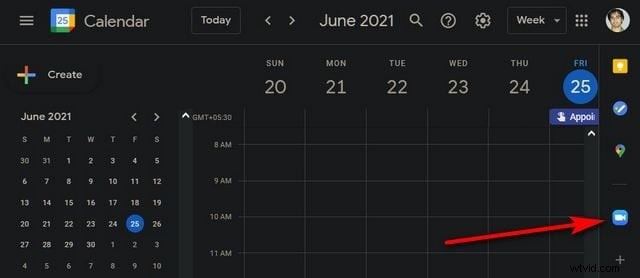
- Open Google Calendar and locate the Zoom icon in the right‑hand pane. Click to log into your Zoom account.
- Enable Pre‑approve and grant the add‑on access to your Google data.
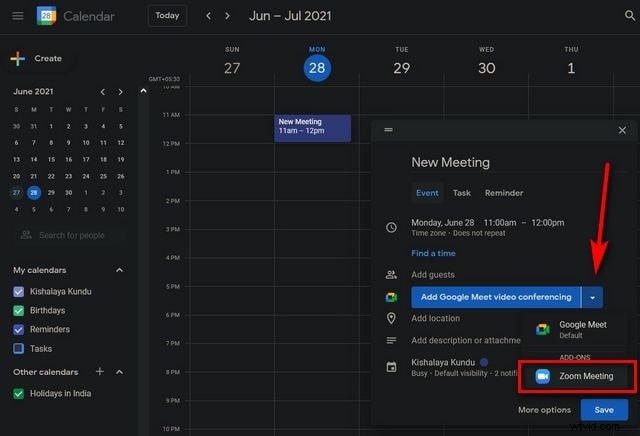
- Create a new Calendar event. Check the Add Conferencing box and choose Zoom Meeting from the drop‑down list. Click Save to preserve the selection.
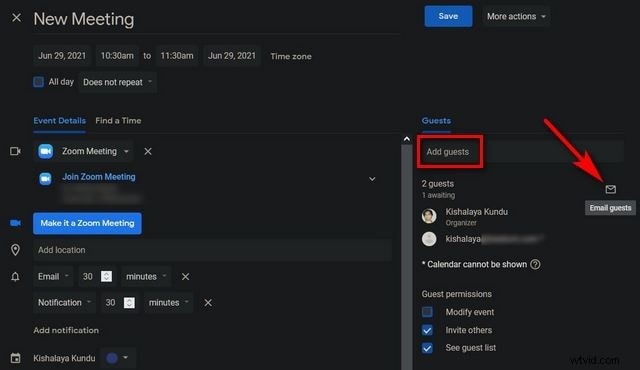
- The event will automatically populate with the Meeting ID, password, and join link. Invite attendees via the Add Guests section and send the invitation by clicking the envelope icon.
Part 3: Advanced tips for Zoom in Gmail
Even without the add‑on, you can still add Zoom links to Calendar events manually. However, the add‑on offers the most seamless experience and protects privacy by limiting permissions.
Calendar link addition (manual method)
If you prefer not to use the add‑on, copy the Zoom invitation from the Zoom client and paste the details into the Calendar event’s notes section.
- Start a Zoom meeting and click Copy Invitation.
- Open Google Calendar, paste the invitation into the Notes area, and click Save.
- Send the invitation to guests; they will see the Zoom link in their Calendar and can join with a single click.
Record your Zoom call
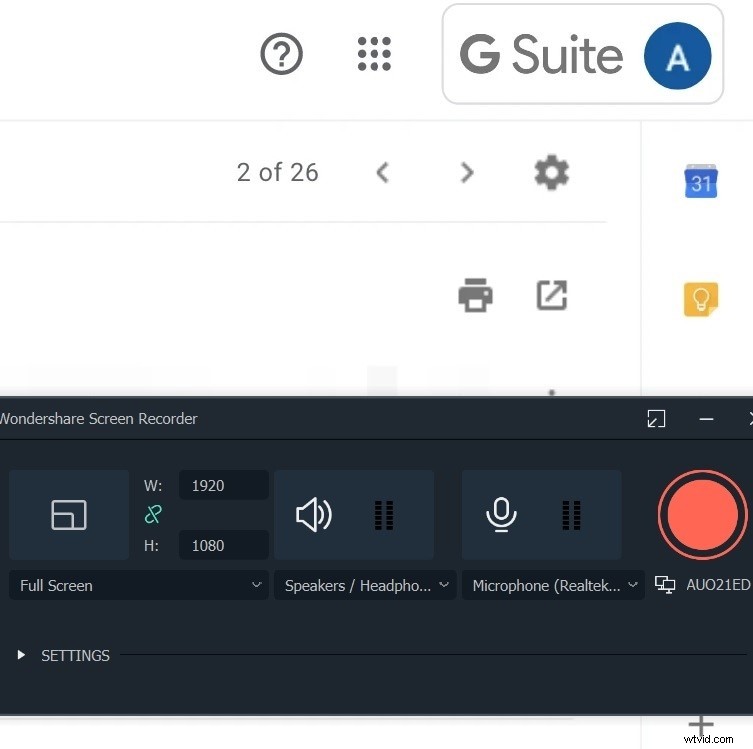
Zoom allows you to record meetings locally or to the cloud. Local recordings store the video file on your device, while cloud recordings are saved to your Zoom account for easy sharing.
For a streamlined experience, you can pair Zoom recording with screen‑capture tools like Filmora. Filmora records your screen, camera, and audio simultaneously, and provides built‑in editing features to refine the final video.
Create a recurring meeting template
Set up a recurring Zoom meeting by saving a single meeting URL and configuration. Subsequent events will reuse the same link and settings, eliminating the need to re‑enter details each time.
Conclusion
With the Zoom for Gmail add‑on, adding a Zoom meeting to Google Calendar is instant and secure. Participants receive a direct link, and you can manage the meeting’s settings from within Gmail or Calendar. For recordings, Filmora offers a convenient, all‑in‑one solution for capturing and editing your Zoom sessions.