
Want to create a dreamy slow‑motion effect, add flair to educational clips, or shorten a lengthy tutorial? Manipulating video speed unlocks powerful storytelling possibilities. This guide walks you through three proven methods for speeding up or slowing down footage—whether you’re working on a product demo, a classroom lesson, or a creative montage.
In this article
- Part 1. Slowing Down or Speeding Up Videos on PC: Windows and Mac Guide
- Part 2. How to Quickly Adjust Video Speed Using an Online Tool
- Part 3. A Guide to Slowing Down or Speeding Up Videos on Android and iPhone
- Conclusion
Speed Ramping Video Maker
Slow down or speed up your videos with precise keyframe control to create unique cinematic effects!
Part 1. Slowing Down or Speeding Up Videos on PC: Windows and Mac Guide
The most efficient way to adjust video speed on a desktop is through dedicated editing software. Wondershare Filmora delivers a comprehensive toolkit that lets you modify speed with minimal effort. Its AI‑powered Co‑Pilot feature guides beginners step‑by‑step, while advanced users can leverage keyframe animation for custom ramping. Filmora’s workflow is identical on Windows and macOS, ensuring a consistent experience regardless of platform.
Step 1: Launch Filmora and Import Video Files
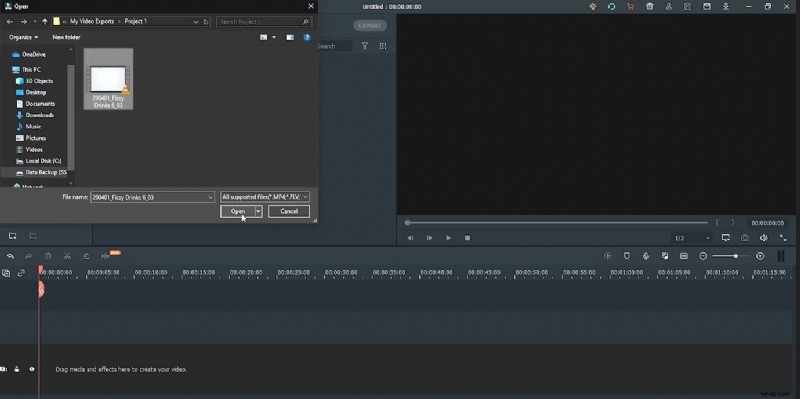
Open Filmora and start a new project. Import your footage via the "Import" button or by dragging files directly into the media library.
Step 2: Add the Clips to the Timeline
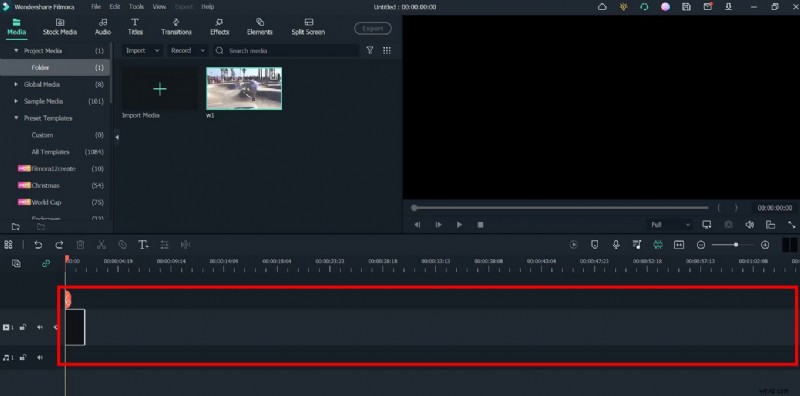
Drag the imported video onto the timeline to prepare it for speed editing.
Step 3: Open the Speed Adjustment Panel
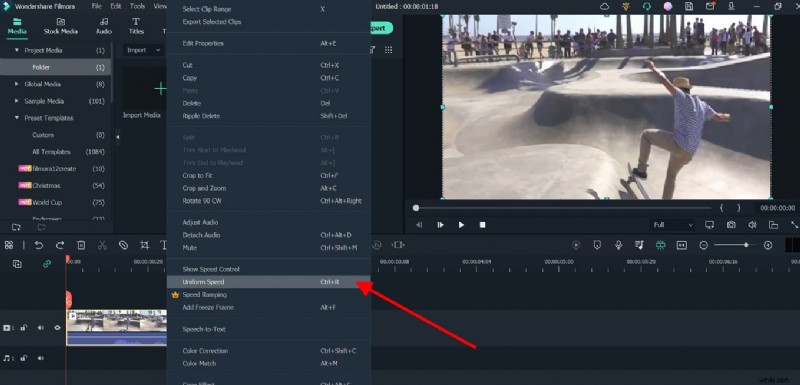
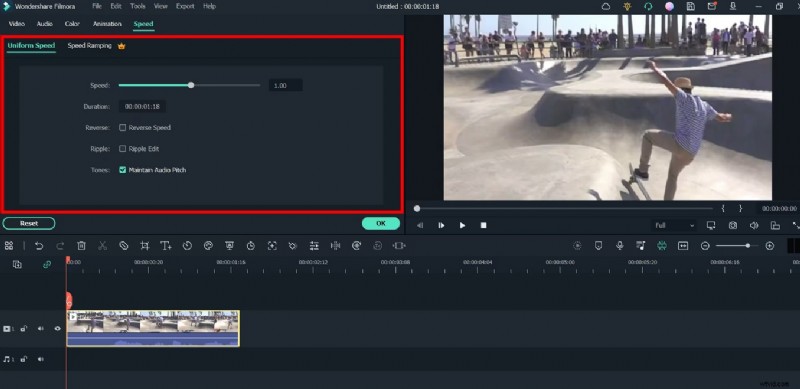
Double‑click the clip on the timeline to reveal the Uniform Speed panel. Click the "Uniform Speed" option to access the slider.
Step 4: Adjust the Speed Slider
Use the slider to set your desired speed. Values range from 0.5× (half speed) to 2.0× (double speed). Preview the result in real time.
Step 5: Detach the Audio
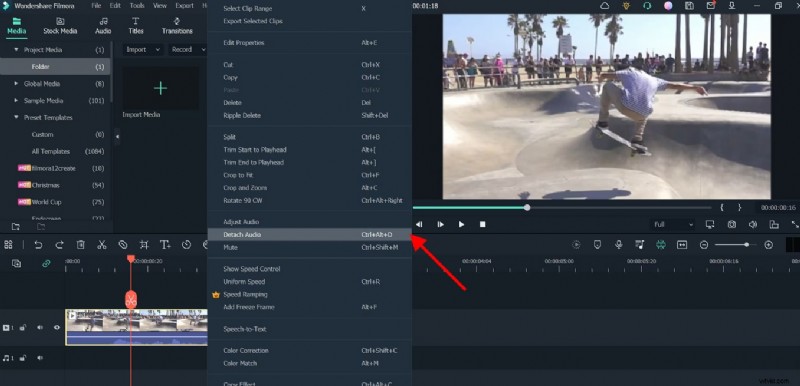
Speed changes affect the audio track. Right‑click the clip and choose "Detach Audio" to edit the soundtrack independently—apply fades or adjust volume as needed.
Step 6: Export Video
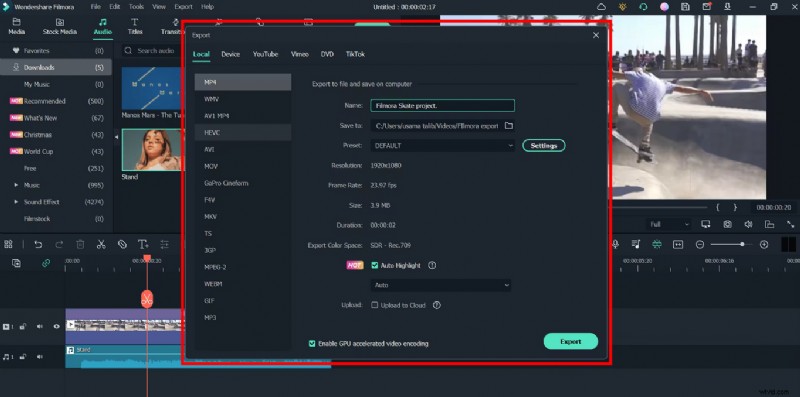
When satisfied, click "Export". Select your preferred format, resolution, and destination folder, then hit "OK" to render the final file.
Part 2. How to Quickly Adjust Video Speed Using an Online Tool
If you prefer not to install software, Fastreel’s free online editor lets you tweak video speed up to 500 MB in MP4 format. For other formats, convert first using any reliable converter.
Step 1
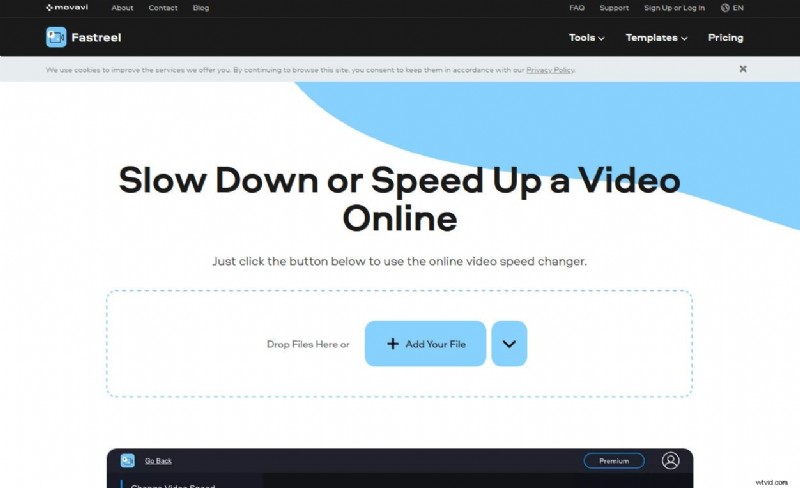
Navigate to the Fastreel website and click "Add Your File" to upload the clip you want to edit.
Step 2
In the "Video Speed" section, choose the desired multiplier. The preview updates instantly. If needed, mute the audio, then click "Export Results" to download the processed video.

Part 3. A Guide to Slowing Down or Speeding Up Videos on Android and iPhone
Smartphones offer quick speed adjustments through native or free third‑party apps. Below are step‑by‑step instructions for both Android and iOS.
1. How to Change the Speed of Your Video on Android
Many Android users rely on the built‑in Gallery editor. It’s straightforward and eliminates the need for extra downloads.
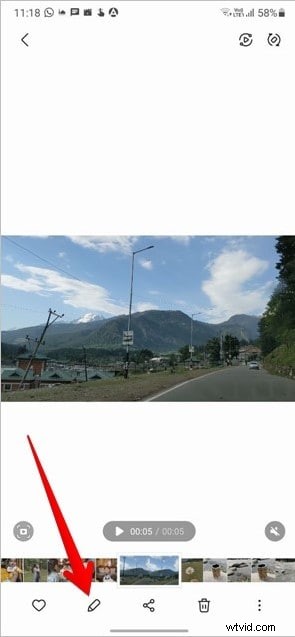
Step 1: Launch the Gallery app
Open the target video and tap the "Edit" icon at the bottom.
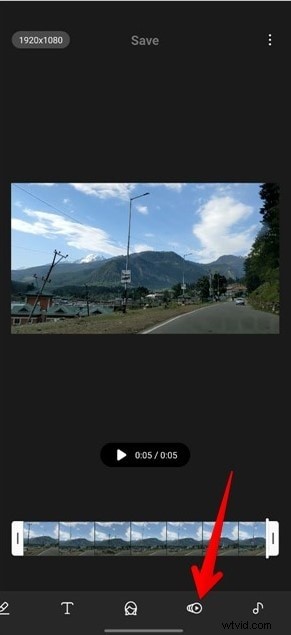
Step 2: Find the Speed Icon
Scroll the toolbar until you locate the speed icon and tap it.
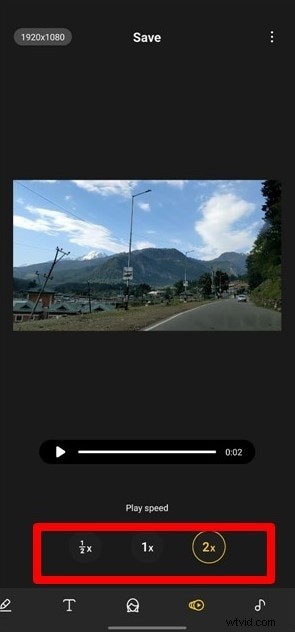
Step 3: Adjust the Speed of the Video
Choose from presets—2× for fast motion or ½× for slow motion—and preview the result.
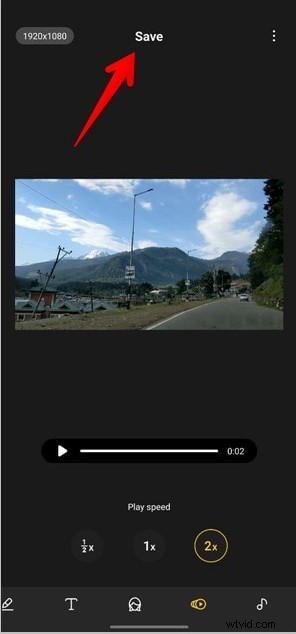
Step 4: Save the Video
Confirm your changes and tap "Save" to export the edited clip.
2. How to Change the Speed of Your Video on iPhone
Apple’s iMovie app is a powerful, free solution for iOS devices.
Step 1: Launch iMovie App
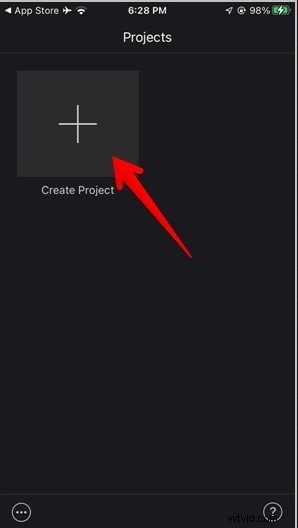
Open iMovie and tap the "+" to create a new project.
Step 2: Select Movie
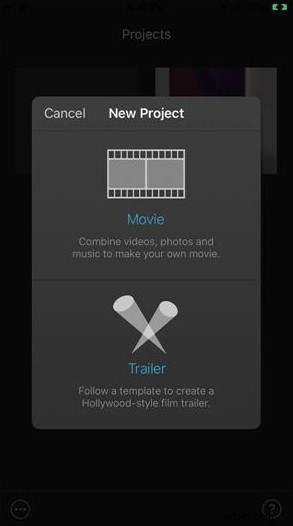
Choose "Movie" from the project options.
Step 3: Create Movie
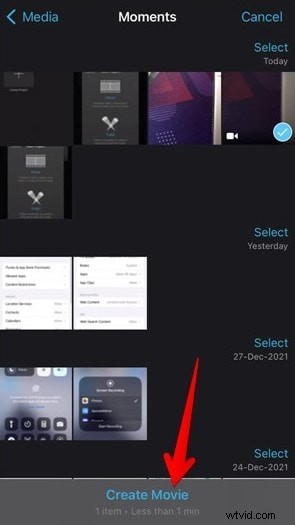
Select the clip you want to edit and tap "Create Movie".
Step 4: Adjust the Speed of the Video
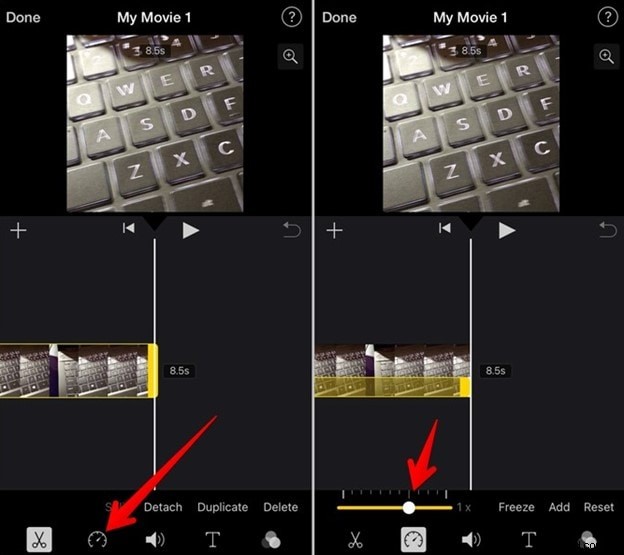
Tap the clip, then tap the speedometer icon. Drag the slider to your preferred speed and preview.
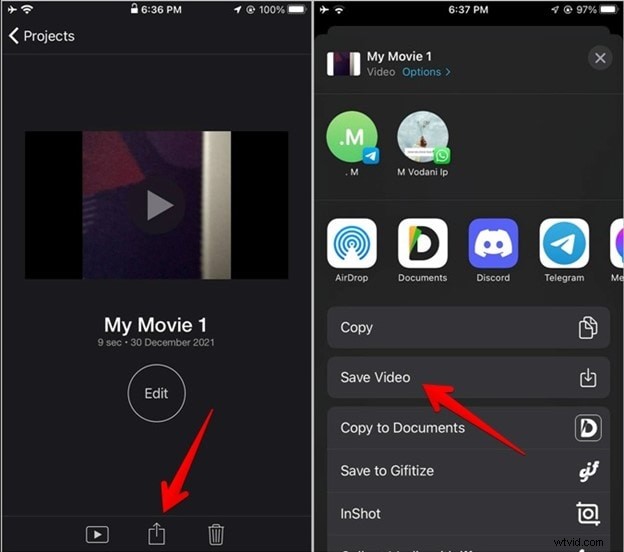
Step 5: Preview and Save
Play the video to confirm the adjustment. Tap "Done", then share or save the final file.
Conclusion
Whether you’re a beginner or a seasoned editor, Wondershare Filmora provides a reliable, cross‑platform solution for fine‑tuned speed control. Its intuitive interface, AI enhancements, and robust keyframe capabilities make it a top choice for creating engaging slow‑motion and fast‑motion content. Explore the full suite of AI tools in Filmora V13 to automate routine tasks and elevate your creative workflow.