
If you are a techy person, you must be familiar with the VLC Media player. It is a well-known video player for Android, Windows, macOS, and other operating systems. However, VLC is also helpful for video editing and trimming. This tool provides all the essential features to trim, edit, and split the video clip as per your choice. The best thing about VLC is that it is free and supports multiple formats. If you are unsure about using the video trimmer VLC, you should get a perfect review of it. Being a team of tech experts, we analyze every tool in detail. Don’t worry; we have shared an unbiased review of the video trimmer VLC. It will surely help you decide whether it meets your needs.
In this article
- What is VLC Media Player?
- How to Cut/Trim Videos in VLC Media Player
- Best Alternative of VLC Player: Wondershare Filmora
Part 1: What is VLC Media Player?
VLC is the world's most popular and widely used media player. You have seen the orange cone icon of VLC on your mobile, PC, or any other system. This free video player supports the majority of video and audio formats. Due to its highly versatile and powerful media player, people like it very much. It helps run files that are not compatible with players. The VLC media player is also seamlessly compatible with Windows, MacOS, Linux, and Android systems. To learn more about the VLC, you must become familiar with its features.

Let’s get familiar with the trim VLC features and learn how to trim video.
Supports Multiple Formats: The best thing about the VLC is that it supports many media files. You can easily play and edit the videos using MP4, AVI, or MOV format. All this makes for an excellent choice to trim video on VLC.
Cross Platform Compatibility: VLC is widely accessible on all platforms using Windows, macOS, or Android software. This makes it easy for you to trim your videos on any device.
Offers Multiple Editing Features: VLC is not just a media player but also includes editing and trimming features. It allows you to set the start and end times for cutting videos. You can conveniently remove the unwanted parts from the videos and create a seamless user experience.
Part 2: How to Cut/Trim Videos in VLC Media Player
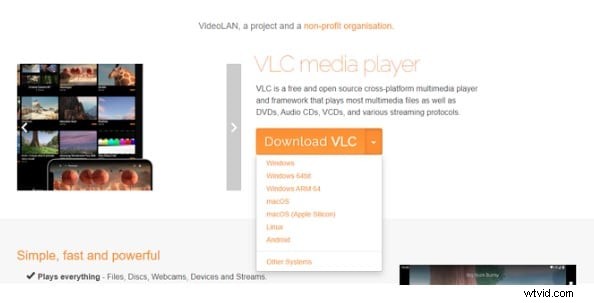
Step1Download the VLC media player
Step2Upload video clips
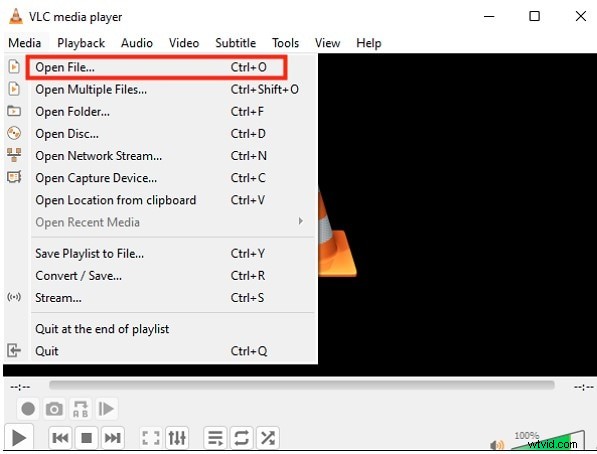
Click on media and select the open file option to upload the video you want to trim.
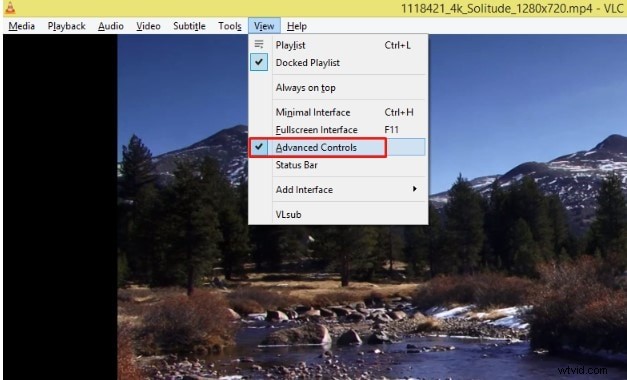
Step3View and enable Advanced Control Options
Step4Enable record
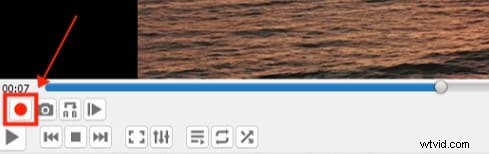
To start recording, move the slider to the frame you want to start with, then press Shift+R or the red Record button.
Step5Stop Recording
To stop recording your new video, move the slider to the desired frame and press the Record or Shift+R keys again. The newly edited video in VLC can now be found on its default save path when you open the Windows File Explorer.
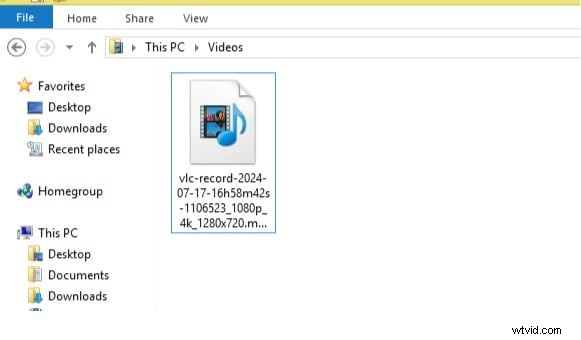
That’s all. In this way, you can trim your large videos in the VLC media player. However, it is a time-consuming process that helps you trim unnecessary parts of the video. Look at some unique advantages of video trimmer VLC.
Pros- Free of Cost
- Available for Windows, macOS, Linux, Android, and iOS
- Only good for short videos to cut, split, and trim
- No real-time preview available
- Limited features
We have practically trim video in VLC Player and have not found it up to date. No doubt, it is a wonderful video player, but while you are starting your hands-on editing feature, you get disappointed. This is not a dedicated video trimmer or editor, so if you are working on an important project, you must use a professional video editor like Wondershare Filmora.
Part 3: Best Alternative of VLC Player: Wondershare Filmora
The VLC media player for editing and trimming does not match the latest trend. The UI and UX are far behind the latest application for trimming. Anyhow, you have access to the most trusted and useful video editing and trimming software, Wondershare Filmora. Let’s learn how good and wonderful an alternative this tool is to the VLC trimmer.
For those who want quick and fast editing and trimming, Wondershare Filmora offers the best intrusive interface for it. Whether you are a beginner trying your hand at editing or a professional editor, it holds everything for you. To understand better about Filmora, become familiar with its unique features.
Unique Features:
- Offer AI based smart editing and trimming features.
- Dedicated video editing and trimming software comes with advance features.
- Supports a variety of formats and resolutions. Allowed to edit and export 4K videos.
- User can quickly edit and trim videos very well.
- Provide high quality output and maintain the quality of videos.
Let’s see how easy trimming videos is in Wondershare Filmora:
Step1Download and Install Filmora on your device
Step2Click on “new project” and enter the video editing dashboard
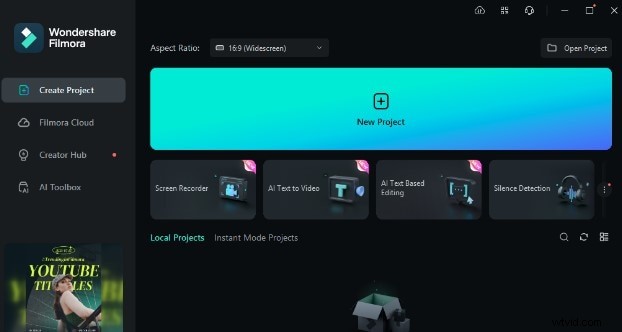
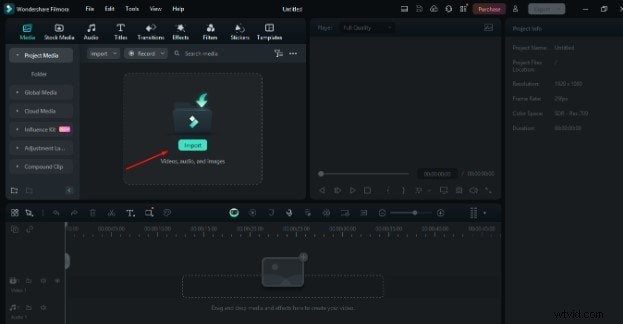
Step3Upload your video to start trimming
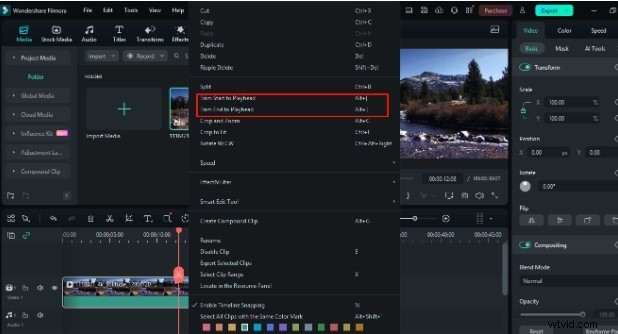
Step4Drag the red ribbon and right-click to show the trimming option for the video
Step5Export your clips
That’s it! Your video has been trimmed. Now, simply click on the “export’’ button and export the video to your PC or share it on social media platforms in any format.

What if I tell you that you can also reframe the format of the video?
Well, after trimming the video, you can reframe the video format with our Auto Reframe feature. It automatically detects the video's focal point, crops it, and keeps it in the frame. This feature makes it easy for you to prepare your videos for multiple platforms, such as social media, etc.
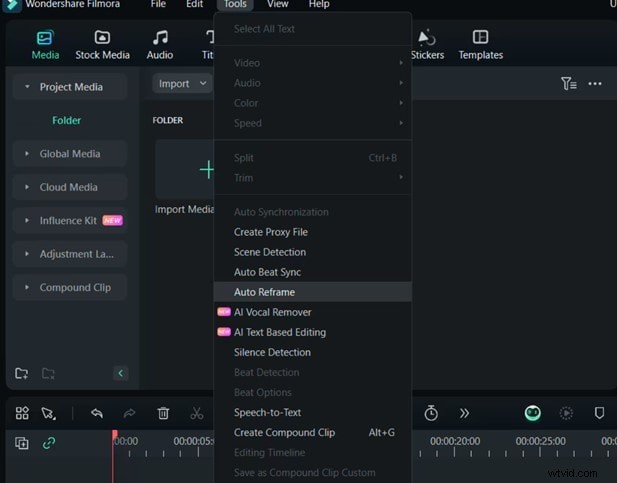
To use this feature, go to the tools or simply right-click on the uploaded video and choose Auto Reframe.
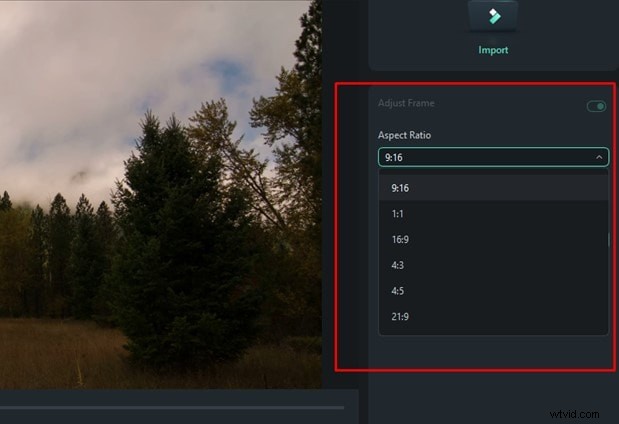
Next, choose the desired aspect ratio for the video.
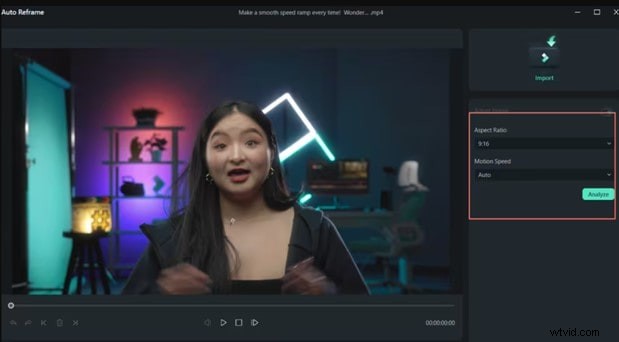
Once you confirm the desired ratio, click on the analysis option and your video will be instantly reframed within a few seconds.
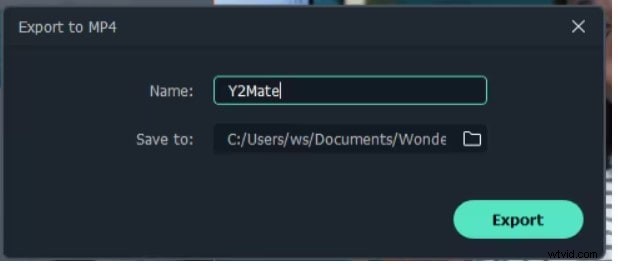
If you’re satisfied with the results, tap on the export option and share it wherever you want.
So why not use Wondershare Filmora to get quick results? Try it now and see for yourself how user-friendly and practical a video editing tool it can be.
Conclusion
Now, after getting the complete analysis of the VLC trimmer, it has opened your mind to how worthy VLC is as a trimmer. However, video trimmer VLC is free of cost and supports all kinds of formats. But when it comes to quality with other tools, it falls short. VLC is not a dedicated video editor tool. If you are working on large and complex videos, then you must use a dedicated video trimmer like Wondershare Filmora. It makes every task very easy and brings out high-quality results.