
YouTube has become a big part of our lives. But sometimes, the video speed can be too fast to catch every detail or fully understand what's being shown. That's why slowing down YouTube videos can be helpful. Whether you want to grasp tricky information, closely examine details, or just enjoy your content at a slower pace, this guide will show you simple steps to adjust the playback speed. Learn how to slow down YouTube videos and make sure you don't miss anything important!
In this article
Part 1. How to Slow Down a YouTube Video on Desktop (3-Second Guide)
The device you choose to watch YouTube videos on can greatly impact how you enjoy and interact with the content. The screen size, resolution, and ease of control all play a crucial role in how effectively you engage with the content.
Considering these aspects, it's widely accepted that watching YouTube on a PC offers greater satisfaction. Here are the step-by-step guide to slow down YouTube videos on your PC:
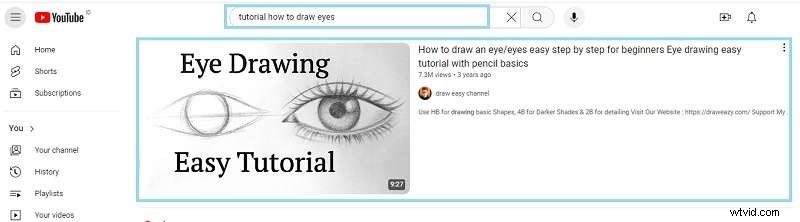
Step 1. Play Your Video
Open YouTube in Chrome/Firefox/Edge and start your video.
Step 2. Activate Controls
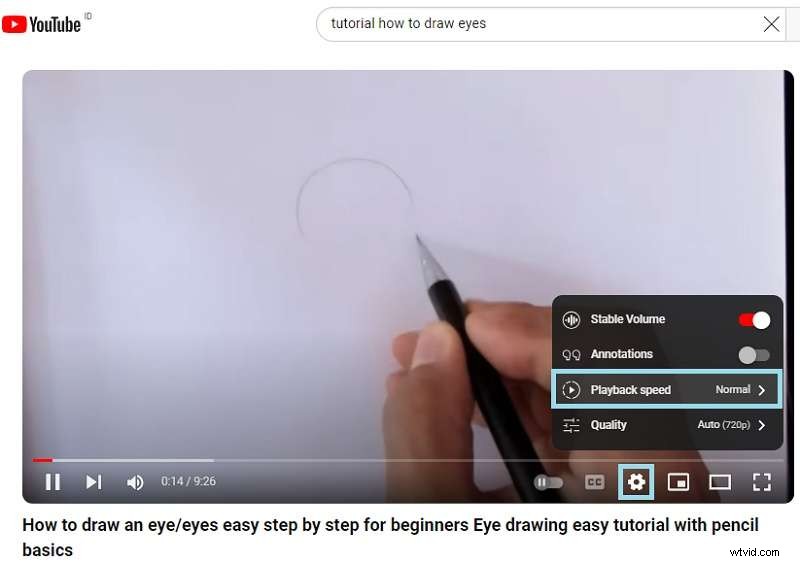
Hover over the player > Click ⚙️ Settings > Select Playback speed.
Step 3. Choose Slow Speed
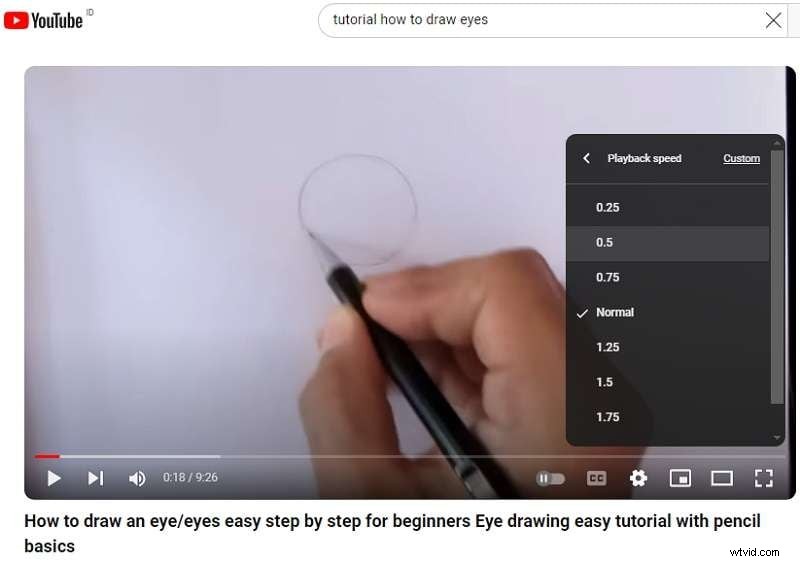
Pick 0.75x, 0.5x, or 0.25x for slow motion. Pro Tip: Use Shift + , to reduce speed incrementally.
Part 2. How to Slowing Down Videos on the YouTube Mobile App
Many mobile phones allow you to use voice commands, so you can control video playback hands-free. You can adjust playback speed, pause, or play videos using your voice only.
These benefits not only make using a mobile device simpler and more convenient but also provide flexibility if you want to slow down YouTube videos. So, without further ado, here's a step-by-step guide on how to slow down YouTube videos on the mobile app (Android):
Step 1. Open the YouTube app and play the video
Begin by launching the YouTube app on your Android device. Make sure you're signed in to your account to access all features seamlessly.
Then, use the search bar at the top to find the video you wish to slow down. Tap on the video thumbnail to start playing it. Allow the video to load fully to avoid any interruptions during playback.

Step 2. Access playback settings
While the video is playing, tap on the screen once to reveal the video controls. In the upper-right corner, tap on the gear icon (⚙️) (often referred to as the "Settings" menu).

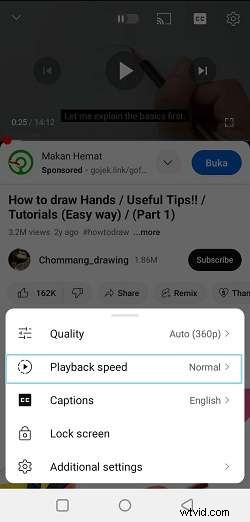
From the dropdown menu that appears, select the "Playback speed" option.
Step 3. Adjust playback settings
A list of speed options will appear, ranging from “0.25x” (the slowest) to “2x” (the fastest). To slow down the video, choose a speed lower than the default 1x. Common options include “0.75x” and “0.5x”, but you can select whichever suits your needs.
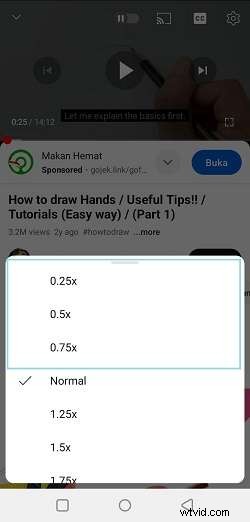
Now, sit back and enjoy the video at your chosen pace. If at any point you want to revert to normal speed, simply repeat the steps above and select "1x" from the playback speed options.
Part 3. How to Slow Down YouTube Videos You've Downloaded
Sometimes, slowing down videos directly on YouTube isn't sufficient for your needs. If you require more precise control over playback speed, external video editing software becomes necessary. In such cases, Wondershare Filmora stands out as the ideal solution.
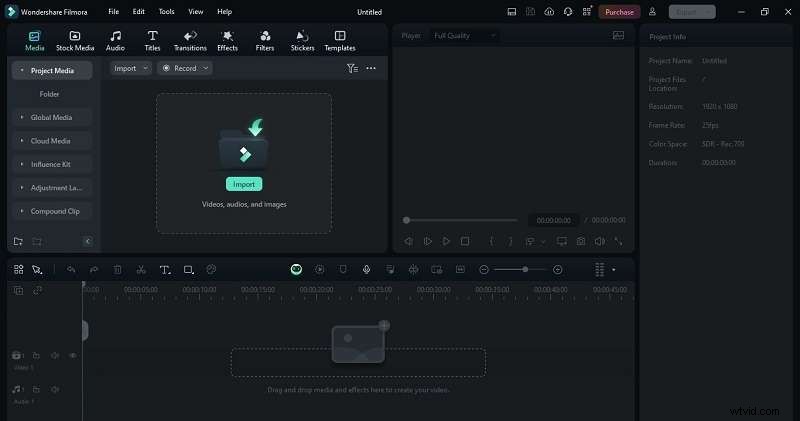
Filmora is a versatile video editing tool available on both desktop and mobile devices, offering a range of powerful features. Its AI-powered tools make it easy to slow down your downloaded YouTube videos with precision. Features like Speed Ramping and Uniform Speed allow you to adjust the video speed smoothly and accurately, giving you full control over how your content is presented.
Here's a list of features in Filmora that make video editing easier:
- Uniform Speed: Adjust the entire video's speed evenly, whether you want to slow it down or speed it up.
- Auto Reframe: Automatically adjust the video's framing for different screen sizes, keeping the main subject in focus.
- Motion Tracking: Tracks moving objects so you can add text or effects that follow the movement.
- Multi-Clip Editing: Easily combine and edit multiple video clips in one project.
- Auto Beat Sync: Matches your video with the music's beat, helping you create videos that sync perfectly with the background music.
Moreover, Filmora is affordably priced with multiple options that suit your budget. If you want to try it out first, Filmora also offers a free version.
Follow this step-by-step guide to slow down downloaded YouTube videos on Filmora:
Step 1. Open Filmora and upload your video
If you haven't installed Wondershare Filmora yet, get the latest version here. Follow the installation steps, and once it's done, open the program. Create a new project, then import your downloaded YouTube video. Simply drag and drop the video onto the editing timeline to get started.
Step 2. Access the Speed Ramping feature
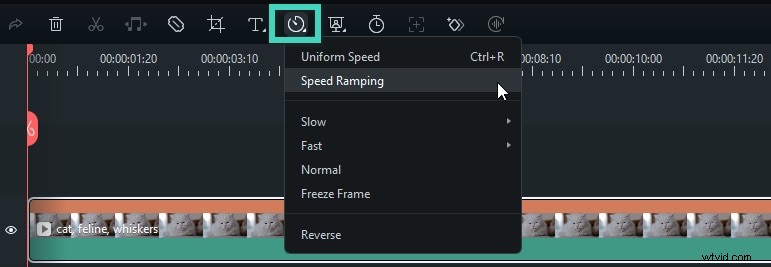
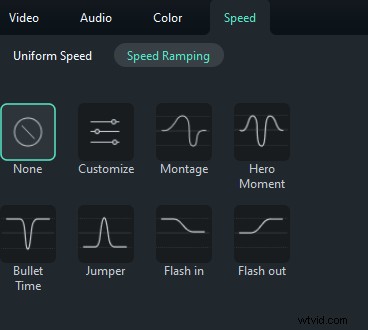
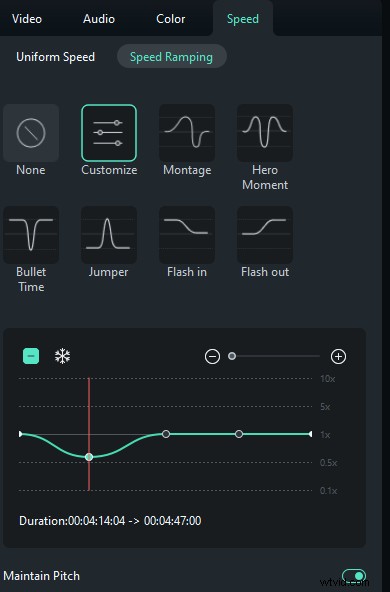
Click on the video in the timeline, then click the “Speed” icon. Select the “Speed Ramping" option, and you'll see several choices in the property panel.
In the “Speed Ramping” panel, you can either customize the speed yourself or choose from preset options like “Montage” (0.9x, 0.9x, 6.9x, 0.3x, 1.0x, 1.0x), “Hero Moment” (1.0x, 1.0x, 5.4x, 0.5x, 0.5x, 5.4x, 1.0x, 1.0x), “Bullet Time” (5.2x, 5.2x, 0.5x, 0.5x, 5.2x, 5.2x), “Jumper” (0.6x, 0.6x, 6.0x, 0.6x, 0.6x), “Flash In” (5.2x, 5.2x, 1x, 1x), and “Flash Out” (1x, 1x, 5.2x, 5.2x). You can pick a preset speed ramp or create your own custom one.
Step 3. Customize the Speed Ramping
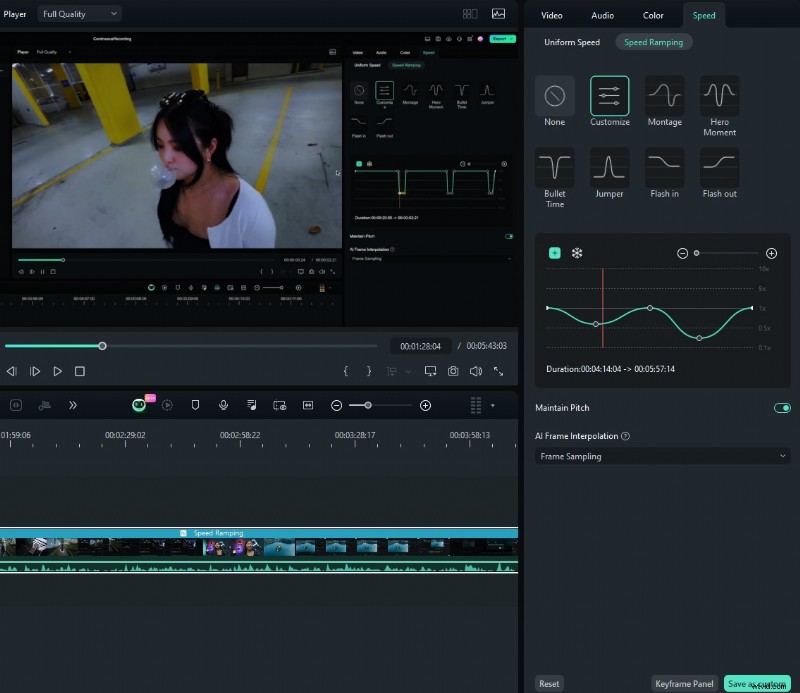
Choose one of the presets to apply variable video speed, and then adjust it as needed. The speed will stay the same until the Playhead reaches the next speed point. As the Playhead moves between speed points, the video speed will gradually change.
Step 4. Preview and save the video
Click the "Play" button in the preview window to see the changes in your video. If needed, you can click "Reset" to undo the settings. You can also save your speed ramping adjustments by clicking the "Save as Custom" button.
Step 5. Use the Uniform Speed feature as an alternative
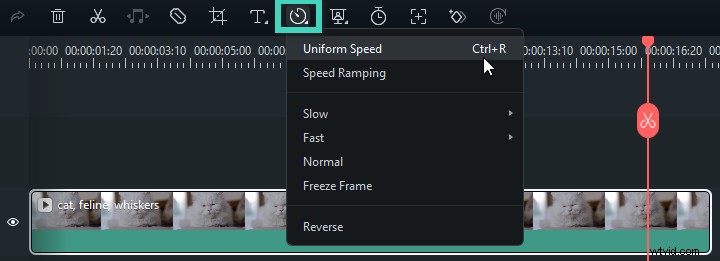
In addition to speed ramping, Filmora offers another advanced feature called Uniform Speed, which lets you control the playback settings of your video. To use this feature, simply click on the video in the timeline, then click the “Speed” icon in the toolbar above, and select the “Uniform Speed” option.
Step 6. Adjust the speed
Move the Speed slider left or right to slow down or speed up the playback. For more precise control, you can enter a specific value in the “Duration" field. You can also reverse the video or audio clip for a fun effect.
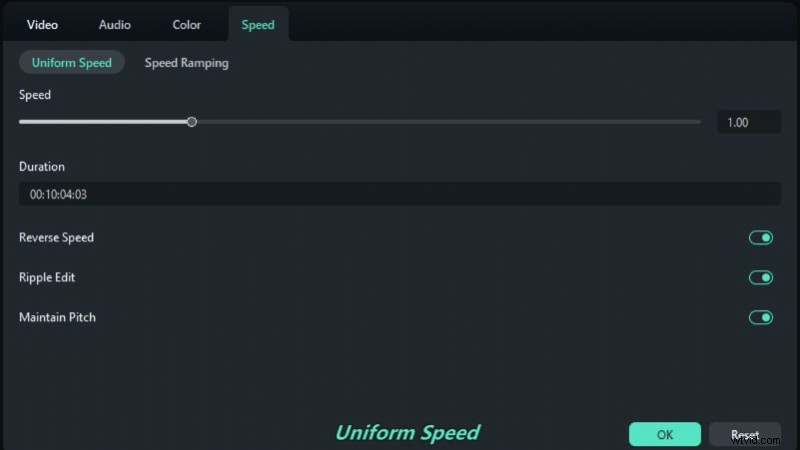
If you're happy with the changes, click “OK” to save them. If not, you can click “Reset” to undo the adjustments. For a more detailed tutorial on speed ramping and uniform speed, you can watch the video provided by Filmora's official team. You can also visit and subscribe to their official YouTube channel for more tips and tricks on using their advanced features.
Conclusion
Slowing down YouTube videos can be really helpful for understanding complex information, examining details, or just enjoying content at a slower pace. As we've discussed, both PC and mobile apps have their own benefits for slowing down YouTube videos. Either way, the process is simple—just find the settings and adjust the playback speed.
However, YouTube's built-in speed controls may not be enough if you need more precise adjustments. For better control, you'll need external video editing software. Wondershare Filmora is a great choice for this.
Features like Speed Ramping and Uniform Speed let you adjust video speed smoothly and accurately. Whether you're using a desktop or mobile app, Filmora offers smooth playback and accurate speed adjustments at an affordable price. It helps improve your video editing experience without costing a lot.