
Speed Up Spotify Playlists
Discover how to accelerate your Spotify listening experience. While Spotify’s native interface lacks a music speed control, you can leverage built‑in podcast speed settings or use trusted third‑party tools to speed up songs safely.

Table of Contents
- Understanding Spotify’s Playback Options
- Adjusting Podcast Speed (Desktop & Mobile)
- Speeding Up Music Tracks with Third‑Party Software
- Tips for Maintaining Audio Quality
- Conclusion
1. Understanding Spotify’s Playback Options
Spotify offers core controls such as volume, skip, shuffle, and playlist creation. It also provides personalized recommendations and social sharing. However, speed adjustments are limited to podcasts and audiobooks, not music tracks. This restriction likely stems from licensing agreements and technical constraints.

2. Adjusting Podcast Speed (Desktop & Mobile)
2.1 Desktop
- Launch the Spotify desktop app or open Spotify Web Player and sign in.
- Navigate to the podcast or audiobook you wish to listen to via “Podcasts & Shows” or “Audiobooks,” or use the Search bar.
- Press Play.
- Click the 1× icon in the Now‑Playing bar.
- Select your preferred speed (0.5×–3.5×). The setting applies to all subsequent episodes.
2.2 Mobile
- Open the Spotify app on Android or iOS and log in.
- Locate the episode in “Your Library” or via Search.
- Tap Play.
- Swipe up on the Now‑Playing bar to reveal the speed selector.
- Choose a speed between 0.5× and 3.5×.
These steps work for both free and Premium accounts, except that audiobook speed adjustment is a Premium feature.
3. Speeding Up Music Tracks with Third‑Party Software
When you need to accelerate music on Spotify, third‑party tools like Wondershare Filmora can help. Filmora allows you to import Spotify tracks, adjust playback speed, and export the result as an MP3.
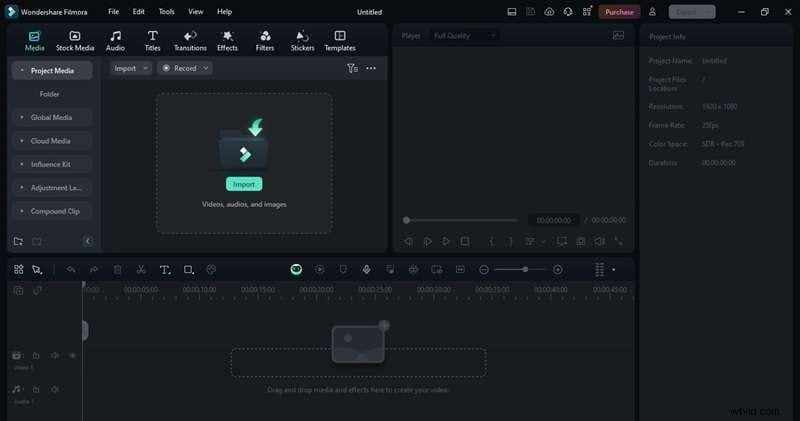
3.1 Step‑by‑Step Using Filmora
- Import the Spotify track into Filmora’s timeline.
- Click the audio track, then select Speed > Fast from the toolbar and choose the desired rate.
- Preview the audio to ensure it sounds natural.
- For finer control, right‑click the speed value, choose Custom Speed, then adjust the slider under Speed > Uniform Speed.
- Once satisfied, export the file as MP3.
4. Tips for Maintaining Audio Quality
- Start with high‑resolution audio. Low‑quality files can become distorted when sped up.
- Use Filmora’s audio enhancement tools to reduce artifacts.
- Apply speed ramping for smooth transitions if you change speed mid‑track.
- Synchronize audio with video using Filmora’s timeline and visualizer for video projects.
5. Conclusion
Spotify’s native platform does not support music speed adjustment, but with podcast controls or reliable tools like Filmora, you can tailor your listening experience to your pace. By following the steps above and applying quality‑preserving techniques, you’ll enjoy faster playlists without compromising sound fidelity.