
If you’re looking to turn ordinary footage into eye‑catching fast‑motion clips on your iPhone, the built‑in Time‑Lapse feature offers a quick start but limits control over speed and smoothness. For full creative freedom, Wondershare Filmora Mobile delivers professional‑grade editing right from your device.
Filmora lets you adjust speed up to 10×, add dynamic speed ramps, apply creative filters and overlays, and export in a wide range of formats—all with an intuitive interface. Below you’ll find a comprehensive walk‑through of how to use Filmora to create uniform and dynamic fast‑motion videos, plus how to capture time‑lapse footage directly with your iPhone’s Camera app.

In this article
-
- How to Make Video Fast Motion on iPhone Using Filmora
- How to Make Dynamic Fast‑Motion Videos with Speed Ramping
-
- How to Record a Time‑Lapse on your iPhone
- When to Use and Record Time‑Lapse?
Part 1. Why Filmora Mobile is Ideal for Fast‑Motion Videos
Fast‑motion videos capture high‑energy moments—like a bustling cityscape or a swirling sky—in seconds, turning the ordinary into the extraordinary. Filmora Mobile stands out because it allows you to speed up footage up to 10× directly on your iPhone, while also supporting ultra‑slow motion down to 0.01× for creative contrast.
- Precision Speed Control: Adjust speed in fine increments, ensuring a seamless fast‑motion effect.
- Creative Filters & Overlays: Enhance every clip with Filmora’s extensive library of filters and overlays for a polished look.
- Wide Format Support: No compatibility issues—Filmora accepts a broad array of video formats.
- Customizable Clip Duration: Modify clip length to achieve the exact tempo you desire.
For even higher speed, export your clip and re‑import it into Filmora Desktop, where you can push the effect up to 100×.
Part 2. How to Make Stunning Fast‑Motion Videos on iPhone Using Filmora
Filmora offers two primary methods: Uniform Speed for a steady, even effect, and Speed Ramping for dynamic, adjustable speed changes that add visual energy.
How to Make Video Fast Motion on iPhone Using Filmora
Follow these steps to apply a uniform speed‑up:
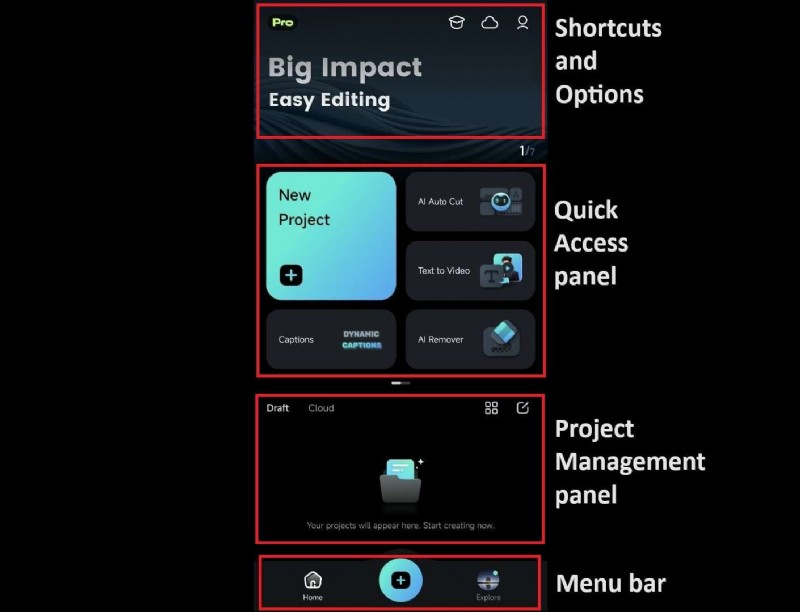
- Launch Filmora: Open the app and either select an existing project or tap New Project to start fresh.
- Import Your Video: Browse your gallery, choose the clip you want to speed up, and tap Import.
- Access the Speed Tool: In the Timeline, tap the clip, then select Trim in the Toolbar. Enable the Speed tool from the bottom toolbar.
- Apply Uniform Speed‑Up: The speed panel opens with the Normal tab. Drag the slider from 1× to your desired speed—up to 10×. The adjusted duration appears at the bottom. Tap the checkmark to apply.
How to Make Dynamic Fast‑Motion Videos with Speed Ramping
Speed Ramping lets you vary speed within a single clip, creating engaging motion dynamics:
- Enable the Curve Tool: With the Speed tool active, switch to the Curve tab.
- Select a Preset: Filmora offers five built‑in presets—Highlight, Montage, Jump Cut, and more—each tailored to a different style.
- Customize the Preset (Optional): Tap a preset to move speed “beats” along the curve, adjusting speed for specific sections.
- Create a Custom Curve: Choose Customize, then add beats by tapping Add Beat and drag them to control speed. Use Delete Beat to remove sections.
Part 3. Record Fast‑Motion Videos (Time‑Lapse) on iPhone
The iPhone’s native Camera app provides a simple way to capture time‑lapse footage, compressing hours into seconds. This is ideal for scenes that evolve slowly, such as sunsets, cloud movement, or a painting process.
How to Record a Time‑Lapse on Your iPhone
- Open the Camera App and swipe to Time‑Lapse mode.
- Set Up Your Shot: Stabilize your device on a tripod or flat surface to avoid jitter.
- Start Recording: Tap the red record button; the Camera app automatically adjusts frame rate to create a smooth fast‑motion clip.
- Stop Recording: Tap again to finish; the app speeds up the footage automatically.
When to Use and Record Time‑Lapse?
Time‑lapse is perfect for documenting gradual changes—flower blooming, traffic flow, construction progress, or creative projects. After recording, you can enhance the clip with Filmora’s editing tools for further refinement.
Conclusion
Whether you prefer to speed up existing footage with Filmora Mobile or capture a new time‑lapse directly from your iPhone, creating professional fast‑motion videos has never been easier. Filmora’s versatile speed tools and the Camera app’s built‑in time‑lapse mode give you all the flexibility you need to turn everyday moments into dynamic, shareable content.
