
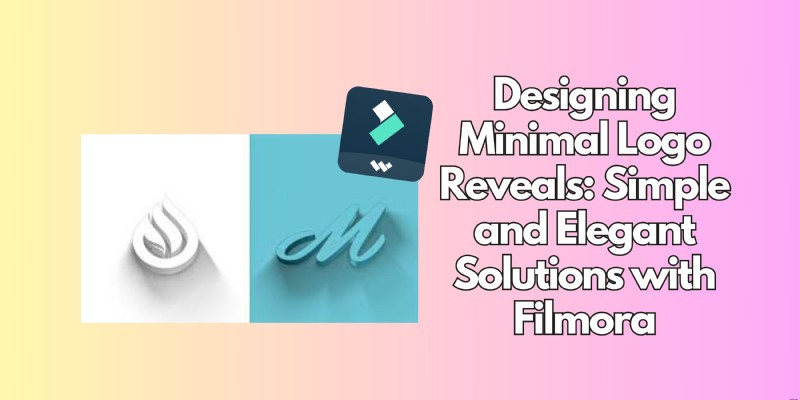
Minimal logo reveals blend clean typography with subtle motion, delivering a professional and timeless brand impression. By stripping away unnecessary flourishes, these animations keep the focus where it belongs – on the logo itself.
Wondershare Filmora offers an intuitive, drag‑and‑drop environment that lets even novices produce polished reveals. This guide walks you through every step—from concept to export—while sharing best practices for timing, sound, and industry‑specific adaptations.
In this guide
- What a Minimal Logo Reveal Is
- Using Filmora to Build Your Reveal
- Fine‑Tuning for Impact
- Industry Applications
- Conclusion
Part 1: What a Minimal Logo Reveal Is
Definition
A minimal logo reveal introduces a brand mark with restrained motion: fades, gentle scale shifts, and understated typography. It prioritizes clarity over spectacle, ensuring the logo remains the focal point.
Core benefits include increased memorability, faster loading times for web assets, and a sophisticated aesthetic that resonates across sectors.
Part 2: Using Filmora to Build Your Reveal
Follow these steps to create a clean, elegant animation with Filmora. Whether you’re a seasoned designer or a first‑time user, the platform’s user‑friendly tools make the process straightforward.
1. Launch Filmora
Open Filmora and start a new project. Import your logo file—preferably PNG for transparency—to avoid unwanted backgrounds.
2. Browse Minimalist Effects
Navigate to the Effects and Titles panels. Search for simple transitions such as Fade In or Light Sweep. Drag the chosen effect onto your logo layer to apply it instantly.
3. Customize Your Logo
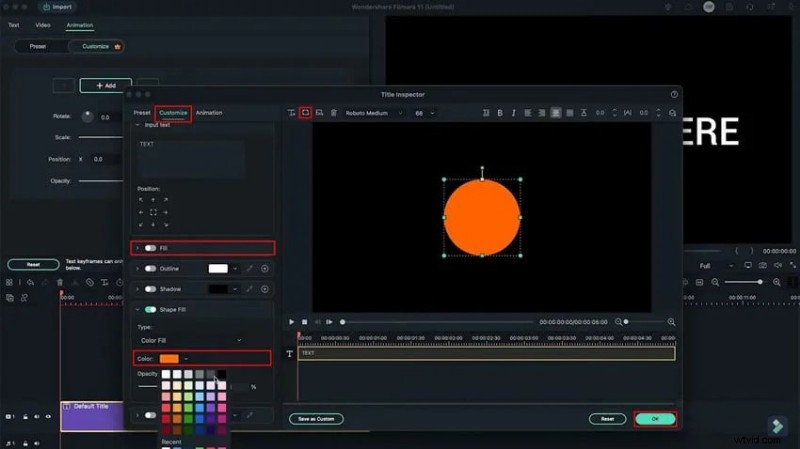
Fine‑tune opacity, scale, and movement to achieve a smooth transition. Optional color gradients or text overlays can reinforce brand consistency, but keep them minimal.
4. Export the Final Video
Preview the animation to ensure seamless motion. Export in MP4, MOV, or GIF—formats that preserve quality while keeping file sizes light.
Part 3: Fine‑Tuning for Maximum Impact
1. Timing Matters
A concise reveal—3 to 5 seconds—captures attention without overstaying its welcome. Use ease‑in at the start and ease‑out at the end to create natural, polished motion.
2. Subtle Sound Design
Complement the visual with gentle audio cues. Soft chimes, ambient hums, or light swishes can enhance the animation without distracting from its minimalism.
3. Final Polish
Sync visual and audio cues, adjust the pacing, and render the final version. A refined reveal reflects brand professionalism and invites lasting recall.
Part 4: Industry‑Specific Applications
Minimal logo reveals excel in several sectors:
- Luxury Brands: Clean lines and muted palettes echo high‑end aesthetics.
- Tech Companies: Subtle motion conveys innovation without visual clutter.
- Personal Branding: A timeless reveal reinforces individual credibility and style.
Why Choose Minimal?
- Versatility: Works across corporate, creative, and digital contexts.
- Timelessness: Avoids fad‑driven visuals that quickly age.
- Professionalism: Communicates sophistication with restraint.
- Focus: Directs viewer attention straight to the logo.
Conclusion
Minimal logo reveals deliver elegance and clarity. With Filmora, you can craft these animations quickly and effortlessly; for advanced users, Adobe After Effects offers deeper control. Remember, the key to a memorable reveal lies in subtlety—balancing motion, sound, and timing to reinforce your brand’s identity across digital platforms.