
Need to have a crowd in a scene? Here’s a tutorial on how you can duplicate small groups of people to create a crowd in Premiere Pro and other NLEs.
Whether it’s an angry mob or a gaggle of adoring fans, large crowds are a necessary part of many films — even small ones. Watch the tutorial below to see how easy it is to build a crowd of your own in Premiere Pro.
Extra Expenses
In the days before computers, filmmakers simply hired extras, dressed them in costume, and put them in front of the camera. The 1959 film Ben-Hur used 10,000 extras. The Lord of the Rings trilogy made use of the New Zealand Armed Forces.
Unfortunately, real life extras can get expensive fast. Even at minimum wage, once you factor in parking, food, and makeup, you can spend $100+ a day per extra, which makes a crowd a big expense.
Big Hollywood movies often use completely digital extras — made by the VFX department — to populate their stories. One program in particular, Weta Digital’s “MASSIVE,” makes big crowds look very realistic. But, at $16,000 before any actual animation is done, it isn’t a cheap solution.
Selective Masking
One cost-effective way to get the best of both worlds is to use a small group of extras and duplicate them into a larger crowd. This is done by carefully shooting multiple passes, with the extras standing in different locations, and then laying these “plates” on top of one another. With selective masking, the small group can be duplicated as many times as needed.
Start on set. To save yourself headaches later, it’s important to get the different groups as close as possible, but not overlapping.
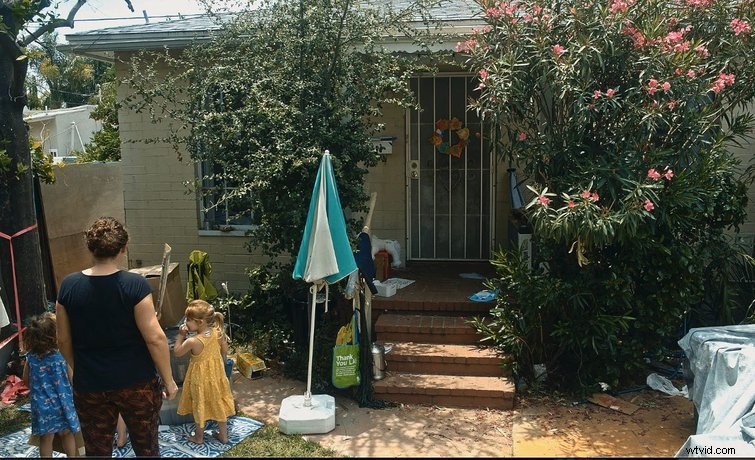
You can use marks on the ground or on the camera display.
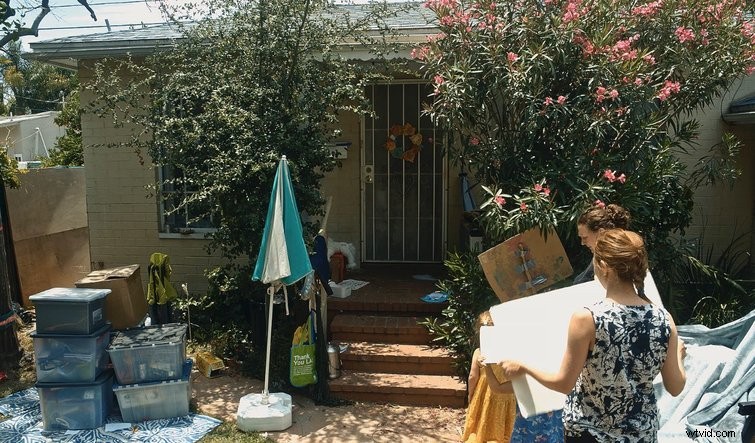
Shoot your plates one after another. You’ll have an easier time if the extras swap clothes in-between each setup, so that their duplication doesn’t seem as obvious.
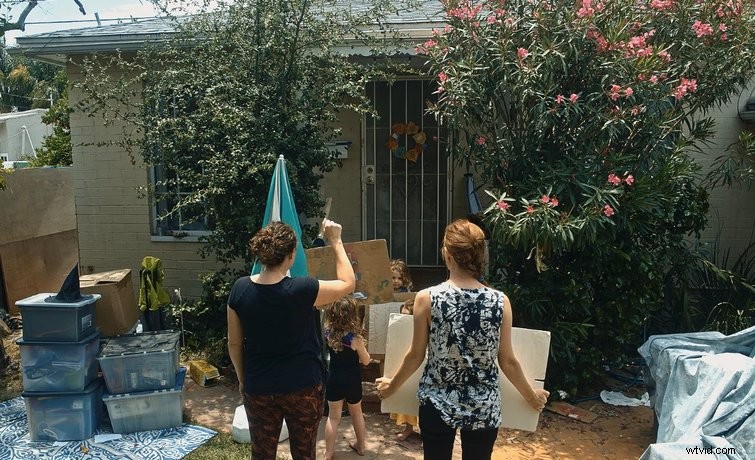
You’ll also need to make sure that the lighting is the same over all the shots. If you’re shooting on a set, this is easy. But, if you’re shooting outside, you’ll need to wait until clouds pass so that each shot is consistent.
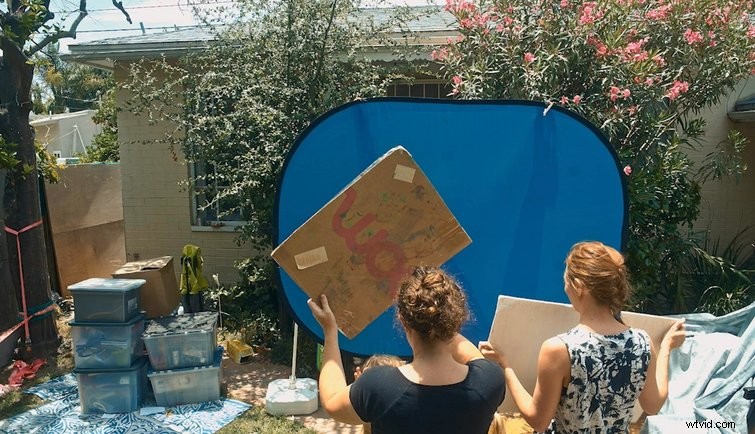
If there’s going to be multiple layers of extras, the ones that are in front will need to be keyed so that you can see the ones behind. Often, a large green screen or blue screen is used, but it must cover the group completely.
Stack Plates
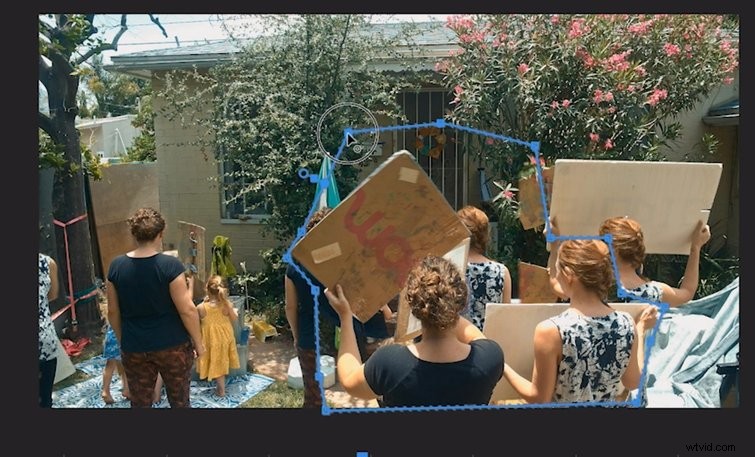
In Premiere, or the NLE of your choice, you can now stack the plates in your timeline on top of one another. Use a mask to select just the part of the shot that the extras are in. If you’ve done this carefully, you may be able to use a simple rectangle. But, if there are more complex shapes, you’ll need to trace around the crowd with the pen tool, and adjust it as the crowd’s actions change.
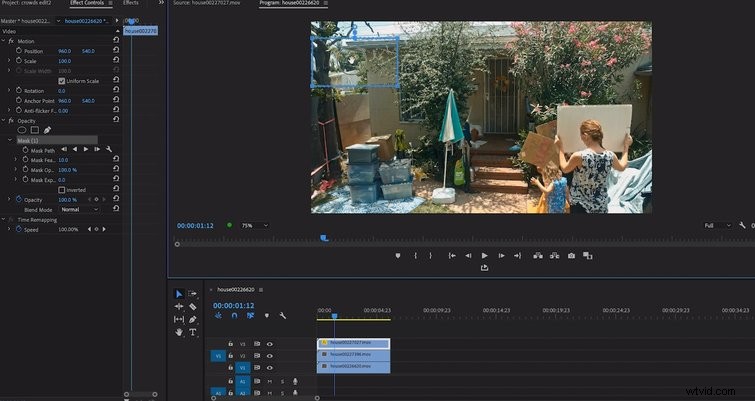
For the front layers, use a keyer tool — like Color Key in the Effects tab — to key out the green or blue screen you’re using. You may also need to add a mask to get rid of extra parts that aren’t keyed out.
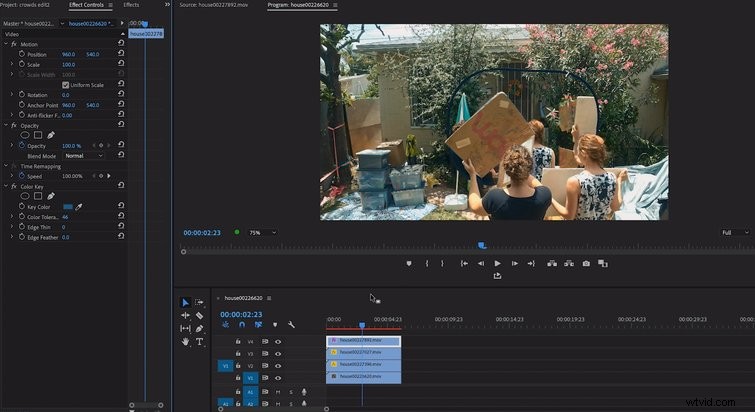
If you’re working with multiple layers, you may be able to conceal less precise masks in the lower layers by placing crowds in front of them.
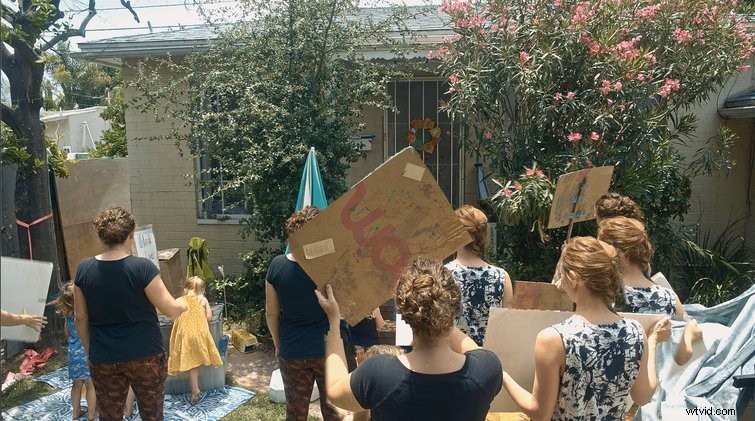
Digital crowd duplication is an optimal way to make a few actors go a long way, but it takes patience, precision, and careful camera work to pull it off.
Looking for a few more post-production tricks? Start here:
- How to Capture Professional-Grade Stunts Safely with a Long Lens
- How to Establish a Location by Using Color Grading
- How to Quickly Stabilize Footage in Final Cut Pro
- How to Create Data-Driven Animations in Adobe After Effects