
In today’s social‑media‑centric world, a single video that blends multiple moments can captivate audiences instantly. Video collages let you combine photos, clips, and graphics into one polished narrative—ideal for personal memories, travel highlights, or marketing content. Below is a curated list of the best video‑collage tools available on iPhone and Android, plus actionable guidance to help you create compelling stories.
Top 10 Video Collage Apps for 2026
These apps have earned praise for their intuitive interfaces, powerful features, and versatility across platforms.
1. Wondershare Filmora
- Merge images and video clips effortlessly, with animated overlays, stickers, and text.
- AI‑powered background removal (Smart Cutout) and object eraser (AI Remover).
- 4K export, keyframing, cinematic filters, and an extensive audio library.
Pros: beginner‑friendly, high‑resolution output, rich effects library.
Cons: premium features behind a subscription, heavy on device resources.
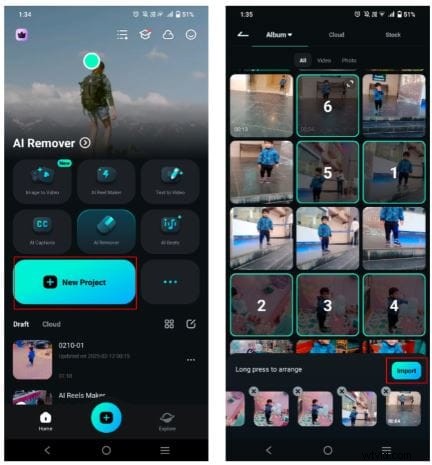
How to Build a Collage in Filmora
- Start a new project and import media.
- Add stickers, text, and animations.
- Apply effects, transitions, and filters.
- Insert background music or AI‑generated audio.
- Export in your desired resolution.
2. PowerDirector
- 4K export, speed control, video stabilizer, and chroma key removal.
- Multi‑cam support and motion tracking for professional results.
- Pre‑made templates speed up the editing workflow.
Pros: fast export, template library, advanced editing tools.
Cons: learning curve, some templates feel generic.
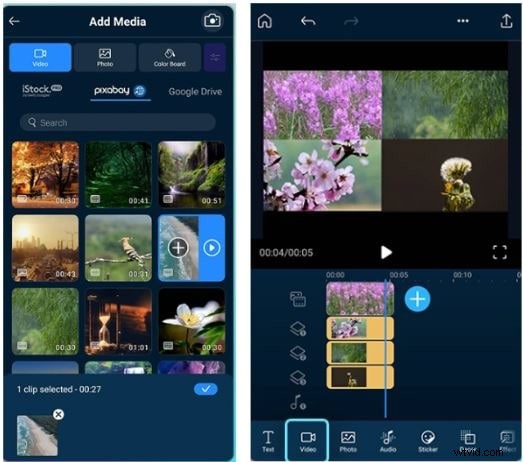
Creating a Collage in PowerDirector
- Choose “New Project,” set the aspect ratio, and add clips.
- Layer videos on separate tracks and resize/position them.
- Export and share directly to social platforms.
3. InShot
- Combine photos and videos with adjustable canvas sizes.
- Rich stock music, stickers, and filter library.
- Simple UI suitable for all skill levels.
Pros: intuitive, versatile overlays, comprehensive sound library.
Cons: limited grid customization.
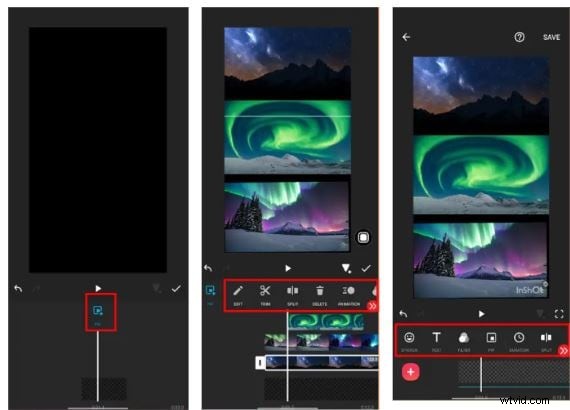
Building a Collage in InShot
- Create a new blank project and set the canvas ratio.
- Import media via PIP, arrange, and apply stickers/text.
- Export in the chosen resolution.
4. YouCam Video
- Structured grid layouts with smooth transitions.
- Stickers, overlays, and AI beauty retouch.
- Fast, ready‑made designs for a polished finish.
Pros: professional appearance, quick arrangement, beauty tools.
Cons: free version adds watermark, limited templates.
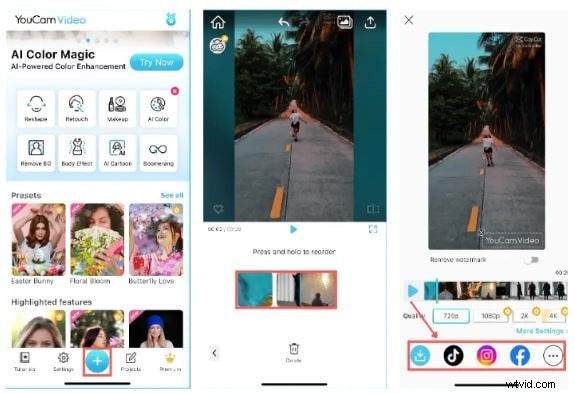
Collage Workflow in YouCam Video
- Select videos, choose a grid layout, and add AI effects.
- Export with your preferred resolution.
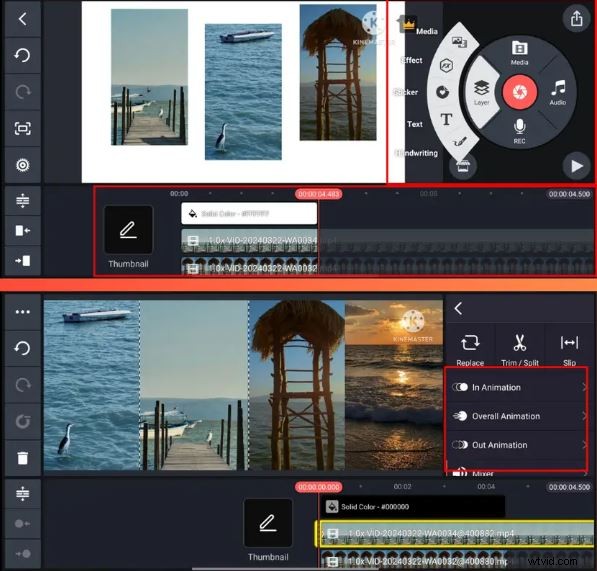
5. KineMaster
- Layered editing: video, images, text, stickers, and voiceovers.
- Manual grid layout, precise scaling, and blending.
- Free version available; premium unlocks advanced features.
Pros: high‑level customization, integrated voiceover tool.
Cons: interface complexity for beginners.
Creating Collages in KineMaster
- Choose an aspect ratio and add a background layer.
- Add media layers, resize, and animate.
- Export or share directly.
6. Canva
- Drag‑and‑drop editor with a vast template library.
- Stickers, icons, animated text, and free stock assets.
- Collaborative editing and cloud sync.
Pros: user‑friendly, free media library, collaborative features.
Cons: some audio tools limited, premium lock on advanced assets.
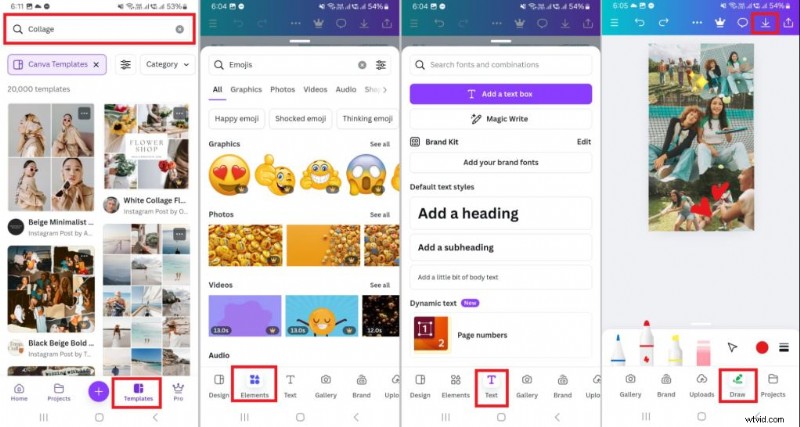
How to Collage in Canva
- Search “Collage” templates and upload media.
- Add elements, text, and background music.
- Export as MP4 or share online.
7. Mojo
- Pre‑set animated templates for quick storytelling.
- Custom borders, transitions, and artistic filters.
- Built‑in music library free of copyright concerns.
Pros: fast creation, creative flexibility, royalty‑free music.
Cons: premium upgrades required for some effects.
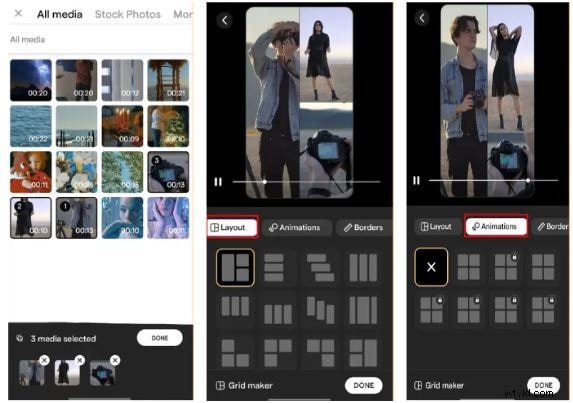
Mojo Collage Steps
- Open Grid Maker, select aspect ratio and layout.
- Add videos and adjust placement.
- Export or share.
8. PicCollage
- Choose from Grids, Freestyle, or Template modes.
- Magic cutouts transform any element into a sticker.
- Easy border, background, and size adjustments.
Pros: quick setup, intuitive tools, variety of styles.
Cons: limited advanced editing.
PicCollage Workflow
- Select a collage style and upload videos.
- Crop, add stickers or text, and tweak the background.
- Export or share.

9. Google Photos
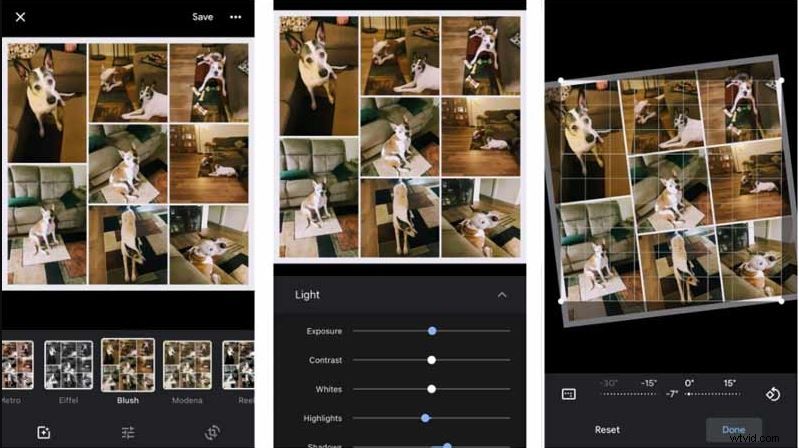
- Basic collage maker with brightness, contrast, and filter options.
- Seamless integration with your photo library.
Pros: free, user‑friendly, quick access to media.
Cons: fixed grid sizes, limited customization.
Collage in Google Photos
- Open the app, grant permissions, and choose the Collage tool.
- Select videos/photos and hit Create.
- Edit with filters and adjustments.
10. Adobe Express
- Ready‑made layouts, drag‑and‑drop editing, and brand‑consistent templates.
- Audio tracks, logos, and custom fonts enhance storytelling.
- Cloud sync lets you edit across devices.
Pros: extensive template library, multi‑platform support, free media assets.
Cons: video template options limited, occasional upload lag.
Adobe Express Collage Creation
- Start a new project, choose aspect ratio, and import clips.
- Drag, trim, and arrange slides; add text and transitions.
- Export or share directly.
Expert Tips for a Polished Video Collage
- Start with a Template: Pre‑built designs save time and provide a cohesive visual language.
- Maintain Visual Harmony: Use consistent color palettes, fonts, and motion styles to unify your clips.
- Use Subtle Animation: Highlight key moments with minimal motion; avoid overcrowding.
- Test Flow and Timing: Arrange clips to match your narrative arc and adjust duration for natural pacing.
Conclusion
Whether you’re a social media influencer, a business marketer, or a memory‑keeper, a video collage app can turn disparate moments into a compelling story. Among the tools reviewed, Wondershare Filmora stands out for its blend of powerful AI features, rich media library, and 4K export—making it the go‑to solution for professional‑looking collages. Experiment with the apps above, apply the expert tips, and bring your favorite moments to life with confidence.