
Want to reverse a video on your iPhone but find the built‑in Photos app lacking a reverse feature? This comprehensive guide shows you how to flip any clip forward or backward with ease, using the top free app Filmora or a quick online solution like Clideo. Follow the step‑by‑step instructions below to create stunning rewind effects that keep your original quality intact.
1. Reverse a Video on iPhone with Filmora – The Best Free App
Wondershare Filmora for iPhone is a versatile editor that turns your footage into a polished, backward masterpiece. With an intuitive timeline, you can reverse a clip in just a few taps while preserving audio and resolution.
- Reverse Video Effect – Flip any clip instantly.
- Audio Control – Detach or edit sound separately to avoid distortion.
- High‑Resolution Export – No loss of 1080p or 4K quality.
- Precision Editing – Fine‑tune cuts, add transitions, and use speed‑ramping for dramatic slow‑motion or fast‑rewind looks.
Step‑by‑Step Filmora Tutorial
- Import Your Video
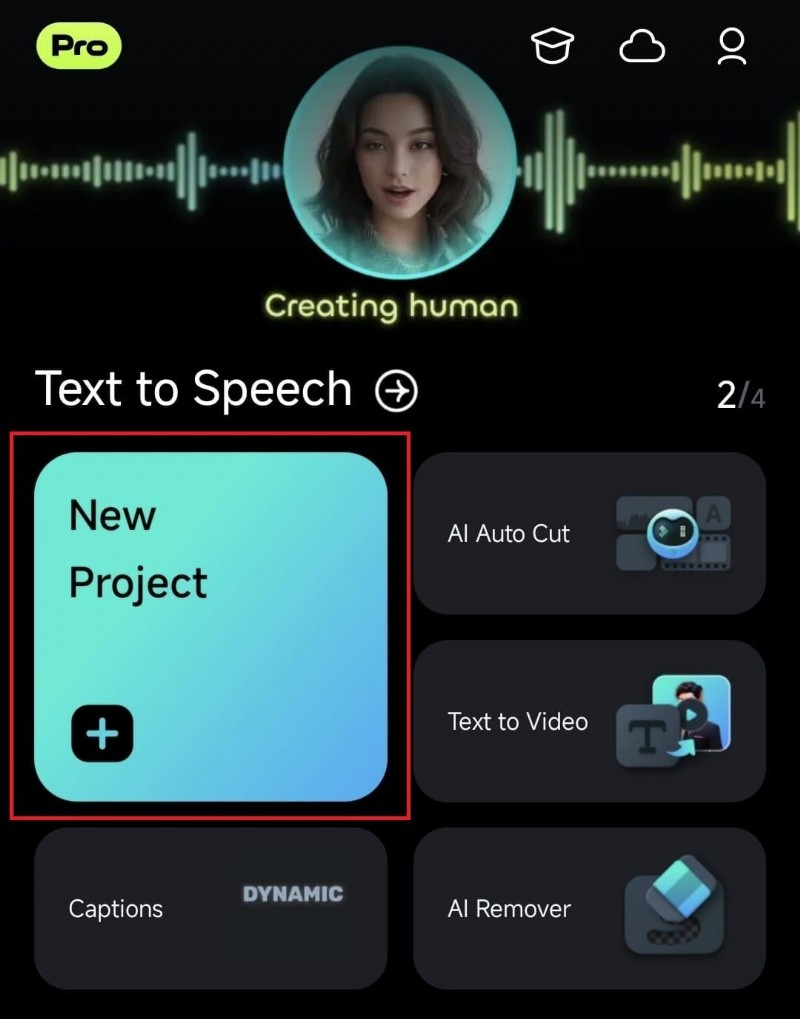
Open Filmora, tap New Project, and select the clip from your library. The video will appear on the timeline.
- Apply the Reverse Effect
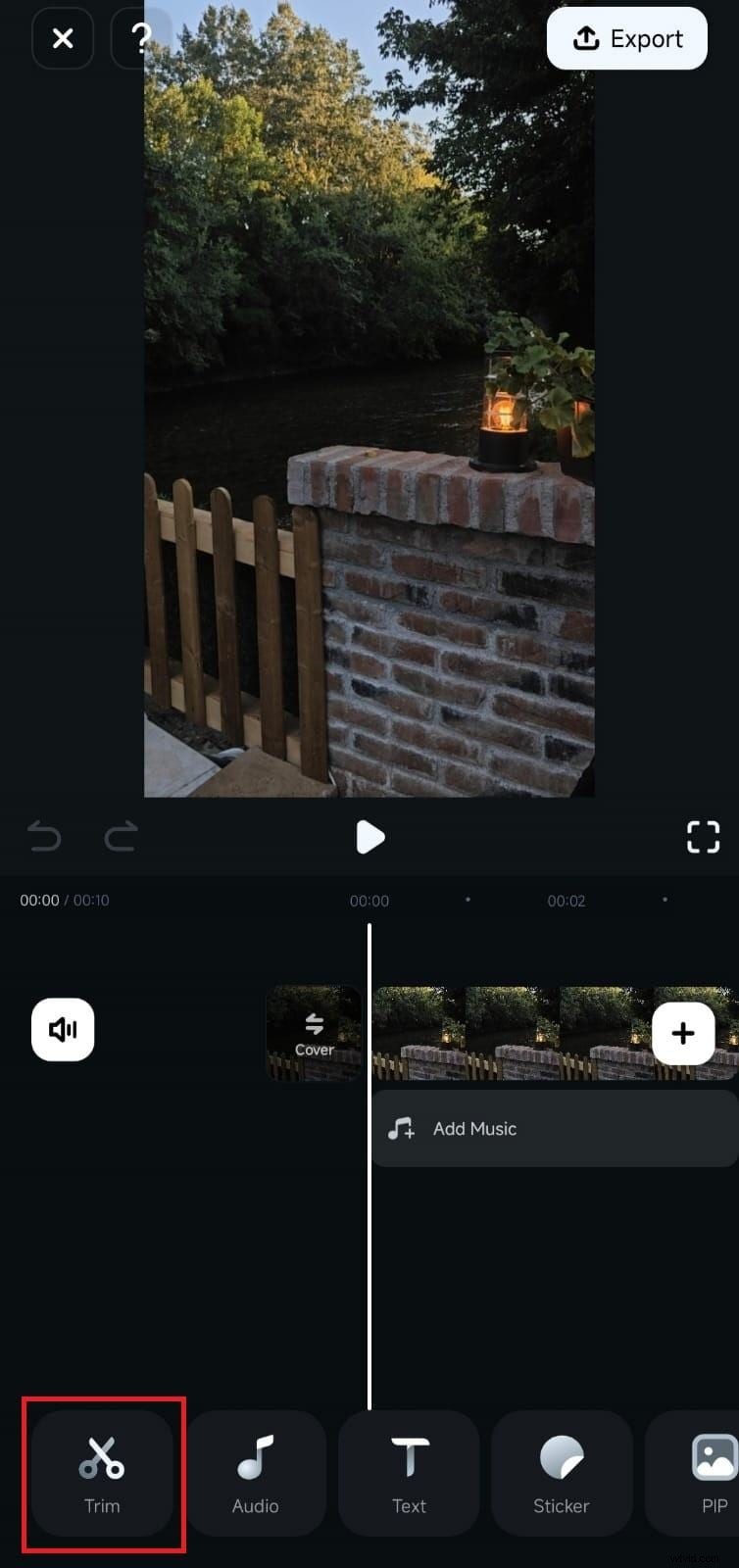
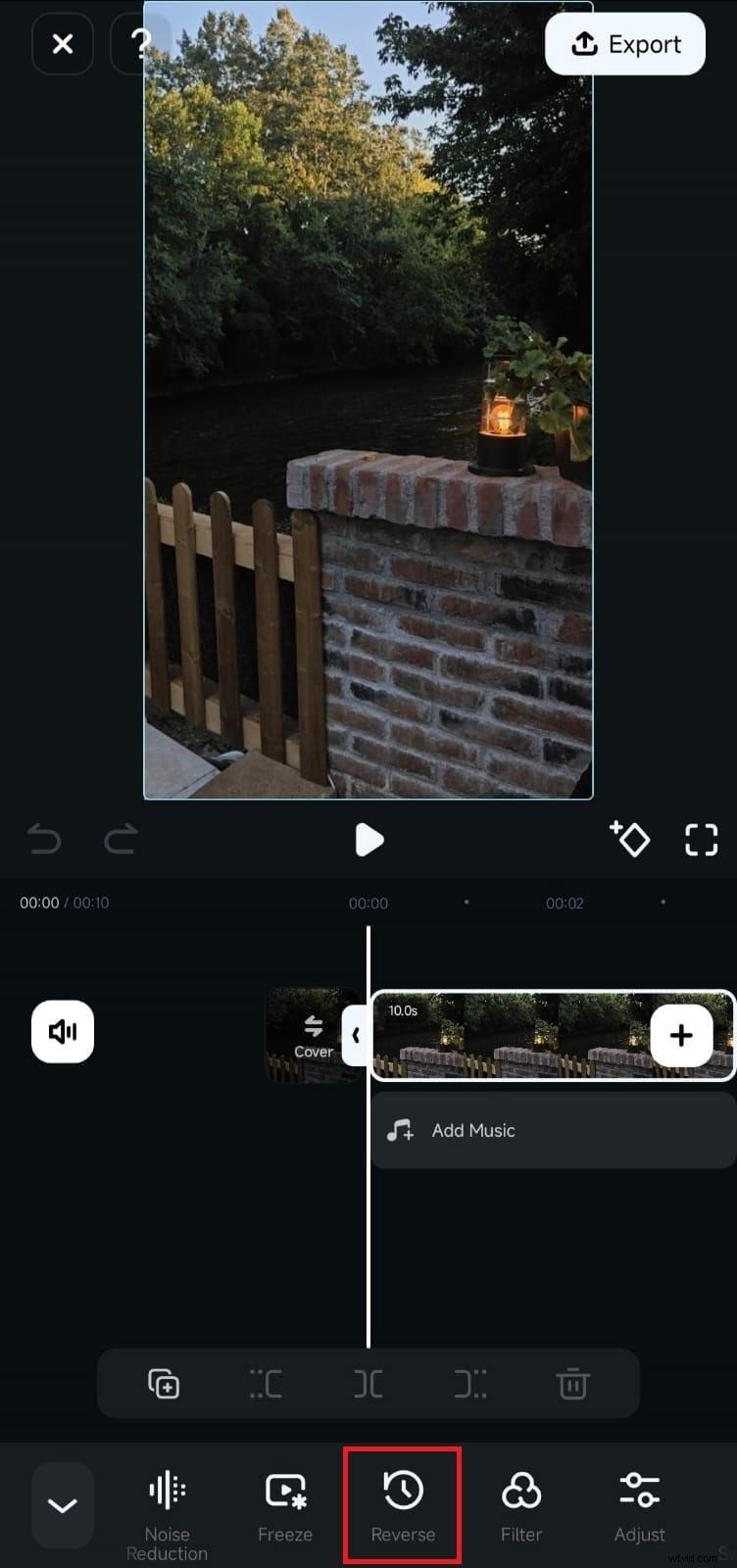
Tap the clip on the timeline, then choose Trim or directly select Reverse from the toolbar. Preview the reversed clip in the window.
- Fine‑Tune
Trim any unwanted frames before reversing, adjust speed with the ramping tool, or add visual effects for a polished look.
- Export
Tap Export, choose the desired resolution, and save the video to your device.
Maintaining Video Quality
- Start with 1080p or 4K footage to avoid degradation.
- Export with a high bitrate and keep the original frame rate (30fps or 60fps).
- Apply color correction, stabilization, or brightness adjustments before reversing.
2. Reverse a Video on iPhone Without an App – Free Online Tool
If you prefer not to install an app, Clideo offers a browser‑based solution that lets you upload, reverse, and download your video instantly.
- Upload
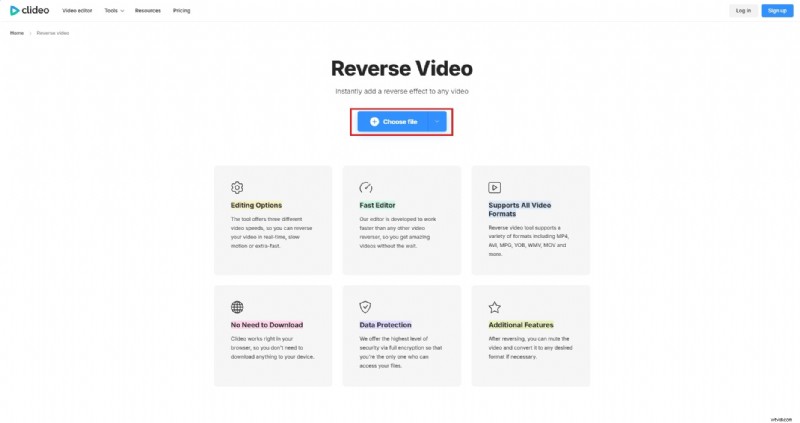
Visit Clideo’s reverse tool and click Choose file to select your clip.
- Set Reverse Speed
Select 0.5x, 1x, or 2x speed and toggle mute if you want the audio removed.
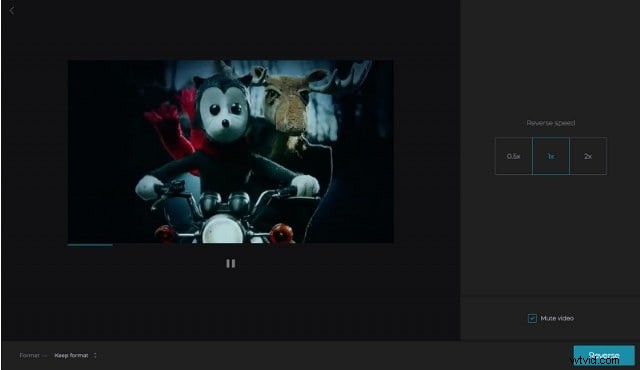
- Process & Download
Click Reverse, wait for processing, then download the finished clip.
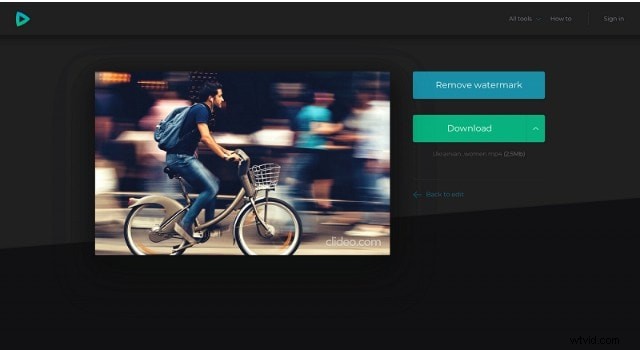
Note: Free accounts may see lower quality, watermarks, or slower uploads. For professional results, consider Filmora or a paid Clideo plan.
3. Creative Reverse Video Ideas
Reversing footage can transform ordinary moments into captivating visuals. Try these concepts to wow your audience:
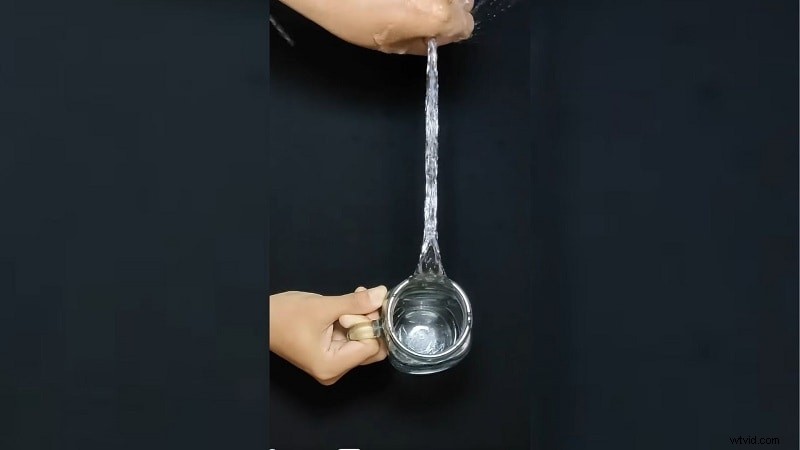
- Water Splash Reversal – Show droplets falling back into a stone’s path, creating a gravity‑defying splash.
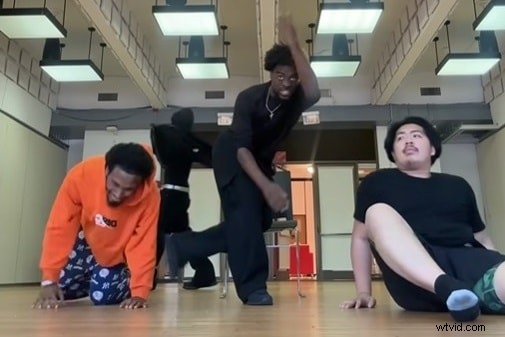
- Reverse Dancing – Play a routine backward for a surreal, otherworldly performance.
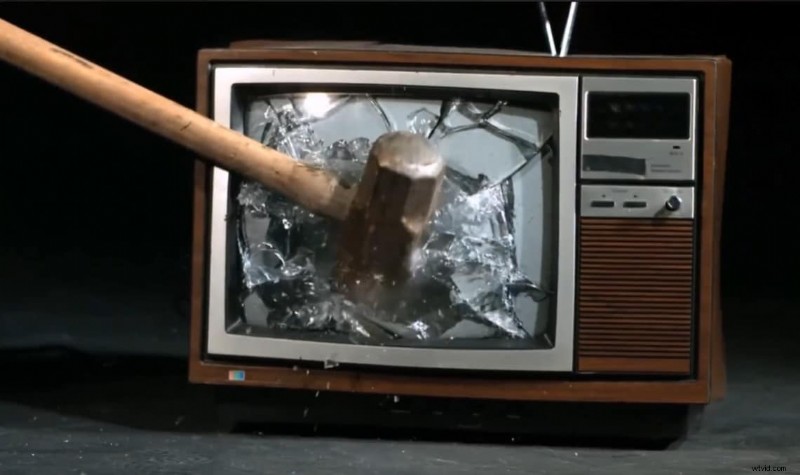
- Unbreaking Objects – Capture a shattered glass reassembling in reverse for a magical effect.
- Reverse Cooking – Depict a finished dish deconstructing into its ingredients for a culinary time‑loop.
- Gravity‑Defying Actions – Rewind a spilled drink to flow back into its cup, adding whimsical charm.


Conclusion
Whether you’re an aspiring filmmaker, a social‑media enthusiast, or just looking to add a fun twist to your photos, reversing a video on iPhone is now easier than ever. Filmora delivers professional quality with a free tier, while Clideo offers a convenient, no‑app alternative. Explore the creative ideas above and start experimenting today—your audience will love the new perspective.

Filmora – ⭐⭐⭐⭐⭐
The best AI‑powered video editing app for iPhone.