
Need to join multiple MP4 videos or mix MP4 with MPEG clips? Learning how to merge MP4 and MPEG files is a fundamental skill for any editor. This guide walks you through five proven methods—Wondershare Filmora, VLC, iMovie, Adobe Express, and Online Video Cutter—highlighting best practices to keep video quality intact and avoid sync problems.
Part 1. Understanding MP4 vs. MPEG: Compatibility for Merging
Before you start merging, it’s essential to understand the key differences between MP4 and MPEG. While their names may look similar, they serve distinct purposes in video production.

What is MP4?
MP4 is a modern media container (.mp4) that bundles video, audio, subtitles, and metadata into a single file. It relies on codecs such as MPEG‑4, H.264, or HEVC to compress video without compromising quality, making it the go‑to format for editing, sharing, and playback across devices.
What is MPEG?
MPEG refers to a family of video compression standards (MPEG‑1, MPEG‑2, MPEG‑4). Unlike MP4, MPEG is not a container but a codec family that dictates how video data is compressed. Older devices, DVDs, and legacy cameras frequently use MPEG‑1 or MPEG‑2 formats, which may cause playback issues on modern software.
MP4 vs MPEG
MP4 files often embed MPEG‑4 or H.264 video streams, leading to occasional confusion. However, MP4’s container format ensures broader compatibility, while MPEG files require conversion for most editors.
Key differences:
| Feature | MP4 | MPEG |
| Type | Media container | Codec family |
| File Extension | .mp4 | .mpg or .mpeg |
| What It Stores | Video, audio, subtitles, metadata | Video and audio (codec‑based) |
| Compression Method | MPEG‑4, H.264, HEVC | MPEG‑1, MPEG‑2, MPEG‑4 |
| Compatibility | Modern devices and tools | Older devices and cameras |
| Video Quality | Balanced size and quality | Depends on MPEG version |
| Best For | Editing, sharing, mobile, web playback | DVDs and legacy cameras |
Part 2. 5 Simple Ways to Join MP4 and MPEG Video Files
Most editors cut long recordings into shorter clips to save storage and simplify editing. Below are five reliable workflows that suit different skill levels and operating systems.
1. Wondershare Filmora: The All‑in‑One Editor for MP4 and MPEG
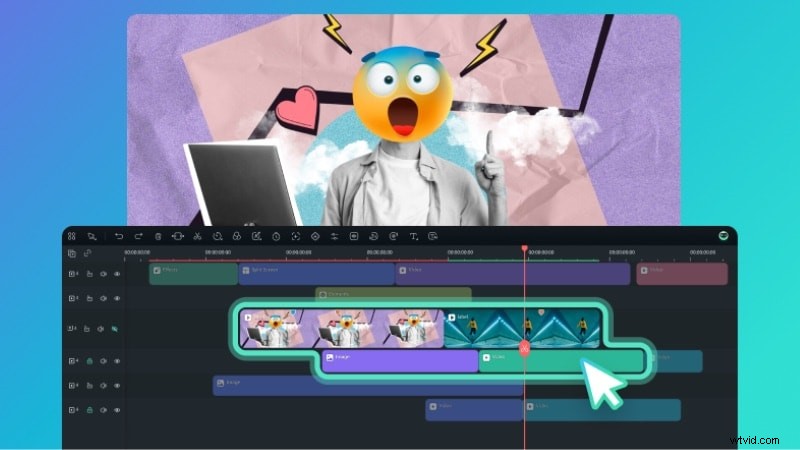
Filmora offers a user‑friendly interface that supports MP4, MPEG, MOV, AVI, and WMV. It lets you merge files directly, without converting formats, and preserves high‑quality output.

Why Filmora?
- Broad format support
- Basic editing tools: trim, split, reorder
- Advanced features: color correction, motion tracking, keyframing
- AI utilities: Audio Denoise, Smart Cutout, Music Generator
- Available on Windows and Mac
How to Combine MP4 Files on Mac and Windows
Follow these streamlined steps:
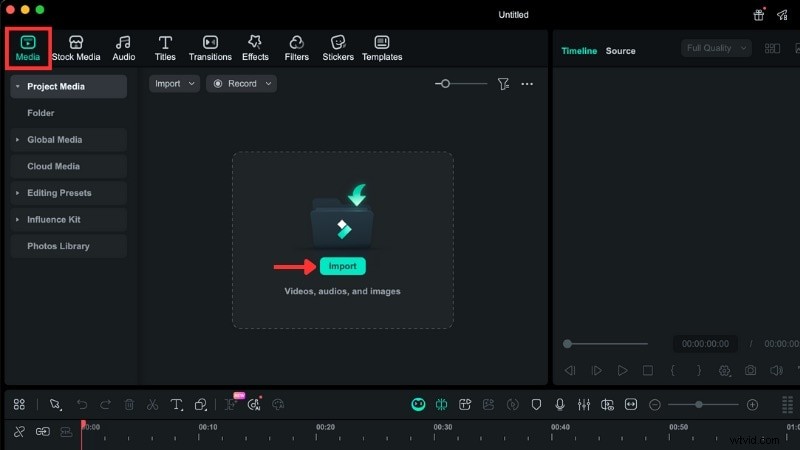
Step 1 – Import Your Clips Use Media > Project Media > Import to load MP4 and MPEG files. Filmora recognises both formats immediately.
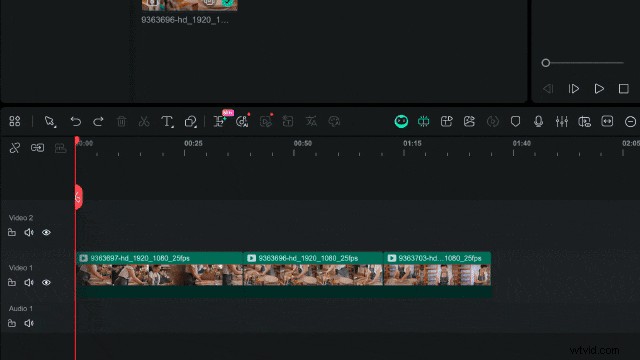
Step 2 – Drag to the Timeline Place each clip side by side on the timeline. Ensure no gaps exist to create a continuous sequence.
Step 3 – Refine the Sequence Trim, split, or move clips using the timeline handles. For example, drag a clip to a new position or click the scissors icon to cut at the playhead.
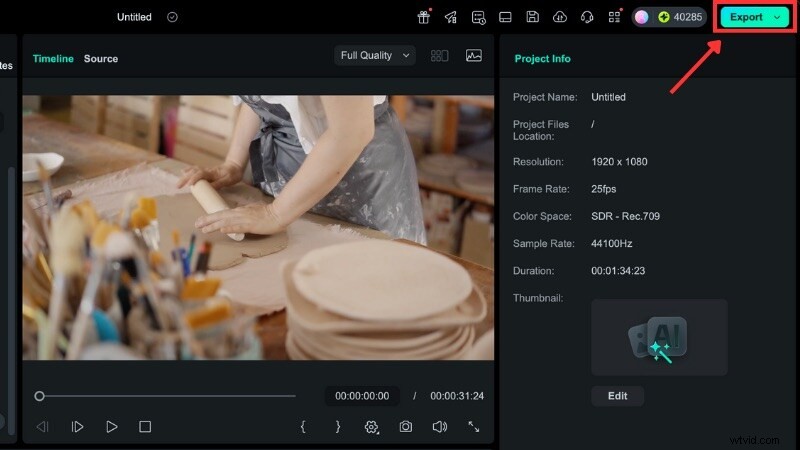
Step 4 – Export Click Export, choose Local, then adjust format, resolution, encoder, and quality. Open Advanced to fine‑tune bitrate or frame rate before finalising.
2. VLC Media Player: Free Converter and Merger on Windows
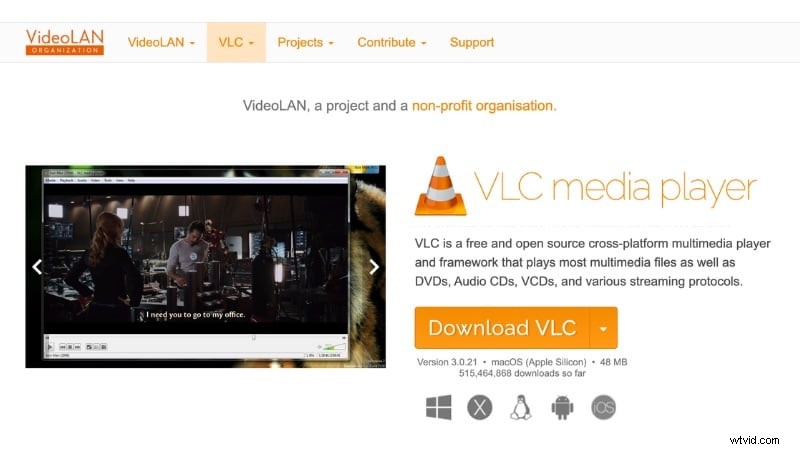
VLC is a versatile, free media player that can also convert and merge video files via its command‑line interface. It’s ideal for users who need a lightweight solution.
Key Features
- Supports MP4, MPEG, MKV, MOV, AVI, and more
- Built‑in conversion tool
- Customisable codec settings
- No watermark or registration required
Preparing MPEG Files for Merging
Convert all clips to a single MP4 format before merging:
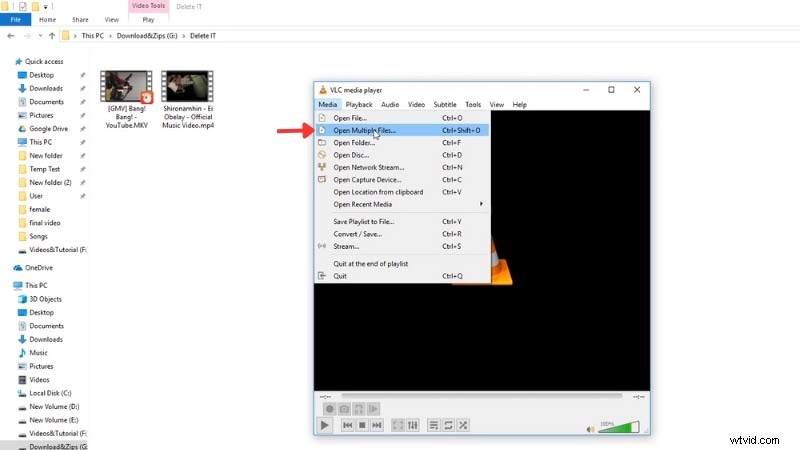
Step 1 – Open Multiple Files Navigate to Media > Open Multiple Files, add all clips, then choose Convert from the Save dropdown.
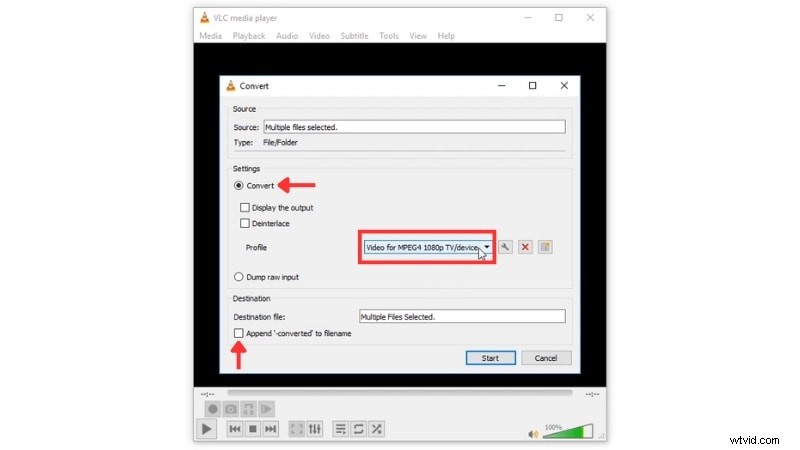
Step 2 – Convert to MP4 In the Convert window, select MP4 as the output format and enable “Append ‘-converted’ to file name.” Click Start to produce uniformly formatted clips.
Joining Converted Files via Command Prompt
Place all renamed MP4 files in one folder. Then:
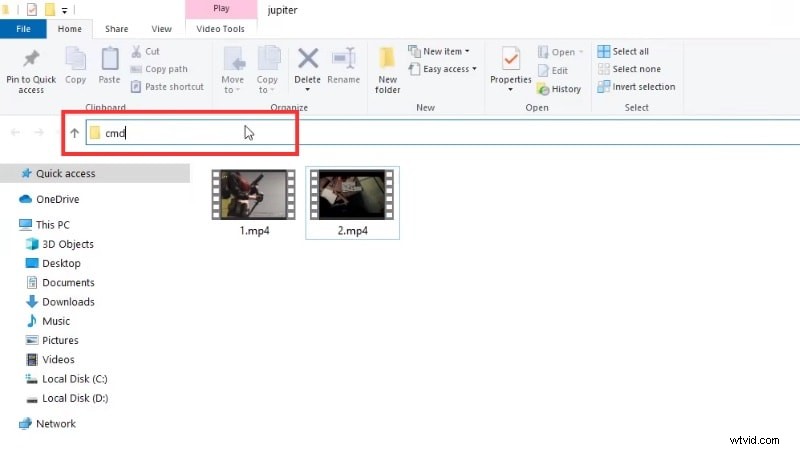
Step 1 – Open the folder’s command prompt by typing cmd in the address bar.
Step 2 – Run the VLC merge command:
vlc_location video1.mp4 video2.mp4 --sout "#gather:std{access=file,dst=final_file_name.mp4}" --sout-keep
Replace vlc_location with your VLC installation path, video1.mp4, video2.mp4, etc., with your filenames, and final_file_name.mp4 with your desired output name.

3. iMovie: Native Editor for Mac
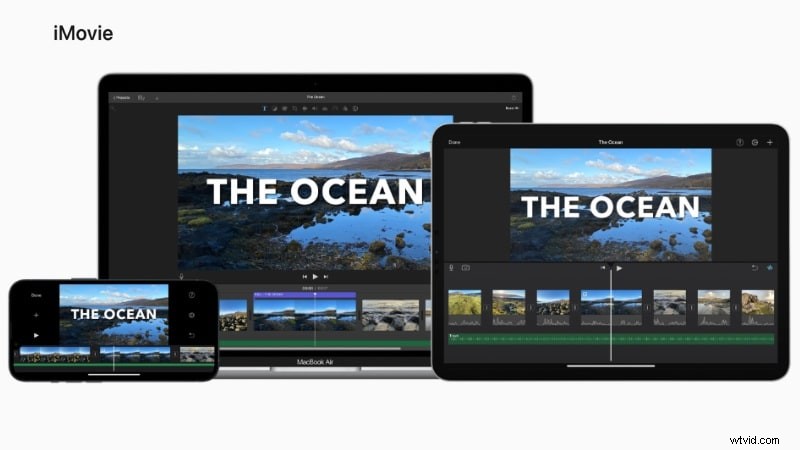
iMovie is ideal for quick MP4 merges on macOS, especially for MPEG‑4‑encoded clips. However, legacy MPEG‑1 or MPEG‑2 files may not import without conversion.
Key Features
- Supports MP4 and MPEG‑4 files
- Built‑in with macOS—no extra download
- Basic editing: trim, cut, split, rearrange
- Transitional effects, audio adjustments, and more
- Export to full 4K or chosen resolution
Joining Clips in iMovie
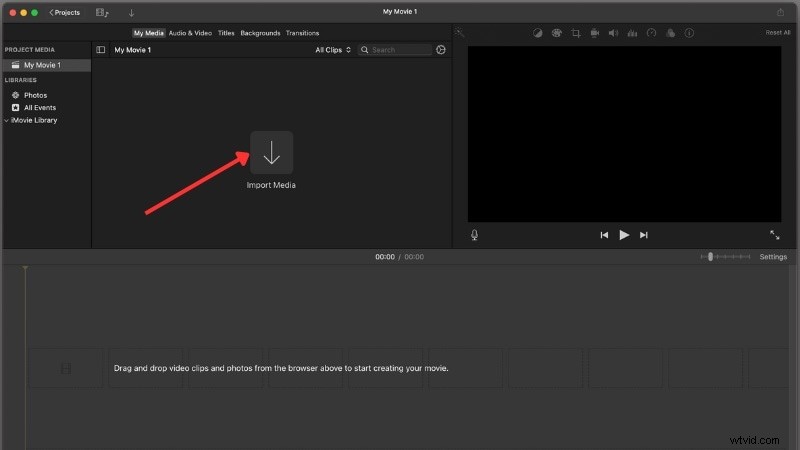
Step 1 – Import all clips via Import Media or drag from Finder.
Step 2 – Add to Timeline Select all clips (Command+A) and drag them to the timeline.
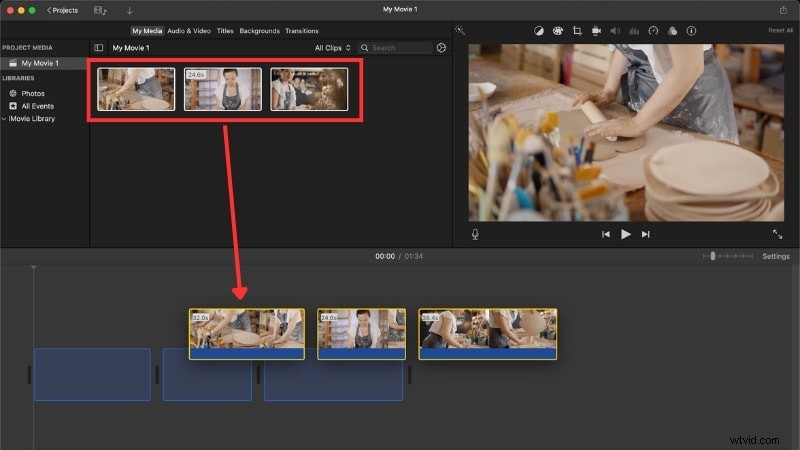
Step 3 – Arrange & Trim Reorder clips, trim edges, or split using Command+B.
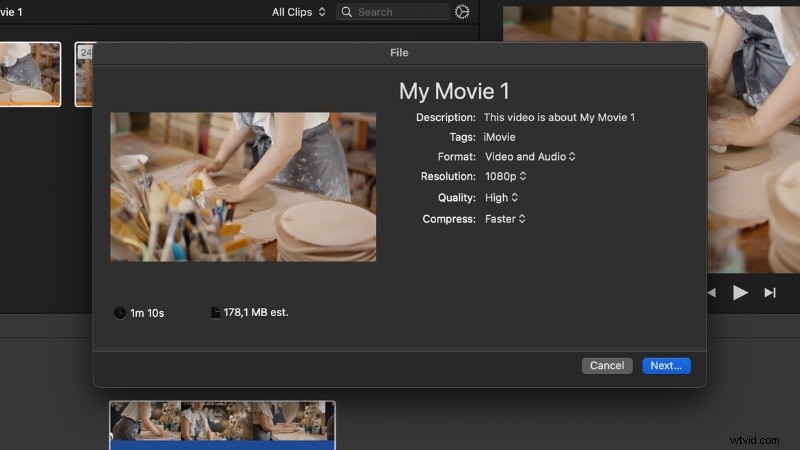
Step 4 – Export Choose File > Share > File, set resolution and quality, then save. The resulting file will be an MP4 encoded with H.264.
4. Adobe Express: Online Video Joiner
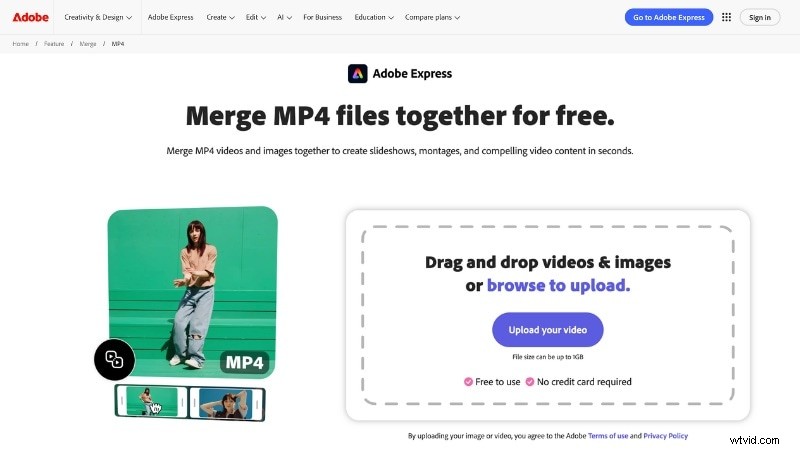
Adobe Express offers a cloud‑based video merger that requires no installation. Upload MP4 clips, arrange them, and download the combined file. It does not support MPEG, so conversion is necessary.
Key Features
- Web‑only—no downloads
- Drag‑and‑drop ordering
- Basic trimming before merge
- MP4 output only
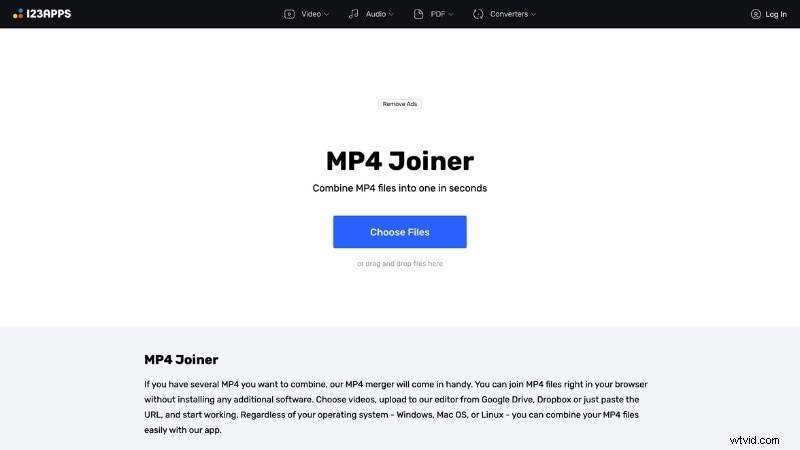
5. Online Video Cutter by 123apps
This tool works well for merging MP4 and MPEG files online. It accepts .mpeg and .mpg extensions but older MPEG formats may still need conversion.
Key Features
- Supports MP4, MPEG, MOV, and more
- Trim, cut, and rearrange clips
- Exports final video as MP4
Part 3. Troubleshooting: Ensuring Smooth MP4/MPEG Merging
Even with the best tools, merging can still introduce glitches. Common issues include compatibility mismatches, audio sync problems, varying frame rates, oversized outputs, and corrupted MPEG files. Here’s how to address each:
1. Compatibility Issues
Different codecs or resolutions can prevent files from loading. Convert all clips to MP4 with H.264 before merging.
2. Audio Not Syncing
Audio drift occurs when codecs differ. Re‑encode audio to a single format, such as AAC, during conversion.
3. Mixed Frame Rates
Disparate frame rates cause jitter. Standardise all files to 30 fps or 60 fps before merging.
4. Output File Too Large
Full‑quality exports can balloon in size. Use a moderate bitrate, choose H.264, and trim unnecessary sections.
5. Unsupported or Corrupted MPEG Files
Legacy MPEG‑1 or MPEG‑2 may fail to merge. Convert them to MP4 with VLC or Filmora first.
Conclusion
Whether you need a feature‑rich editor like Filmora or a lightweight tool such as VLC, you now have a suite of options to merge MP4 and MPEG files with minimal effort and maximum quality. Understanding format nuances and following these best practices will make your video projects smoother and more professional.

Filmora – AI Video Editing App & Software
Best tool for creating videos anywhere for all creators!
Simplify all your steps in video editing, from the pre‑processing to finalizing—Filmora AI stays tuned.
FAQs
-
Can I merge different formats like MP4 and older MPEG files in the same project?
Yes, but convert all clips to MP4 first. Legacy MPEG files rarely match the codec, frame rate, or resolution of MP4, so conversion avoids playback errors and audio loss.
-
Does merging or joining video files reduce their original video quality?
Quality loss depends on the tool and export settings. Re‑encoding can introduce slight degradation, so keep the codec as H.264 and choose a high bitrate to minimise loss.
-
My joined MP4/MPEG video file doesn't play or has audio sync issues. What should I do?
Check for mismatched codecs or frame rates. Convert all files to MP4 with consistent settings (e.g., H.264 video, AAC audio) before merging.