
Need a fast, dependable way to turn VOB files into MP4? This guide walks you through four clear, free solutions—Filmora for editing, VLC, HandBrake, and web‑based converters. By converting your DVD video files to MP4 you’ll unlock universal playback, reduced file sizes, and easier sharing without sacrificing quality.
Part 1. What is a VOB File and Why Convert to MP4?
A VOB file is the core video container found in a DVD’s VIDEO_TS folder. It stores the movie, audio tracks, menus, and subtitles. While DVD players read VOBs natively, most modern devices—smartphones, tablets, and browsers—do not.
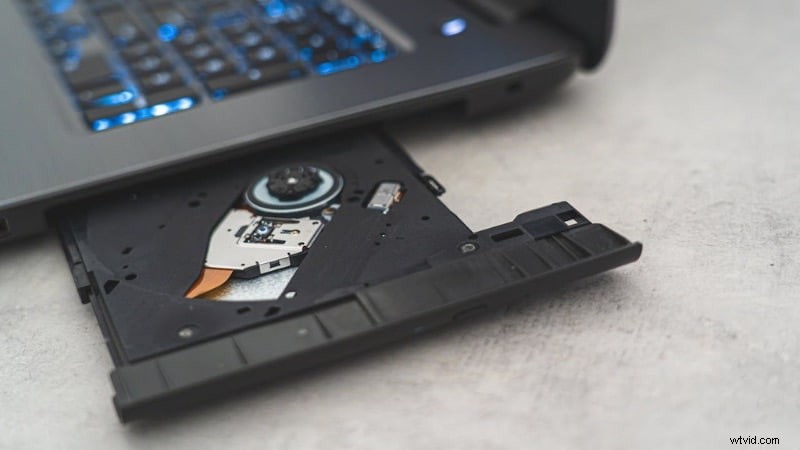
Typical pain points with VOBs:
- Incompatible with mobile devices
- Large file size that clogs storage and slows uploads
- Limited editing support
- Difficult to share or stream
MP4 solves these problems. It’s supported everywhere, compresses efficiently, and keeps audio‑visual quality high. Converting VOB to MP4 makes your videos portable, edit‑friendly, and ready for any platform.
VOB vs MP4 Quick Comparison
| Feature | VOB | MP4 |
| Compatibility | DVD players only | Phones, browsers, laptops, and more |
| File Size | Large | Smaller thanks to modern codecs |
| Editing Support | Limited | Widely supported in editors |
| Sharing | Difficult to upload or email | Quick upload and sharing across services |
| Codec | MPEG‑2 | H.264 or H.265 |
Part 2. How to Convert VOB to MP4 on Mac & Windows (4 Simple Methods)
Below are step‑by‑step instructions for each of the four conversion options. Choose the one that best matches your needs—speed, editing, or no‑install.
Method 1. Wondershare Filmora (Fast Conversion + Editing)
Filmora blends a robust editor with a straightforward conversion workflow. It preserves quality while letting you trim, stabilize, and enhance footage before exporting to MP4.
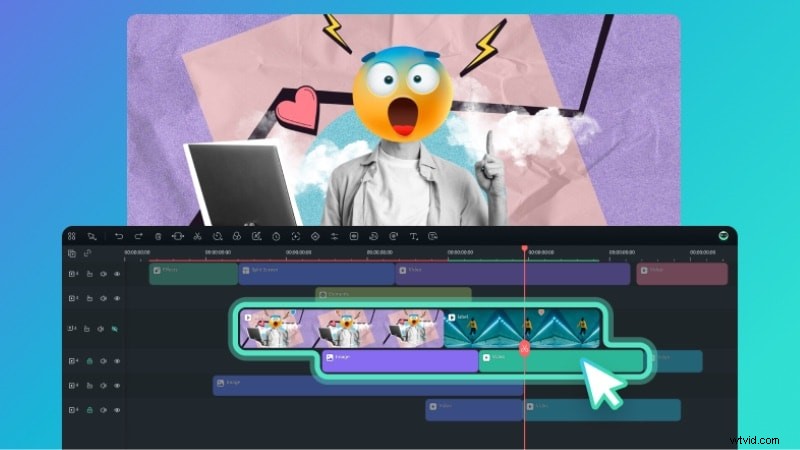
Key Features
- Drag‑and‑drop interface—no learning curve
- Trim, split, and apply AI‑based quality enhancements
- Customizable MP4 export: resolution, bitrate, codec
- Supports output to MOV, MKV, AVI, and more
Step‑by‑Step with Filmora
- Import your VOB file:
Create Project > New Project→Media > Project Media > Import. - Drag the clip onto the timeline.
- Edit as needed: use the scissors icon to split, or hover to trim.
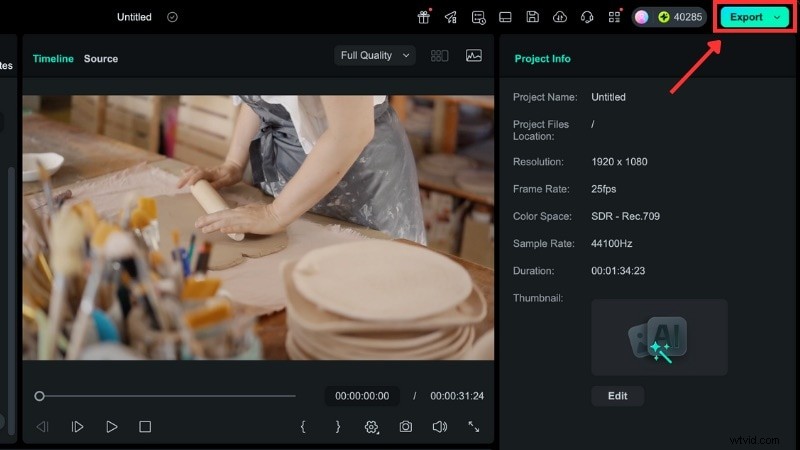
- Export to MP4: click
Export, chooseLocal, set Format toMP4, and adjust resolution/bitrate.
Method 2. VLC Media Player (Free, Cross‑Platform)
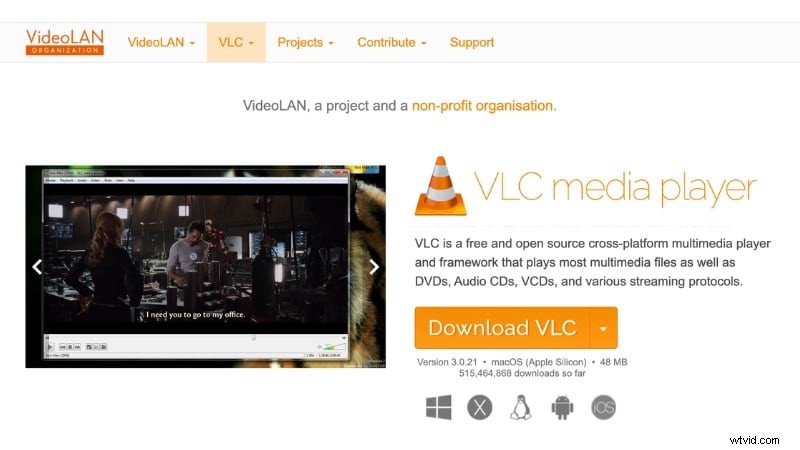
VLC is a universally available, open‑source player that also offers a conversion feature. It’s perfect for quick, no‑extra‑software conversions.
How to Convert with VLC
- Open
Media > Convert / Save…. - Add your VOB file and click
Convert / Save. - Select an MP4 profile (H.264/H.265) from the
Profiledropdown. - Optional: click the wrench icon to tweak video or audio codec settings.
- Choose a destination folder, name the file, and hit
Start.

Method 3. HandBrake (Open‑Source, Powerful)
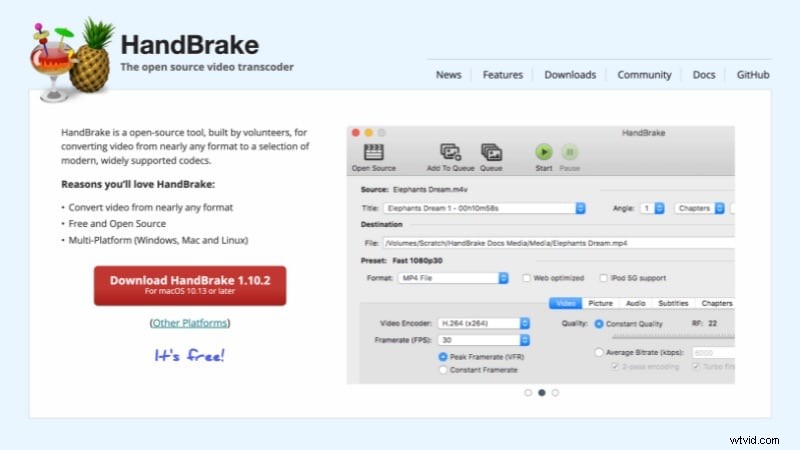
HandBrake offers granular control over encoding parameters. It’s ideal if you want to balance quality and file size.
How to Convert with HandBrake
- Open HandBrake and
Open Source→ select your VOB file or DVD folder. - In the
Summarytab, set Format toMP4. - Under
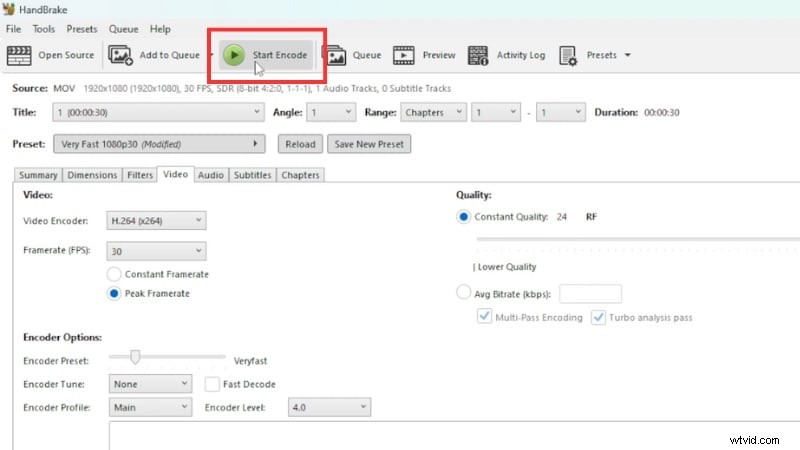
Video, choose H.264 and adjust the quality slider or framerate. - Click
Browseto set a save location and filename. - Hit
Start Encodeand wait for the conversion to finish.
Method 4. Online Converters (Best for Small Clips)
If you need a quick, install‑free option, services like CloudConvert or FreeConvert can process VOB files directly in your browser.
- Pros: No software, fast for short clips, cross‑device.
- Cons: File‑size limits, slower upload/download, potential privacy concerns, not suitable for full DVDs.
Part 3. Troubleshooting Common Conversion Issues
Conversion hiccups are normal. Below are quick fixes for the most frequent problems.
1. Encrypted DVDs Won’t Convert
Protected discs block playback in most converters. Use a DVD decrypter to strip copy protection before converting.
2. VOB File Won’t Import
Long filenames or deep folder paths can cause import errors. Rename the file to simple characters and move it to a folder on your desktop.
3. No Audio in the MP4
Audio loss often stems from unsupported codecs. Re‑export selecting AAC or MP3 for the audio track in Filmora or HandBrake.
4. File Size Remains Huge
Split the VOB into smaller parts or lower the output bitrate. In Filmora or HandBrake, set a custom bitrate to shrink the file while maintaining visual quality.
Conclusion
Converting VOB to MP4 unlocks universal playback for your old DVD footage. Whether you choose Filmora for editing, VLC or HandBrake for free conversion, or an online tool for a quick job, you can keep your videos accessible, shareable, and high‑quality.

FAQs
-
Why are VOB files split into parts within the VIDEO_TS folder?
DVDs break the video into numbered VOB files to stay under the 2 GB size limit per file and to store menu data. The player stitches them together during playback.
-
I converted VOB to MP4, but the audio is missing. Why?
The original VOB may use a codec that your converter didn’t automatically include. Re‑select an AAC or MP3 track in the export settings.
-
Can my MP4 be larger than the original VOB?
Yes, if you choose a higher bitrate or resolution than the source. Lower the bitrate or use a lighter preset to keep the file size down.
-
Is it legal to convert a protected DVD’s VOB to MP4 for personal use?
Legality varies by jurisdiction. Some regions allow personal backups; others prohibit it. Check local laws before proceeding.