Kinemaster has rapidly established itself as a top choice for creators, offering studio‑grade editing capabilities directly from a smartphone when wielded by seasoned editors.
Its intuitive interface and cross‑platform support on both Android and iOS make it a staple for mobile videography, delivering polished outputs without the need for a desktop.
While the free version unlocks many essential tools, premium features—including full access to the asset store and the ability to strip the watermark—are reserved for subscribers. Although the watermark is harmless, it can mar a professional appearance and consume valuable on‑screen real estate that could showcase a brand logo.
This guide explains practical methods to remove the Kinemaster watermark from your videos, ensuring a clean, polished finish even when you’re using the free tier.

In this article
- Simple Hacks to Remove Kinemaster Watermark from Video
- More Efficient and Professional Ways to Remove Kinemaster Watermark
Part 1: Simple Hacks to Remove Kinemaster Watermark from Video
Below are quick, low‑effort techniques that can help you get rid of the watermark when you’re stuck on the free version.
Option 1: Crop the Video
Use a third‑party editor such as InShot or any desktop video editor to trim away the section containing the watermark. Adjust the aspect ratio to maintain visual balance or switch to a new ratio that suits your project.
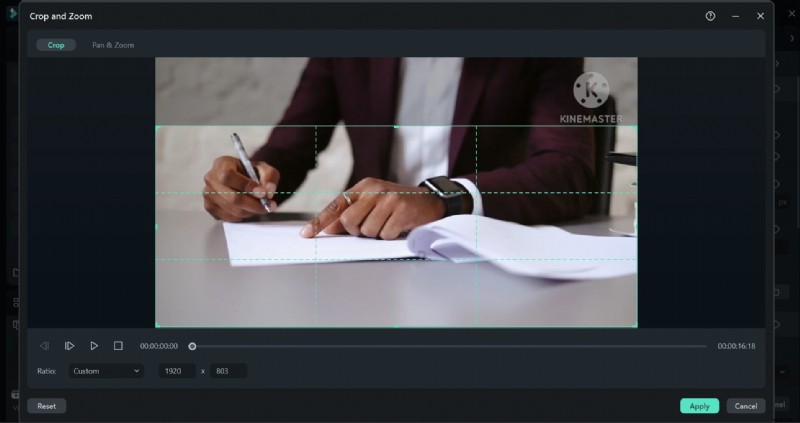
Note that cropping reduces resolution and may alter framing, so it’s best suited for short clips where the impact is minimal.
Option 2: Overlay a Custom Logo or Sticker
Place a personalized logo, watermark, or sticker over the original one. Choose a graphic that complements the video’s theme and adjust size and opacity until the overlay blends naturally.
Option 3: Blur the Watermark
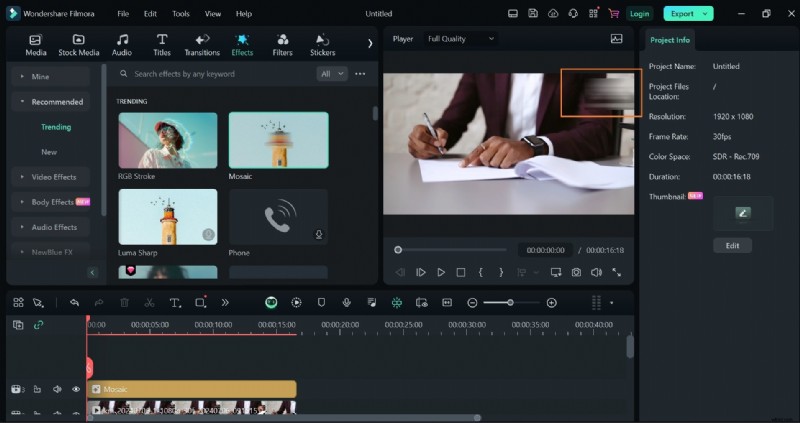
Apply a blur effect to the watermark area, fine‑tuning the radius and strength to conceal it without introducing excessive noise.
Option 4: Take Advantage of the Free Trial
The Kinemaster free trial grants access to premium features for three days, but it can only be used once. While convenient, it’s a temporary solution.
These quick fixes are handy for on‑the‑fly edits, though they may not provide the seamless polish that more advanced methods deliver.
Part 2: More Efficient & Professional Ways to Remove Kinemaster Watermark
If you’re aiming for a flawless finish, consider the following techniques. They’re suitable for both novices and seasoned editors.
Filmora’s AI Object Remover (Highly Recommended)
Wondershare Filmora is a user‑friendly, AI‑powered editor that excels at removing unwanted objects, including watermarks. Follow these steps:
- Download and install Filmora on your computer. The setup is quick.
- Open Filmora and click Import to add the video containing the Kinemaster watermark.
- Drag the clip onto the timeline.
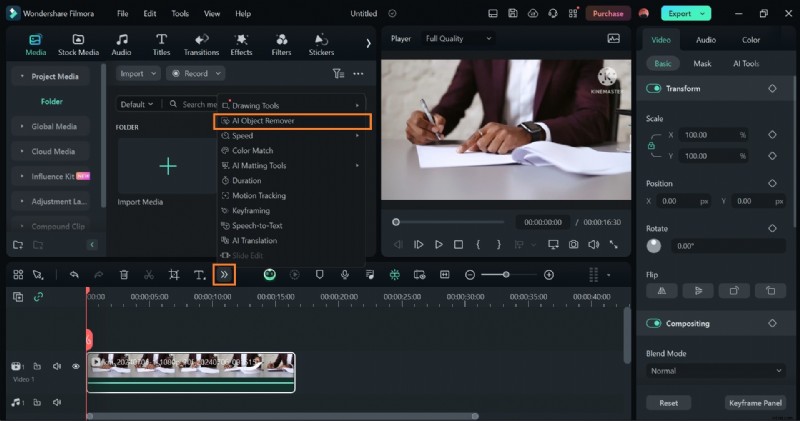
- Navigate to the toolbar, click the double‑arrow icon, and select AI Object Remover from the dropdown.
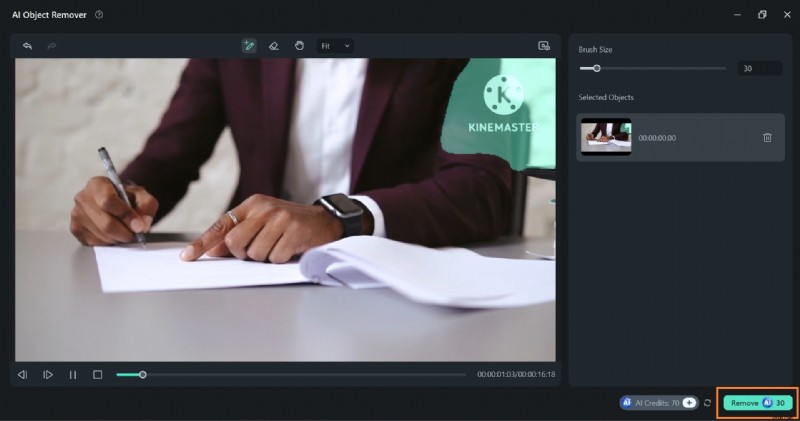
- Use the brush to highlight the watermark area, then press Remove in the lower left corner.
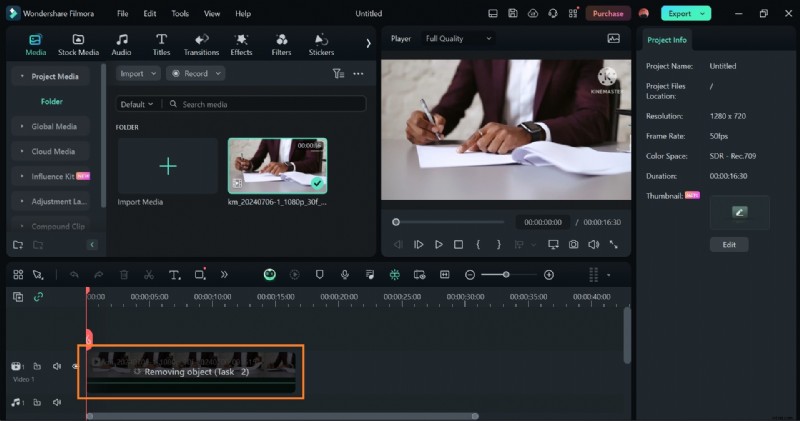
- Wait while the AI processes the frame—this may take a few minutes.
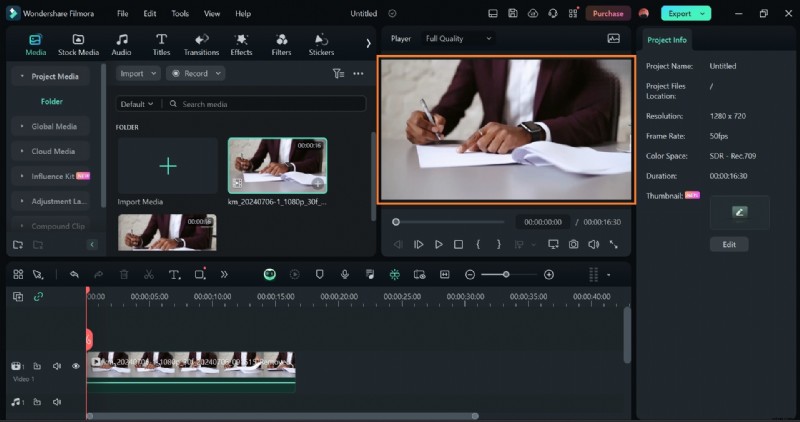
- Once finished, export the cleaned video.

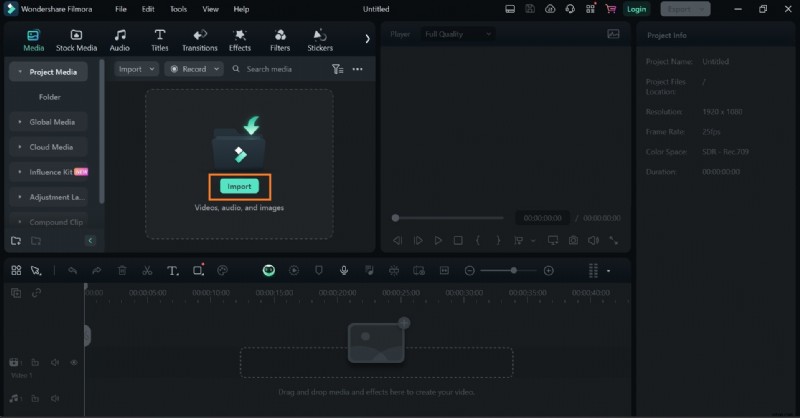
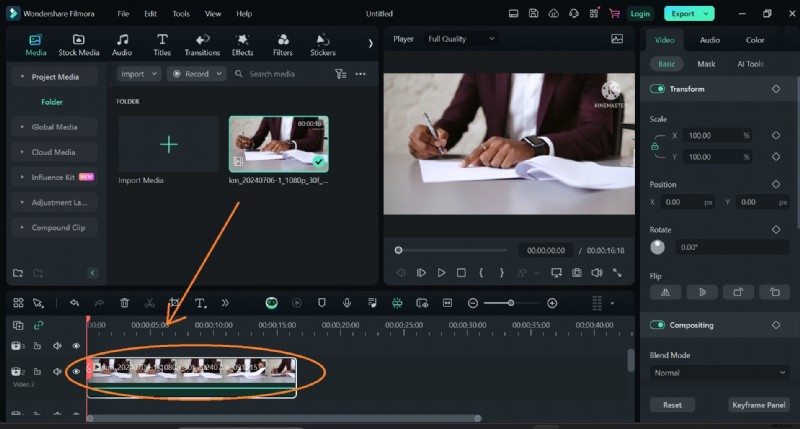
Filmora also offers a masking tool for precise removal:
- Import your video into Filmora.
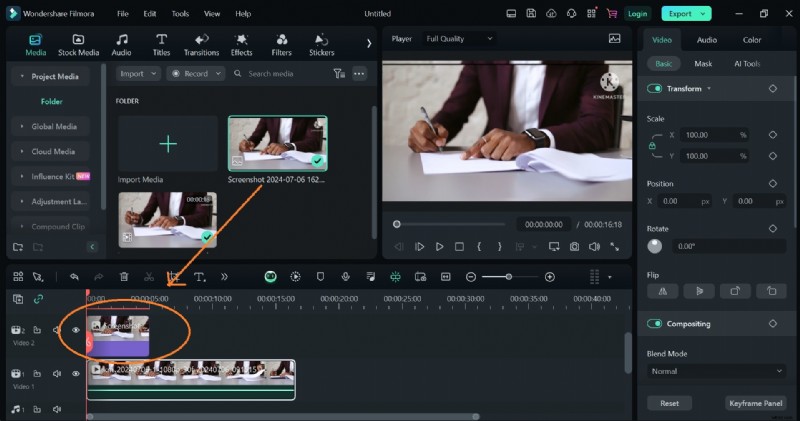
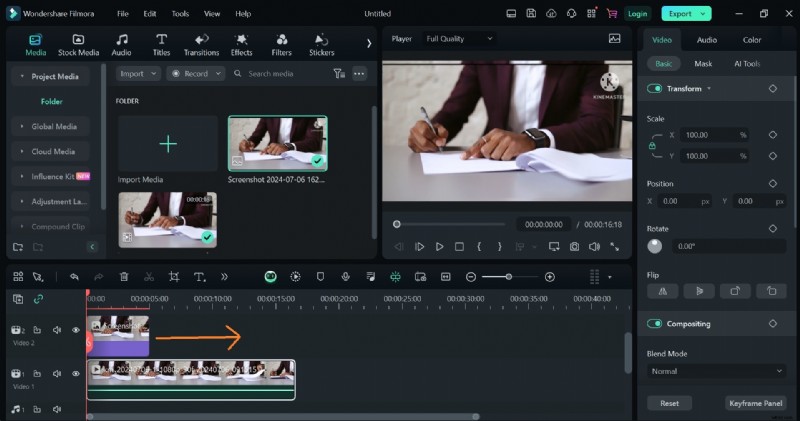
- Add a clean plate—this could be a screenshot or a matching image—and place it above the clip on the timeline.
- Extend the clean plate to cover the entire duration.
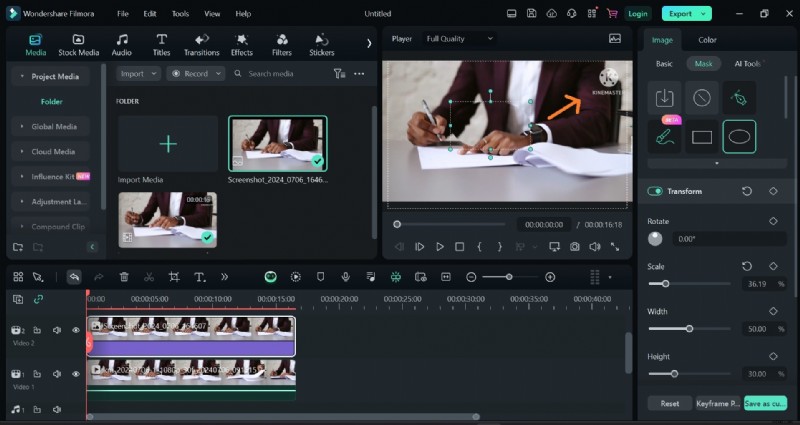
- Select the Mask option and choose the circle shape.
- Position the mask over the watermark and fine‑tune its size.
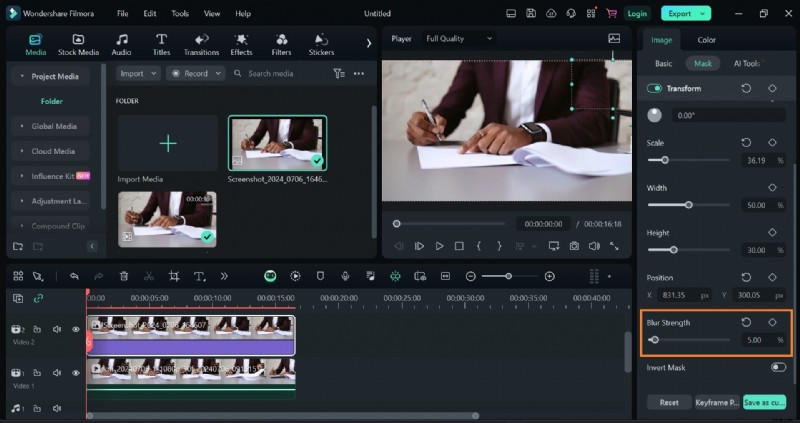
- Adjust the blur strength until the overlay looks natural.

The AI object remover is free to use with limited credits, making it a cost‑effective alternative to Kinemaster Premium. It’s especially approachable for non‑professionals, delivering high‑quality results without a steep learning curve.
Upgrade to Kinemaster Premium
Purchasing the premium plan removes all watermarks, eliminates ads, and provides 10 GB of cloud storage along with expanded asset libraries—perfect for editors who rely on Kinemaster’s ecosystem.
Conclusion
Removing the Kinemaster watermark is straightforward once you choose the right tool. Simple hacks like cropping or overlaying work for quick fixes, but for a polished, production‑ready video, AI solutions such as Filmora’s object remover offer the best balance of ease and quality.
Try Wondershare Filmora to efficiently erase watermarks and elevate your videos to a professional standard.
- Erase unwanted objects from videos & images in seconds.
- No manual masking—AI handles the heavy lifting.
- Background quality is preserved with smart auto‑fill.
- Compatible with Windows, macOS, iOS, and Android.