
When a website lags, users feel frustrated—and may leave. A well‑designed CSS loading text animation keeps them engaged, reinforcing your brand and turning idle moments into positive experiences.
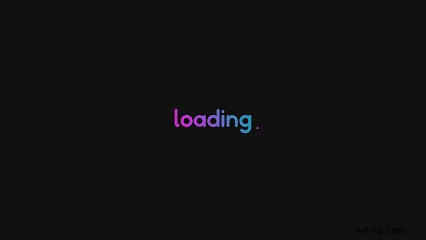
This guide shows how to build a sleek loading animation with plain HTML and CSS. If you prefer a visual editor, we’ll also walk through the Filmora alternative.
Let’s dive in!
Table of Contents
- What Is a Loading Text Animation?
- Why CSS Is Ideal for Loading Animations
- Step‑by‑Step: Creating a Loading Animation with CSS
- Advanced CSS Techniques for Text Animation
- Filmora vs. CSS: Choosing the Right Tool
- Best Examples of Loading Text Animations
- Conclusion
1. What Is a Loading Text Animation?
A loading text animation displays words—often “Loading” or “Please wait”—that change in style or motion while content loads. It signals to users that their request is in progress, reducing perceived wait time.
How Does It Work?
At its core, a loading animation relies on three layers:
- HTML provides the text element.
- CSS dictates the visual changes—color, movement, or opacity—using
@keyframesand transition properties. - JavaScript can add more complex interactions, such as pausing when the page is idle.
2. Why CSS Is Ideal for Loading Animations
CSS is lightweight, cross‑browser, and entirely client‑side—no server load or extra scripts are required. It allows developers to craft animations that are easy to maintain and can be customized on the fly.
Creating the Animation
Below is a practical example: a spinning circle paired with a sequential fade‑in text.
HTML Structure
<div class='loading-container'>
  <div class='loading-circle'></div>
  <div class='loading-text'>
    <span>L</span><span>o</span><span>a</span><span>d</span><span>i</span><span>n</span><span>g</span><span>.</span><span>.</span><span>.</span>
  </div>
</div>
CSS Styling
body{font-family:'Nunito Sans',sans-serif;background:#f0f0f0;display:flex;justify-content:center;align-items:center;height:100vh;margin:0}
.loading-container{display:flex;align-items:center}
.loading-circle{width:50px;height:50px;border-radius:50%;border:5px solid #ccc;border-top-color:#9b59b6;animation:spin 1s linear infinite;margin-right:20px}
@keyframes spin{to{transform:rotate(360deg)}}
.loading-text{font-size:36px;color:#9b59b6}
.loading-text span{opacity:0;transform:translateY(20px);animation:fadeInUp 1s ease-in-out forwards}
@keyframes fadeInUp{to{opacity:1;transform:translateY(0)}}
.loading-text span:nth-child(1){animation-delay:.2s}
.loading-text span:nth-child(2){animation-delay:.4s}
.loading-text span:nth-child(3){animation-delay:.6s}
.loading-text span:nth-child(4){animation-delay:.8s}
.loading-text span:nth-child(5){animation-delay:1s}
.loading-text span:nth-child(6){animation-delay:1.2s}
.loading-text span:nth-child(7){animation-delay:1.4s}
.loading-text span:nth-child(8){animation-delay:1.6s}
.loading-text span:nth-child(9){animation-delay:1.8s}
.loading-text span:nth-child(10){animation-delay:2s}
Customizing the Animation
- Text: Edit the
<span>content to your desired message. - Colors: Update
background,border-top-color, andcolorvalues. - Font: Swap the Google Font URL and adjust
font-family. - Speed & Delay: Change the
animationduration on the circle and theanimation-delayfor eachspan.
Advanced CSS Techniques for Text Animation
Elevate your preloader with:
- Basic fades, slides, and bounces.
- 2D transitions for a clean look.
- 3D transforms for depth.
- Motion graphics combining text and shapes.
- Stop‑motion effects for a handcrafted feel.
3. Filmora: A Visual Alternative
Filmora offers a library of pre‑built loading text templates, enabling designers to create polished animations without coding. It’s especially useful for non‑developers or when a video‑centric animation is required.
Key Features
- Extensive animation library: fade‑ins, typewriter, bounce, etc.
- Custom fonts and color palettes.
- Animation paths and motion paths.
- Audio‑driven text for synchronized effects.
Filmora vs. CSS
Use CSS when you need lightweight, fully responsive text on a web page. Opt for Filmora for richer video animations or when you want a quick, template‑based solution.
How to Create a Loading Text Animation in Filmora
- Install & open Filmora.
- Search for “loading” in the Title library.
- Select a template and drag it onto the timeline.
- Customize text, font, color, and timing via the left panel.
- Preview to ensure alignment with your design.
- Export in your preferred format and embed in your project.
Advanced Text Editing in Filmora
- Dynamic animations and 10,000+ presets.
- Color fill, outline, and shadow effects.
- Background customization.
- Speech‑to‑text in 26 languages.
4. Best Examples of Loading Text Animations
Window Loading Text Animation for Videos
Loading Text with Loading Bar
Loading Text with Countdown
Conclusion
Whether you choose the precise control of CSS or the creative flexibility of Filmora, a well‑crafted loading text animation can transform an otherwise frustrating pause into a branded, engaging moment for your users.