
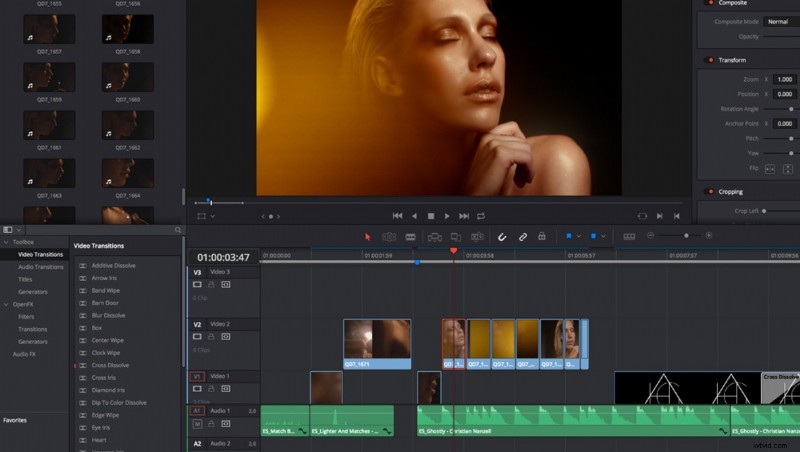
DaVinci Resolve is a fantastic tool and has everything most videographers need to create perfect looking videos. However, the playback can be a bit slow and thus make the whole workflow a pain. But there is a one-click solution that will make your life much better. When I found out about it, my editing process became much faster.
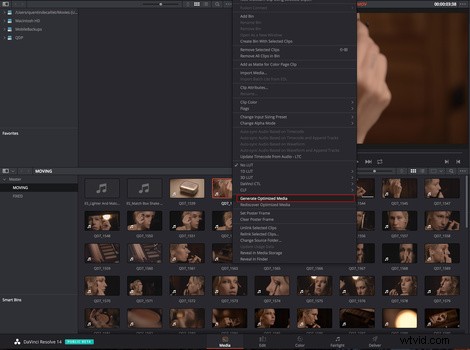
In the media pool, either in the Media or Edit tab, when right clicking there is an option called Generate Optimized Media. It will essentially create proxies out of the original footage making the playback of any imported clip much smoother and faster.
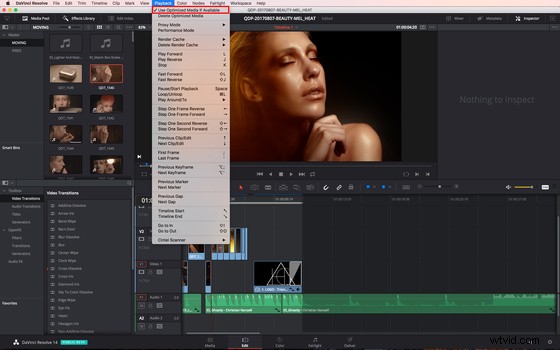
Then, whenever you want to play the original files, you just uncheck Use Optimized Media if Available in the Playback menu and you’re done.
For those of you who are more familiar with DaVinci Resolve 12.5 or 14, you may know that there is another alternative. The second solution is by rendering the cache. This is achieved by selecting all the clips in the timeline, then right clicking on them, and choosing On under Render Cache Clip Source.
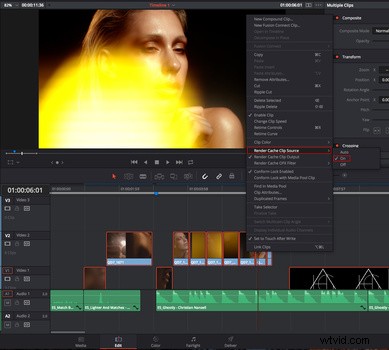
Once this is done, in the Playback menu, be sure to enable User under Render Cache.
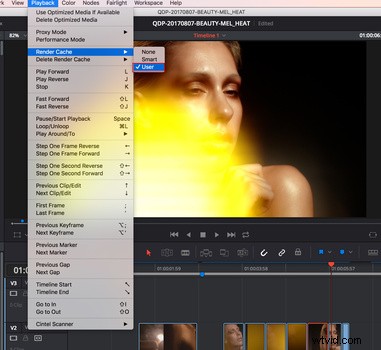
There are two main differences between the two. Creating optimized media files tends to play back be faster when used with footage that hasn’t been color graded within DaVinci Resolve beforehand. The other difference is that rendering the cache is done for what is in the timeline. Meaning, if you adjust the length of a sequence, you’ll have to wait for Resolve to recreate the cache for that part. The cache isn’t created for the full clip.
What other techniques do you use to improve the performances of DaVinci Resolve or Adobe Premiere Pro? How many of you actually use Resolve from start to finish in their projects? I'd love to hear your thoughts in the comments below.