
What more can you do to engage a larger audience? Are you still using the outdated simple captions on your videos?
The world is very competitive. You can’t rely on boring simple texts. Stand out from everyone else using glitch text effects.
Firstly let’s see what glitch text effects are. As we go through the article, we shall see how can we use glitchy text.
In this article
-
- Latest Editing Tips on Glitch Text Effect Creation
- Step-by-Step Guide to Create Glitch Text Effects with Built-in Title Presets in Filmora
- Customization of the Glitch text
-
- Step-by-Step Guide to Generate glitch effect on text with Online Tools
- Recommended Online Tools to Make Your Texts Glitchy
- Limitations of using Online Tools to add Glitch Effects Texts.
Part 1. What is the Glitch Text Effect?
Glitch Text Effect intentionally distorts or corrupts the text. It creates a broken, glitched appearance.
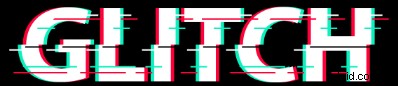
It often involves pixelation, color shifts, and other visual anomalies. This effect can give your videos a futuristic, distorted, or even eerie feel. Adding glitch text effects, a distorted, pixelated look to your text with RGB splitting or jittering movements is ideal for tech, gaming, or futuristic-themed videos.
You can sync these changes with the sound of your videos. It enhances the visual experience, attracts the audience, and makes your video stand out.
How to create a glitch text effect? How to convert a simple text to a glitchy look? To know more, let’s move on.
Part 2. Create Glitch Text Effect with Filmora
If you’re searching for an affordable editing tool with enough features, Wondershare Filmora is for you. It works on both Mac, Windows, and mobile devices.
Filmora is the best go-to tool for adding text to videos, with a low annual cost of around $100. It offers a wide variety of text effects to enhance your videos, for instance, re-built animations like fade-in, Typewriter Effect, simulating text being typed out letter by letter on the screen, a glowing neon light effect around your text, and so many more.


Let’s learn about the key features Filmora offers for adding glitch text.
Key Features for Making Glitch Text Effects in Filmora
- Color Distortion: The glitch effect typically uses red, green, and blue colors to mimic the appearance of a digital glitch, creating a vibrant and distorted look.
- Layer Duplication: Multiple copies of the same text layer are created, allowing for a more complex and layered glitch effect. Each layer can be manipulated separately for enhanced distortion.
- Blur and Offset Effects: Applying a blur effect to each text layer and slightly offsetting their positions creates the illusion of a glitch, as the colors overlap and misalign.
- Texture Addition: Adding grainy or static textures can enhance the glitch effect, giving the text a more authentic, distressed appearance that resembles screen glitches.
- Dynamic Font Choices: Using bold and strong fonts is recommended, as they better showcase the glitch effect. The choice of font can significantly impact the overall aesthetic.
- Animation Options: Various animation techniques, such as the "Typewriter" effect or other dynamic animations, can be applied to the text to enhance the glitchy appearance.
- Customization Flexibility: You can adjust the amount of blur, offset distance, and color saturation to achieve the desired glitch effect, allowing for a high degree of personalization.
- Integration with Video Editing: The glitch text effect can be seamlessly integrated into video projects, enhancing titles, transitions, or key phrases within the content.
To add text and glitch effects to it, follow the given step-by-step guide in the next section.
Step-by-Step Guide to Create Glitch Text Effects with Built-in Title Presets in Filmora
-
Download Wondershare Filmora
Download Wondershare Filmora for free by clicking the buttons below on your Mac, Windows, iOS, or Android phone.
-
Import your video
- Launch the tool.
- Click on the New Project.
- In the Media tab, click on the Import Media Files button.
- Locate the file and click on Open or Import.
- Drag and drop your video clip into the timeline.
-
Add Text Titles
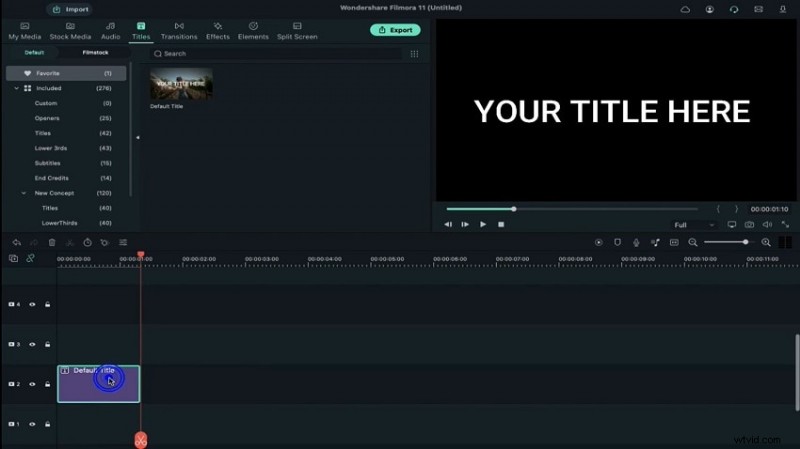
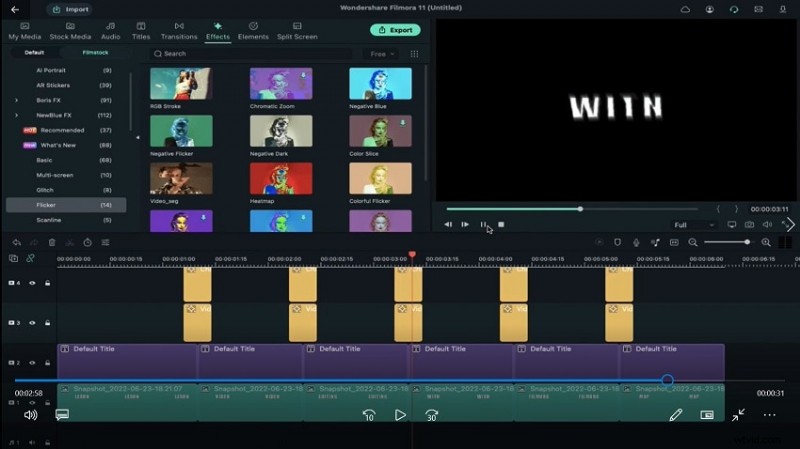
- Go to the Titles section and drag the default title onto Track 2.
- Place the playhead at 1 second and 10 frames, then reduce the title’s duration.
-
Edit the added text
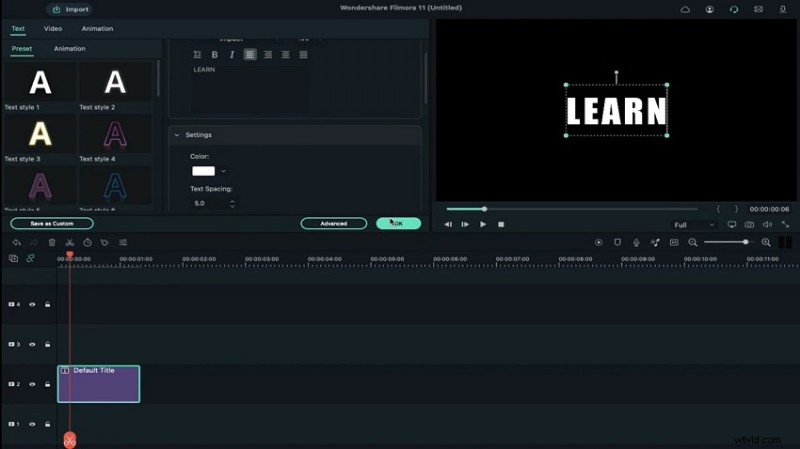
- Double-click on the title to change the font to Impact.
- Increase the font size to 100.
- Enter your text and increase the text spacing by 5.
-
Duplicate Text
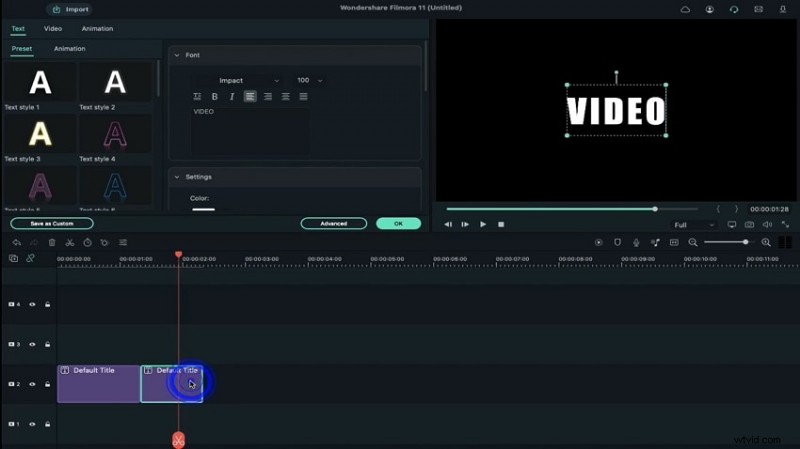
- Copy the text and paste it on the same track.
- Move the duplicated text 1 second ahead.
- Double-click to change the text.
- Repeat this process for all your text entries.
-
Take Snapshots
- Go to My Media and take a snapshot of each text.
- Place the first snapshot on Track 1.
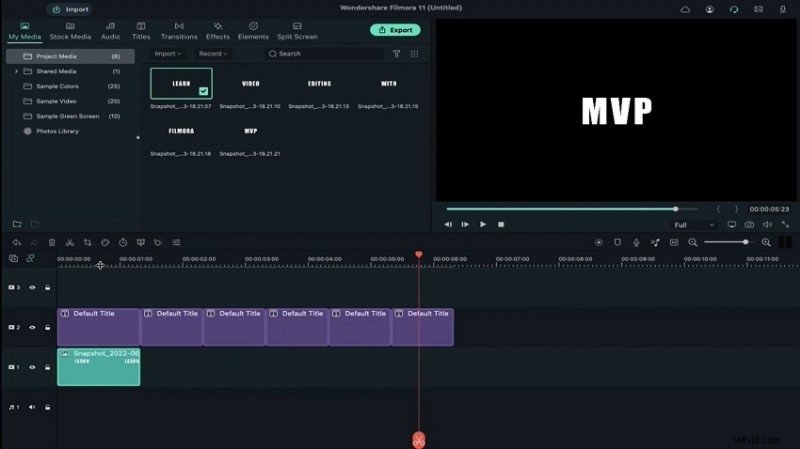
- Double-click the snapshot. Increase the scale to 290%. Decrease the opacity to 7%.
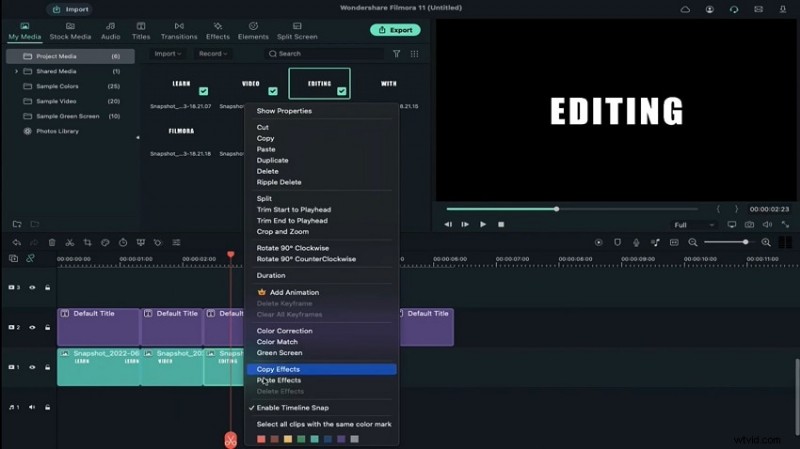
- Right-click to copy the snapshot and paste it on the same track.
- Adjust the duration as needed. Repeat this process for all snapshots.
-
Apply Film Stock Flicker
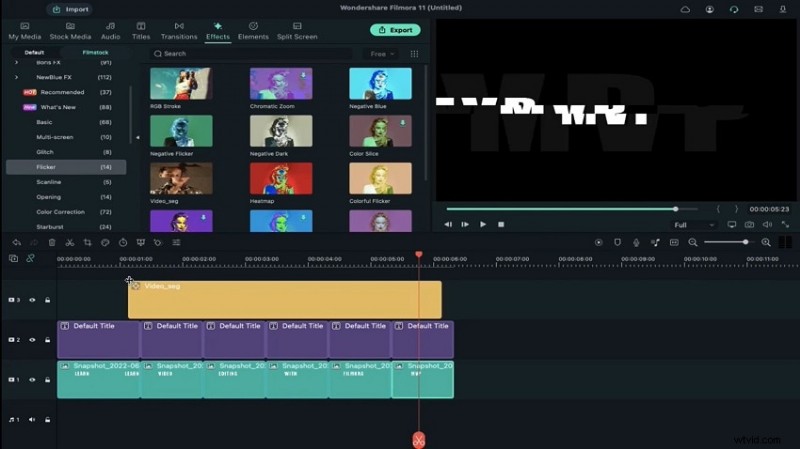
- Go to Effects and select the Film Stock Flicker.
- Apply this video effect on Track 3, between the first and second text.
- Adjust the frames.
- Copy the effect and paste it further on every text segment.
-
Apply Chaos Effect
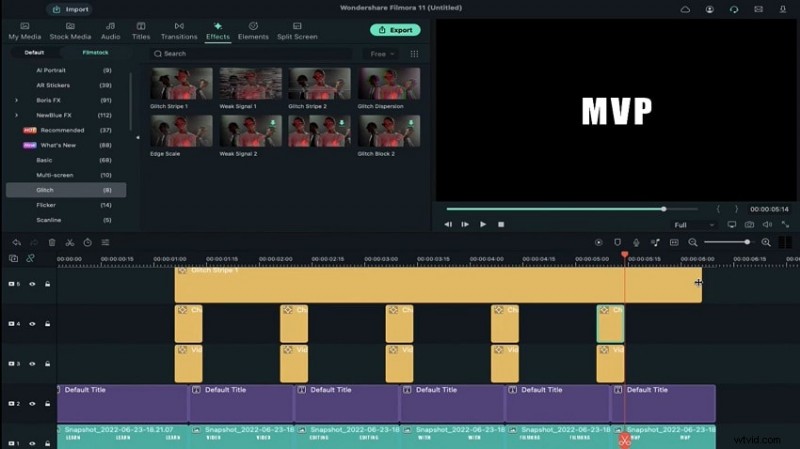
- Apply the Chaos One on the track just above the previous effect.
- Double-click to increase the frequency and set exposure to 0.20 and 0.70.
- Select the RGB Separate. Copy and paste this effect as needed.
-
Preview the glitch text
- Click on the Render Preview to see the final result.
- Save the video file.
- You can add any effect you want. Preview and adjust your changes as you like.
Customization of the Glitch text
So during the editing process, what if you hope to make some customizations? No worries, here are some tips for you.
- Experiment with the text properties of added text.
Add animations and effects to distort the appearance. Make sure you manage the distortion of text in a way that syncs with the sound of the video. This will make your video more engaging.
- Use manual keyframes to manage animations.
Using your creativity in the light of the above-mentioned steps will take your videos to the next level.
You can add glitch effect text via online tools. This would be a good idea if you don’t use editing software regularly.
1. Drag and drop the effects from the Effects library to add glitch text effects.
2. Use manual keyframes to play around with animations and effects.
3. Use RGB to mimic color channel distortions.
4. Adjust the timing of glitch text to match the sound effects of the videos.
5. Use the Shake or Distortion effects to simulate the visual distortion.
6. Use the Wave or Turbulence effects to enhance glitch texture.
7. Review your changes at least once before finalizing.
Part 3. [Without Any Download] How to Make Your Text Glitchy Online?
Web-based glitch text converters have become very popular these days. With a few clicks, you can convert simple text to glitchy text for your social media posts.
Online glitch text converters have simple interfaces, ideal for non-professionals. Let’s go through the step-by-step guide to add glitch text online.
Step-by-Step Guide to Generate glitch effect on text with Online Tools
Converting text to glitch effect text using web-based tools is very easy.
- Open the online tool you wish to use.
- Type the text you want to convert or just copy-paste.
- The tool will automatically generate glitch text.
- Copy the results and use them wherever you want to.
We have researched the best online tools to create glitchy text.
Recommended Online Tools to Make Your Texts Glitchy
-
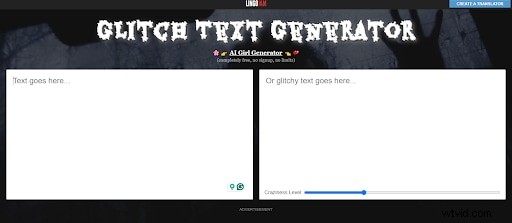
LingoJam Glitch Text Generator
LingoJam provides a web-based glitch text converter. It is very easy to use. Below the box on your right, you will find a Craziness Level slider. You can choose the extent of the glitchy effect you want.
-
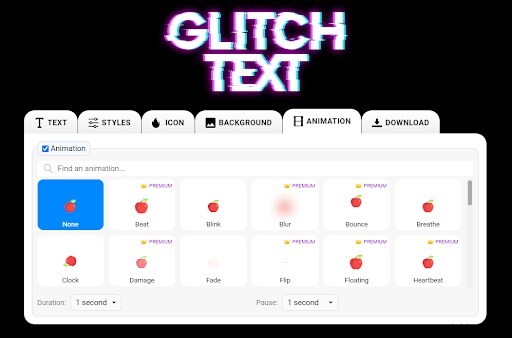
Text Studio
Text Studio provides more advanced editing options. You can manage the zoom, character spacing, line height, curve, and rotation of the text.
Moreover, you can edit the glitchy text style, add icons, change the background, and choose animation for your text.
Limitations of using Online Tools to add Glitch Effects Texts
Using online glitch text converters has some limitations like,
- Limited text fonts, styles, sizes, and colors.
- The glitch effects might appear different across different platforms.
- Some tools have a text length limit.
- Limited third-party integration
- The animations and effects are not enough for developing professional videos.
Let’s go over the frequently asked questions.
Conclusion
Glitch text effects when used the right way take the experience of your videos to a whole new level. The more you work on enhancing your video, the more the audience will love it.
Wondershare Filmora is the best tool to add glitch texts to your videos. Take a simple text and edit it in all ways to make your video more interactive.
If you want simple glitch texts, using online converters might be enough for you. However, the functionality is limited.
We hope you find this article helpful.
Get Started for FreeFor Win 7 or later (64-bit) Get Started for FreeFor macOS 10.14 or later