
Using Photoshop, you can create circular text to enhance your designs. The circular text adds unique elements, whether you're creating social media graphics, badges, or logos. Although the procedure may appear complex, it is simple if you get the right advice.
This guide covers everything you need to know about circular text in Photoshop. We'll review the fundamentals, discuss more complex guidance, and demonstrate how to use Filmora to improve your designs.
In conclusion, you can produce circular text for your high-caliber projects. Let's investigate the realm of circular text and see how this easy method can significantly influence your designs.
In this article
-
- Advanced Tips for Circular Text in Photoshop
-
- Key Features of Creating Curve Text in Filmora
- A step-by-step guide to adding Circular Text in Filmora
- Creative Uses of Circular Text
-
- Photoshop vs. Filmora for Creating Circular Texts
What is Circular Text?
Circular text follows a circular path to provide a balanced, symmetrical appearance. It is frequently used in social media graphics, badge design, and logo creation. This method can add a polished and professional vibe to your designs.
With Photoshop, it's simple to create circular writing using Type and Ellipse tools. Combining these tools enables you to text in a circle. It guarantees that the text you've produced will fit the shape precisely.
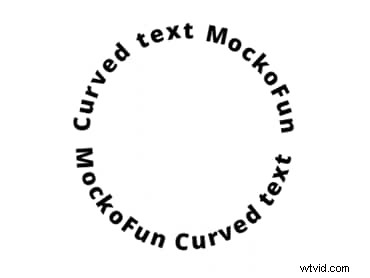
Using circular text can unleash new creative possibilities for designers of all skill levels. Now, let's proceed to the detailed tutorial on creating circular text in Photoshop.
There are a few easy steps involved in creating circular text in Photoshop. Using this strategy in your design tasks will be simple once you get the hang of it. This is how you do it:
Step 1: Open Your Document
Start by opening a new document in Photoshop. Set the dimensions according to your project needs.
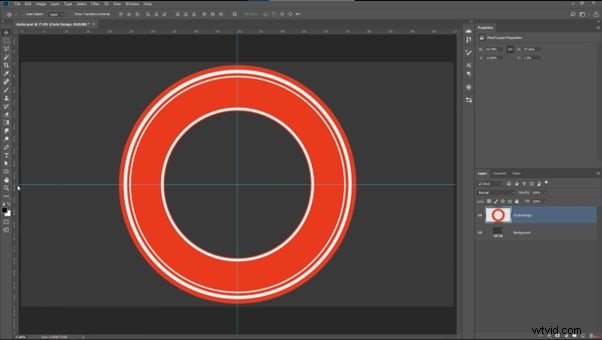
Step 2: Select the Ellipse Tool
Choose the Ellipse Tool from the toolbar. Hold down the Shift key and draw a perfect circle on your canvas.
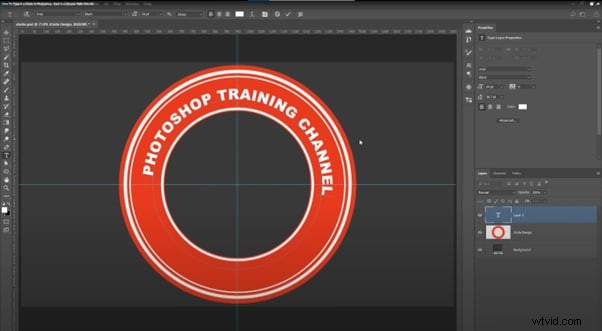
Step 3: Type on the Path
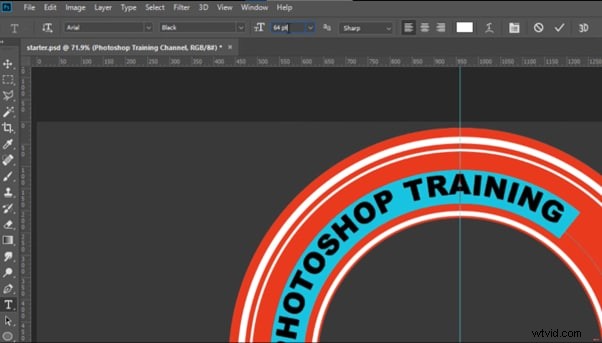
Select the Type Tool, hover over the circle's edge, and click to start typing your text along the path.
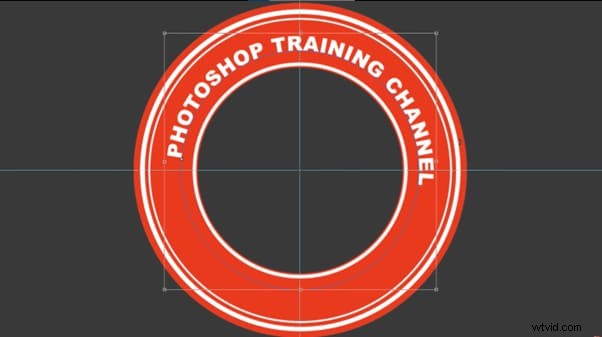
Step 4: Adjust Text Positioning
Use the Path Selection Tool to move the text along the circle. You can flip the text inside or outside the circle as needed.
Step 5: Customize Your Text
You can change the font, size, color, and spacing to match your design and add effects to make the text stand out.
Step 6: Finalize and Save
Save your document in the desired format once you’re happy with the design.
Let’s explore some advanced tips to enhance your circular text designs.
Advanced Tips for Circular Text in Photoshop
- Layer Styles and Effects: Apply layer styles such as angle, emboss, and shadows to give your circular text more depth and dimension. These effects can make the text pop and create a more polished, professional look.
- Combine with Other Shapes: Integrate your circular text with other shapes or design elements. For example, you can place your text around a logo, icon, or badge to create a cohesive and visually appealing design.
- Experiment with Path Shapes: Don’t limit yourself to perfect circles. Try using different shapes like ovals or custom paths for your text. This allows you to create unique text arrangements that stand out and give your design a creative edge.
While Photoshop is powerful, you can take your circular text designs even further with Filmora.
Enhance Circular Text with Filmora
Wondershare Filmora is a versatile video editor that also includes advanced text effects. It's ideal for designers who want to give their circular text designs dynamic impact and motion. Filmora is for you whether you're making a video title or adding text to a promotional graphic.
The Best Photoshop Alternative to Create Circular Text for Videos
Filmora supports easily fine-tune the curvature and animate the text allows for creative possibilities in YouTube videos, Instagram posts, etc.



Filmora allows you to add animations, transitions, and more to your Photoshop creations. Its intuitive UI makes applying these effects simple, even for newcomers to video editing. For professional-looking outcomes, Filmora provides an array of themes and presets.
Let’s look at some key features of Filmora that are particularly useful for enhancing circular text.
Key Features of Creating Curve Text in Filmora
- Multiple Presets: Filmora provides several preset shapes for curved text, enabling users to experiment with different styles. This includes options to create circular, arc, and spiral text effects.
- Adjustable Curvature: You can easily adjust the curvature of the text using a strength slider, allowing for fine-tuning from subtle bends to dramatic arcs (from 0° to 360°).
- Enhanced Visual Appeal: Curved text enhances the overall aesthetic of videos, making them more eye-catching and effective for logos, social media content, and marketing materials.
- Integration with Other Features: Curved text can be combined with other Filmora features, such as transitions and effects, to create cohesive and polished video presentations.
- Support for Various Projects: The Curved Text feature is versatile and can be used in a wide range of projects, including wedding videos, travel vlogs, and promotional content, enhancing the overall production quality.
Let’s follow the steps to import and enhance your circular text in Filmora.
A step-by-step guide to adding Circular Text in Filmora
Step 1: Open Filmora and Start a New Project
Launch Filmora and create a new project by selecting the appropriate video dimensions and settings.
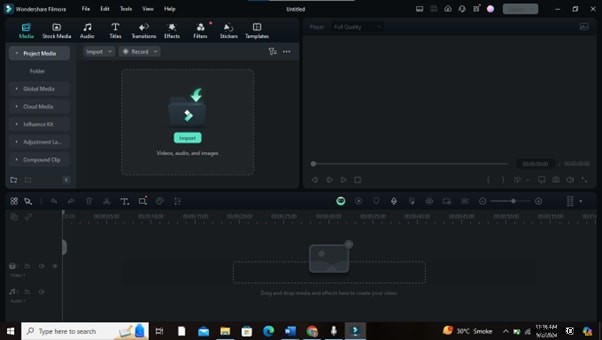
Step 2: Import Your Circular Text Design
Import the circular text design created in Photoshop or another software as a PNG file with a transparent background. Drag it into the Filmora media library.
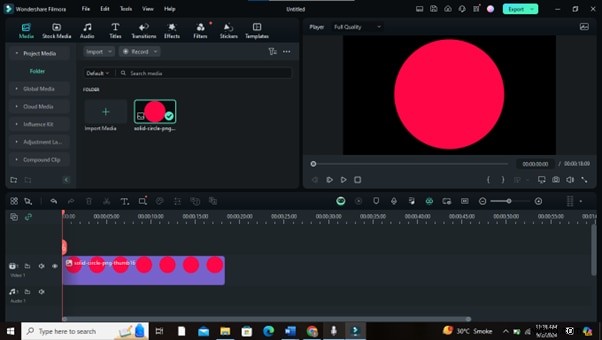
Step 3: Add the Circular Text to the Timeline
Drag your imported circular text onto the timeline where you want it to appear in your video. Place it on a video track above your footage.
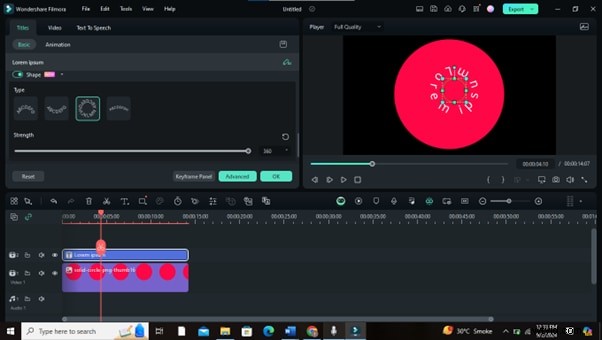
Step 4: Apply Text Effects or Animations
Use Filmora’s text effects and animations to enhance your circular text. Click on the text layer, go to the "Animation" tab, choose from preset animations or create custom keyframes.
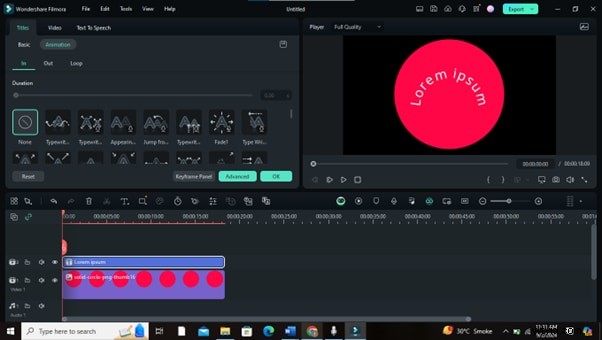
Step 5: Adjust Position and Timing
You can adjust the position of your circular text on the screen and synchronize its timing with the video. You can also resize, rotate, or reposition the text as needed.
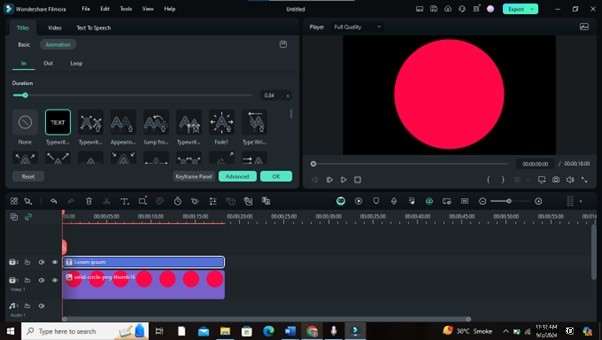
Step 6: Add Additional Visual Effects
The "Effects" tab contains visual effects such as shadows, glows, or color changes that can enhance the circular text further.
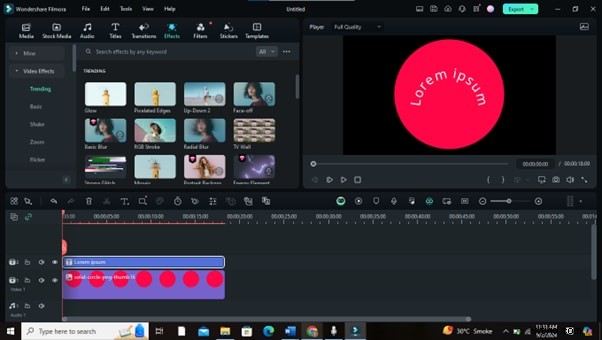
Step 7: Preview and Make Adjustments
Play your video to preview the circular text in action. Make any necessary adjustments to the text effects, positioning, or timing.
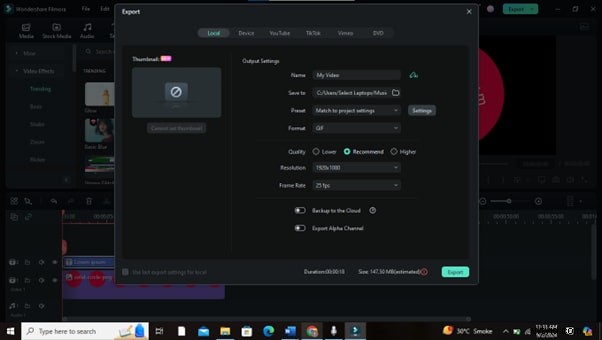
Step 8: Export Your Video
Once satisfied with the result, export your video. Choose the desired format and quality settings, and save the final video file.
Let’s explore some creative applications for this technique.
Creative Uses of Circular Text
- Logo Design: Logos often use Circular text to create a balanced and professional look. It helps to frame the logo and adds a sense of completeness.
- Social Media Graphics: Use circular text in social media posts to grab attention. It adds a creative twist and makes your content stand out in crowded feeds.
- Event Badges and Labels: Circular text is ideal for designing badges and labels. It’s stylish and practical for highlighting essential details like event names or dates.
Compare Photoshop and Filmora can help you decide which tool is best for your project's various aspects.
Compare Photoshop and Filmora for Text Creation
Photoshop excels in creating and editing text for static images, offering precise control over every detail. On the other hand, Filmora shines when adding motion and effects to text, making it ideal for video projects.
Photoshop vs. Filmora for Creating Circular Texts
This table highlights the strengths of both Photoshop and Filmora. It helps users choose the best tool based on their specific text effect needs.
Let’s wrap up with frequently asked questions about creating circular text in Photoshop and using Filmora.
Conclusion
Creating circular text in Photoshop opens up new creative possibilities for your designs. Mastering this technique will enhance your work, whether designing logos, social media graphics, or promotional materials.
Filmora complements Photoshop by adding dynamic effects to circular text, making it ideal for video projects. These tools offer a powerful combination of static and animated text designs.
So, why wait? Start experimenting with circular text today and see how it can transform your design projects.
Get Started for FreeFor Win 7 or later (64-bit) Get Started for FreeFor macOS 10.14 or later