
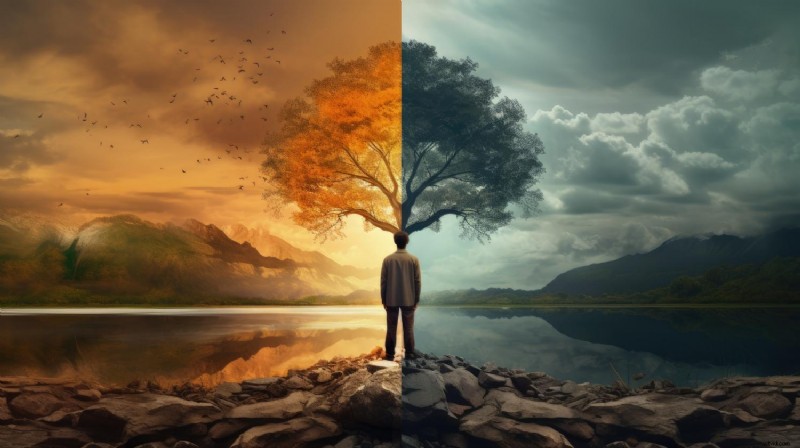
Merging two pictures into one is a photo editing technique with many different applications. If you are aiming to put two pictures side by side, you can use this technique to create before-and-after comparisons or photo collages. On the other hand, you can blend them and create a double exposure effect or change the background and add overlays. You can even use AI to blend two photos and create a short video.
There are also many different ways to achieve these tasks, and today, we will show you several methods for mixing two images using a very simple mobile app.
In this article:
-
- Method 1: Merge Two Pictures into One with Basic Editing
- Method 2: Mix Two Pictures (or More) with Photo Collage Templates
-
- Method 1: Blend Pictures to Create Stunning Art
- Method 2: Combine Pictures with Advanced Image Masks and Opacity Sliders
-
- Merge Pictures and Turn Them into Videos with AI
Part 1: Merge Two Pictures into One Using Simple Editing Techniques
The app we will use is called Filmora. It's available for Android and iOS, and it's one of the best video editing apps you can find. Even though video editing is its primary function, Filmora features all the image editing features you will ever need. You can use it to correct colors, change image styles with AI, add filters, effects, texts, and explore a vast library of creative assets and templates.

Filmora
AI Video Editing App & Software
Best tool for making videos and photos anywhere for all creators!
We are only scratching the surface of what the Filmora app can do here. For the task at hand, Filmora shines because it offers many different ways to combine two images into one.
You can merge two pictures using basic editing techniques, such as picture-in-picture mode, and create a stunning photo collage template, or blend two pictures for creative art, combine pictures with image masks, and even make an AI blending video from two or more pictures.
Let's jump into the action!
Method 1: Merge Two Pictures into One with Basic Editing
Before we begin the tutorial, download and install Filmora on your mobile, create a new project, and import the first image. Then, follow the steps below to put two pictures side by side using the PIP (picture-in-picture) effect.
Filmora
AI Video Editing App & Software
Best tool for making videos and photos anywhere for all creators!
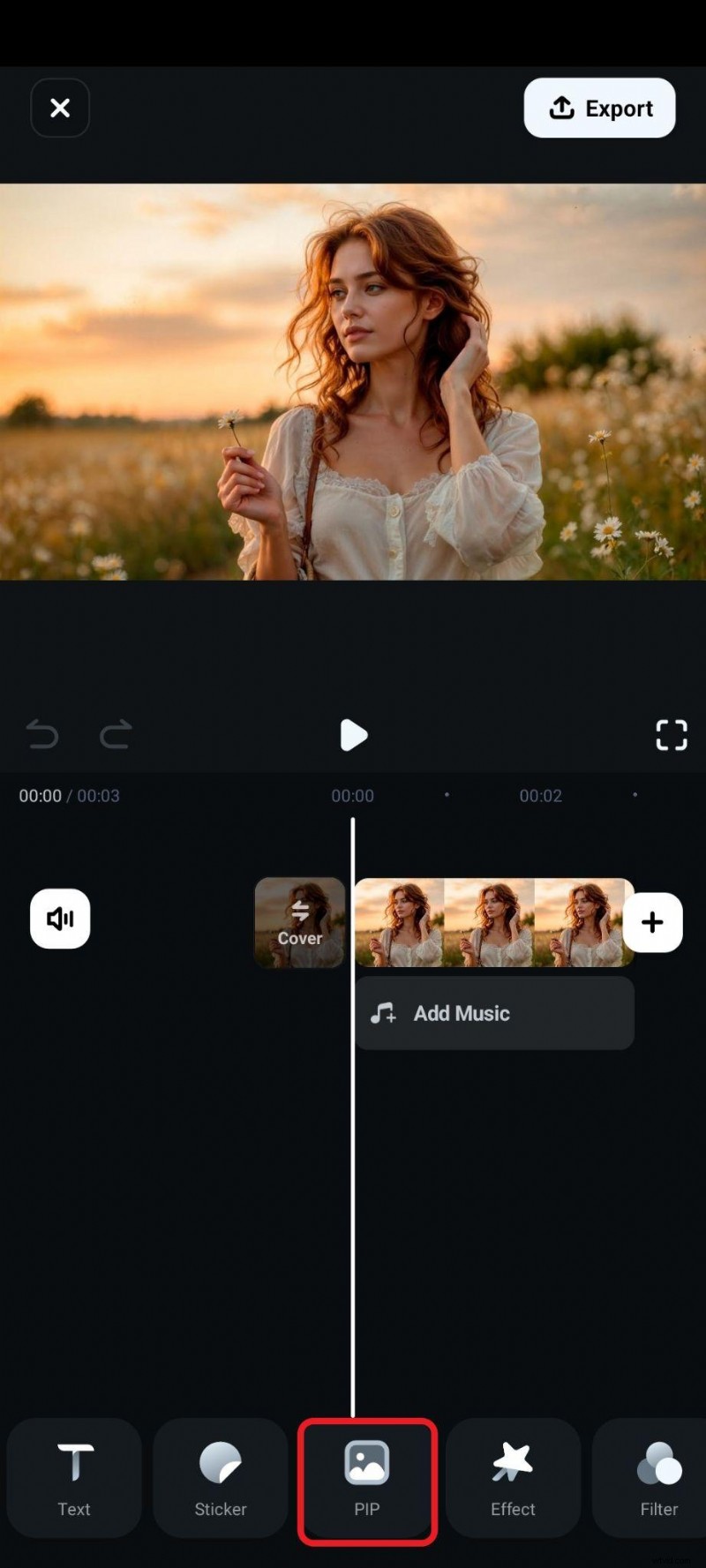
- Find the PIP effect on the app's bottom menu.
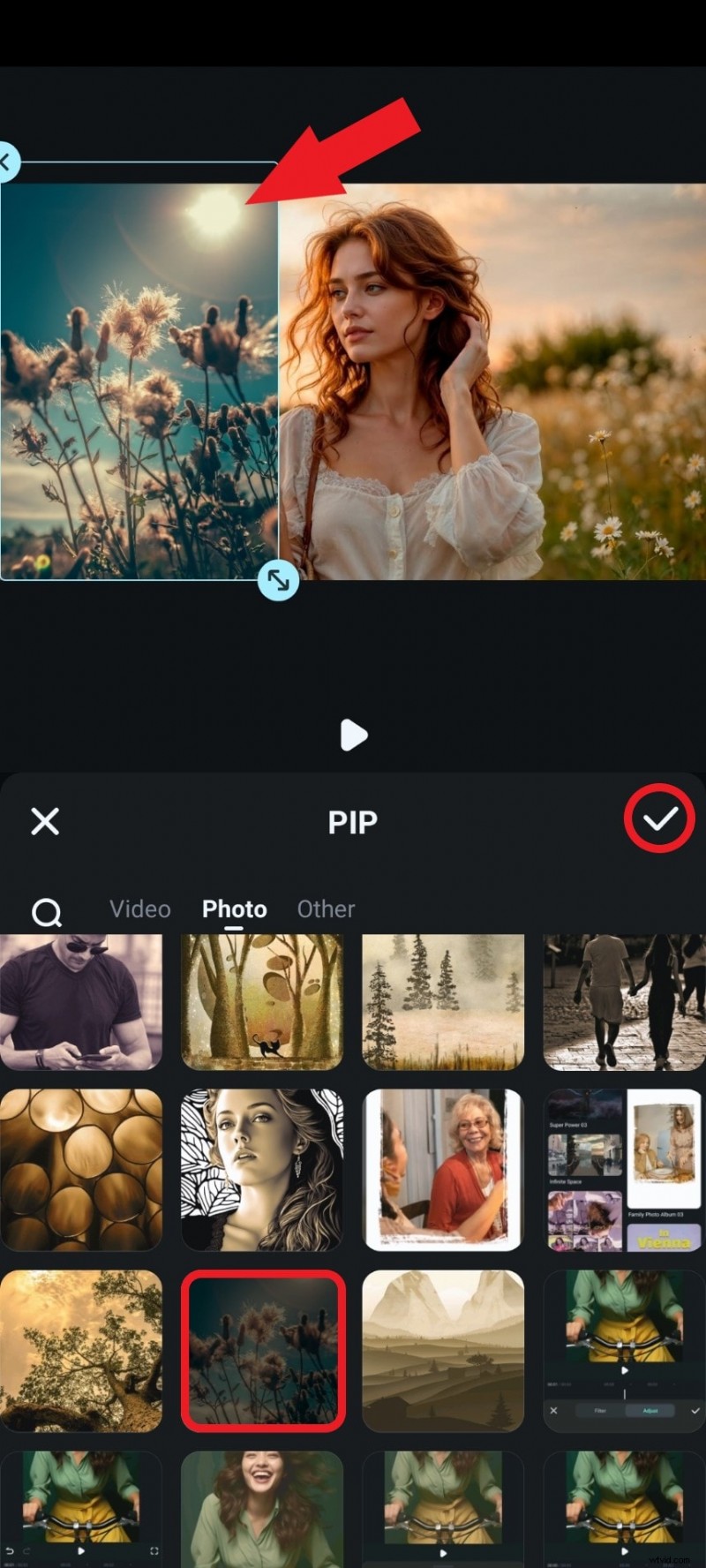
- Now, you need to pick a photo to add to the side-by-side collage, adjust its size and position in the preview section of the screen, and accept the changes when you're done.
- You are basically done, but you might want to adjust the first image to better fit the entire composition. To do that, select the image in the timeline and tap on Crop.
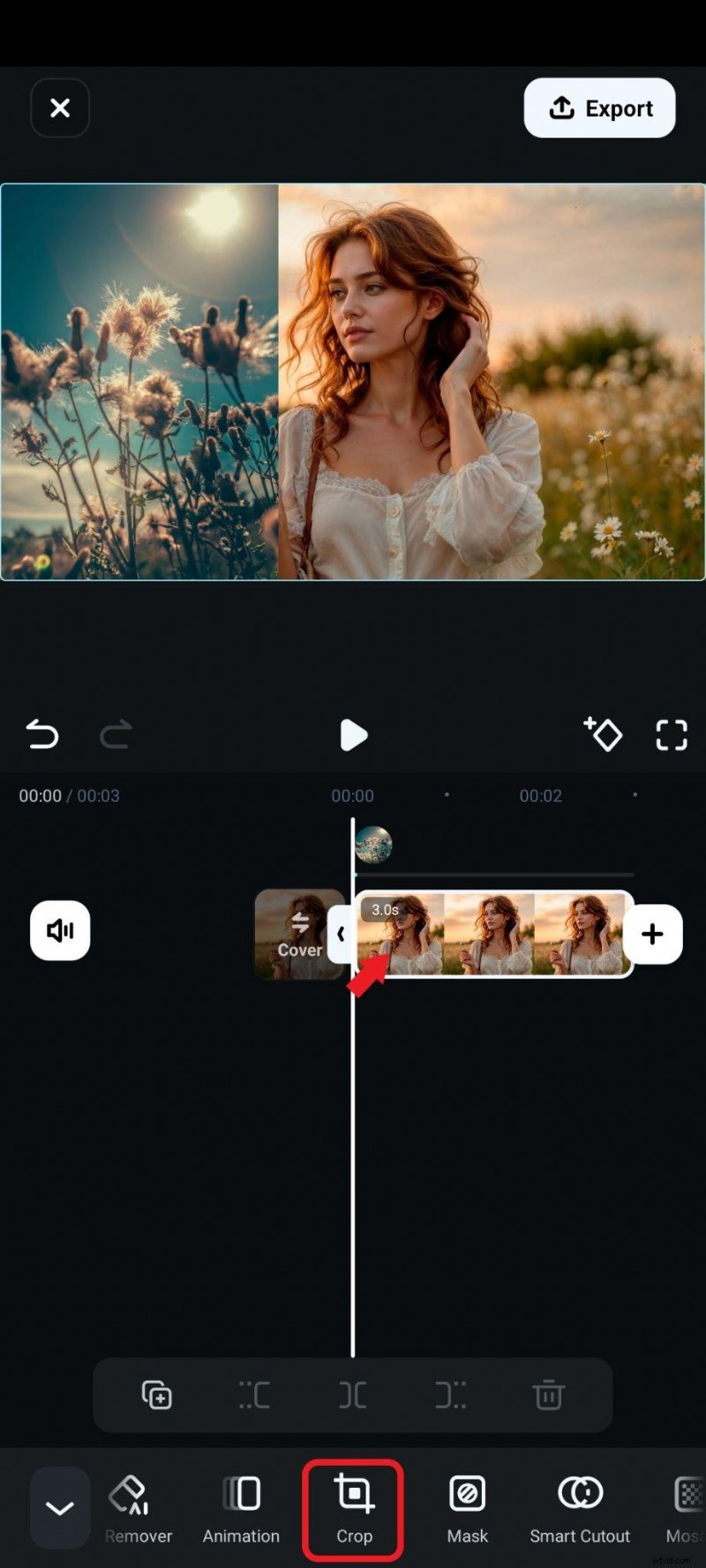
- Crop the image to your liking and accept the changes when you are done.
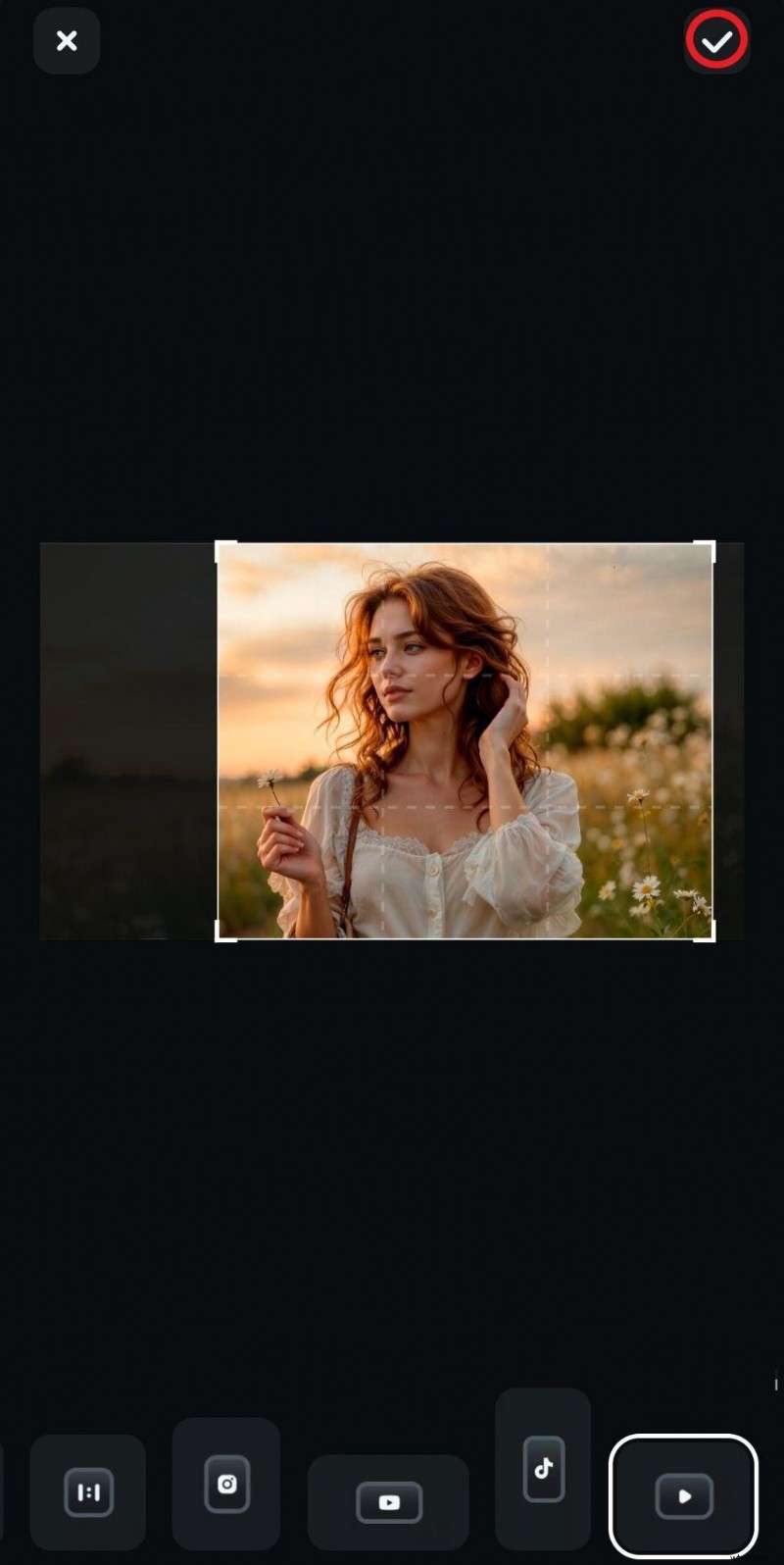
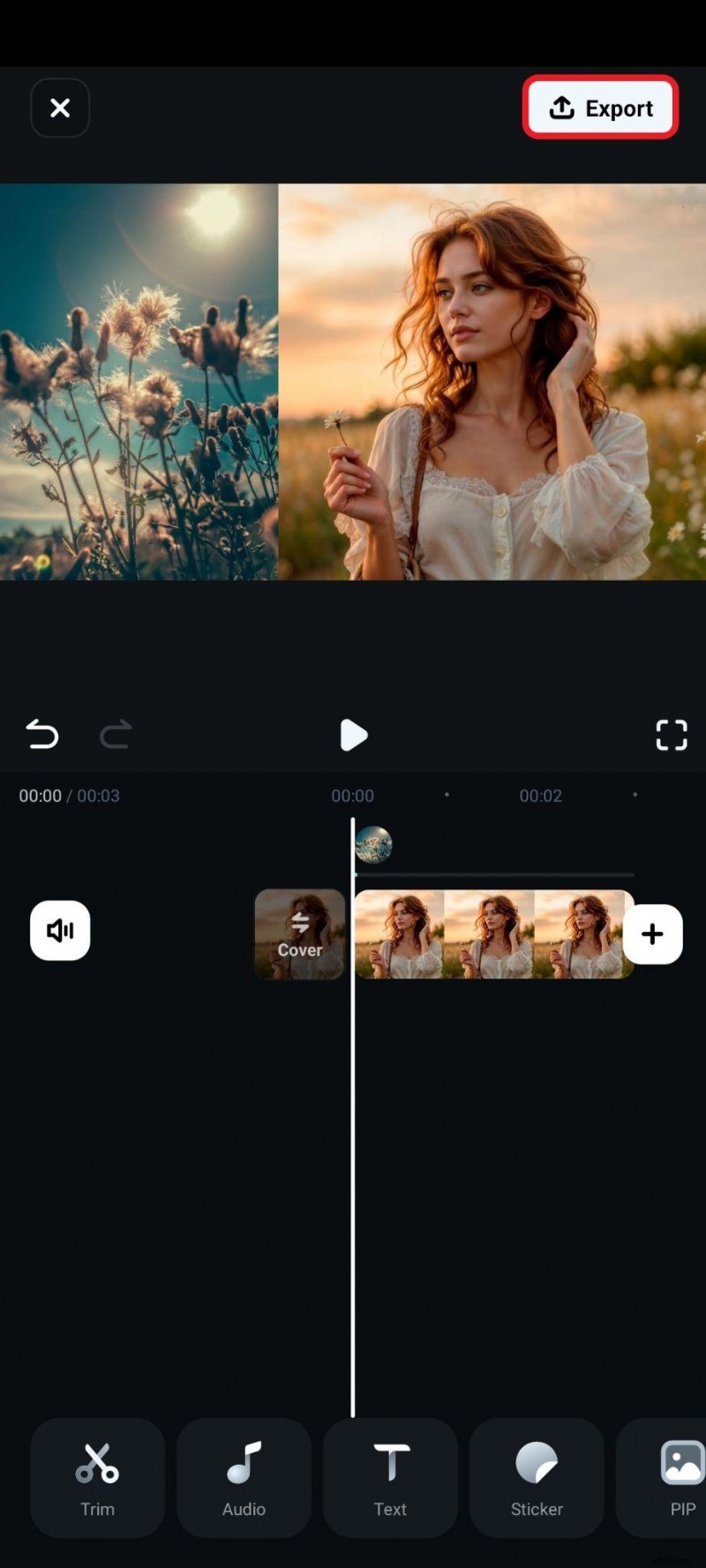
- Finally, adjust the position of the image and, when everything is neat and well organized, tap on Export or take a screenshot.
- Check out the result.
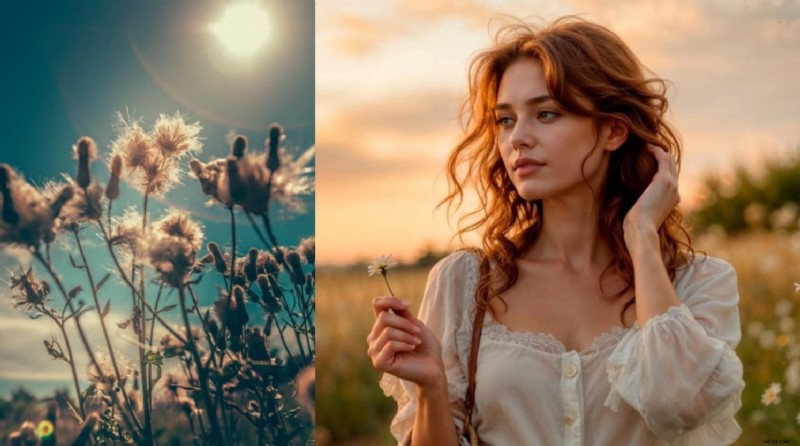
It looks like the woman holding a flower is thinking about flowers. This shows how powerful these simple editing techniques are in creating a narrative.
Method 2: Mix Two Pictures (or More) with Photo Collage Templates
Filmora has a large community of creators who contribute easy templates to help you start your project. Here is how to use them.
 Secure Download
- In the app's main menu, tap on Templates.
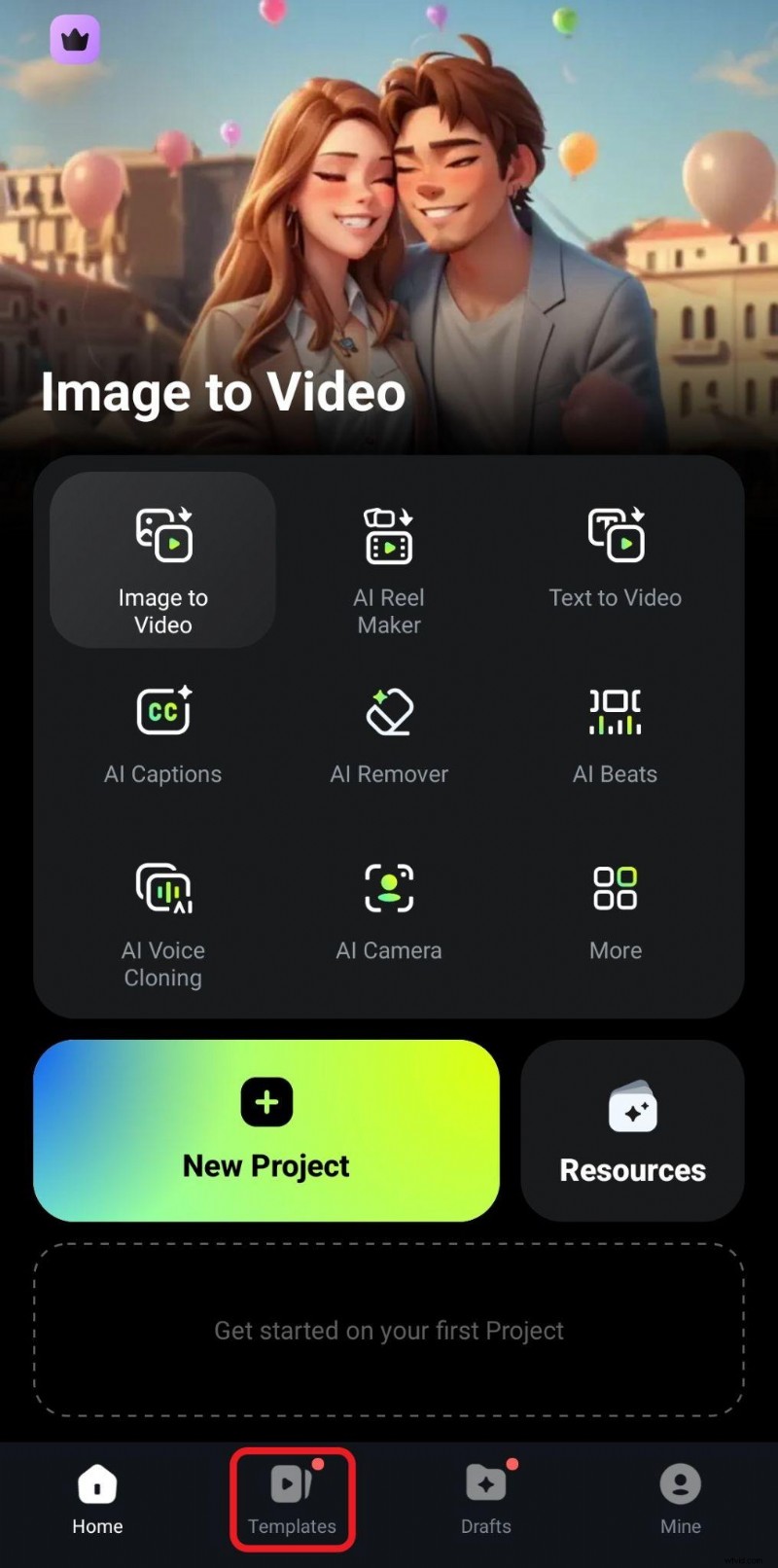
- Tap on the Magnifying Glass Icon to initiate the template search function.
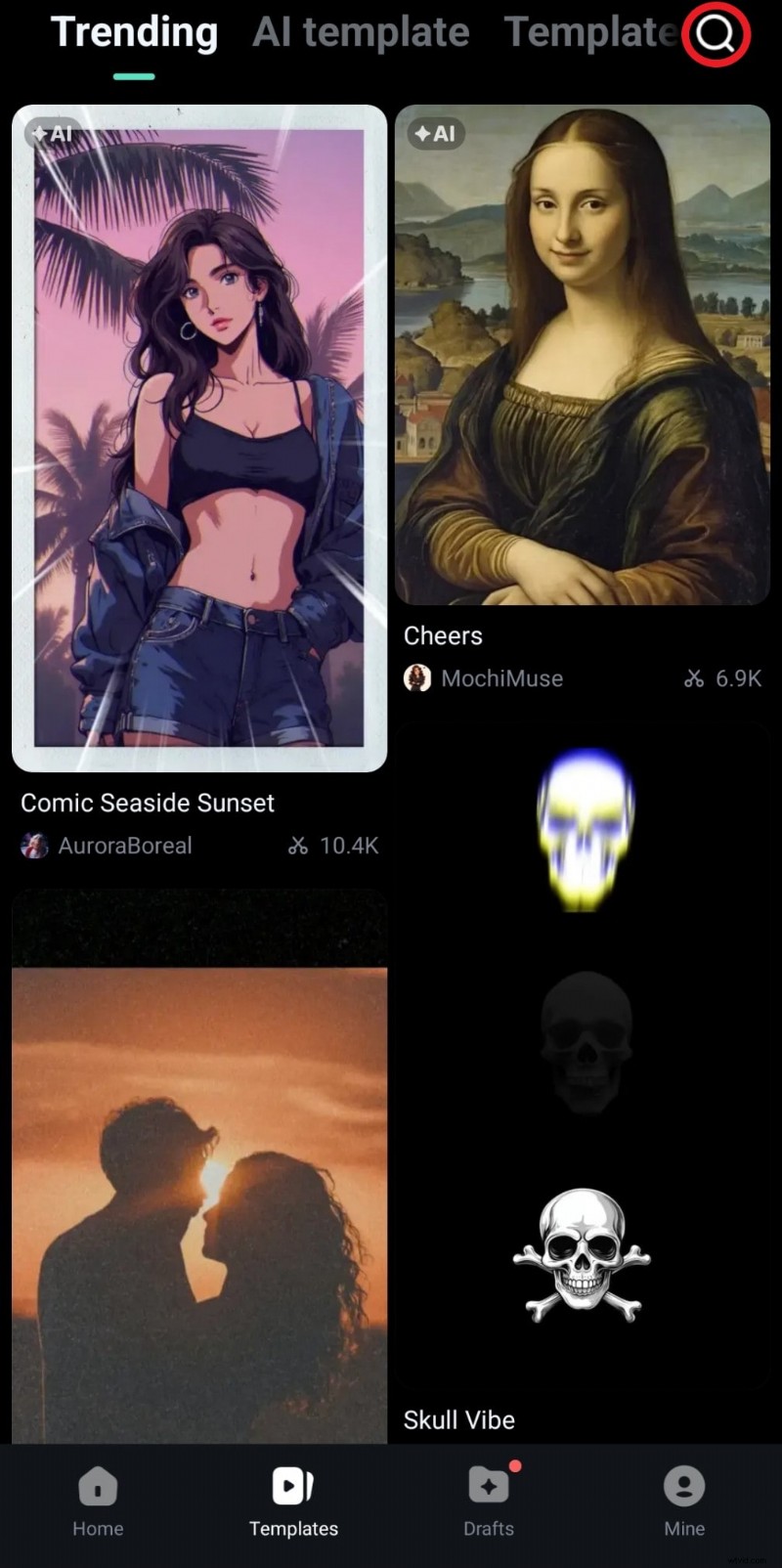
- Search for the word collage and pick a template that combines two pictures into one.
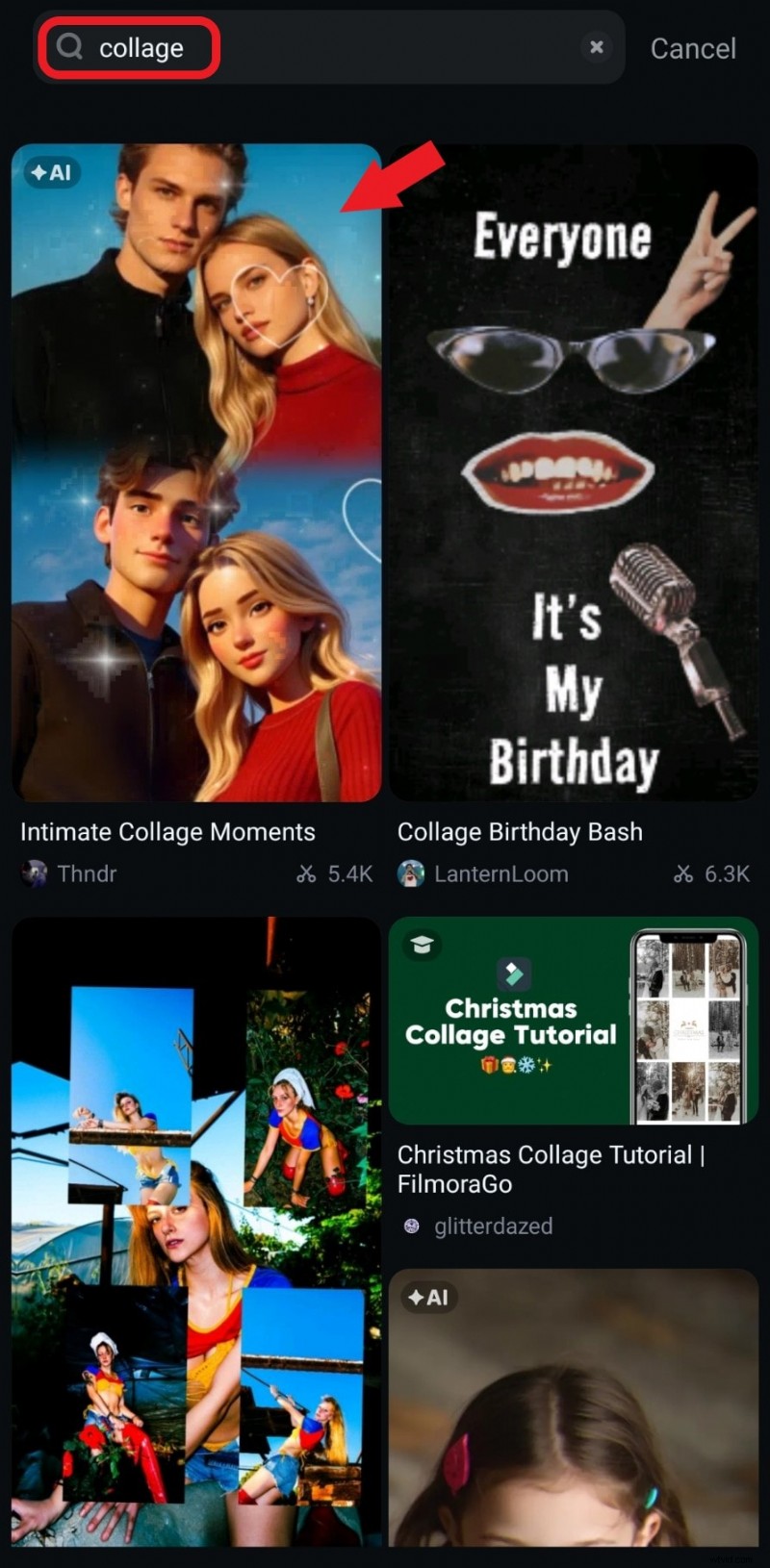
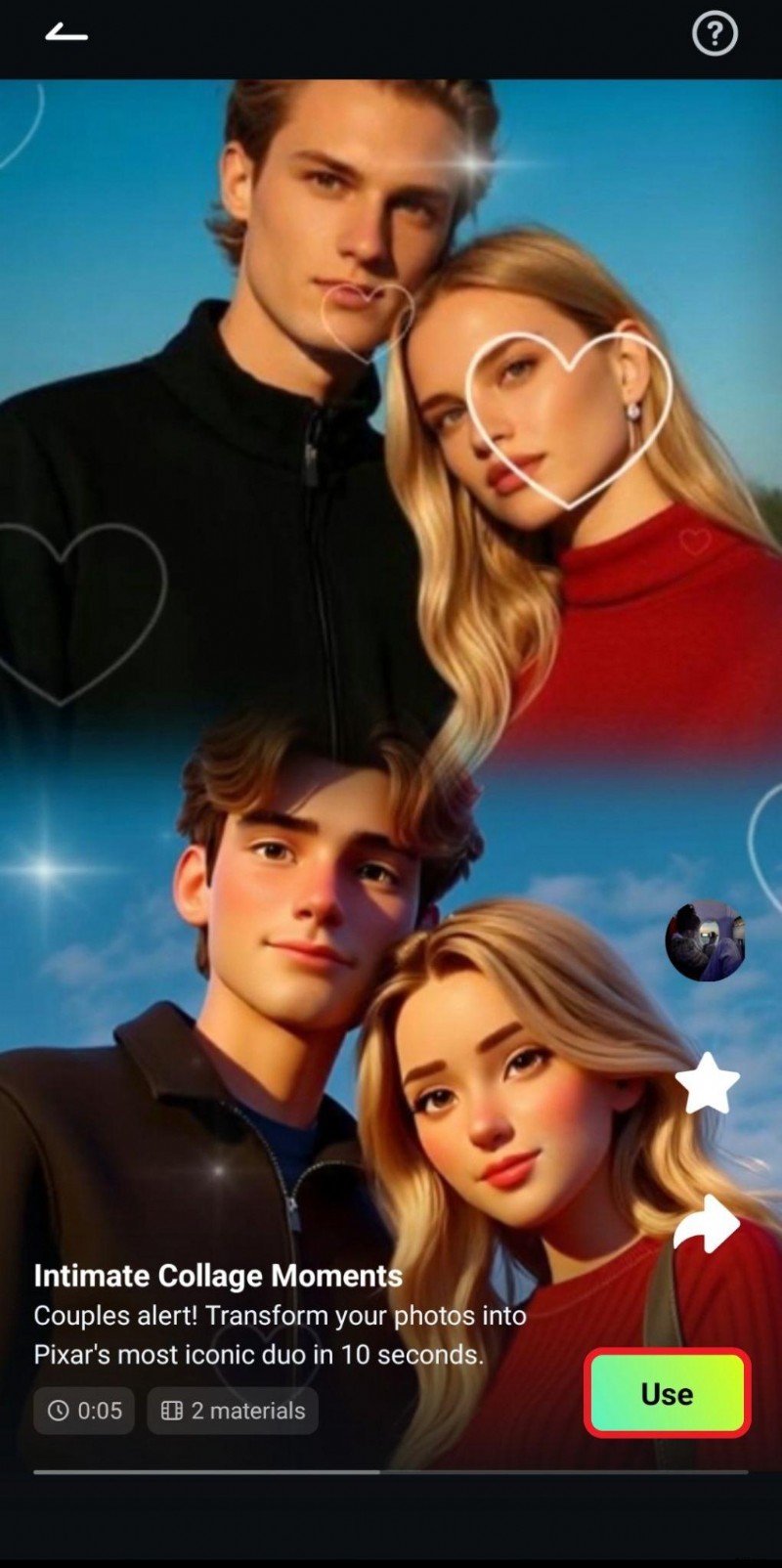
- Review the template you have chosen once more and tap on Use.
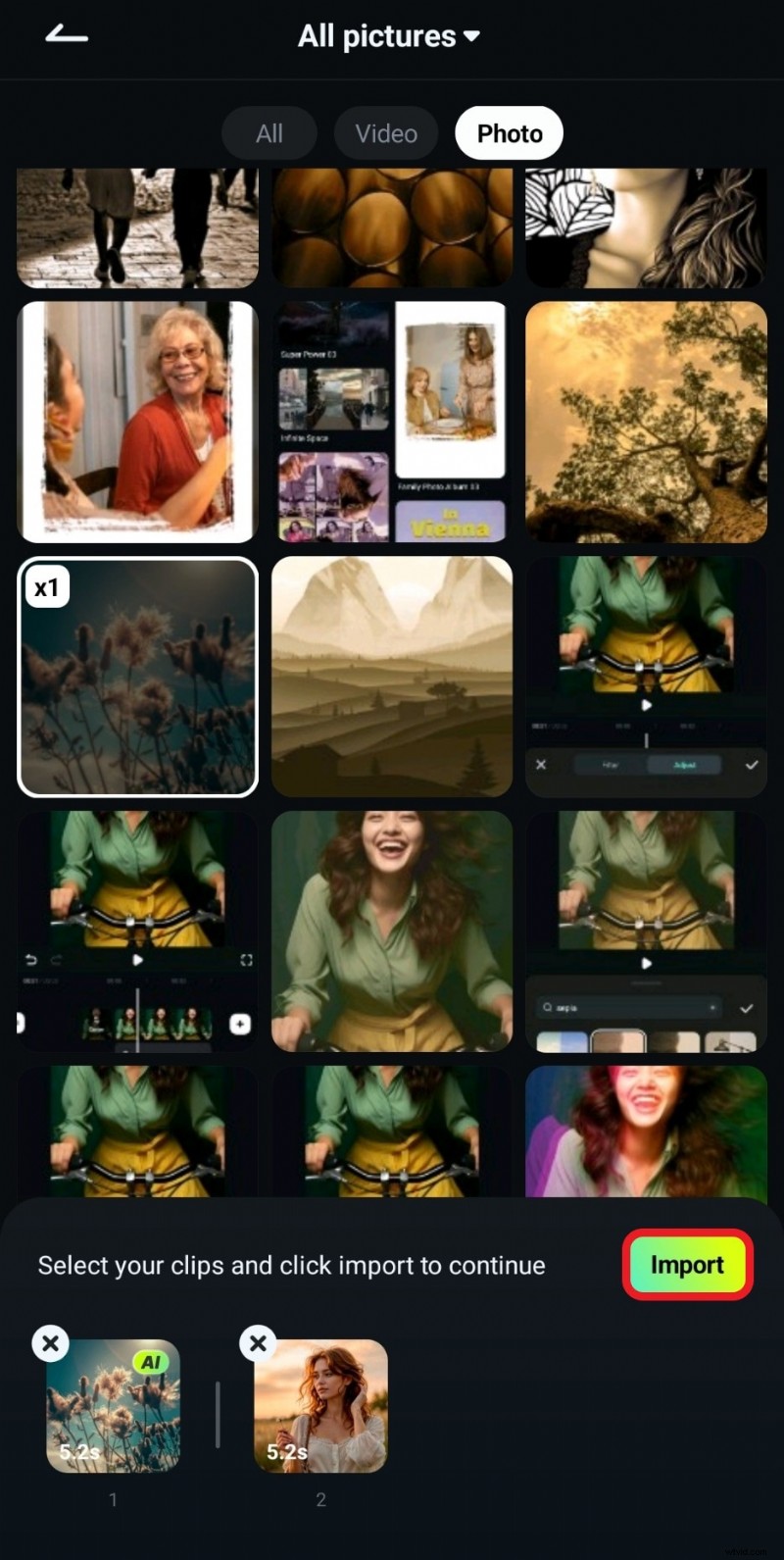
- Add two photos and tap on Import.
- Review the result and tap on Save.
- Check out the result.
Part 2: Creative Ways to Combine Two Pictures
Merging pictures is that easy; If you want to be more creative, you can also blend them together to create interesting works of art. There are two methods to achieve this in Filmora. Let's dig in.
Method 1: Blend Pictures to Create Stunning Art
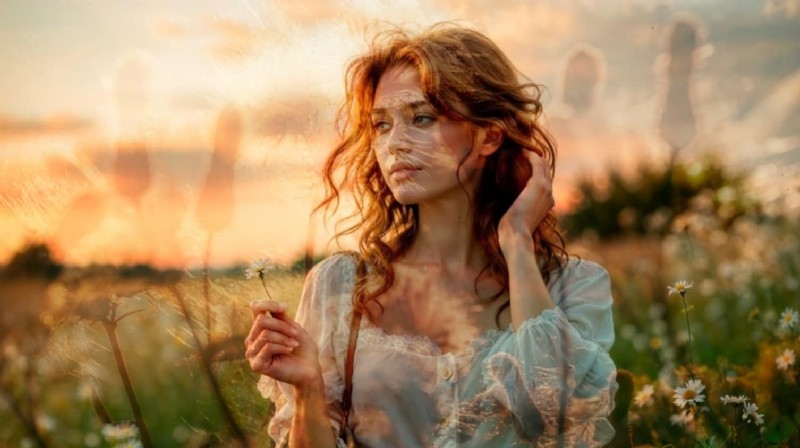
Blending is basically overlaying images on top of one another, making them transparent, and organizing them in a meaningful way. Filmora offers several blending modes based on the images you upload to your project. This gives you a lot of customization options, and you can get very artistic and, sometimes, mind-blowing results.
After you import the second picture into the project using the PIP function, as explained in the tutorial above, follow the steps below to use the blend feature in Filmora.
Secure Download
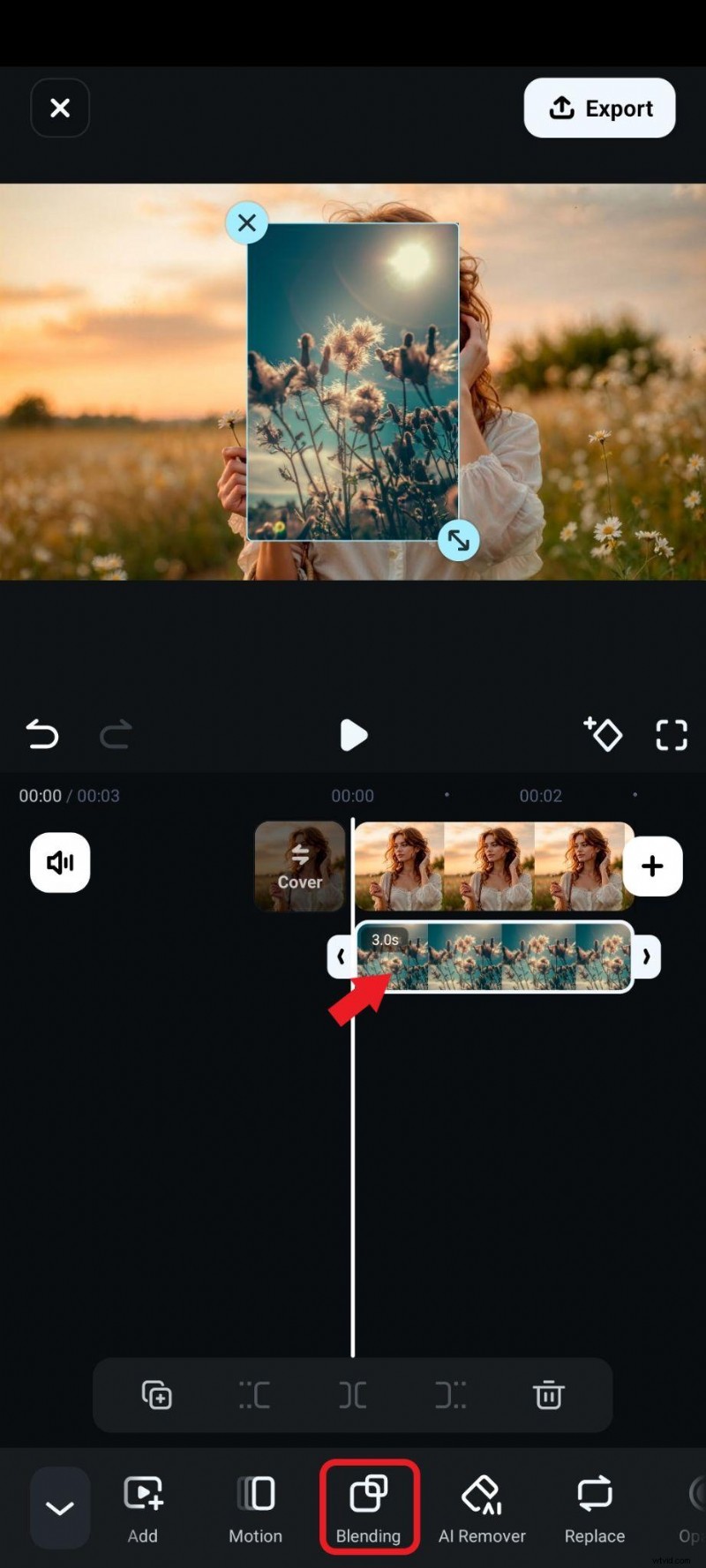
- Select the second image in the timeline and tap on Blending.
- Pick a blending feature that you like, adjust the size and position of the blended image in the preview section of the screen, and accept the changes when you're done.
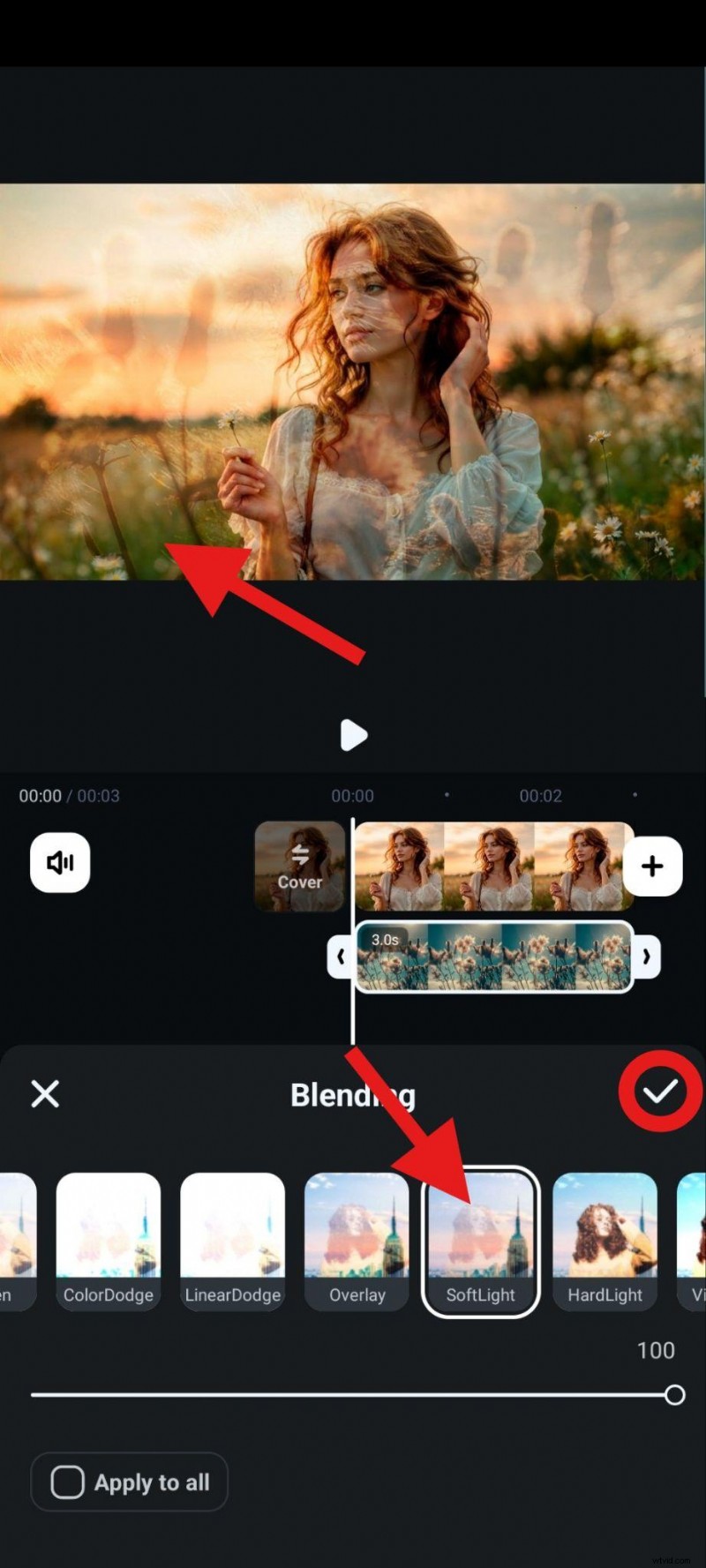
- And just like that, we were able to create this work of art.
Method 2: Combine Pictures with Advanced Image Masks and Opacity Sliders
The mask feature lets you crop one of the photos using familiar shapes. You can pick a heart, a circle, or you can create a custom mask if you want. That way, you can take your art in a different direction, especially after you adjust the opacity and make images transparent.
This method combines two features in the app. And, just like before, the steps below come after you import the second image with Filmora's PIP feature.
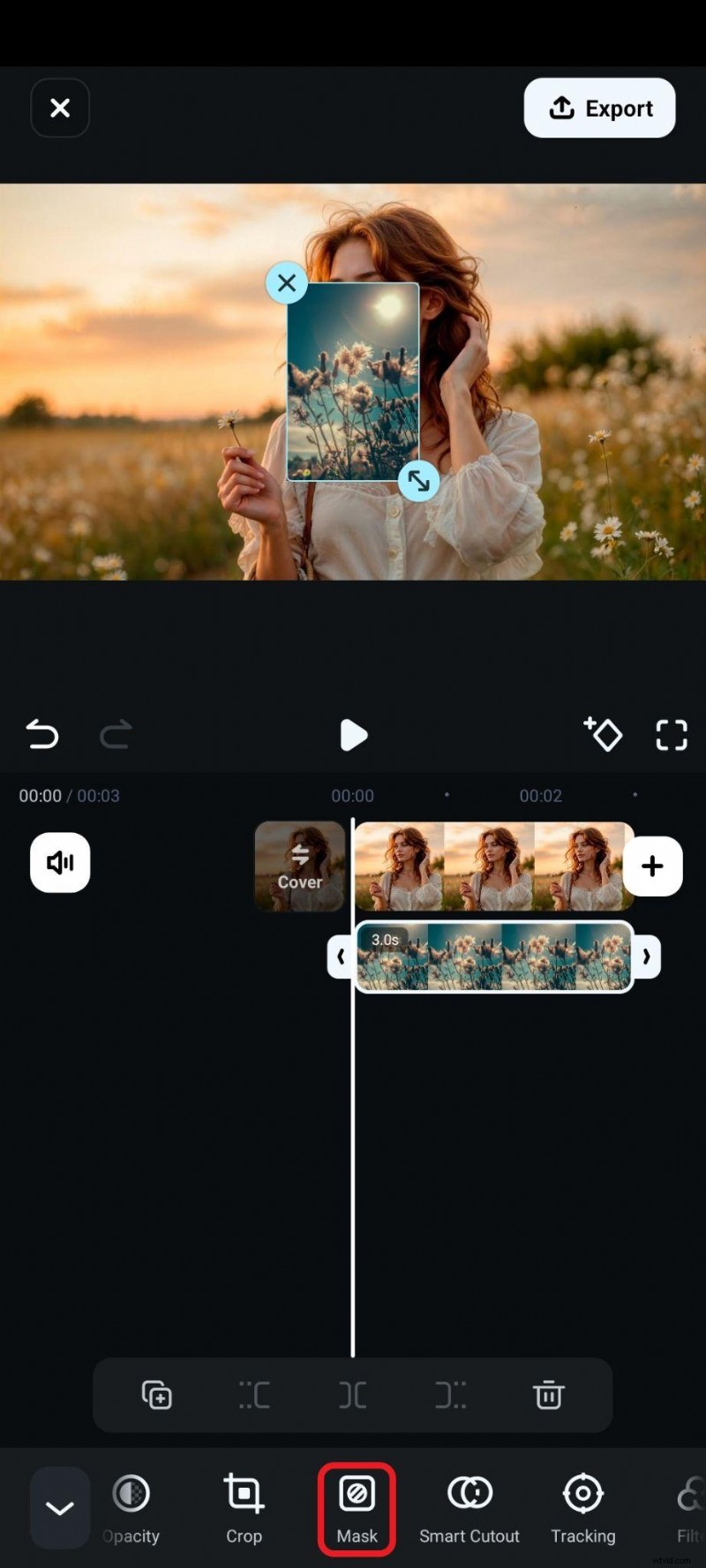
- After you select the second image in the timeline, tap on Mask in the bottom submenu.
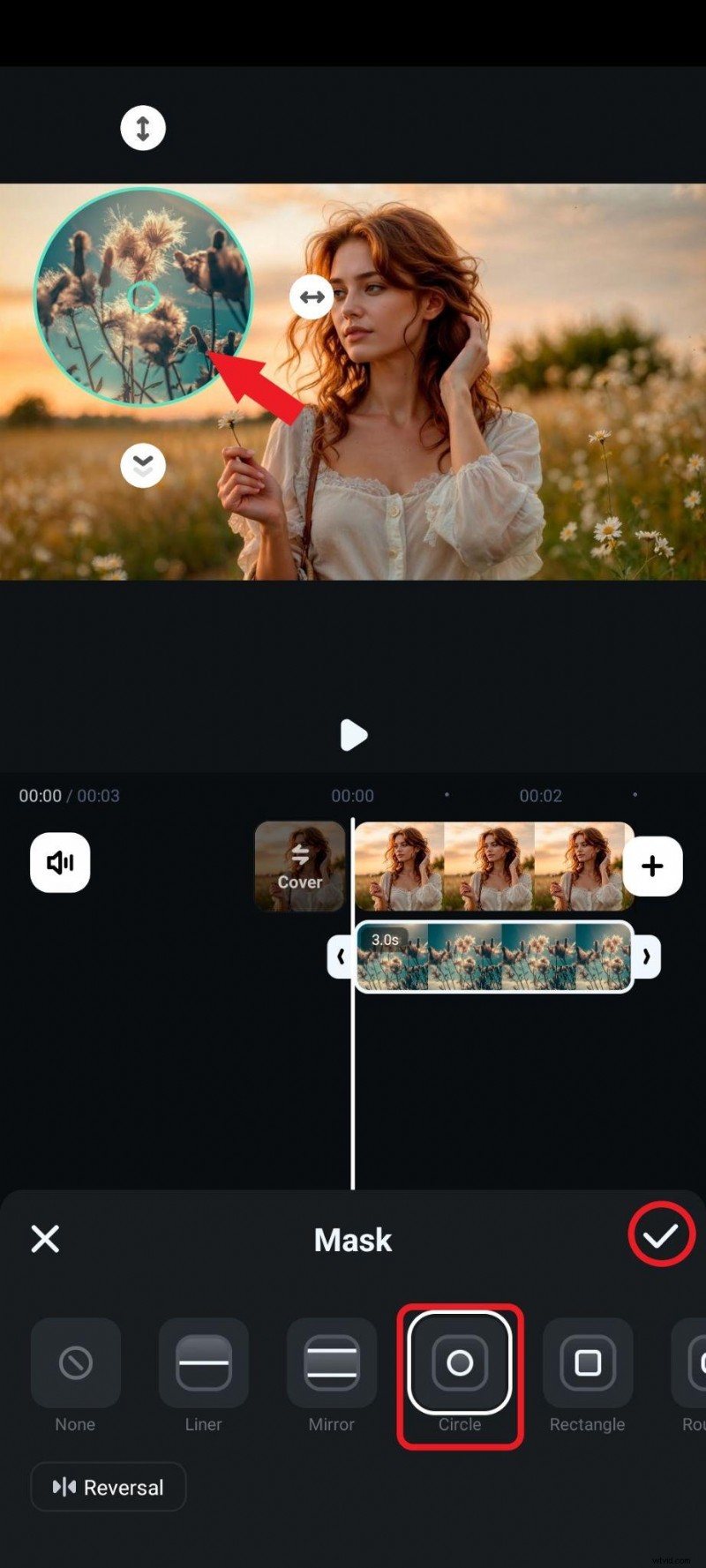
- Pick a mask shape that you want, adjust the size and position of the new image, and accept the changes.
- Now, tap on Opacity in the bottom submenu.
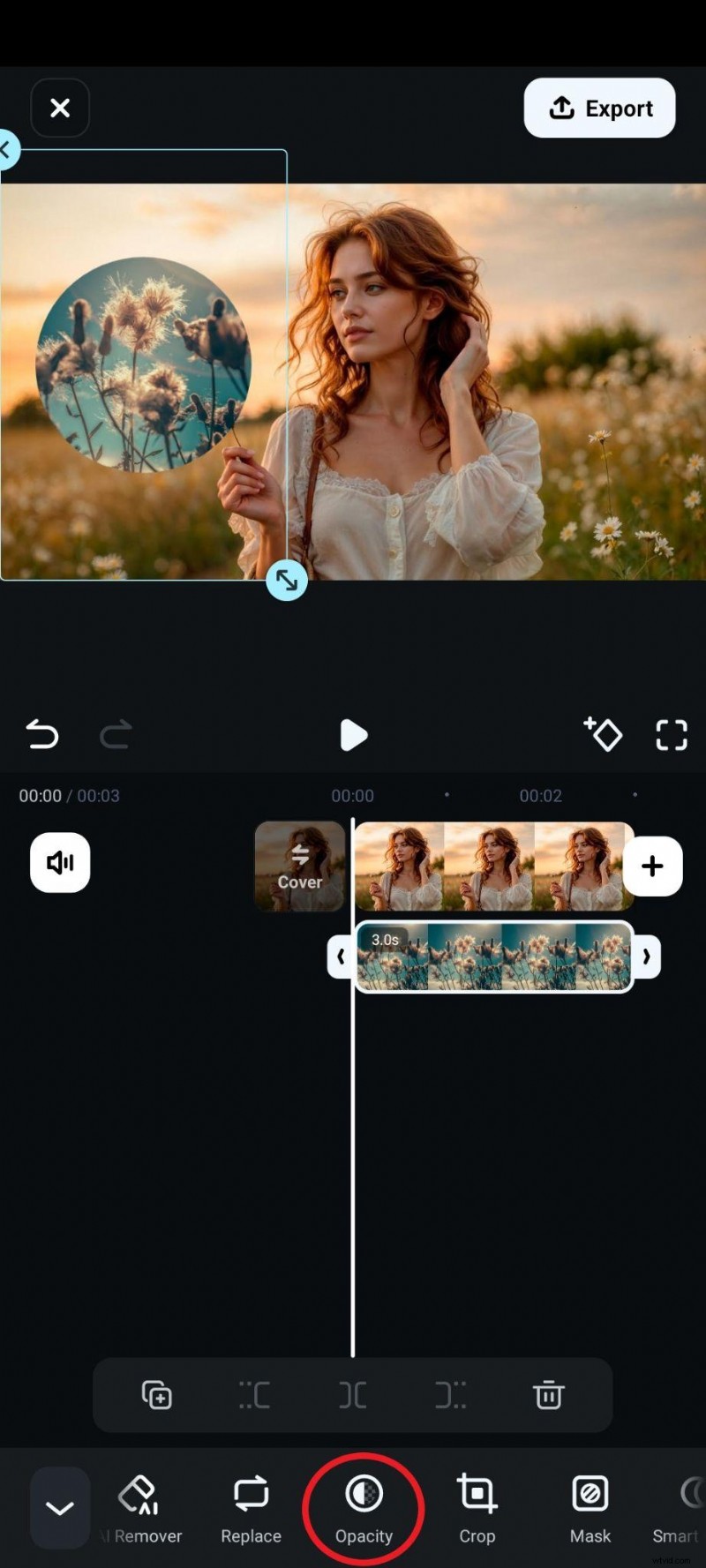
- Adjust the slider to your liking and accept the changes.
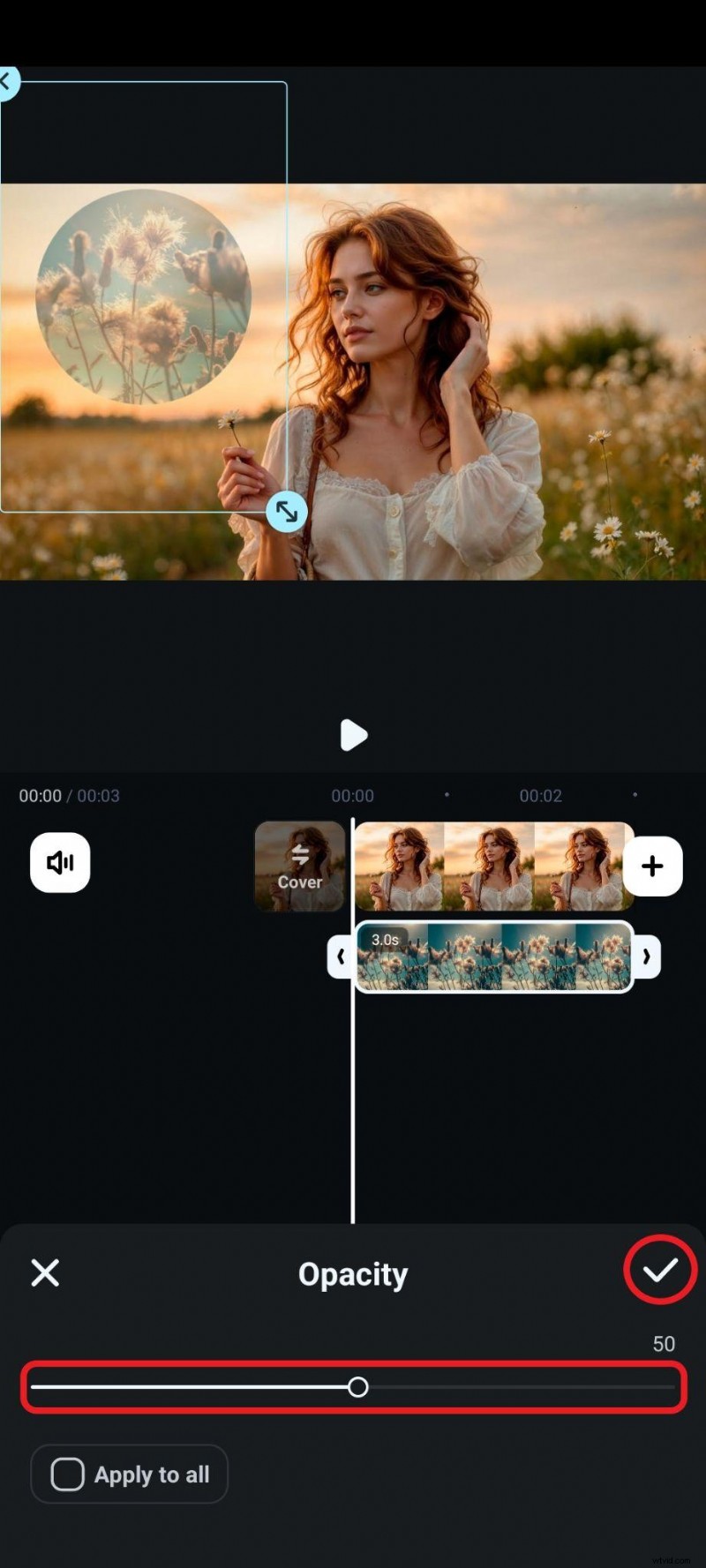
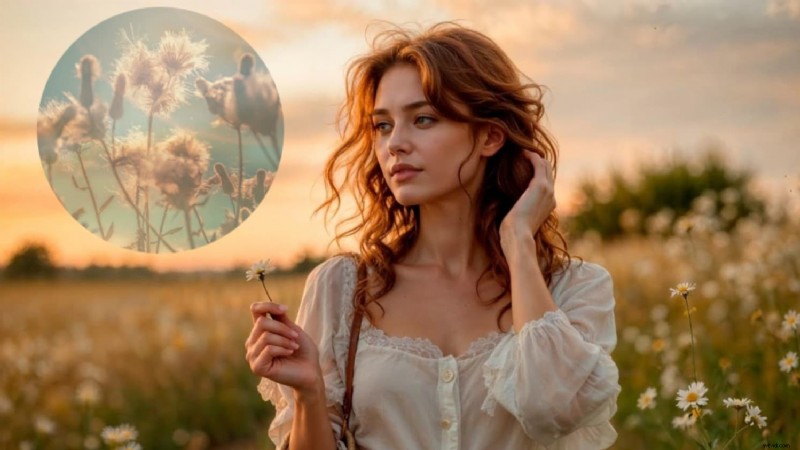
- Take a look. It looks like a transparent flower-themed sun in the sky, right?
Part 3: Mix Pictures with an AI-powered Method
The Filmora app comes packed with AI features that do all sorts of helpful things, but there is one feature in particular that fits into the main subject of this guide. It's called Image to Video, and you can use it to animate your selfie and watch yourself transform into a superhero, use the blend mode to make virtual try-on videos, outfit changer videos, and first and last frame AI clips. Let's learn how to use it to blend images into videos.
Secure Download
Merge Pictures and Turn Them into Videos with AI
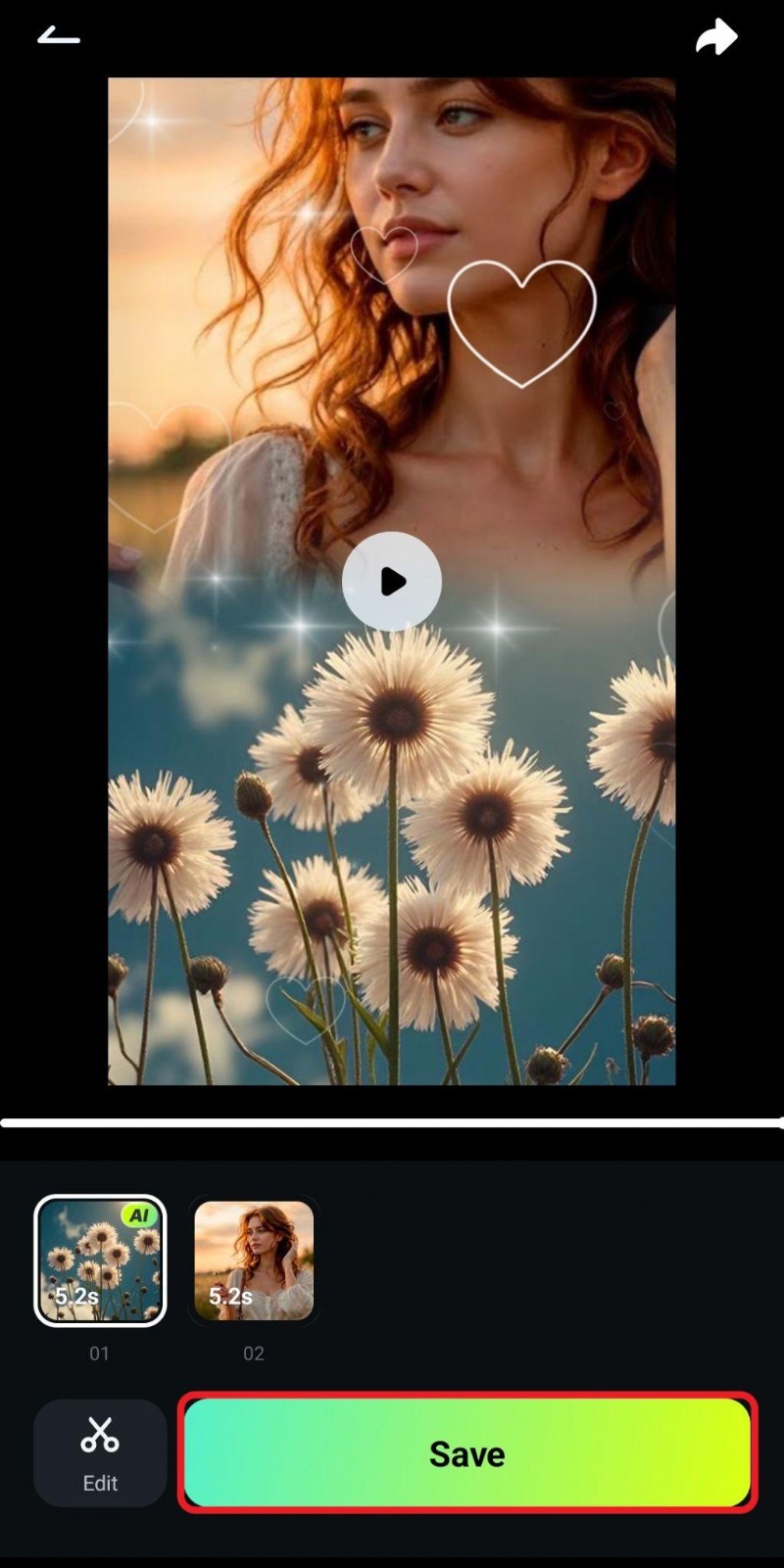
Follow the steps below to use the Image to Video Blending feature.
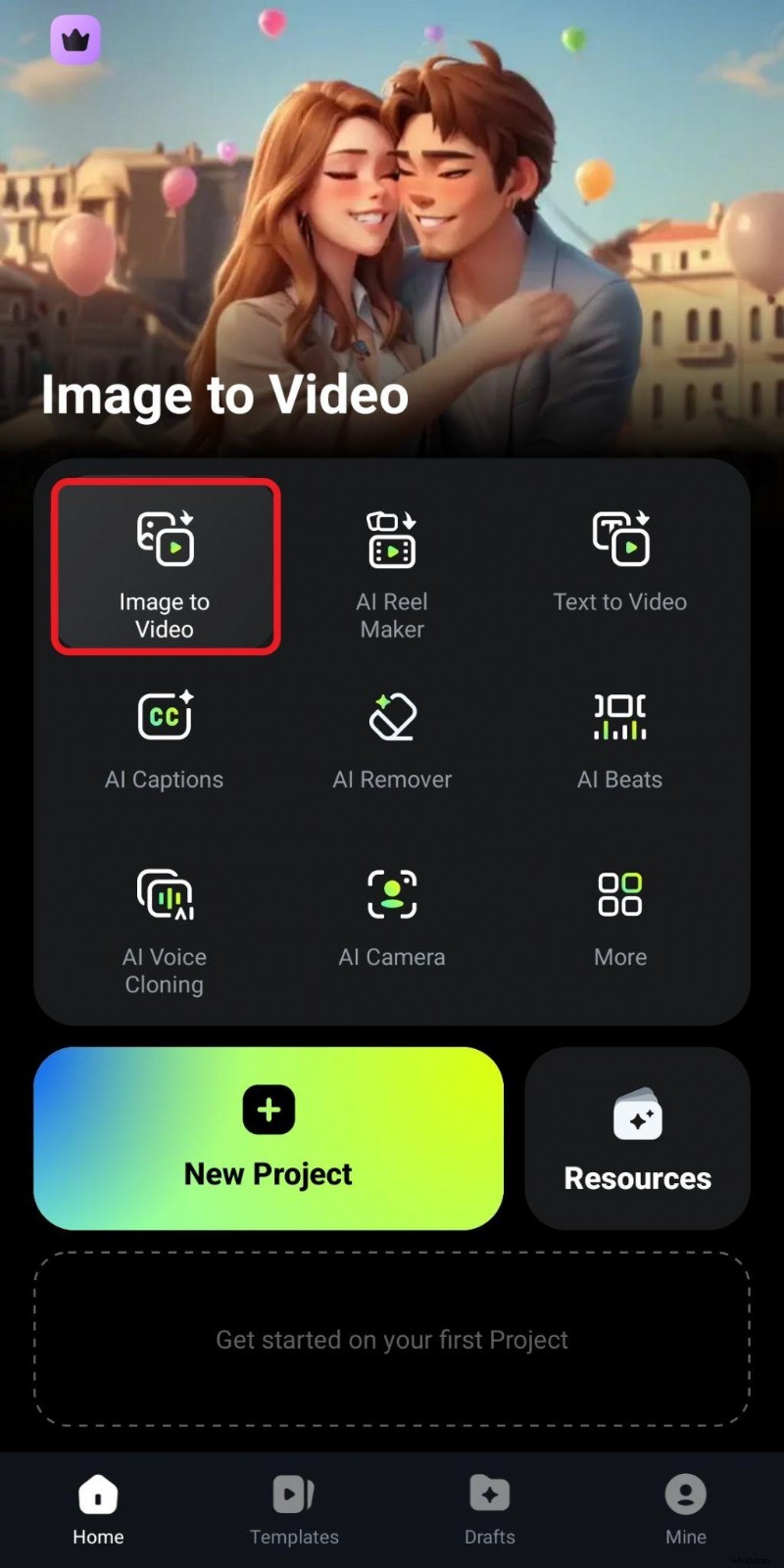
- From the app's main menu, tap on Image to Video.
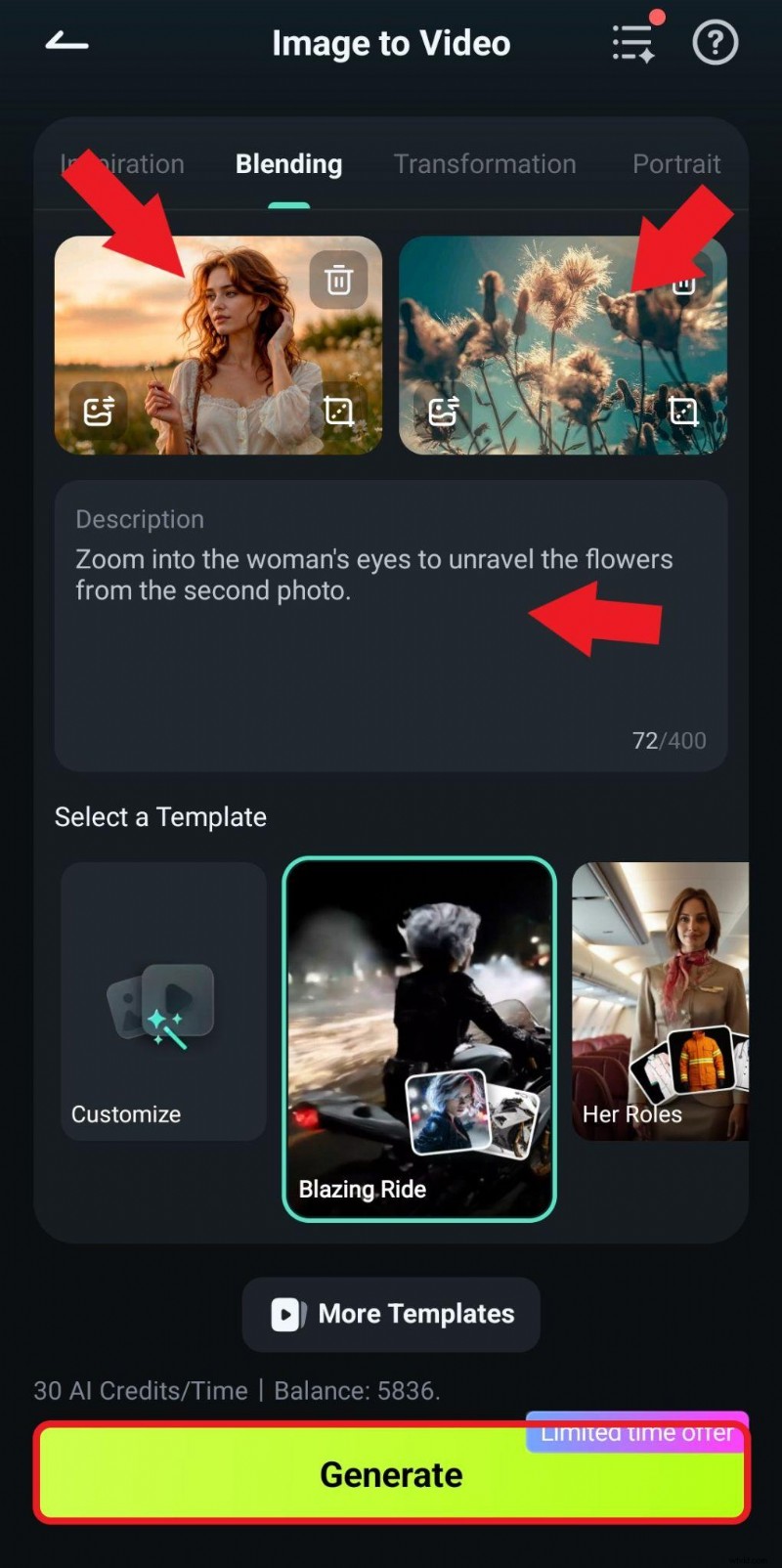
- Upload the first and second photo that you want to blend and type a custom prompt. Then, tap on Generate. This will initiate a short AI process.
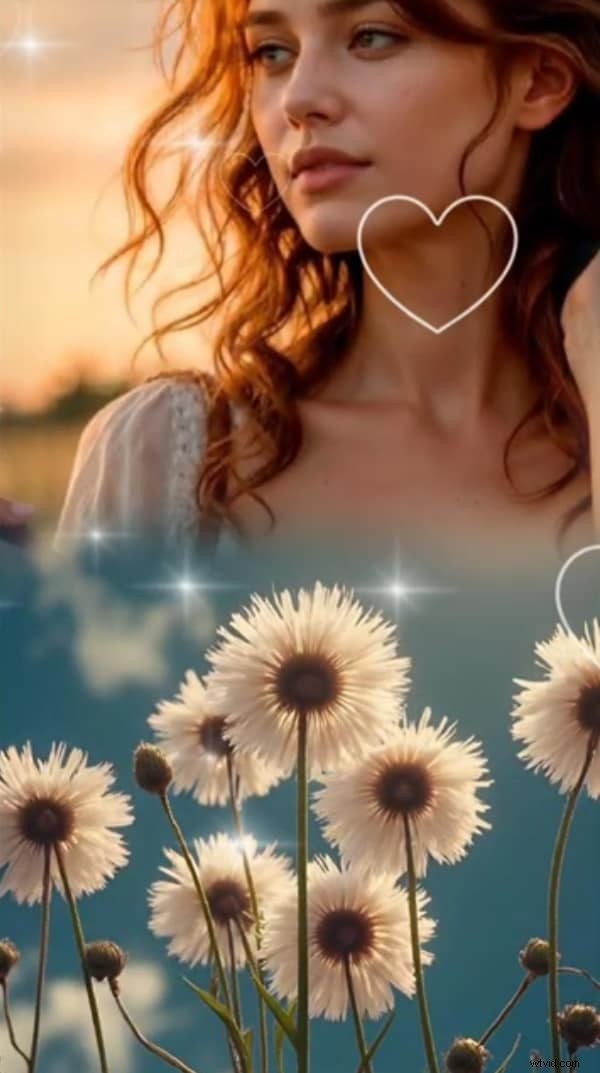
- Review the generated video and tap on Save if you like it.
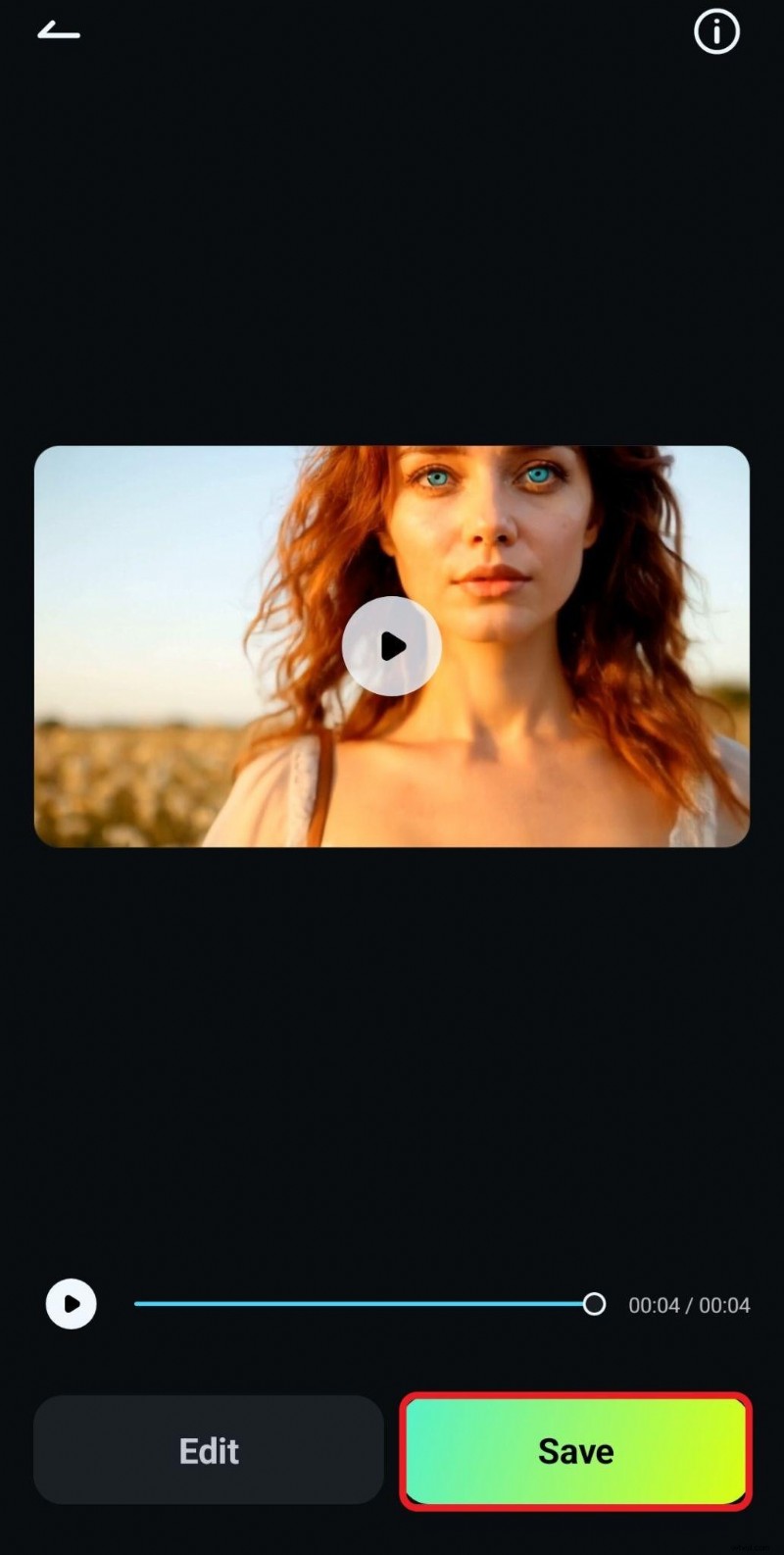
- Check out this video.
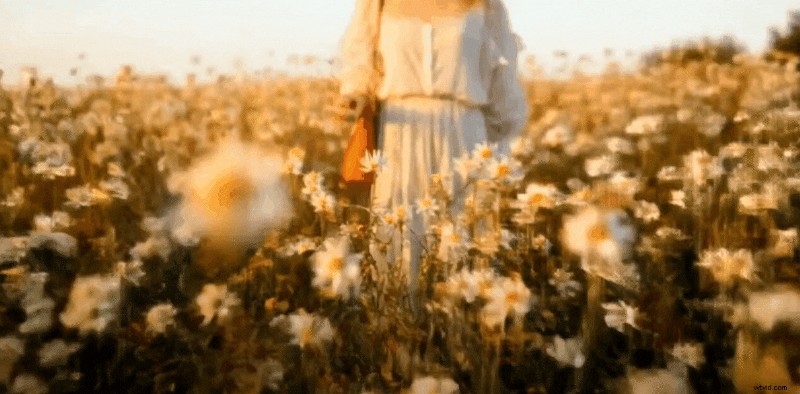
This scene looks like it has been taken from a movie, a music video, or even a professional advertisement, and this shows that you can create many magical things if you give Filmora a shot. Download it today and experience the thrill of photo and video editing firsthand.
Conclusion
As we have learned in this article, merging two photos together can lead to many different results. Luckily, with a tool like Filmora by your side, you can try all the available methods in one place and experiment with different results. You can use it to create collages, blend photos in very creative ways, and even generate videos. What more could you ask for?
If you prefer to work on similar tasks on your PC or laptop, you'll be happy to know that Filmora is also available as a desktop app for Windows and Mac devices.
Filmora
AI Video Editing App & Software
Best tool for making videos and photos anywhere for all creators!