
Photoshop has been around for 35 years and has become the go-to software for professional photo editing over the years.
This is largely due to its incredible versatility – it has an ever-growing set of tools that can be used in all sorts of creative ways. There are often several different ways to accomplish a task, and the user has a lot of freedom, but it also has a steep learning curve.
We will show you a fairly straightforward way to blend two images together in Photoshop, but if the software seems a little bit too overwhelming for you, stick around to the end for a simpler alternative.
In this article:
-
- Blend Two Images with Compositing
- Create a Video from Two Reference Images
-
- Using the AI Image to Video Feature
- Using the Manual Blending Feature
-
- Create Artistic and Surreal Effects
- Combine Elements to Enhance Visual Impact
- Create Marketing and Promotional Content
Part 1: A Step-by-Step Guide: Merge Two Pictures in Photoshop
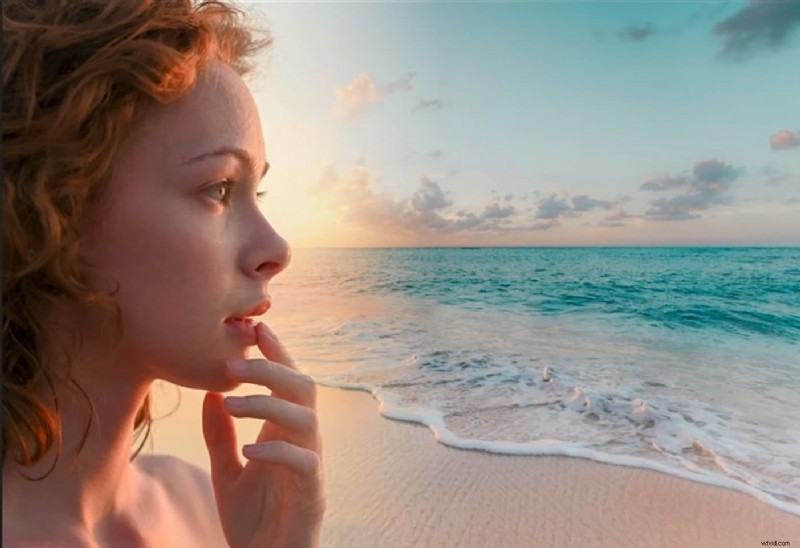
One of the more popular techniques for artistic covers and social media posts alike is to use Photoshop to blend two images. It can make for some really interesting designs by adding some symbolic meaning or just offering a more unique look.
Here's what you'll need to do to achieve this effect:
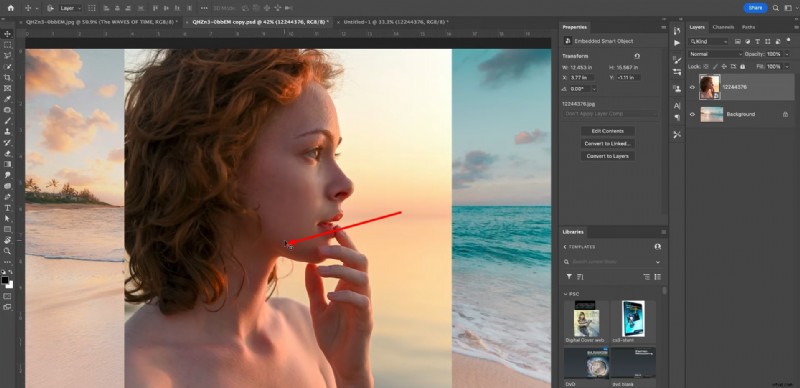
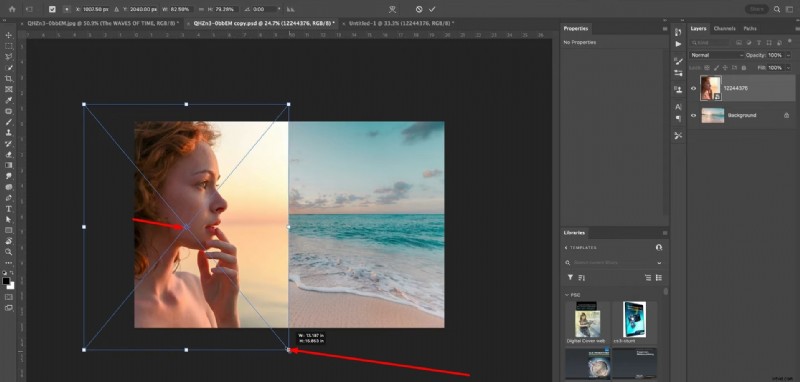
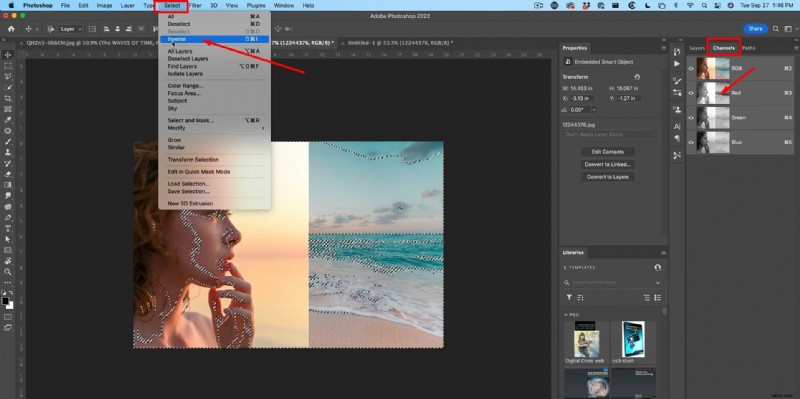
Step 1: Open Photoshop and open an image you'd like to have as the background, then select and drag another image over the first one and press and hold the Shift key as you release the mouse button to automatically center the image. Press Control + C and modify the size, then click on Channels > Red and Select > Inverse.
Step 2: Click the Mask Icon at the bottom right of the screen, then reset the background to black and white, choose Gradient, and in the toolbar at the top, select the Foreground to Background Gradient option. Keep the Opacity at 100%.
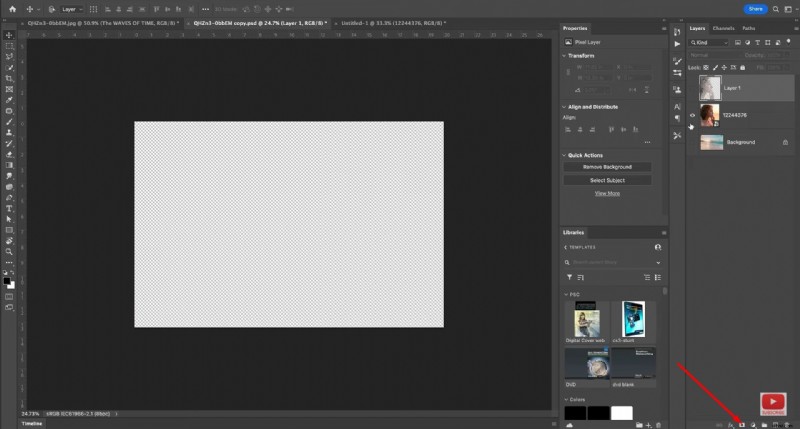
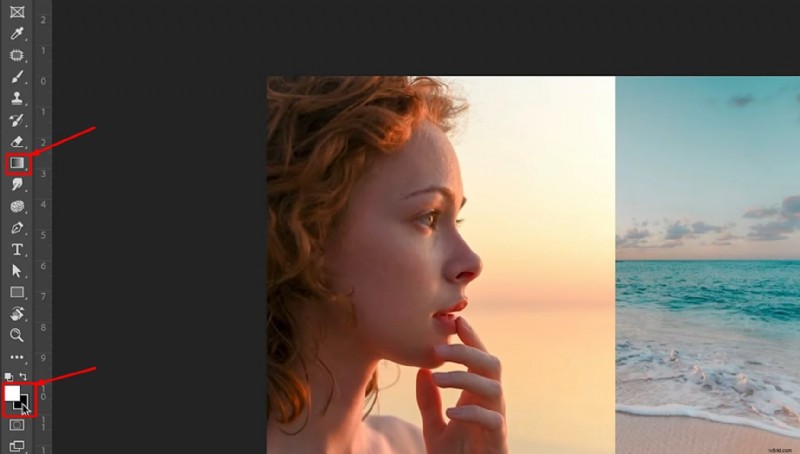
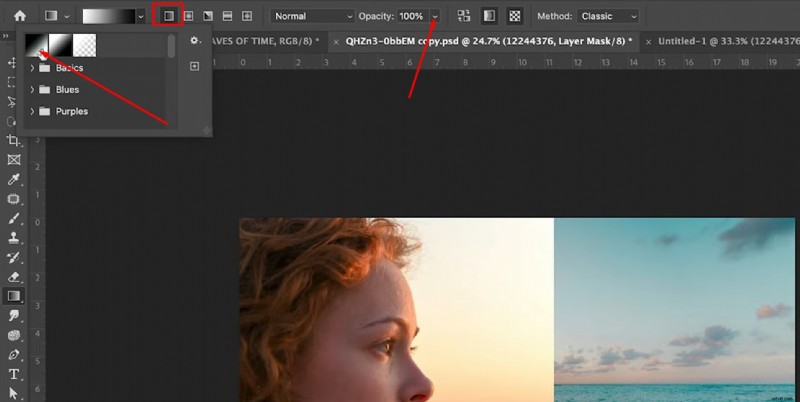
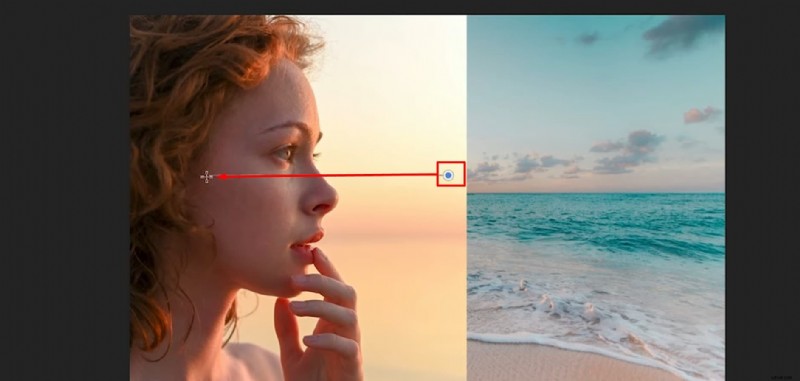
Step 3: Click near the edge where the two pictures meet and drag toward the left with your cursor, then release to completely blend 2 photos in Photoshop. You can also turn on the layer you created with the red channel to give it that extra touch.
Part 2: An Easier Alternative to Combining Two Images on a PC
If you are a beginner and can't quite get used to the more complex interface of professional tools like Photoshop, you should try Filmora. It's a capable video and photo editor with a lot of useful features, but it is much easier to use. Everything is just a click or two away, so it only takes a few minutes to get great results.
In addition to providing easier manual ways to combine and blend two pictures, you can also make blending videos from pictures with AI in Filmora, which is not available in Photoshop now.
Blend Two Images with Compositing
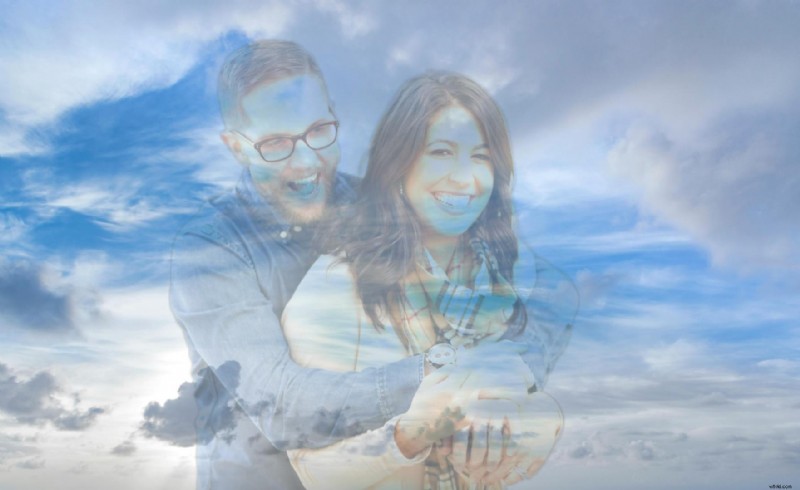
Let's see the steps to blend two images together manually using Filmora first.
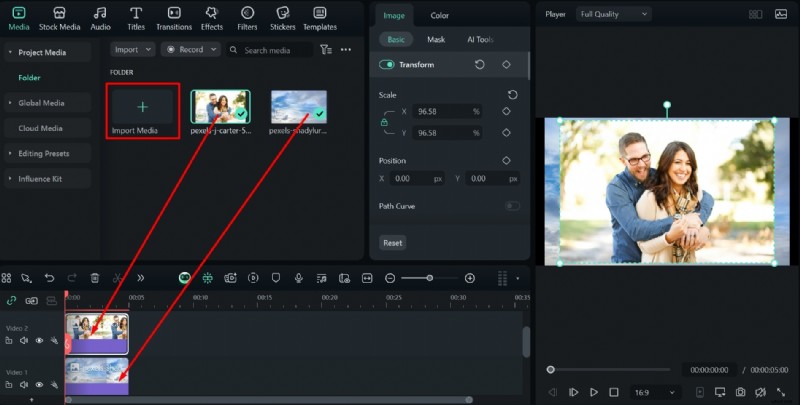
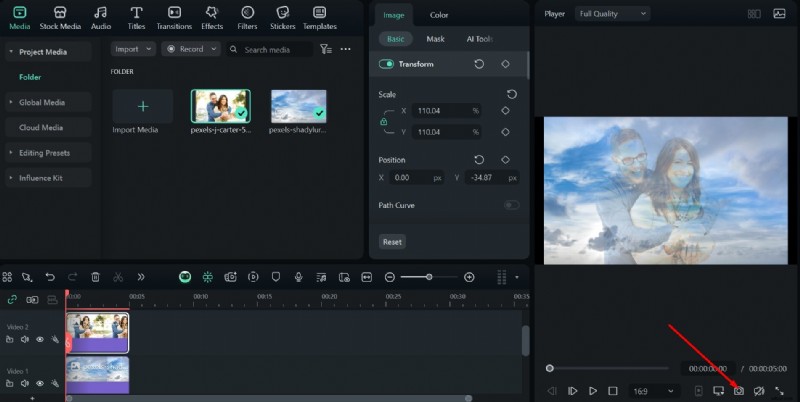
Step 1: Open Filmora and start a New Project in the main menu, then go to Import Media, add the images you want to edit, and drag them down to the timeline. Make sure that the one with the subject is above the one with the background.
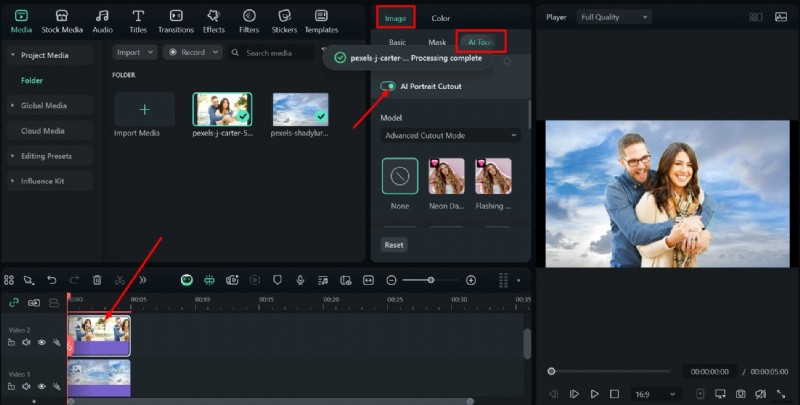
Step 2: Select the top photo, then go to Image > AI Tools and enable AI Portrait Cutout to isolate just the people in the image. You can now go to Image > Basic, scroll down, and enable Compositing, then choose one of the options in Blend Mode and set the Opacity using the slider.
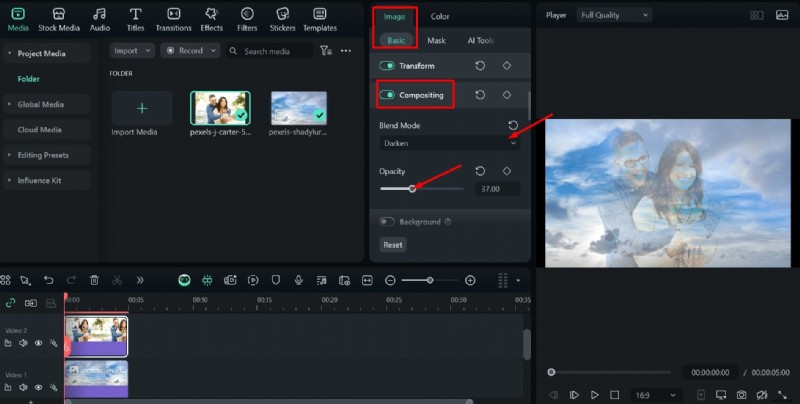
Step 3: Play around with the settings and position until you are satisfied, and then click the Camera Icon at the bottom right of the screen to take a Snapshot and save the image to your computer.
Create a Video from Two Reference Images
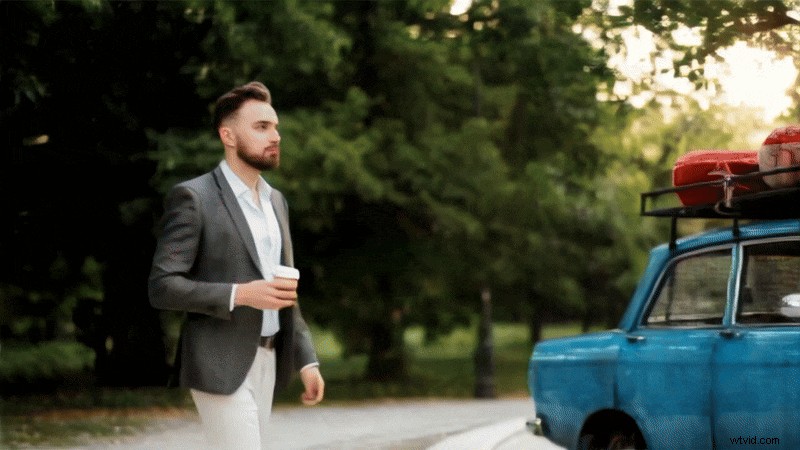
If you want to spice things up a bit and create a short video that combines the elements of two or even three photos, Filmora also features an AI tool called Reference to Video. Here is how it works:
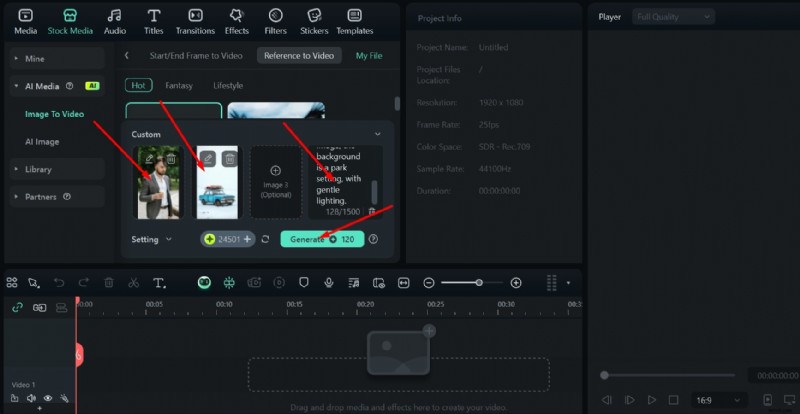
Step 1: Go to Stock Media > Image to Video > Reference to Video and click on Custom.

Step 2: Add two different images, and if you want to include additional elements, there is also space for a third one. Then, type out your prompt. Focus on which elements you want to include and how they should interact, then click Generate.
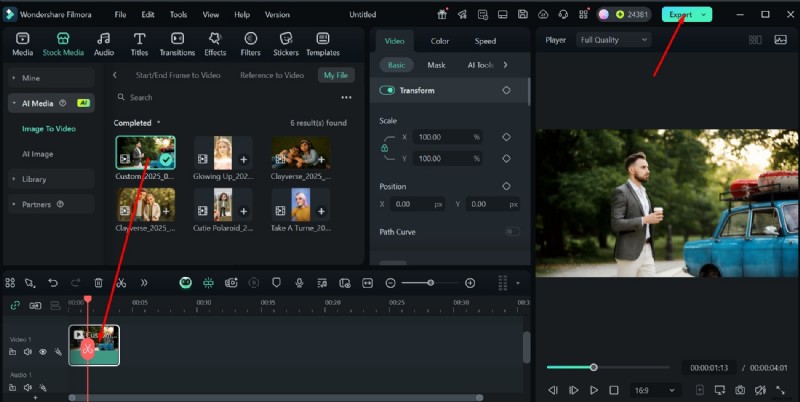
Step 3: Drag the resulting video down to the timeline and play it. You can perform additional editing if needed, and when you're satisfied, click Export to save the video.
Part 3: Blend Two Pictures on Your Phone
If you're looking for an app to merge two pictures into one and help you edit photos right on your phone before posting them on social media profiles or sharing with friends, then we have just the thing for you. Filmora Mobile is available on both iOS and Android, offering a range of valuable features, including AI-powered options, but in a smaller package.
Here are a couple of ways to do it.
Create an AI Blending Video with Two Pictures
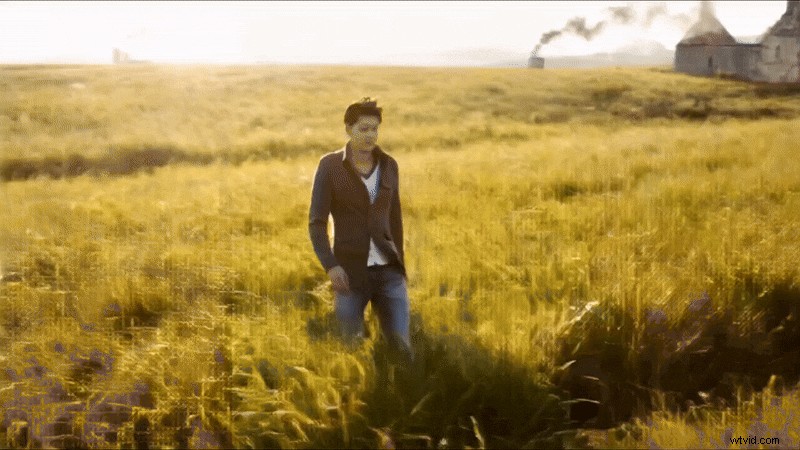
The quickest way to blend two images is to use Filmora's powerful AI image-to-video feature. It only takes a couple of steps, and the resulting short video looks great:
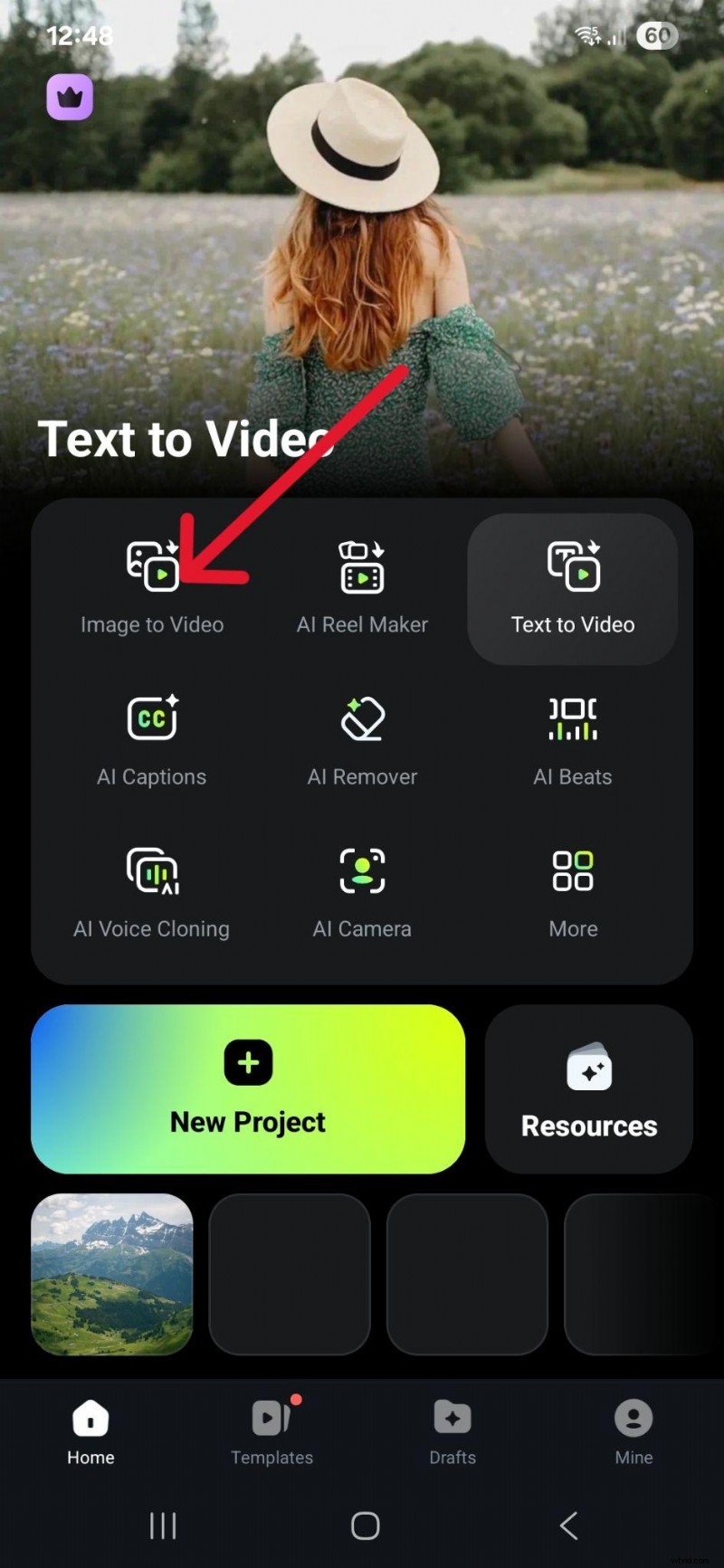
Step 1: Run the app and tap on Image to Video.
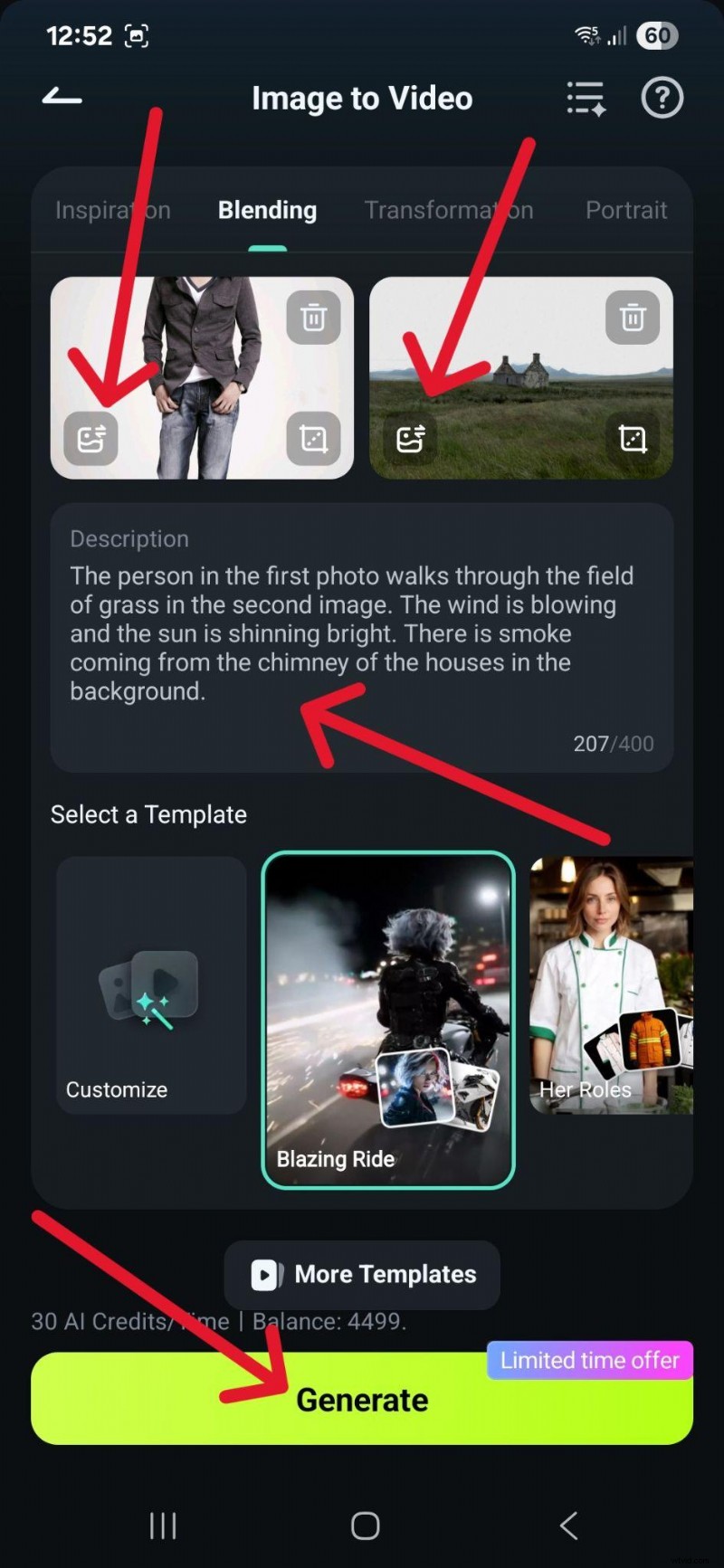
Step 2: Upload the first and second image, then enter your prompt detailing what you want to happen in the video and how to blend the two together. When you're ready, click Generate.
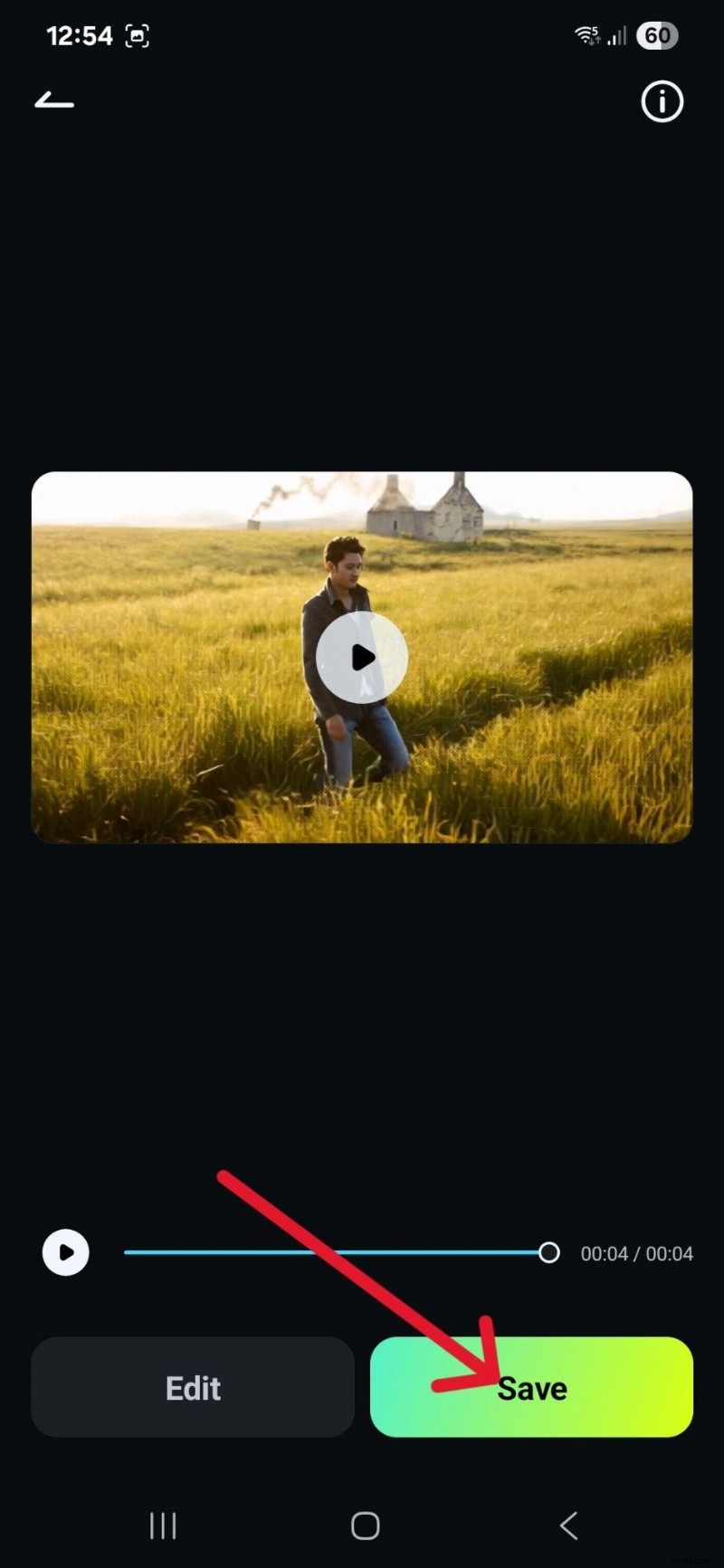
Step 3: Review the video, as you may need another try to get the prompt just right or change some things. If you like it, tap Save.
Manually Blend Two Pictures
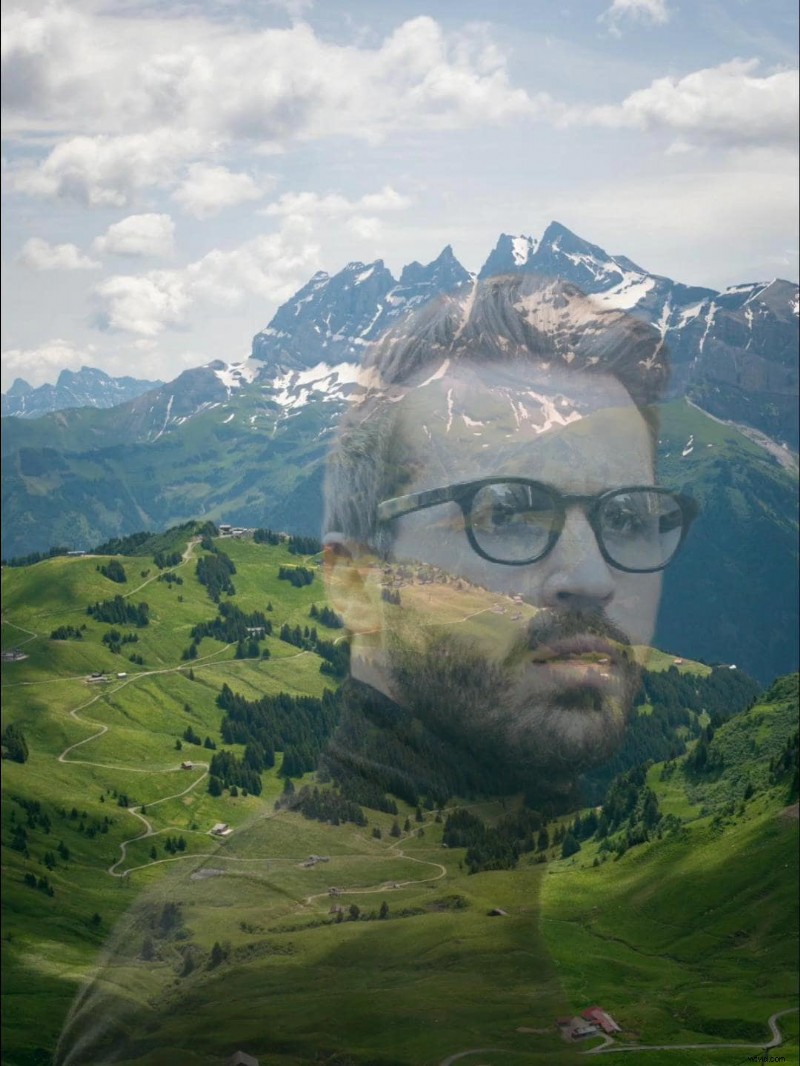
You can also use the basic Blending feature to fine-tune everything manually:
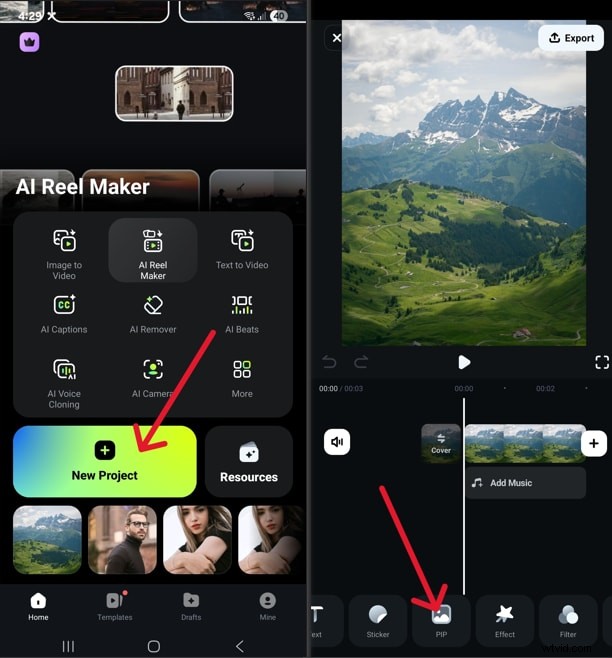
Step 1: Run the app and start a New Project, then select the image you want to use as a background. Now tap on PIP (Picture In Picture) and add a photo with a subject you want on top.
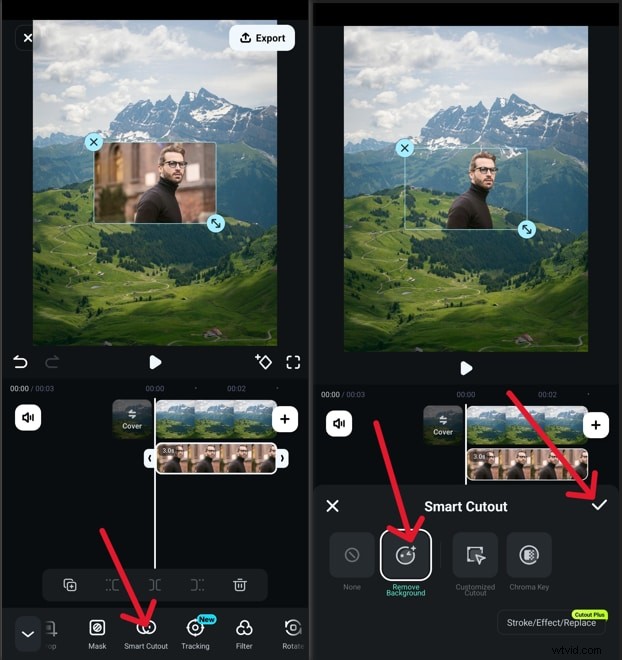
Step 2: Select the top picture and, at the bottom of the screen, scroll to the right to find Smart Cutout and tap it. Choose Remove Background and tap the Checkmark icon. This will give you a clean cutout of the subject.
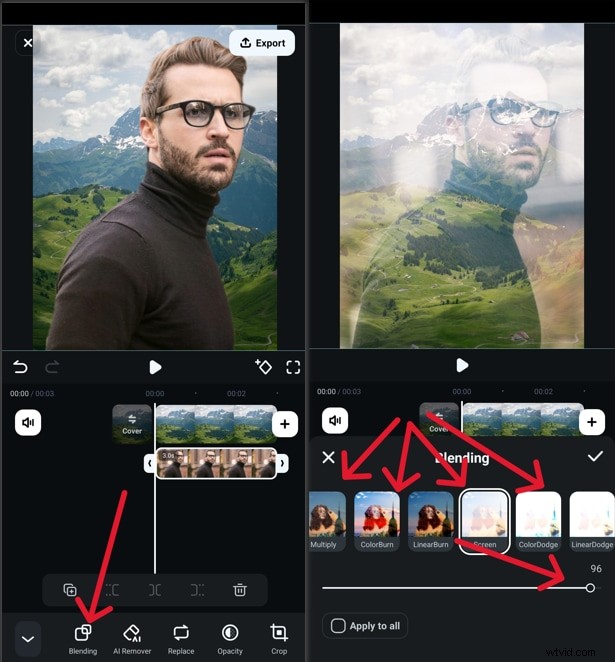
Step 3: Resize and reposition the top image, then tap Blending, choose one of the additional effect options if you like, and adjust the opacity by moving the slider left or right. Finish the process by tapping Export to save the image.
Part 4: Why is the Blending Feature so Important?
Now that you know several different ways to merge two images together, let's look at how and when this technique is used. For one, it's a great way to create a complex composition from multiple images and has its roots in old-school darkroom techniques used by art photographers and even film editors.
It's still incredibly popular, and you can commonly see people using it to:
Create Artistic and Surreal Effects: Visual artists have been using blending for decades to evoke an otherworldly atmosphere, like in the fantasy and science-fiction genres, but also a deep symbolic meaning.
Combine Elements to Enhance Visual Impact: You'll often find this technique on the cover of magazines and movie posters, as it is a great way to seamlessly combine different elements to tell a story or grab the viewer's attention and make them pause to think.
Create Marketing and Promotional Content: Advertisers often draw parallels between a brand or product and a desirable trait or aspirational value, and blending is an incredibly effective way to achieve this in a visual medium. It sends a clear message at a single glance.
Part 5: Conclusion
You've probably seen the image blending technique in a lot of different places before, from movie posters to fashion ads on billboards. For most people, it seems like a complex technique best left to professional designers, but as you can see, it's not that difficult to get started.
In this article, we have discussed the step-by-step guide to blend two images in Photoshop; hopefully, you can become a pro image editor soon.
For those who look for easier options and also want to combine photos into videos, try Filmora.