
Imagine you are excited to upload the video of a passionate review of the latest gadget,but you have noticed that views are barely trickling in. It is a common scenario for newcomers and seasoned creators, as you need to help viewers find your video. Optimizing your tags, descriptions, and titles has become essential to grab viewers' attention. This article will guide you on finding the answer of "Does changing YouTube title affect views?"
In this article
-
- YouTube Tags and Their Importance
- Titles for YouTube Videos and Their Significance
- Descriptions of YouTube Videos and Their Importance
-
- Primary and Secondary Tags
- Hashtag-Style Tags
- Synonyms, Misspellings, and Variations Tags
- Niche Tags
- Tag Generators Tools
-
- Way 1. Adding YouTube Tags, Titles, and Descriptions to New Videos
- Way 2. How to Add YouTube Tags, Titles, and Descriptions to Published Videos
-
- Improving YouTube Content With Filmora on Desktop
- Creating Visually Stunning Videos Using the Filmora App
Part 1. What are YouTube Tags and Why are They So Important?
Optimization of YouTube tags, titles, and descriptions is vital for views on videos. It is essential to note what they are, which is discussed in detail as follows:
🏷️ YouTube Tags and Their Importance
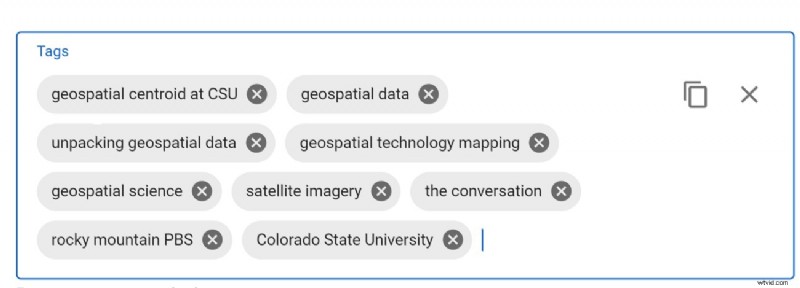
The tags used in YouTube videos are recognized as descriptive phrases or keywords assigned by creators. YouTube meta tags help its algorithm understand the content of videos. It also assists in the recommendation and categorization of videos to viewers looking for relevant topics. They are important for improving search visibility and enhancing misspellings and synonyms.
📝 Titles for YouTube Videos and Their Significance
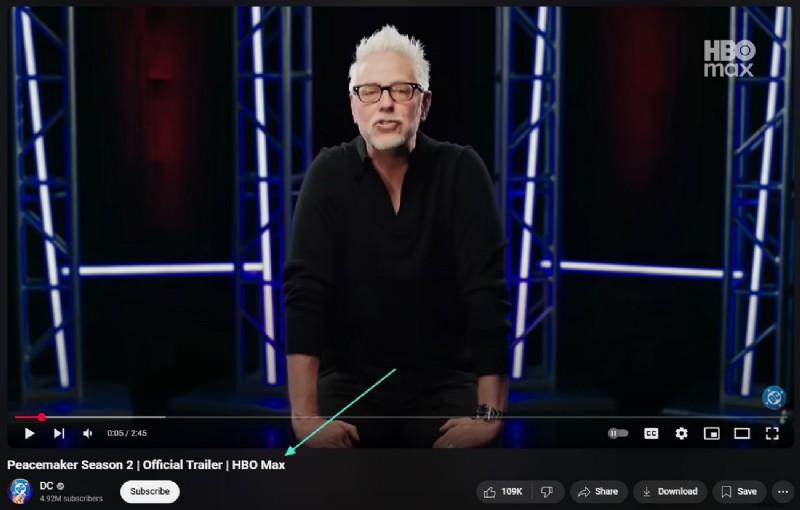
A YouTube title is recognized as the headline or name of the video, which serves as the primary text viewers see in the search results. Titles are mandatory for videos as they directly influence the viewers to choose what to watch. They are significant in driving click-through rate, SEO discoverability, and summarizing content.
📄 Descriptions of YouTube Videos and Their Importance
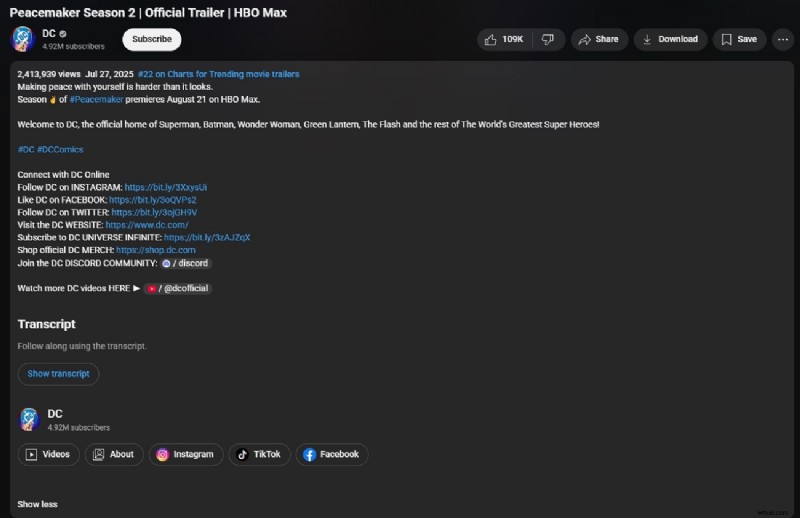
Description is the detailed text field that allows you to add tags to YouTube videos. It explains their content, including relevant chapters, links, and calls to action. These help to enable YouTube's algorithm to classify all the videos for discovery purposes and search. YouTube descriptions include next-step suggestions, can enhance SEO, and encourage engagement.
Part 2. Techniques to Add Different Types of YouTube Tags
Whether you are accounting for spelling variations or targeting a hashtag, adding the correct type of tags to your video is essential. You will find below an explanation of methods for creating tags on YouTube to get more views, along with their application:
1. Primary and Secondary Tags
These standard keyword tags are used to represent the main topic of your video, along with the relevant subtopics. In YouTube Studio, you can upload your video and enter your keywords or phrases, separating them with commas or pressing "Enter." Here, you can use your video editing keyword or add mixed keywords to expand potential reach.
2. Hashtag-Style Tags
Using hashtags in your videos helps to group them with related content, making them appear on dedicated result pages. You can simply type "#" followed by your standard keyword, and YouTube will convert it into a clickable link. The first 3 hashtags mentioned in your description will appear on the watch page above your video. Only highly relevant hashtags on YouTube can be used to increase views and avoid misleading viewers.
3. Synonyms, Misspellings, and Variations Tags
Covering alternative terms and common misspellings increases chance of discoverability through search engines. When editing your video, enter synonyms as separate meta tagging on YouTube to capture a broader range of search queries.
4. Niche Tags
A widely used balanced strategy includes niche tags to reach large audience. After adding your standard keyword, you can include broader categories to categorize your videos. Adding more descriptive niche tags allows users to tailor to the exact subject of the video.
5. Tag Generators Tools
The tag generator tools can be used to add multiple relevant tags to your videos, thereby speeding up process of reaching a larger audience. You can enter the video title into a tag generator tool to get optimized suggestions. Then, copy these generated YouTube meta tags to use them in your videos.
Part 3. How to Add YouTube Tags and Titles in Existing and Published Videos
After publishing your YouTube video, you might realize that there is room to improve its appeal in terms of tags, titles, and descriptions. Luckily, YouTube has made it convenient for creators to revise their video editing keywords. Optimizing YouTube meta tagging can significantly enhance your ranking and click-through rates. There are two different ways to update them using YouTube Studio.
Way 1. Adding YouTube Tags, Titles, and Descriptions to New Videos
Enhancing your videos' discoverability relies on descriptions, tags, and titles during upload process. A detailed guide to add these elements using YouTube is given below:
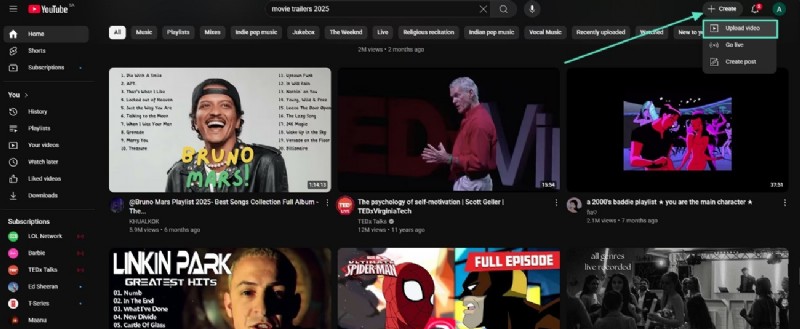
Step 1. Access the main page of YouTube, select "Create" option from the top right corner, press "Upload Video," from the dropdown menu, and click "Select" tab to import your video.
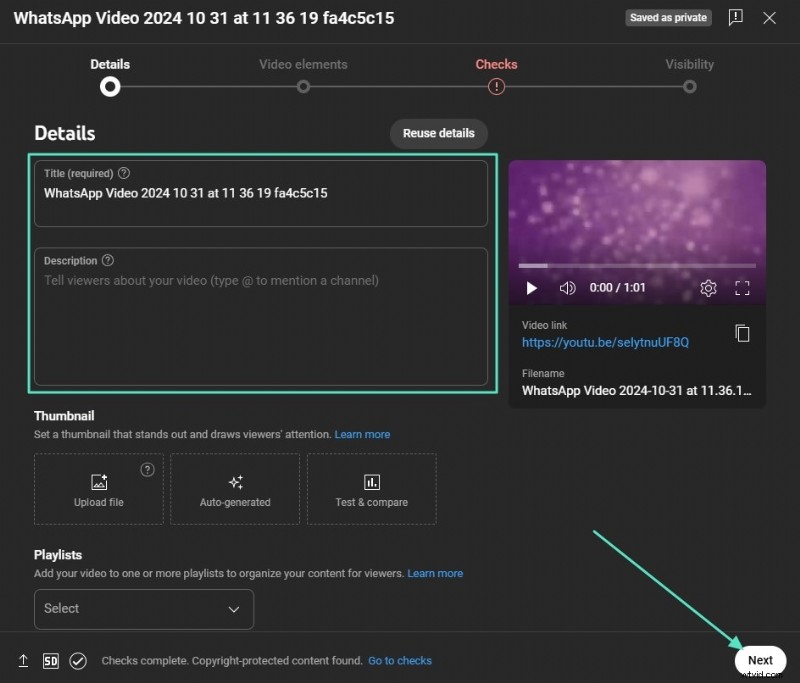
Step 2. Moving forward, add YouTube meta tags in the "Title" box and write a "Description" under the "Details" section. Next, scroll to select the option whether the video uploaded is applicable for kids to view it and hit the "Next" button.
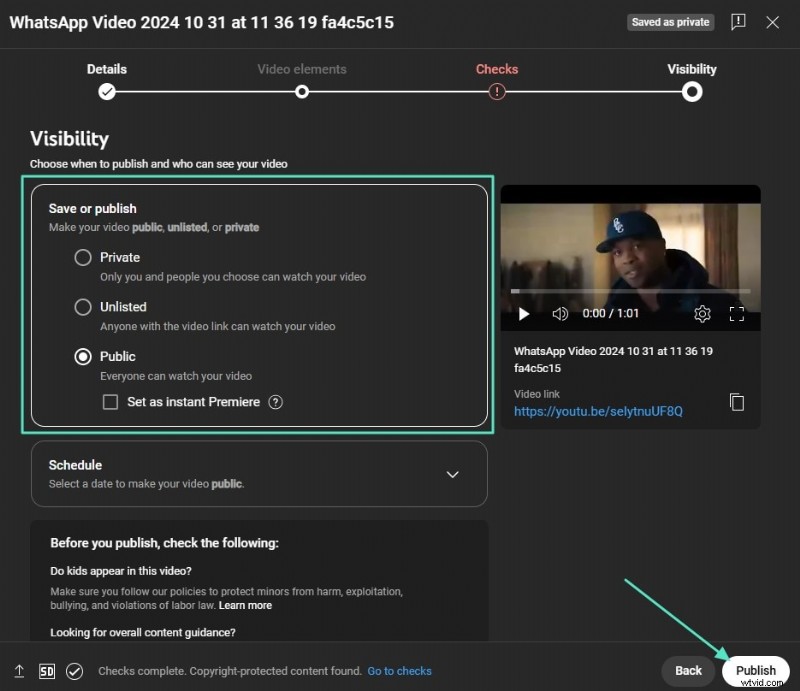
Step 3. After the "Video Elements" and "Copyright Checks," under the "Visibility" section, press "Public" and hit "Publish" to upload the YouTube video with tags and accurate description.
Way 2. How to Add YouTube Tags, Titles, and Descriptions to Published Videos
You might have already posted your video on YouTube and realized later that you can improve its visibility and relevance. In that case, YouTube Studio offers methods to update videos' descriptions and tags, as mentioned below:
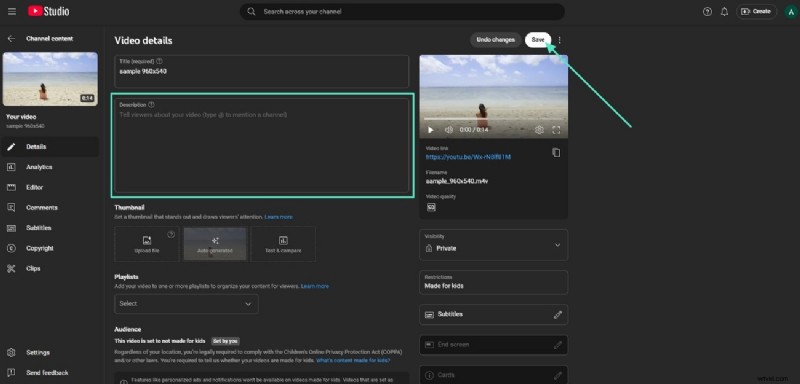
Step 1. Launch YouTube Studio on your device to addtagstoyourYouTubevideo and link it to your Google account. Select "Content" from the right-side panel and click the "Details" icon to move to the next step.

Step 2. Write the updated details in the "Description" text box and hit "Save" at the top right corner to edit the video's description.
Part 4. Tips to Improve YouTube Tags, Titles, and Descriptions
Whether you are adding titles and tags or writing descriptions for your videos, you need to learn how to tag your YouTube videos for more views. There are some essential tips mentioned below in detail to improve ranking:
- Choose Relevant Tags: First, select specific tags that truly reflect your video's content to avoid generic terms. Use keywords that would help appear in the search bar naturally.
- Mix Broad and Niche Tags: You can mix tags, such as detailed tags and high-level category tags, to help the algorithm understand the video's focus.
- Prioritize Important Tags: The first few tags can easily grab viewers' attention, making your primary target video editing keyword the very first tag.
- Avoid Overloading: Using excessive tags and titles can confuse the algorithm and hinder performance.
- Add Clear CTAs and Detailed Descriptions: Guide your viewers by providing straightforward navigation and crafting a unique and conversational description that summarizes your video.
Bonus Part. Using Filmora to Improve YouTube Content
Let's imagine you are preparing to launch a high-energy vlog or a fast-paced gaming reel, and you want to convert your raw footage into visually stunning videos. Although YouTube Studio has offered a perfect way to add YouTube meta tags, there is still a need for an advanced tool to enhance the visuals of your reels. Therefore, using Filmora is the best choice, as it offers a suite of intelligent tools.
With its intuitive interface, this platform enables audio-to-video conversion, allowing you to transform segments of your podcast into visually engaging posts. Likewise, template libraries can help your videos perform best on YouTube. Filmora provides various methods, both on desktop and mobile, to enhance your videos and help you reach a larger audience.
Improving YouTube Content With Filmora on Desktop
To elevate your videos with YouTube meta tagging to a studio-quality level, Filmora offers a comprehensive collection of advanced AI tools. A comprehensive guide to utilizing Filmora with various methods is given below in detail:
Method 1. Using Text-to-Video Tool in Filmora
Transforming scripts or text prompts into dynamic videos is a speedy process with Filmora's Text-to-Video tool. A detailed roadmap with clear navigation is mentioned in the following:
Kindly refer to the video below showing the export effect.
Method 2. Creating Smart Video Clips Through Filmora's AI Idea to Video
You can also rapidly transform your ideas or scripts into shareable and polished short YouTube videos with meta tags within Filmora. A step-by-step guide to using Filmora's AI Idea-to-Video tool is discussed briefly in the following:
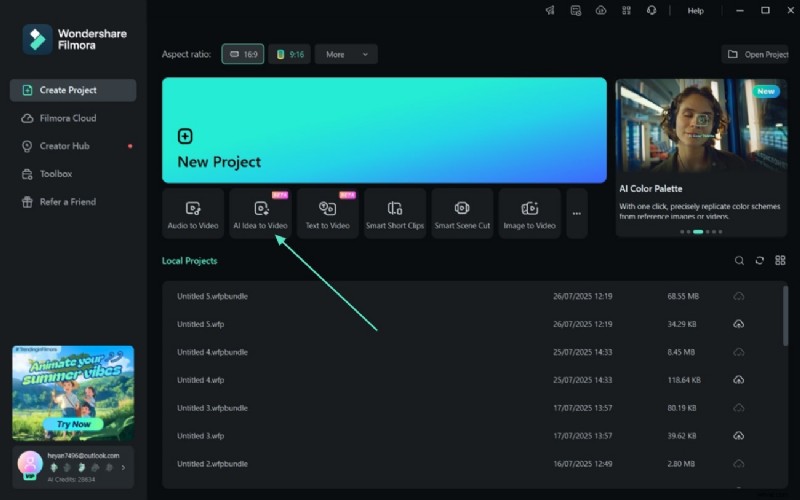
- Step 1. Access Homepage of the Tool and Select AI Idea-to-Video. Begin with access to Filmora’s main interface and choose the “AI Idea-to-Video” tab below the new project option.
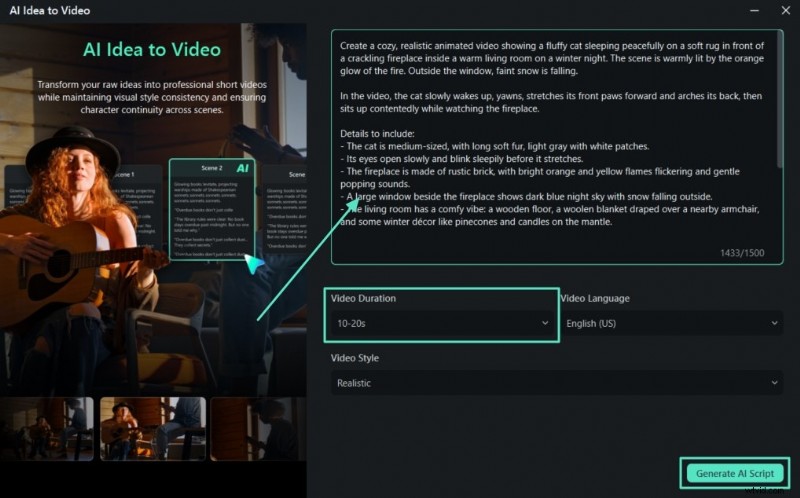
- Step 2. Give a Prompt and Adjust Settings. Next, write a detailed prompt in the "Text" box, and open the dropdown menu of "Video Duration" below the text box to adjust the duration of the smart short clip. Then, choose language and video style from the same interface, and click the "Generate AI Script" button below。
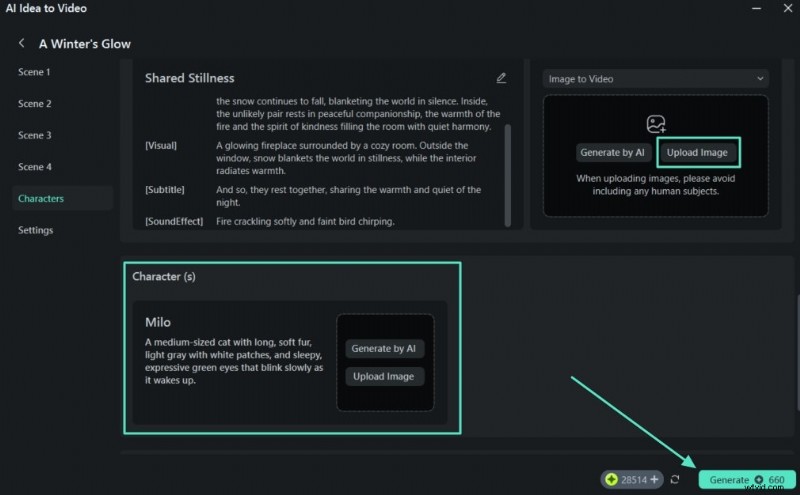
- Step 3. Select Your Favorite Scene Sample and Upload Image. Afterward, choose your favorite scene from AI-generated samples, and go to the "Image-to-Video" section to import your picture. Then, scroll down to either generate the character by using AI or upload a preferred image of your choice. Now, tap the "Generate" button to proceed with the given details in the editing window。
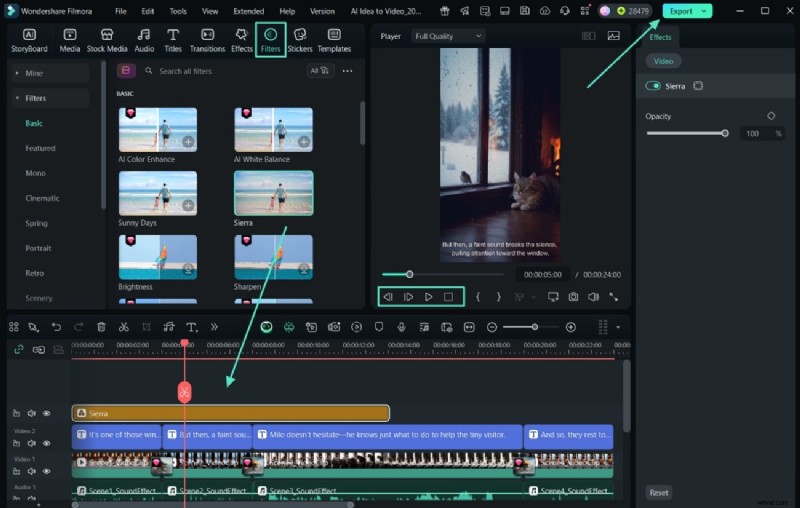
- Step 4. Add Filters to your AI-Generated Video Clip. Go to the main toolbar at the top and select the "Filters" option to choose your desired template from the predefined library. Drag it to the timeline below and preview the video in the defined window before opting for the "Export" button。
- Step 5. Select Smart Short Clips from the Main Interface. If you want to convert the AI-generated video as a short YouTube video, go to Filmora's main interface and click the "Smart Short Clips" option to import it. From the right side panel, choose "Language," and scroll down to select the desired template and press the "Generate" button。
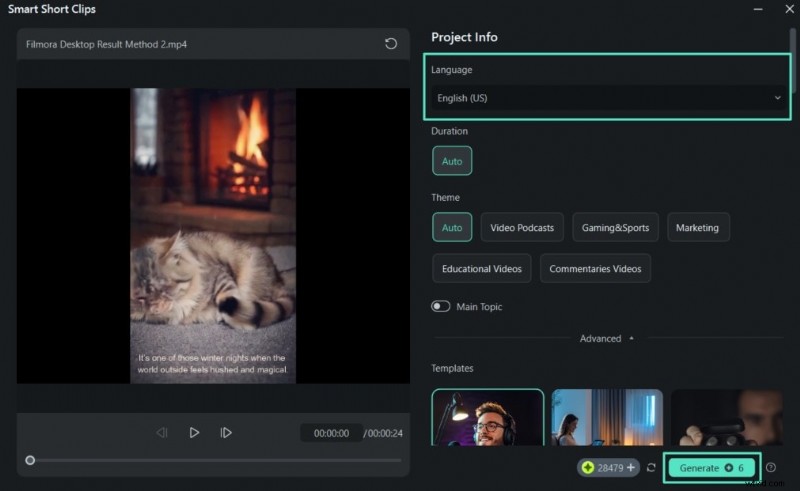
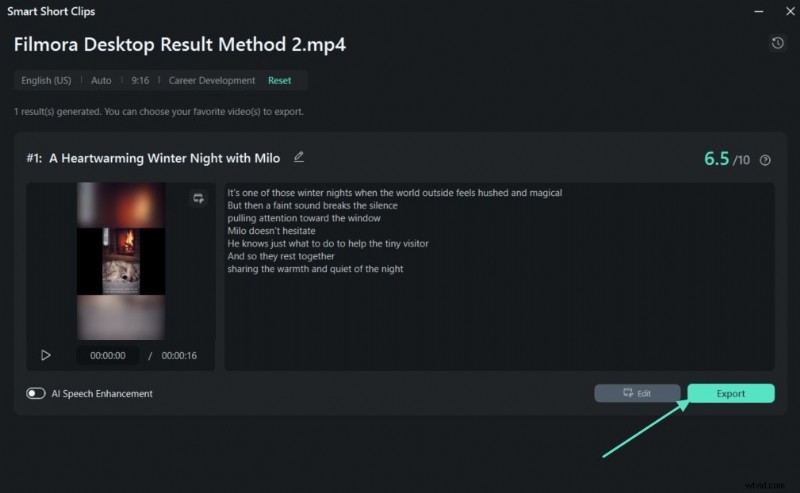
- Step 6. Modify Settings in the Export Window. Consequently, shorts will be generated from your video, which can be saved using the "Export" button。
The video below demonstrates the export effect—please watch it.
Creating Visually Stunning Videos Using the Filmora App
If you want to craft visually stunning videos along with added YouTube meta tags on your smartphone, Filmora App (iOS/Android) offers a blend of advanced tools with its built-in library and AI soundtracks. You can also enhance your clips with motion tracking, cinematic filters, and text overlays. Here are the commonly used methods through Filmora App, mentioned below:
Method 1. Creating from Image-to-Video – Veo 3
Converting unforgettable static images into dynamic, sound-synced video clips is easier with the Image-to-Video technology offered by Filmora App. This feature allows the content creators to create videos, ideally to post on YouTube, in the following way:
Below is a video illustrating the export effect; please have a look.
Method 2. Create AI Reels From Long Videos
Alternatively, you can transform your exported video into a dynamic AI reel with stunning visuals and YouTube meta tags. It is possible to enhance and repurpose high-profile short reels with the Filmora App. The detailed step-by-step guide to creating reels is discussed in the following:
To observe the export effect, please watch the video provided below.
Conclusion
In conclusion, optimizing YouTube meta tags, titles, and descriptions is crucial for increasing discoverability and boosting engagement. In this article, we have discussed various methods for selecting appropriate type of tags and crafting detailed description. However, optimizing these meta tags is not enough; your content requires striking visuals to convey your message correctly. Therefore, using Filmora is an outstanding choice to enhance your video content and increase its chances of getting ranked.