
Da Vinci Resolve is a complete video editor with a full set of tools for editors of any level, which means you can build your videos for YouTube, or a feature film, right here in Resolve.
In Resolve 16, you can apply basic editing, add text, record and edit audio, add visual effects, and transitions. In the video, I'll cover each feature and give you a detailed tutorial on how to edit your first video.
Free Versus Paid
While I'll be using the Studio version available on the Da Vinci Resolve website, you can use a fully-featured free version. And in case you were wondering, the basic features of Resolve stay the same between the two versions. In the free version, you can get a fully-featured application with a few small restrictions, while the studio version unlocks Resolve's full potential. Here's what you'll get in the Studio version:
Collaboration
The Studio version offers features such as collaboration, allowing multiple users working in Resolve to edit together on the same timeline. So you can have an editor, colorist, audio engineer, and VFX specialist work together in real-time.
4K+ Timeline Resolutions
While you can import footage higher than 4K, the free version doesn't allow you to add it to your timeline or export anything above 4K.
Noise removal
Noise removal is often quite a handy feature in any video editor. To make use of Da Vinci's built-in noise reduction software, you'll need to upgrade to the studio version.
Motion Blur
When it comes to creating realistic-looking VFX, it's imperative to add motion blur.
HDR10+ Color Grading
HDR is quite useful if you're working with 10 or 12-bit software. The Studio version allows you to add HDR10+ compliancy to your workflow.
Artificial Intelligence
In a recent update, Da Vinci Resolve introduced its new A.I engine, giving the user access to features such as facial recognition, object removal, and color matching between two clips.
Resolve OpenFX and Fairlight plugins
You'll gain access to the entire library of advanced audio and visual effects in the studio version.
Stereoscopic 3D
If you work on stereoscopic footage daily, the studio version gives you access to fantastic tools to help correct alignment and color issues.
The Basic Overview
Once you open Da Vinci Resolve, you're met with the project manager page where all your existing projects are stored within a single database. Multiple databases can be created and stored on different drives if needed.
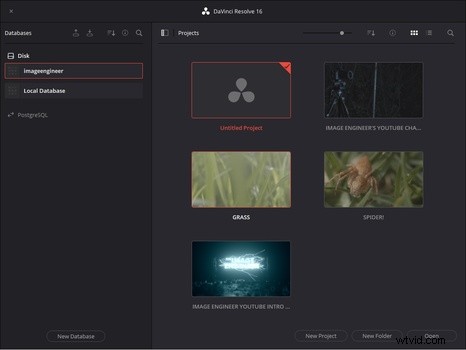
Managing and Editing Your Media
Inside the Media workspace, you'll be able to import, browse, and manage your media files before heading to the Cut page. The Cut page is a new workspace within Resolve 16, allowing you to cut and trim your individual media clips with pinpoint accuracy before you start the main edit. It's a useful page to set in and out points of all your clips, allowing you to focus solely on the flow of media, once you reach the edit page.
Edit is your main editing workspace, where you'll be lining up your clips, doing further cuts, add transitions and audio tracks. You'll spend most of your time refining your edit here.
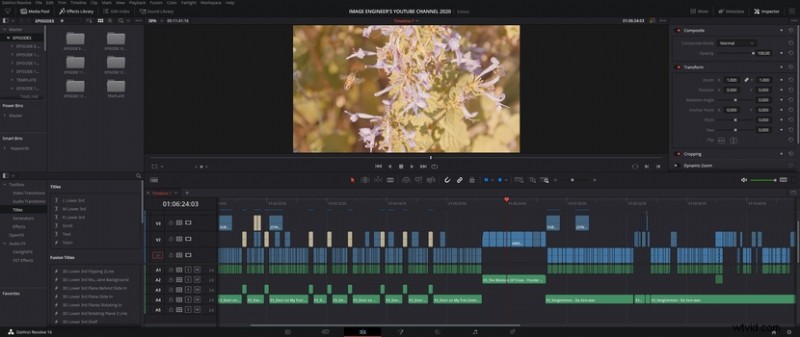
Post-Production and Final Delivery
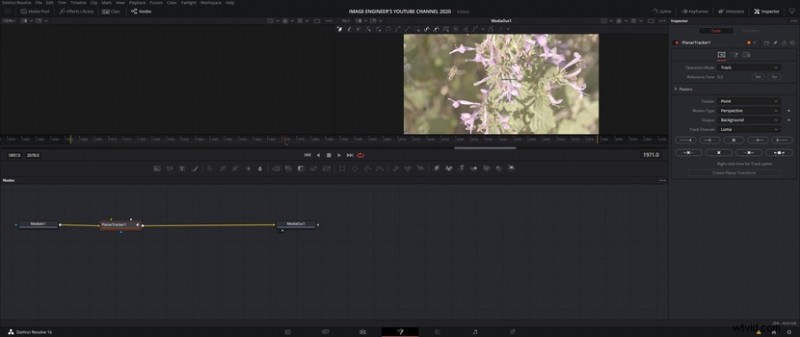
When it comes to post-production, such as adding visual effects, color grading, and mixing sound, Da Vinci Resolve has a clear advantage over other editors out there, simply because it's all done within one single application. In the Fusion page, you're able to access a node-based setup to add visual effects and track your footage, while the color page is where Da Vinci Resolve shows off. Resolve's main strength lies in its color grading. Using a node-based setup, which works similarly to Adobe Photoshop's layers, You're able to stack effects and grades to get the right look. It comes with a few LUTs (also known as image presets) as well. If you'd like something a bit more stylish, I've made an image preset available for free here.
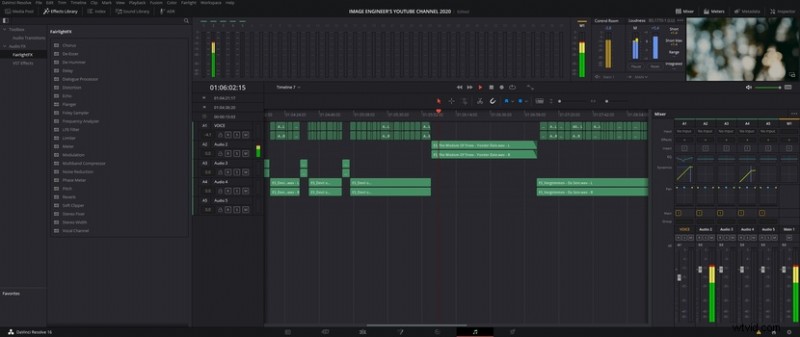
The audio page, known as Fairlight, allows you to tweak further or enhance your audio, record voice-overs and mix your sound. You're able to add third-party VST effects such as compressors, equalizers and more, to each channel just like you would in any professional audio editor.
And finally, the Delivery page is where you export your project into a video format you wish to use, whether it be for final delivery to a client, a studio, or your own Youtube or Vimeo channel.
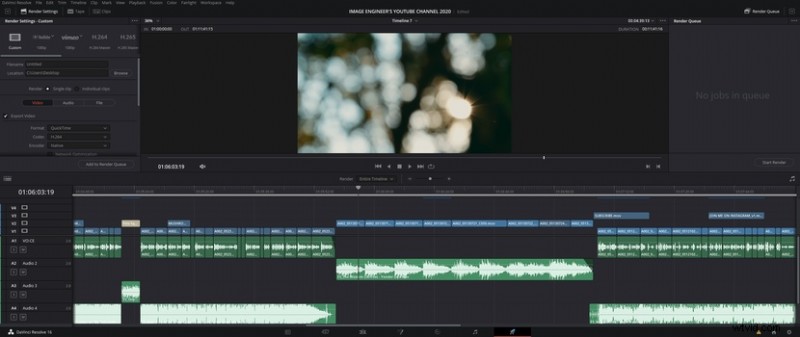
Da Vinci Resolve is a one-stop-shop for a video editor of any level and fast becoming one of the more popular editing applications out there due to its lack of restrictions in the free version and the low, once-off cost of the studio version. The interface looks modern, clean, and easy to get around if you're a first user.
Get your free copy here and start editing!