
In this brief edit tip, we’ll cover color coding your editing timeline in three major programs: Avid Media Composer, Adobe Premiere Pro, and Final Cut Pro X. Color coding is a great way to keep your timeline organized so you can easily keep track of your different scenes, characters and many, many layers of audio and video.
As an editor, you’ll want to look for opportunities to distinguish elements on your timeline with an obvious difference in color. This is going to help you tell at a quick glance exactly what it is you’re looking at.
To start, you’ll want the color-coding to be based on the source clip colors in your project. For example, you might want all foley effects to appear orange on your timeline. So in your bin or folder, you’d want to change the clip or label color to orange.
Now, we typically don’t get much into software specifics in our training, since we like to focus on the creative process. However, for this to work for you you’ll want to keep a couple things in mind.
Each piece of editing software handles color coding a bit different.
If you’re using Avid Media Composer:
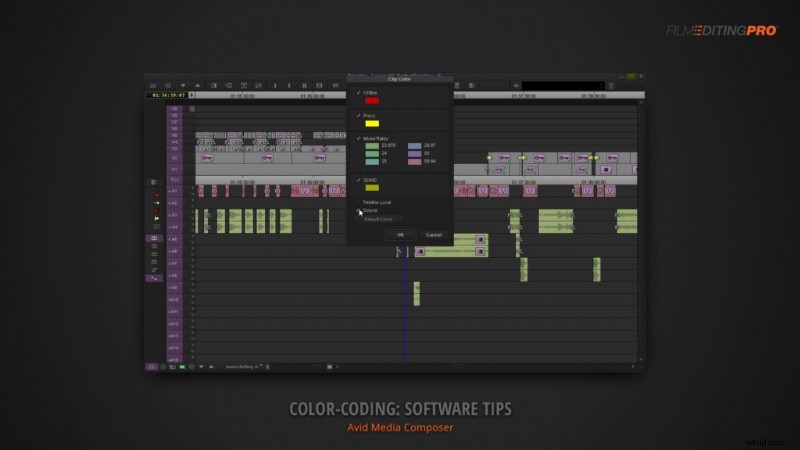
Be sure to add the color column to your bin and set your timeline Clip Color to Source.
If you’re using Adobe Premiere Pro:
You’ll be working with label colors. You can change these clip label colors in your bin, but you’ll need to make sure you go to File > Project Settings > General, and check the box that says Display the project item name and label color for all instances. This will make sure that if you say, go back into your bin and change all your foley from orange to pink, it will update the clips already in your sequence.
If you’re using Final Cut Pro X:
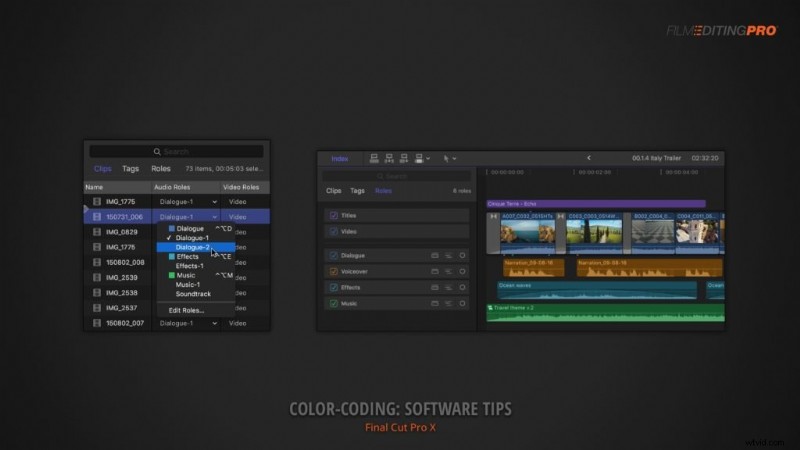
You’ll be working with the Roles system, which behaves a bit differently than most other software but is quite powerful once you get the hang of it. Specifically, you can filter and rearrange the content on your timeline by its assigned role like titles, dialogue or music.
Whatever software package you’re using, work within its available features to develop a system of color coding that makes sense to you.
There are plenty of ways you can choose to assign your color coding and it’s going to be largely based on the ingredients involved in your specific project.
How do you like to color code your timeline? Do you have specific colors you always use for each type of media? Let us know in the comments below!