I bought a Samsung Galaxy, and want to put a bunch of videos on the memory card (mp4 format). But every time I try to transfer them it says it doesn't support the resolution. When I take a video with the phone it saves it as an mp4, but it won't play the mp4's that I download. Why? How to solve the video resolution not supported problem?
Well, we often encounter this problem when transferring video between different devices because of the resolution. To upload high resolution video to your mobile devices, you may need to reduce video resolution, since these devices often support only specific resolutions. Sometimes, however, you may need to increase the resolution when burning a low-resolution video to DVD, because the DVD standard requires video to have a resolution of not less than 720×480.
Wondershare Filmora is the powerful yet easy-to-use video editing software that lets you change video resolution without any hassle. It supports the most popular video formats and offers ready-made presets for even the newest mobile devices such as iPhone 5, iPad 4, Xbox, ect. Check out this step-by-step guide to learn how to solve video resolution not support problem.
1. Import your video
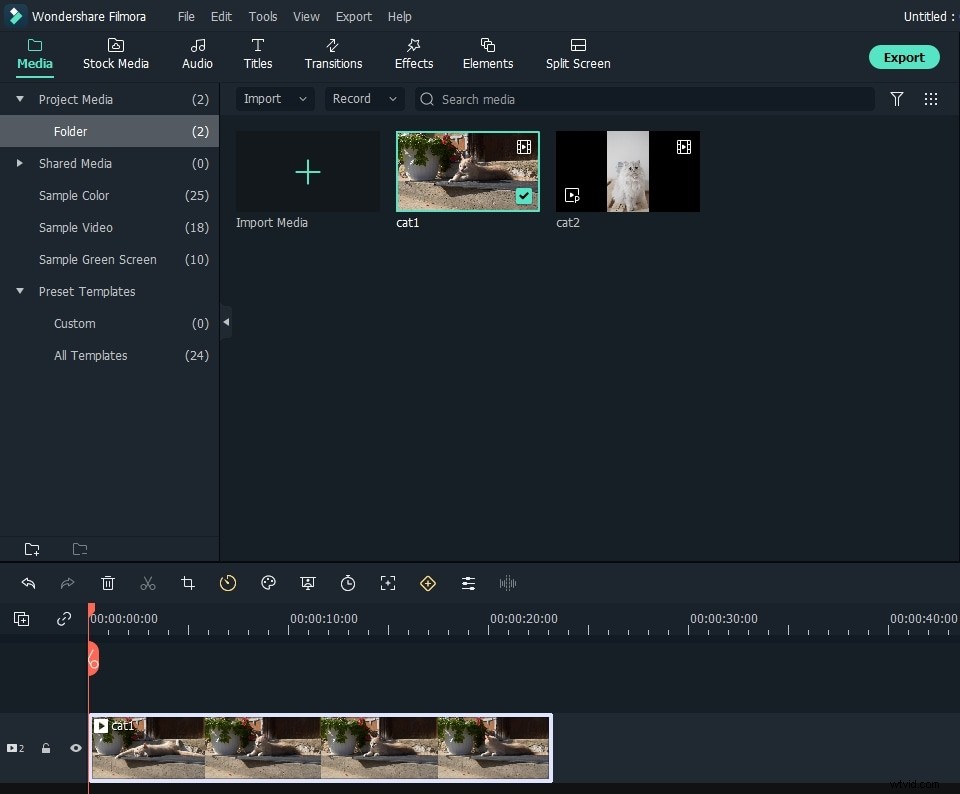
Install and run Wondershare Filmora. Then click “Import” and select the file from the selection window. You can also directly drag and drop the file to the program.
2. Choose the file
Select the target file and drag it into the timeline. Once in the timeline, you can export it with a different resolution. Just hit the “Export” button; then an export window will appear in the middle of the screen. Go to “Format” tab, give the file a title and select a save location. You can also choose to save the file in the original format or convert it to another format. If you want the output file to play on a mobile device like iPhone, iPad, iPad, Xbox, Zune, switch to the “Device” tab and find the appropriate device in the list of presets.
3. Change the video resolution
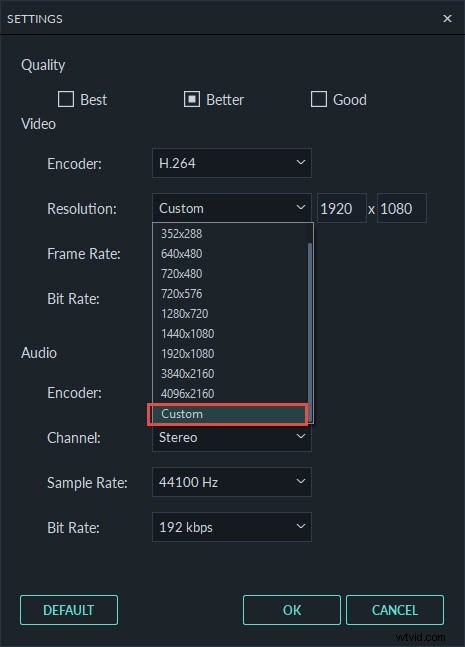
Then click “Advanced Settings”, a video options menu appears. In that menu, you can find several video settings such as encoder, sample rate, channel and bitrate. Choose the resolution setting and select the resolution size you want. Remember that the smaller the resolution size, the smaller the size of the video. Click "Create" to apply the options, then the new file is saved.