

Mar 11, 2026• Proven solutions
- Introduction
- How to Stream Video on a Local Network with VLC?
- Alternatives for VLC Streamer
- Stream What Your Hear
- Video Converter Ultimate
- Conclusion
- Download
- Frequently Asked Questions about Live Streaming with VLC
Key Takeaways:
- VLC Media Player supports live streaming via HTTP (local) and UDP (specific IPs) protocols.
- The process involves 5 main steps including media source selection and destination configuration.
- Alternative tools like Stream What You Hear and Filmora can enhance audio-only streaming or post-production quality.
Youngsters these days love to stream their videos live on internet to impress their friends around. This is really awesome thing to do but you need a good quality live streaming application for this purpose. Although you can find so many tools over internet but you still need to update your knowledge that your very own VLC media player also has this ability. Yeah! The article below will help you to learn the steps to stream your videos live from VLC platform.
How to Stream Video on a Local Network with VLC?
Answer: To live stream on a network using VLC, use the Stream feature in the Media menu to select your source, then configure a destination protocol like HTTP for local access or UDP for IP-specific targeting.
- Open VLC and select 'Stream' from the Media menu.
- Add media files and click 'Stream' to open source info.
- Set Destination to HTTP (for local sharing) or UDP (for specific IP range).
- Check 'Display Locally' to monitor the stream on your PC.
- Copy the generated stream URL and share the server address.
Note: This workflow works on Windows 7 or later (64-bit) and macOS 10.14 or later.
There is nothing good then having a free live streamer software tool for a crazy video lover. And VLC is simply the perfect platform for your needs with lots of handy features. Try to practice these simple steps to start streaming online with your adventurous moments.
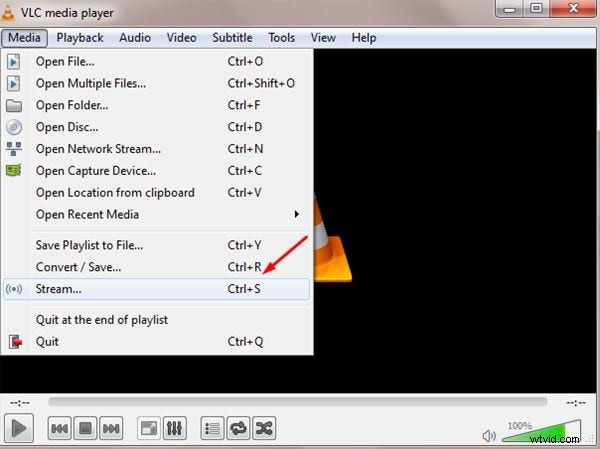
Step 1: First of all you need to open VLC player on your system and then move to Media Menu available on top left corner of your software screen. From the drop down menu, simply select Stream option.
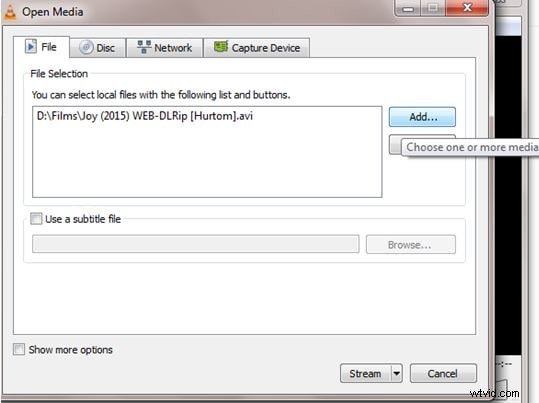
Step 2: Now hit the Add button if you are ready to select your media files for streaming. It will immediately open the Media Window. Select your files from targeted folders and then hit stream button from bottom portion of screen.
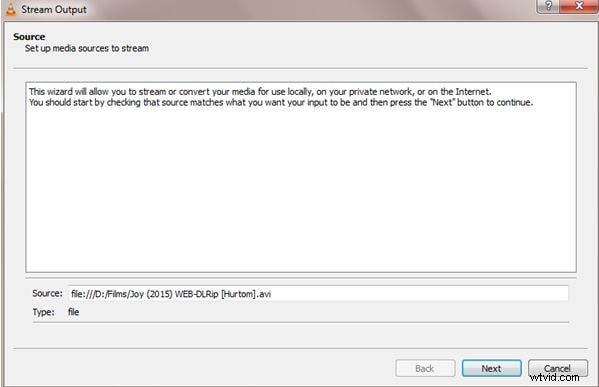
Step 3: Once you have streamed your content then you will find a media source information on next window; this information is automatically updated to software platform and you can simply press next to move ahead.
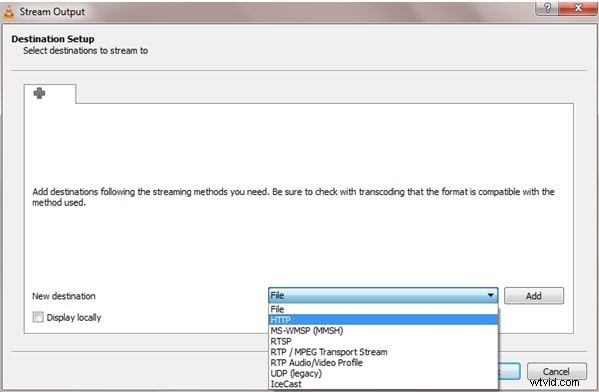
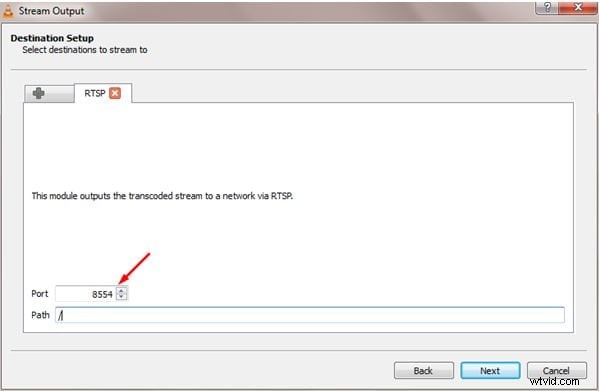
Step 4: Now a destination setup window will appear on screen where you can choose your targeted output platform. Prefer to select HTTP option is you want to listen for available connections; it will help other local computers to get connected automatically so that they can enjoy your streams on local network. If you want to send your stream to specific IP address or to the range of IP addresses then simply choose UDP option from drop down menu. Once you have added details about your destination on this streaming platform then simple hit the add button. In case if you want to monitor your stream locally on your computer then you can checkbox the Display Locally option from screen. It will help you to monitor what is happening over network.
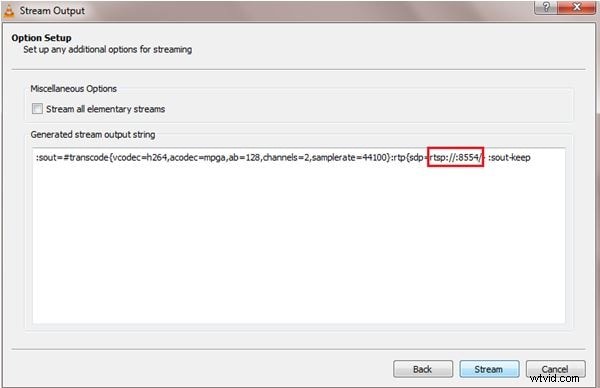
Step 5: Now simply hit the Next button and an option setup window will appear. Here you can see the auto-generated stream information for your video. From this detail, copy your stream URL. Note that this URL will point the location inside your own local computer. If you are ready to share your stream with other viewers then go to this URL and simply add your server address by placing two slashes ahead.
Alternatives for VLC Streamer:
| Software | Primary Function | Best For |
|---|---|---|
| VLC Media Player | Cross-platform network streaming | Local network video sharing |
| SWYH | Audio broadcasting (DLNA/UPnP) | Music streaming to smart TVs |
| Filmora | Video editing and enhancement | Polishing content before streaming |
In case if you are searching for some additional platform to enjoy video streaming on internet then below are two useful solutions.
1. Stream What Your Hear:
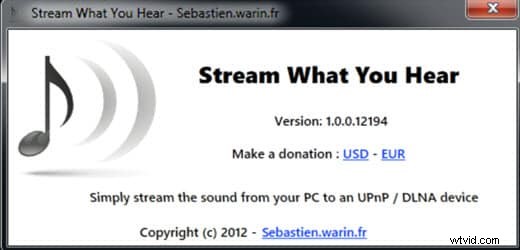
SWYH is a window based application that helps users to enjoy broadcasting sound from their personal computer to DLNA/UPnP device as like game consoles, network receivers, amps and TVs.
When you are ready to stream your content online then simply go to stream option on your software tool and further you will find all connected and available devices for live streaming. Choose any one of these and start streaming with impressive video quality.
Key Features:
- This software tool is capable enough to capture sounds from your computer with impressive auto quality.
- It can stream WAV/PCM or MP3 content over HTTP.
- Offers easy support to automatic DLNA/UPnP media renderer detection as well as can accomplish the play action easily.
- Sound tracks are recorded with MP3 file format.
2. Video Converter Ultimate:
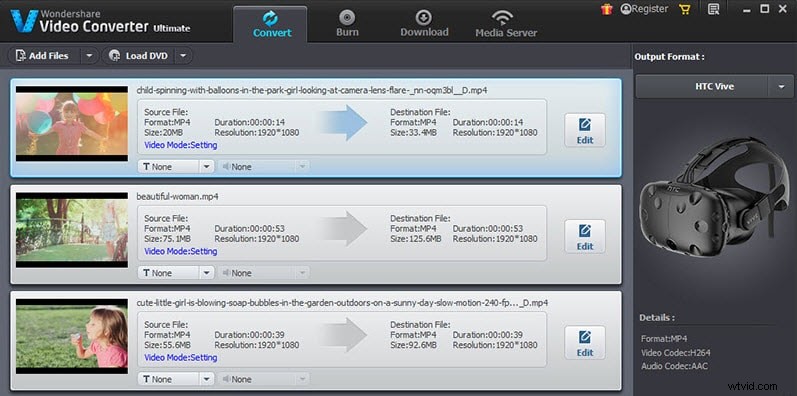
Video Converter Ultimate is a powerful solution from Wondershare with all incredible features at single platform. It makes everything simpler for beginners so that they can watch videos anytime and anywhere or can apply advanced actions like burn videos, convert, edit or download them.
After all your customized settings, final results will be automatically saved to high quality file like VR, 3D or Ultra HD etc. With Video Converter Ultimate, you will never find any issue like crashes; redraw problems, missing key frames etc. The best thing to know about Wondershare Video Converter Ultimate is that it allows users to enjoy 150 plus media file formats over single platform.
You will love to enjoy VR and 4K videos on this interactive software tool. People love to stream their videos online with Wondershare tool as it offers wide range of advanced editing tools so that videos can be customized with ease. If you want to trim, crop, watermark your videos then Wondershare tool can help you well; it can also add subtitles, special effects and saturation or contrast based settings to your streaming content.
Conclusion
Live streaming content over your network with VLC Media Player is a powerful and accessible feature. This guide walked you through the straightforward steps, from selecting media to configuring destinations like HTTP for local sharing or UDP for specific IPs. Ultimately, you're now equipped to share videos, presentations, or personal content across your local network, showcasing VLC's versatility beyond a simple media player.
While VLC handles streaming well, polishing your video content beforehand significantly boosts engagement. Filmora offers powerful editing tools to enhance your videos with effects, titles, and transitions, ensuring they're captivating before you stream. Want to elevate your content? Explore Filmora today and turn your footage into stunning streams!
Try It Free
For Win 7 or later (64-bit)
 Secure Download


Frequently Asked Questions about Live Streaming with VLC
How do I start live streaming with VLC Media Player?To start live streaming with VLC, open the player, go to the 'Media' menu, and select 'Stream'. Then, add your media file, click 'Stream', choose your destination (like HTTP for local network or UDP for specific IPs), configure options, and click 'Next' to get your stream URL.
Can VLC stream to a TV or other devices on my local network?Yes, VLC can stream to devices on your local network. When setting up the stream destination, choose the 'HTTP' option. This allows other computers on the same network to connect and view your stream by accessing the generated stream URL.
What are some alternatives to VLC for live streaming?If you're looking for alternatives to VLC for live streaming, 'Stream What Your Hear' (SWYH) is a good option for broadcasting sound from your PC to DLNA/UPnP devices. Wondershare's 'Video Converter Ultimate' also offers various video management and conversion features that can be useful for preparing content for streaming.
Ollie Mattison
Ollie Mattison is a writer and a lover of all things video.
Follow @Ollie Mattison