

May 12, 2025 • Proven solutions
Vimeo’s screen‑recording tool transforms how teams and customers communicate. By capturing both the webcam feed and your screen simultaneously, it eliminates endless emails, delays, and misunderstandings, making collaboration seamless—even across long distances.
With Vimeo Record, you can create polished tutorials, dynamic sales decks, or live product demos that showcase exactly what you intend. The platform also supports uploading any video format and offers advanced organization, management, and publishing features.
Part 1: Recording Your Screen on Windows and Mac with Vimeo Record
While most devices come with built‑in screen recorders, Vimeo Record elevates the experience with professional‑grade tools and cross‑platform compatibility. The Chrome extension works on Windows, macOS, Android, iPad, iPhone, and iPod Touch, ensuring everyone can record from any device that runs Google Chrome.
Below is a step‑by‑step walkthrough that even non‑technical users can follow.
- Install the Vimeo Record Chrome Extension
Only Google Chrome supports the Vimeo Record extension. If you don’t have Chrome, download it from the official site and launch it. Then, add the Vimeo Record extension from the Chrome Web Store and create a new Vimeo account. Pin the extension to your toolbar for quick access and grant it permission to use your camera and microphone.
- Start Recording with Vimeo Record
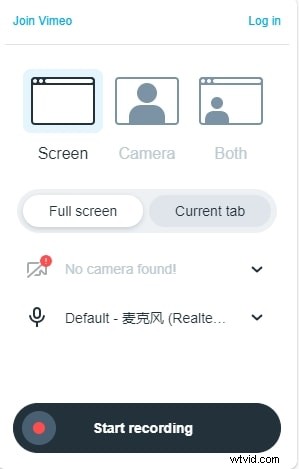
Click the Vimeo Record icon in the toolbar and choose to capture the full screen, the current tab, or include your webcam feed. Drag the webcam preview to the desired position on the screen and use it as a live mirror. When ready, click Start recording. The recording will continue even if your internet drops, but it will stop if the extension loses access to the camera, screen, or microphone. Each clip is capped at two hours.
- Stop Recording and Share
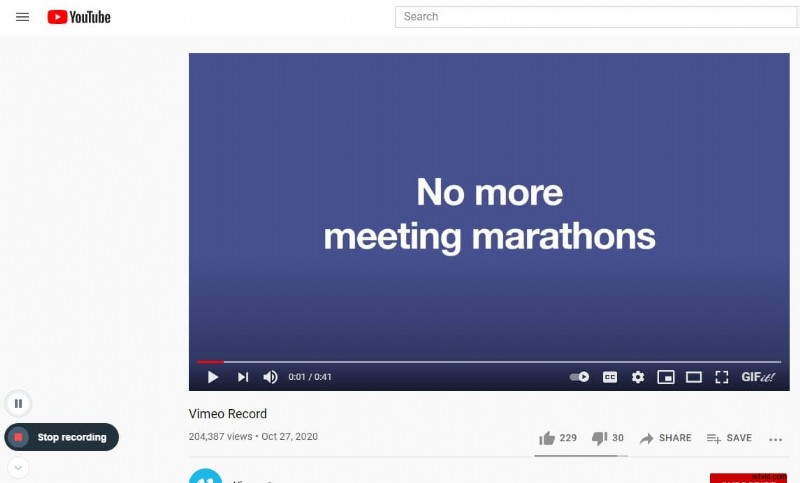
To finish, click the Stop sharing button at the bottom of your screen and save the video. You can then choose from several distribution options directly within the Vimeo Record interface, copy the link, or click the download icon to save locally.
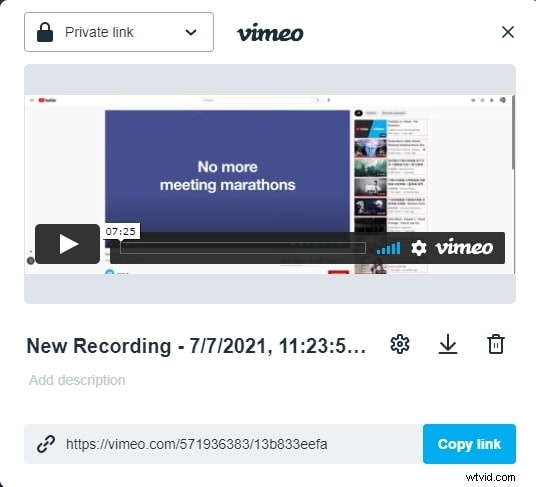
The video is automatically uploaded to your Vimeo account and stored in the Recordings folder. Enterprise members see it in their Private folder. Use the View Settings on Vimeo link to edit the title, description, and privacy settings directly on Vimeo.
Part 2: Capturing Vimeo Video Screens on Mobile Devices
Although Vimeo Record is a Chrome extension, you can still record your mobile screen using native tools and upload the footage to Vimeo.
Android Devices
Android 10 and newer include a built‑in screen recorder. Open the Quick Settings panel, tap Screen Recording, and choose whether to enable mic, camera, or both. A 3‑second countdown will begin, and the recorder will start automatically. Once finished, stop the recording; the video will be saved to your device and can be shared or uploaded to Vimeo right away.
iOS Devices
iPhone and iPad running iOS 11 or later also feature a native screen recorder. Enable the feature in Settings → Control Center, add Screen Recording to your controls, and start recording from the Control Center. For detailed instructions, refer to the dedicated iOS screen‑recording guide.
Part 3: Recording with Wondershare Filmora X
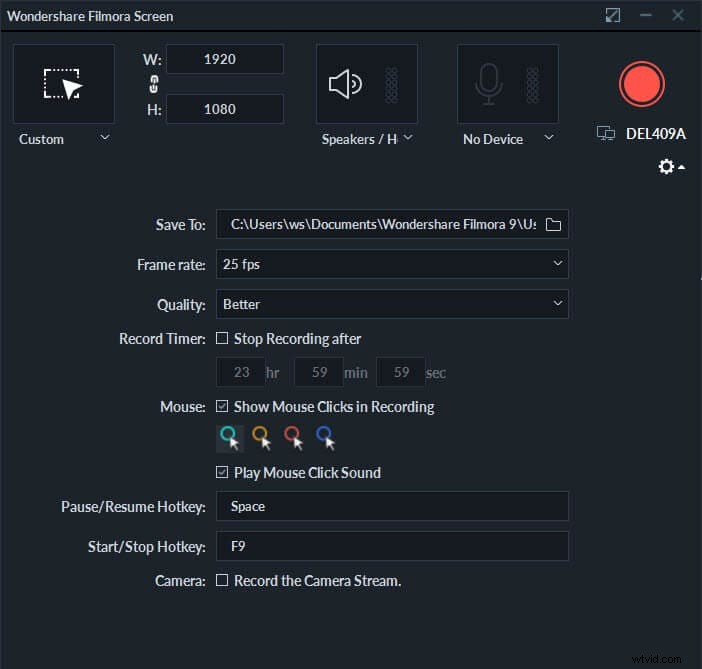
Wondershare Filmora X offers robust recording and editing capabilities. It lets you capture a specific screen area, stabilize footage, add background music, and more—making it ideal for creators who need extra control over their videos.
To record with Filmora X:
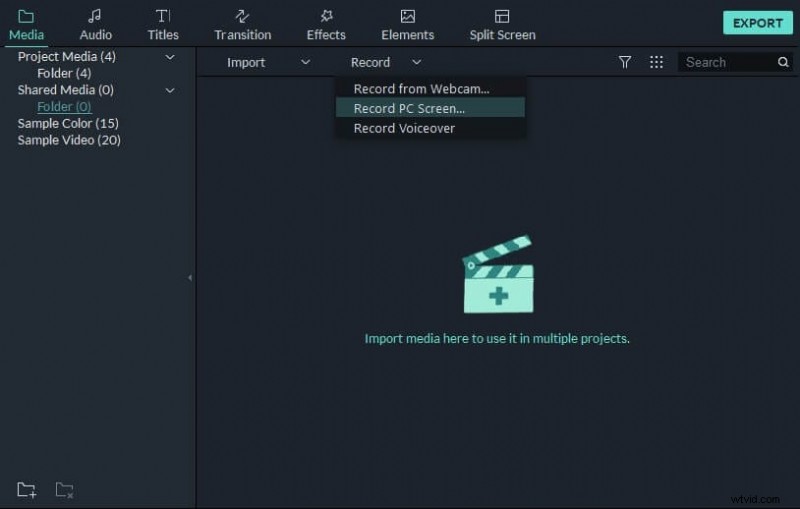
- Open the Record dropdown and select Record PC Screen.
- In the popup, choose the capture area and resolution.
- Select your external microphone in the audio menu if you plan to narrate.
- Check Record the Camera Stream to include webcam footage.
- Click the red Record button to begin.
- Use the pause or timer options as needed.
After recording, Filmora X’s editor lets you trim, color‑grade, and export your video, or upload it directly to Vimeo.


Quick Fix: Vimeo Record on Mac
Mac users may need to grant screen‑recording permissions. Go to System Preferences → Security & Privacy → Privacy → Screen Recording and allow Google Chrome. Also enable camera and microphone access. After restarting Chrome, the full range of Vimeo Record features becomes available.
Conclusion
Mastering Vimeo Record opens a world of professional communication possibilities—whether you’re producing educational content, sales pitches, or casual updates. For projects that demand advanced editing, Filmora X provides powerful tools to refine your recordings. And with native mobile screen recorders, you can capture and share videos instantly, keeping your creative workflow uninterrupted.
Shanoon Cox
Shanoon Cox is a writer and a lover of all things video.
Follow @Shanoon Cox