
Imagine you are a marketing personnel and preparing to create a promotional video on social media for a new product launch. Your goal is to highlight the benefits of the products while including a clear call to action. You might need a storyboard before starting the video production to avoid misaligned ideas.
The storyboard serves as a visual script to enhance communication between all the stakeholders by laying out the structure and tone of the video. It helps the team identify any missing points while eliminating unnecessary scenes. However, if you do not know how to make a storyboard for videos, read this article till the end, as it discusses the topic in detail.
In this article
-
- What Is a Storyboard?
- Why It Matters?
- Essential Elements of a Storyboard
-
- Visual Storyboards
- Text (Shot List) Storyboards
- Hybrid Storyboards
- Thumbnail Storyboards
- Digital Storyboards
-
- Some Prominent Features of Filmora For Creating a Perfect Video Storyboard
- Comprehensive Steps To Create a Storyboard Video with Filmora
- From Idea to Video in Just Clicks: Seamless AI-Driven Storyboarding
Part 1. A General Overview of Storyboard: Definition & Elements
Let's first understand a storyboard in detail and, notably, why it matters in a video:
What Is a Storyboard?
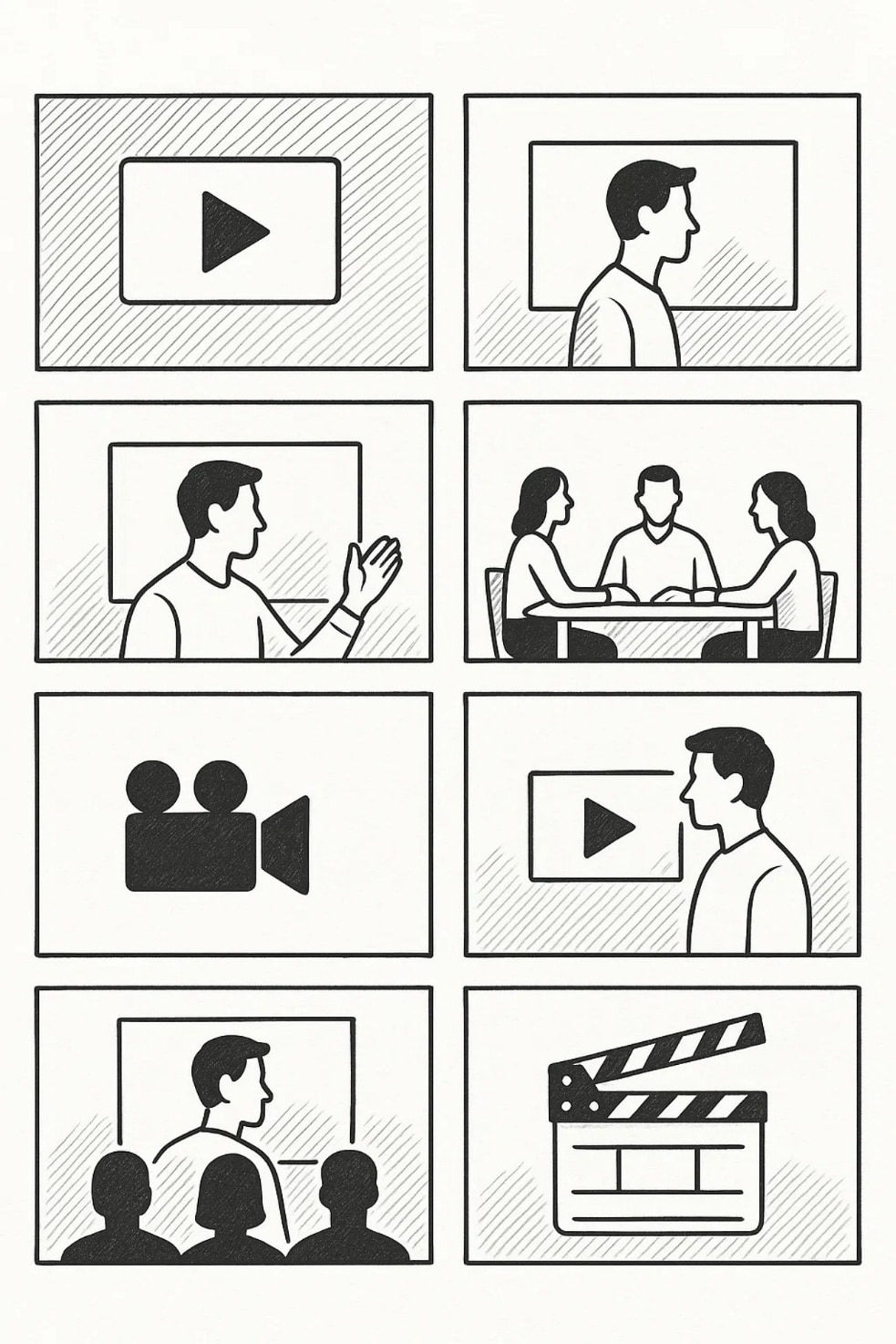
A storyboard is a visual outline of a story or project that you present in a series of frames or panels to plan scenes or steps in advance before starting the production.
Why It Matters?
Having discussed how to storyboard a video, here are the major reasons that explain why a storyboard matters:
- It helps you to organize your ideas clearly and in a visually engaging manner.
- You can save time and resources during production because everything has already been planned out.
- When you sit together to discuss things, it improves your team's collaboration and communication.
- The complex projects become easy to understand with the help of a storyboard.
- Users can identify the issues earlier during the planning stage.
Essential Elements of a Storyboard
After understanding why having a storyboard matters, provided next are an outline of its essential elements:
- Panels/Frames: These are the individual boxes that represent each scene or step.
- Script: A script is a narration that elaborates on how the dialogue will take place.
- Sketches: Sketches are the rough illustrations of the images of the scenes.
- Scene Descriptions: They contain notes about actions, movements, and transitions taking place.
- Camera Directions: It talks about different camera angles and movements along with the scene.
- Timing Notes: The timing notes the specific duration or order of each scene.
Part 2. Types of Storyboards For Directed Creations
As we progress into discussing how to make a storyboard video, here are its types for directed creations:
Visual Storyboards
You use hand-drawn or digital sketches with annotations to show scenes that will unfold visually. They usually help directors and the team to plan shot compositions and their timing.
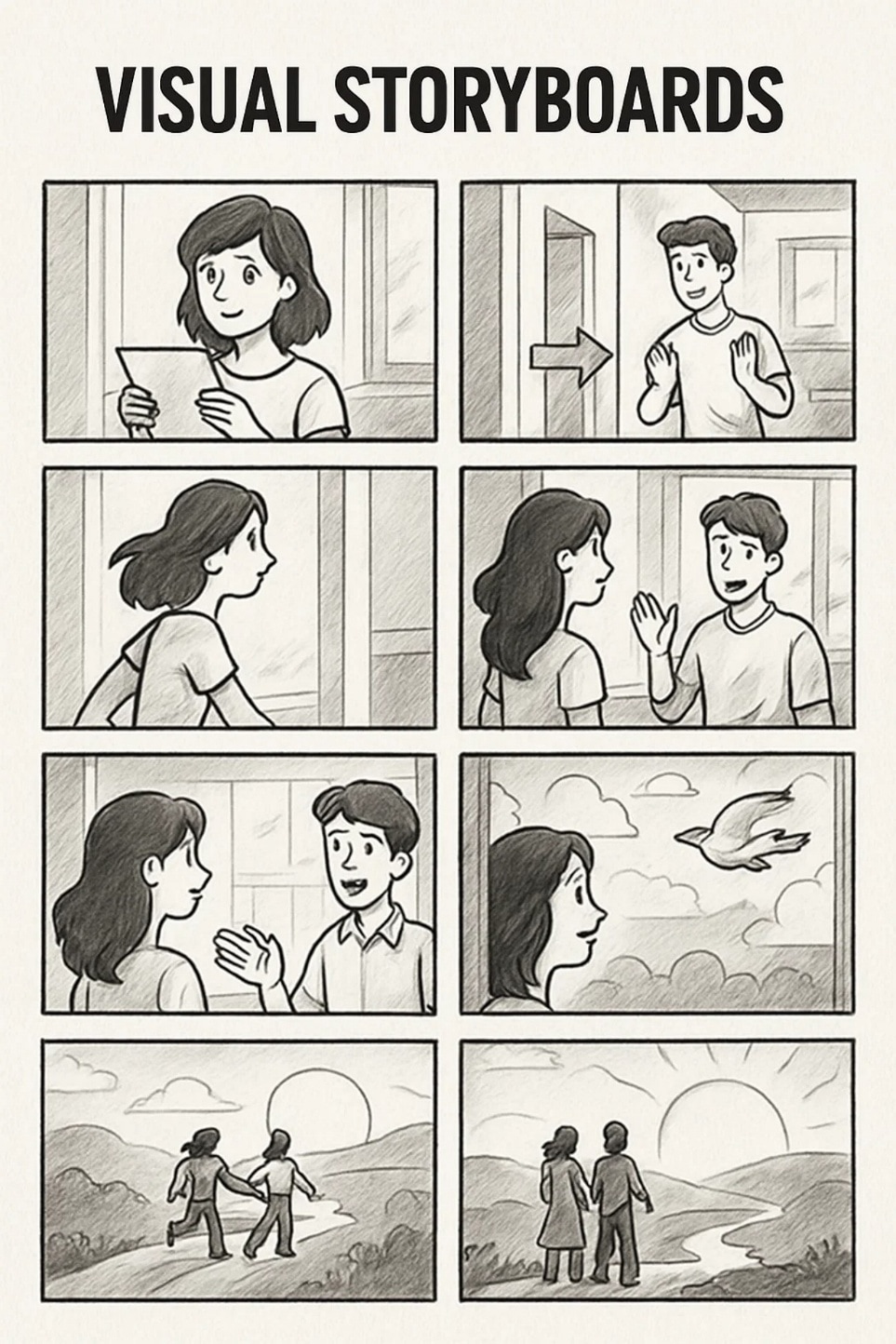
Best For: Films and Explainer Videos
Text (Shot List) Storyboards
This is a bullet-point list that describes each shot without visuals. It focuses on dialogue, camera angles, and how transitions will take place to make it quick and efficient.
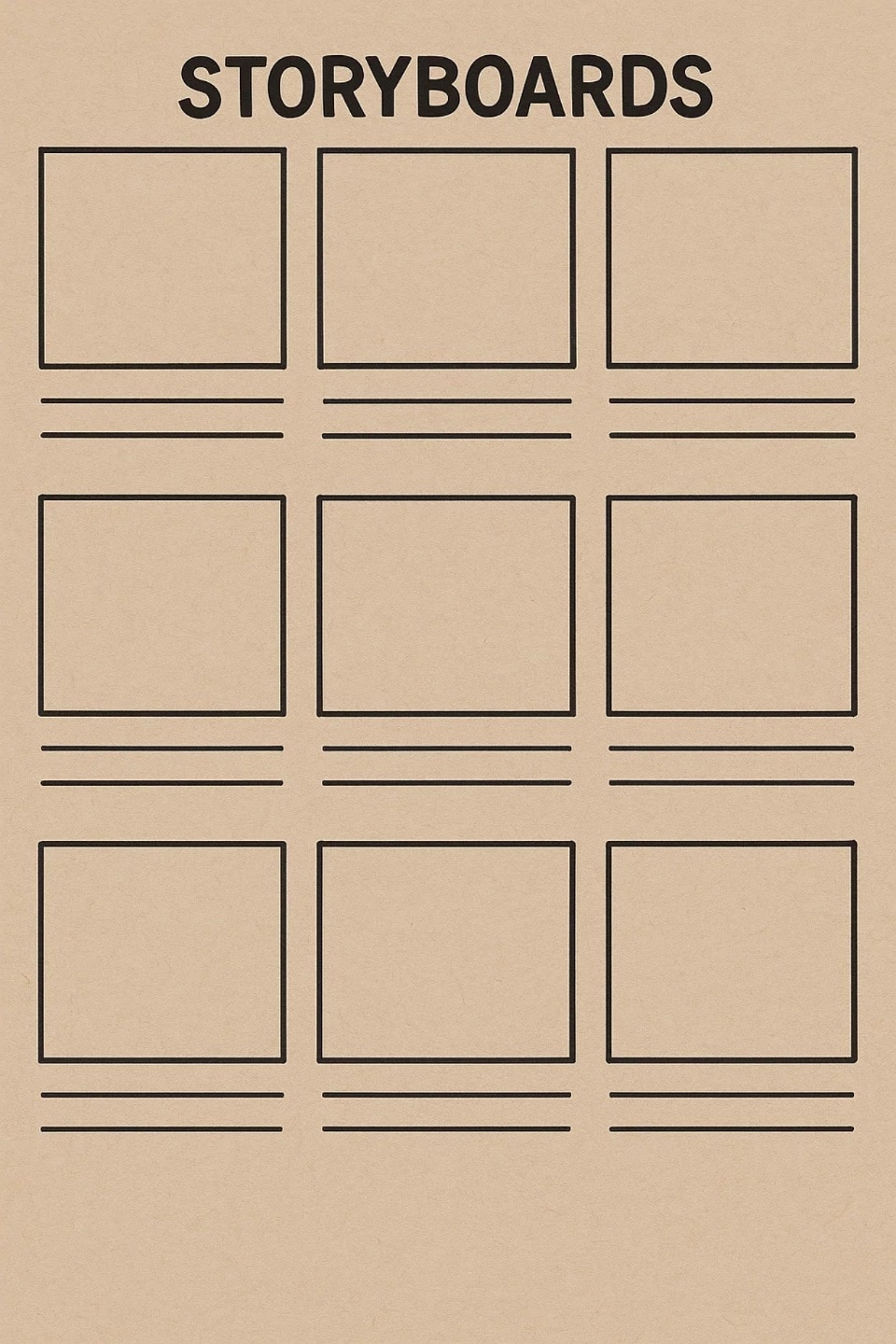
Best For: Ads or Social Media Reels
Hybrid Storyboards
These are a mix of rough visuals and short text descriptions. Such storyboards are helpful when teams want both a visual reference and written clarity without full illustrations.
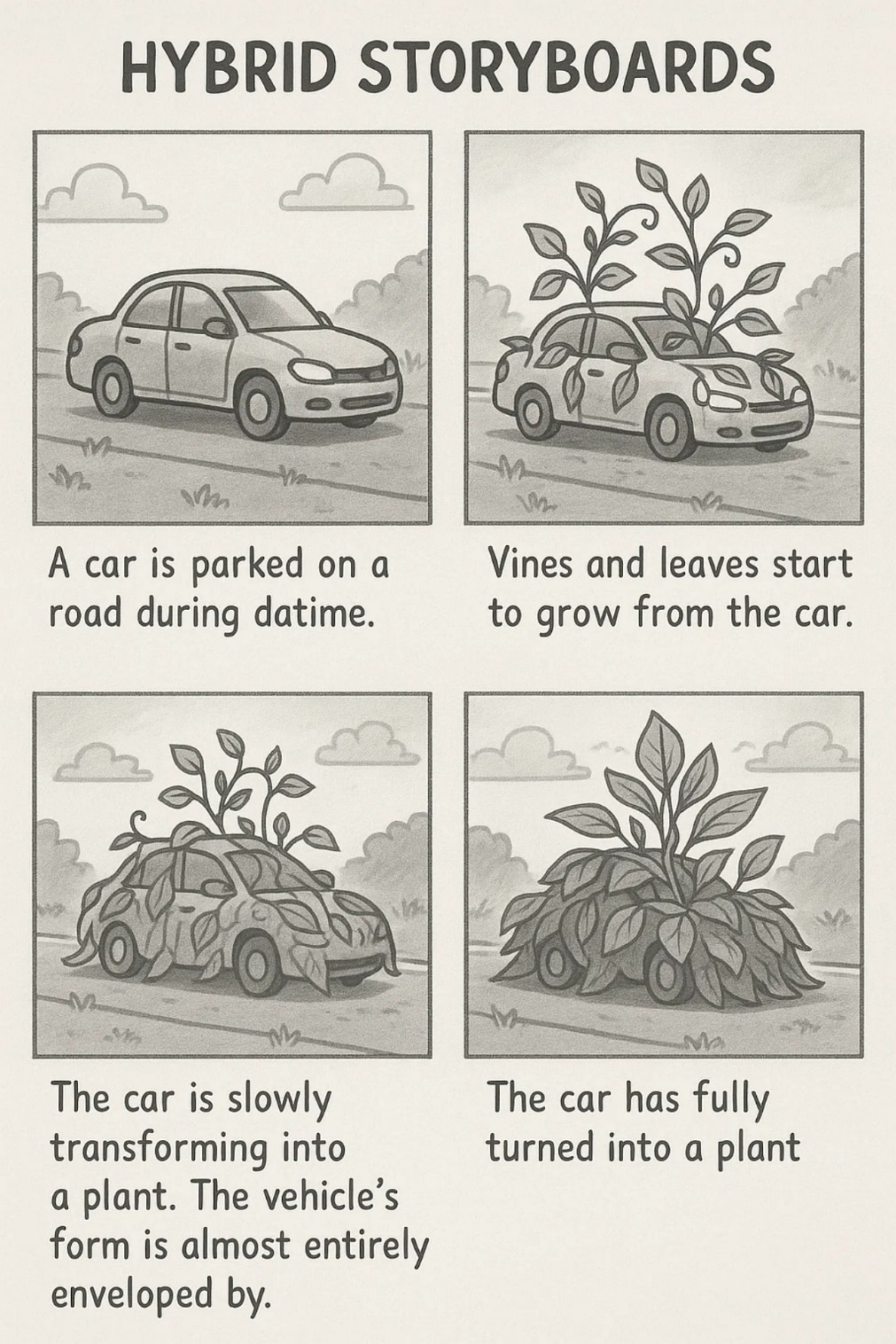
Best For: Concept Pitches and Collaborative Projects
Thumbnail Storyboards
This is a mix of small and rough sketches that are essential for outlining the flow of a story. They are also beneficial for brainstorming and exploring multiple ideas before shifting to a detailed version.
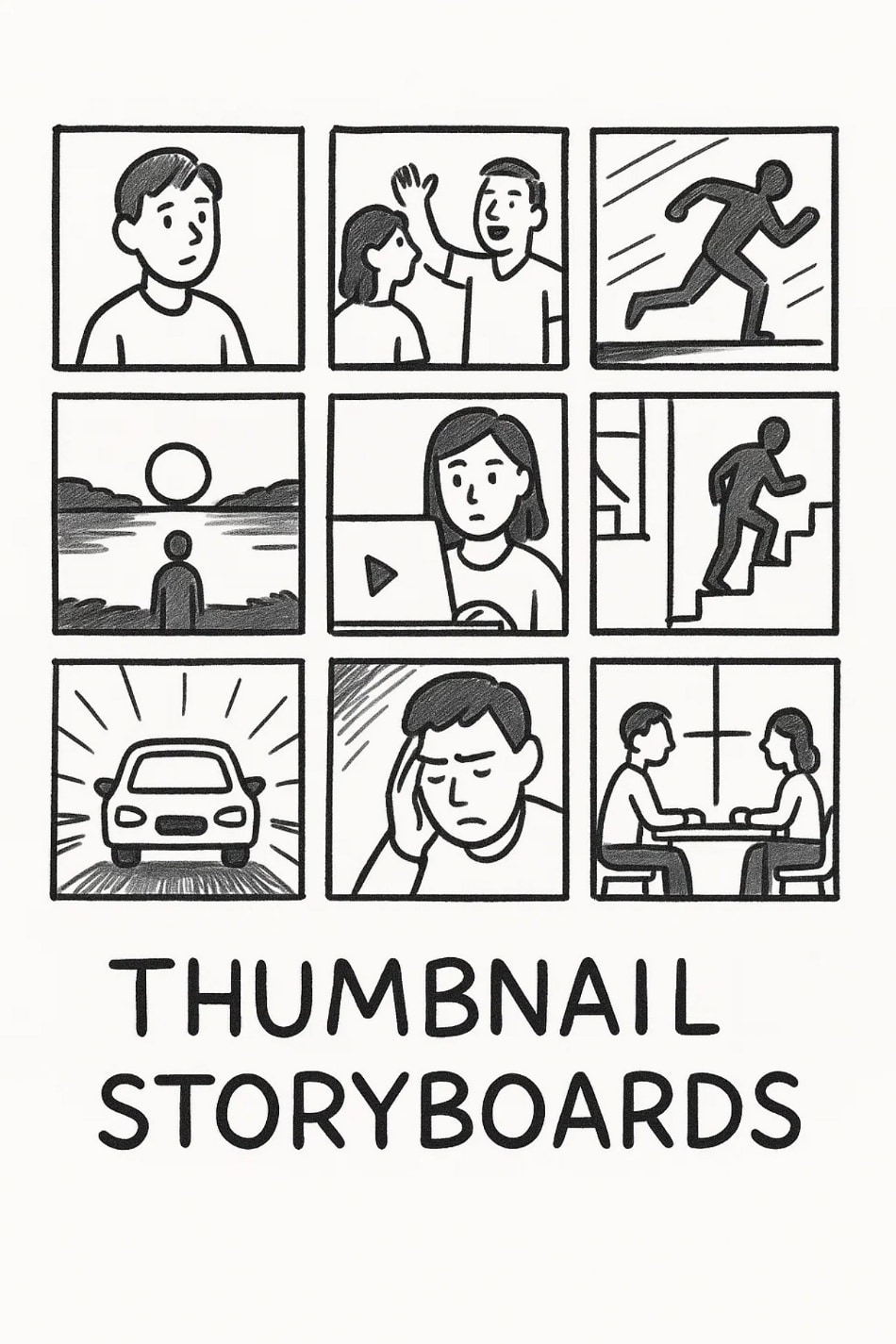
Best For: Quick Planning or Brainstorming Ideas
Digital Storyboards
They are created using software containing features like drag and drop, audio sync, and animation. Digital storyboards are ideal for projects that demand interactivity and client previews.
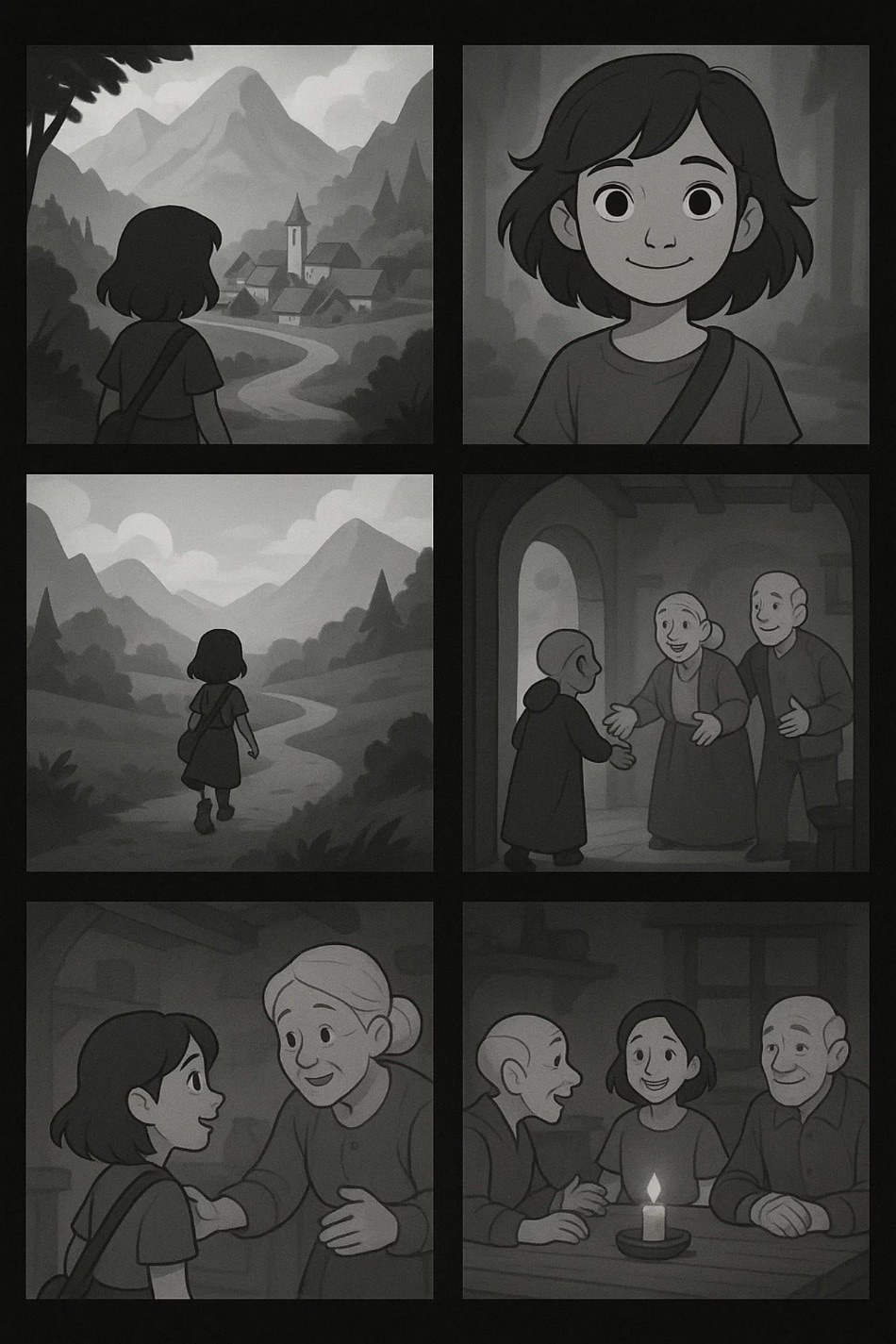
Best For: Interactive Media or Web-Based Projects
Part 3. How to Make a Storyboard for Video in 7 Easy Steps
You are all set up to launch the product, but you could not get the right resources to create a promotional video. Although you have tried a few video editing tools, you do not know where to begin. For this, tools like Wondershare Filmora come in handy as they provide a complete solution on how to make a storyboard video without any prior skills.
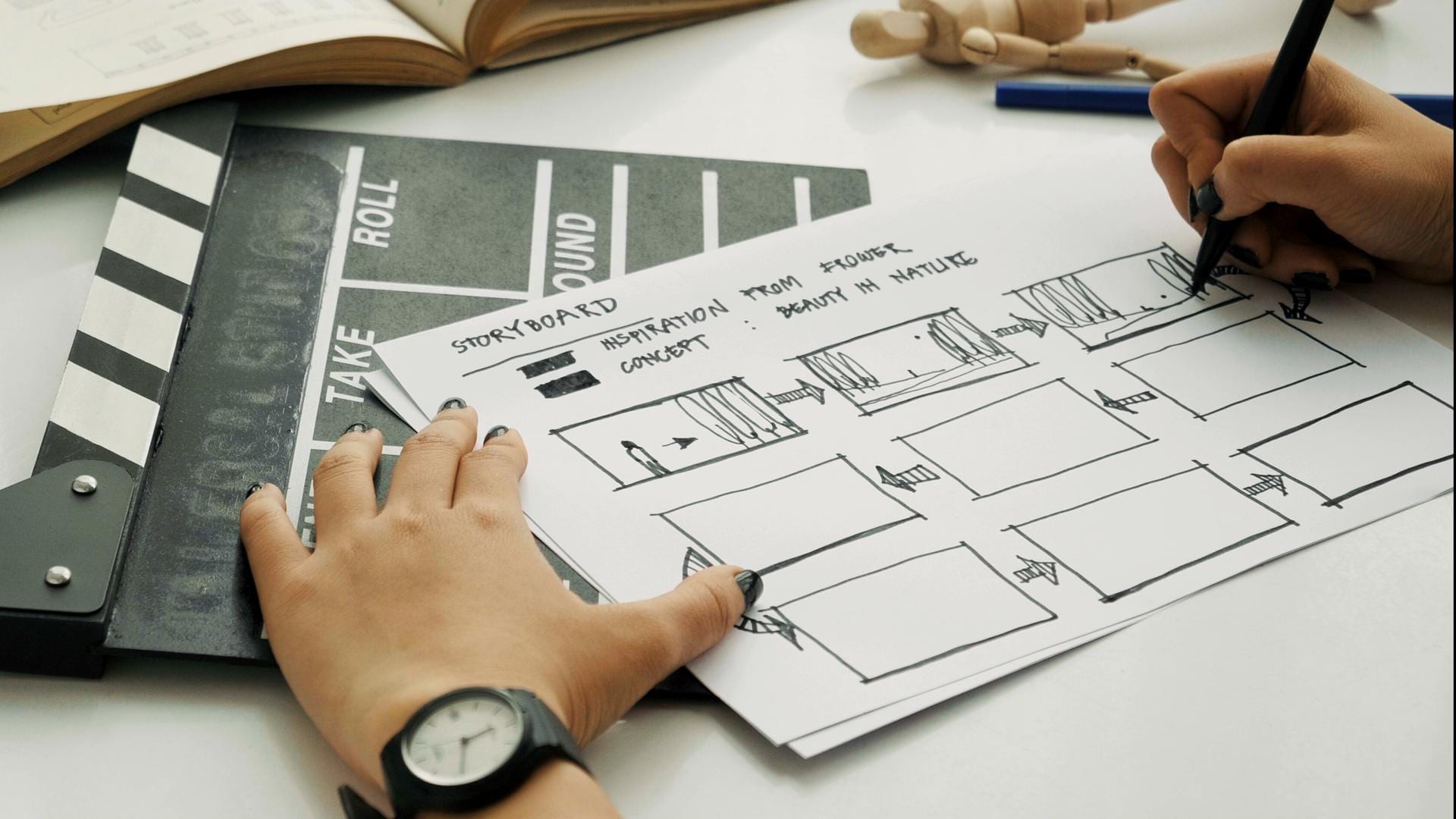
Filmora combines intuitive AI tools and rich templates to empower both beginners and professionals in crafting polished video storyboards efficiently and creatively:
Some Prominent Features of Filmora For Creating a Perfect Video Storyboard
What Filmora Can Do in Making Video Storyboard- Templates Library: It offers a vast template library of predesigned video layouts for product introductions and storyboarding.
- Instant Mode: Instant Mode in Filmora instantly creates videos across the media provided by you while offering various templates to get a head start.
- Beat Detection: The beat detection feature uses advanced AI to automatically detect the beat in your video background music. This helps users sync cuts, transitions, or animations precisely with rhythm changes.
- Auto Beat Sync: It automatically aligns your clips to the beats of the selected audio for the video. It eliminates the manual need for audio syncing by matching the scene changes with the musical beats automatically.
- Keyframe Animation: This feature lets you create custom animation for your storyboarding images by setting motion points for elements like position, rotation, and scale.
- Motion Tracking: With this feature, Filmora can follow a moving subject and attach text or other elements that move along with it.
- Color Matching: When learning how to storyboard a video with Filmora, you can automatically adjust the color tone of a selected clip to match the difference shot using AI.
- Smart Cutout: Users can isolate an object or remove an unwanted element from the video automatically without making manual selections.
Comprehensive Steps To Create a Storyboard Video with Filmora
Having learned about this incredible tool in detail, let us now have a look at how to create a compelling storyboard video using its functionalities:
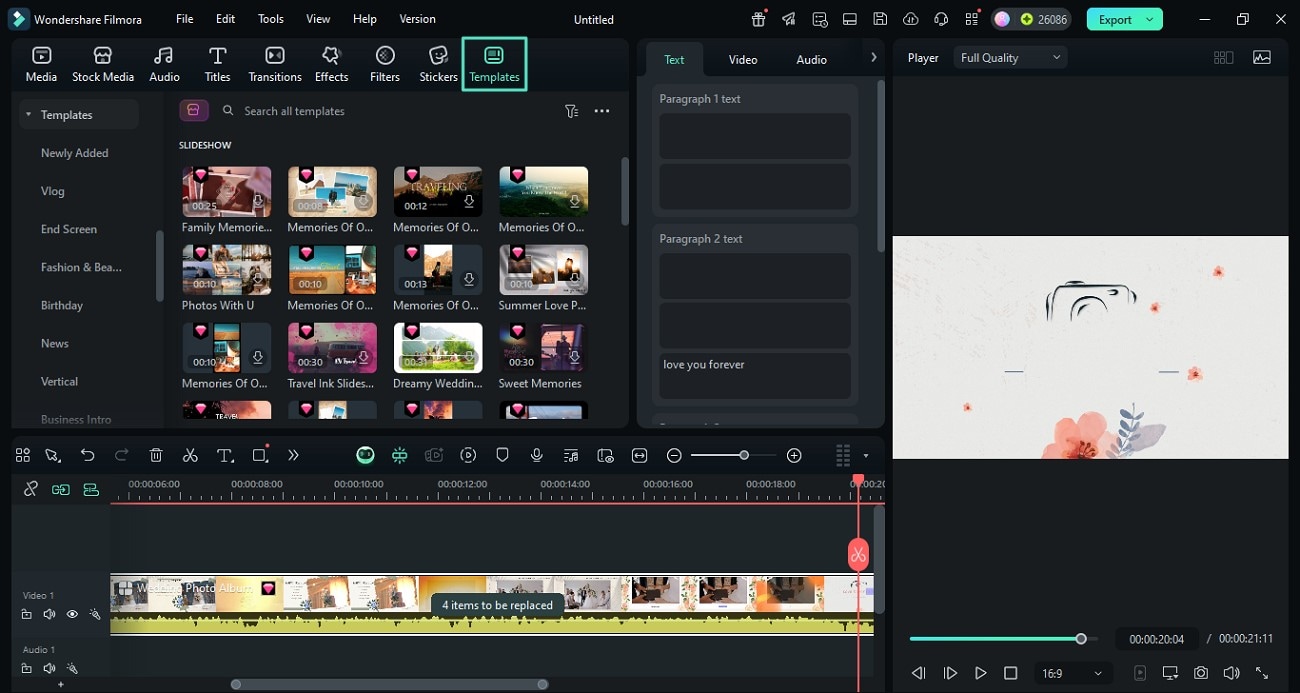
Step 1. Start By Selecting The Video Template
- Launch Filmora on your device and click on the "New Project" option to import your clip.
- Access "Templates" from the toolbar and choose the video design of your choice in the following interface.
- Next, import your story prototypes in sequence to the interface and drag them onto the editing timeline.
- Pro Insight: You can also import the video prototypes for creating visual storyboards.


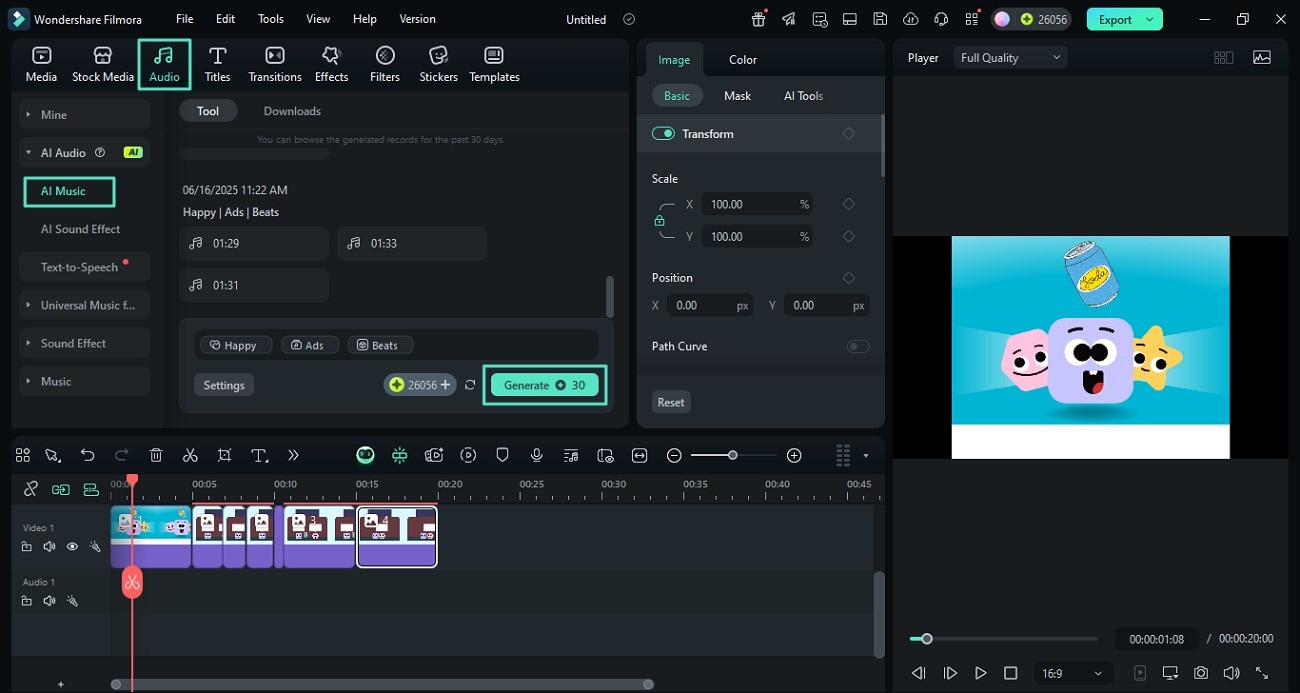
Step 2. Generate Music Through AI
- Next, access the "Audio" section from above and expand the "AI Music" option.
- Specify your requirements like Mood, Theme, and Genre, and hit the "Generate" button using AI.
- Creative Cue: Head to the tool's homepage and access "Auto Beat Sync" to let the video automatically sync with the audio.
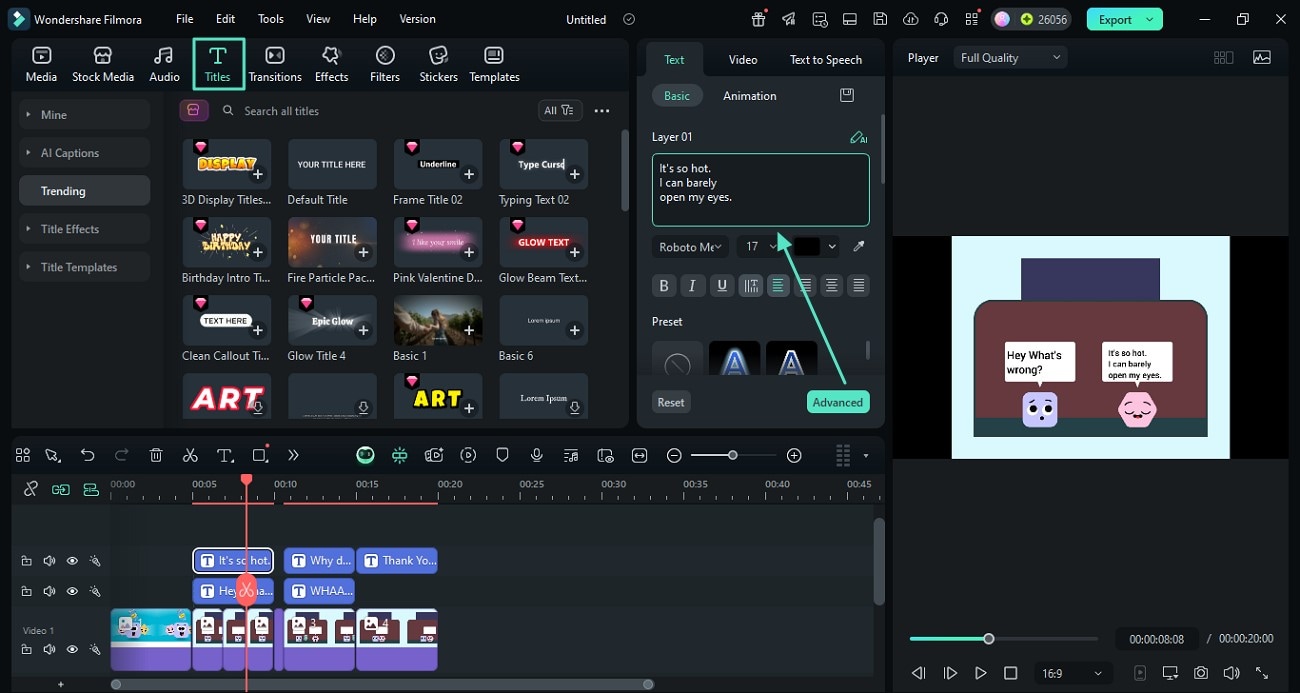
Step 3. Annotate or Add Text To the Frames
- Go to the "Titles" section from the toolbar, select the text style of your choice, and insert text in the designated field.
- Add multiple text series for each frame by repeating the procedure.
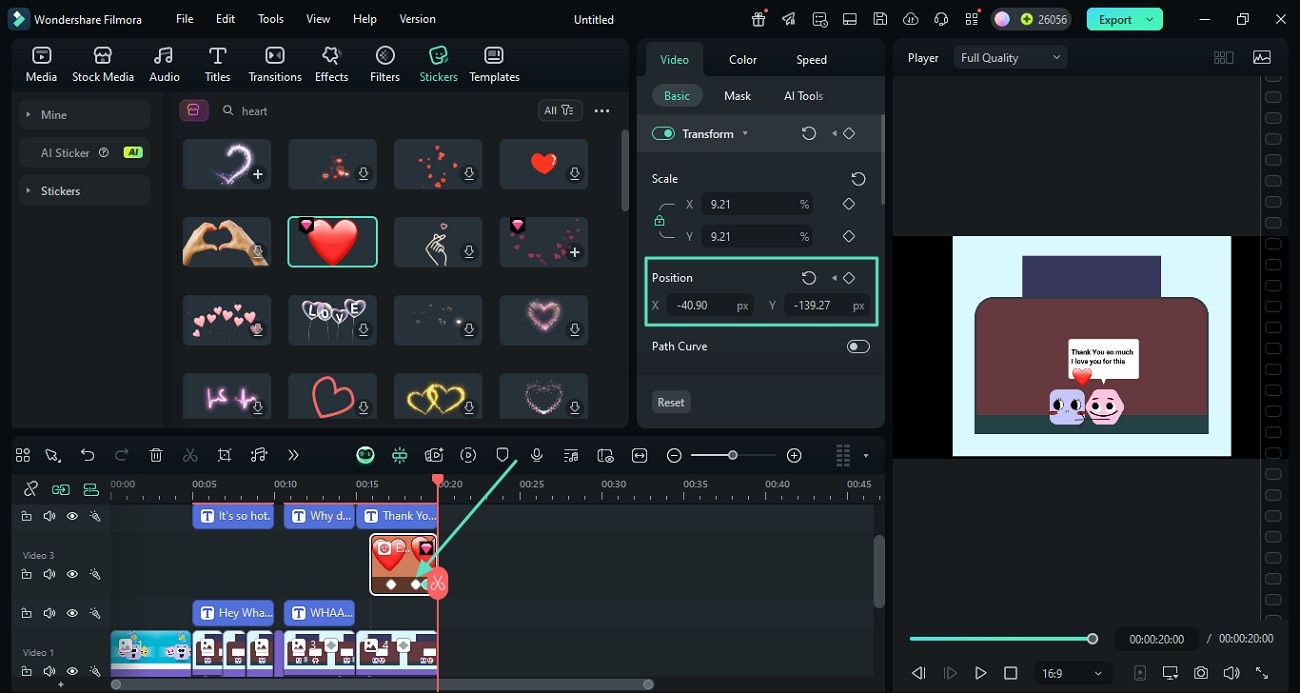
Step 4. Add Motion Through Key Framing
- To make any object move while learning how to make a storyboard video, click on the elements and press the "Keyframe" icon next to the "Position."
- Now, play the scene and add another keyframe while changing the "Position."
- Repeat adding keyframes to make the object move in a specific direction.
- Pro Insight: You can add a video at the end of the storyboard to give your product ad a creative touch.
Step 5. Add Dynamic Effects by Applying Motion Tracking
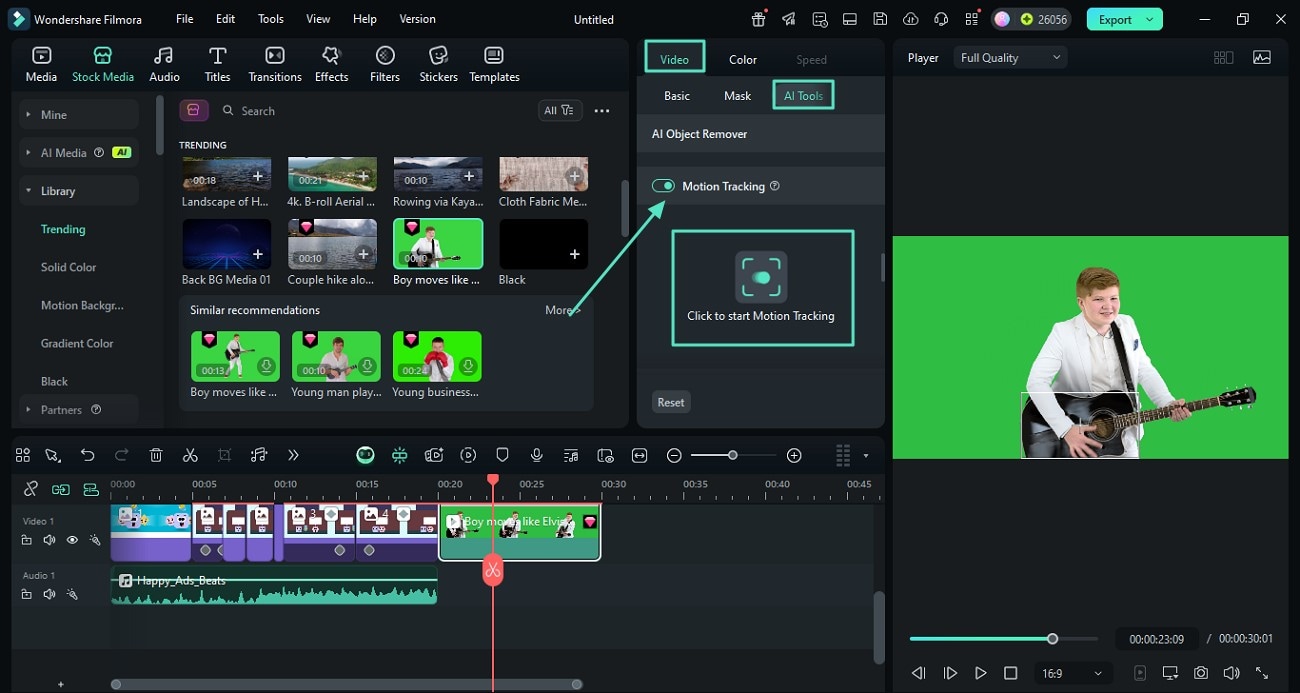
- At the end of the ad, add a motion clip and track the movement by accessing the "AI Tools" section.
- Turn the toggle on for the "Motion Tracking" option and hit the "Click to Start Motion Tracking" button.
- After the motion tracking, add an element or insert a mosaic effect.
Step 6. Mock-Up Creative Cutouts
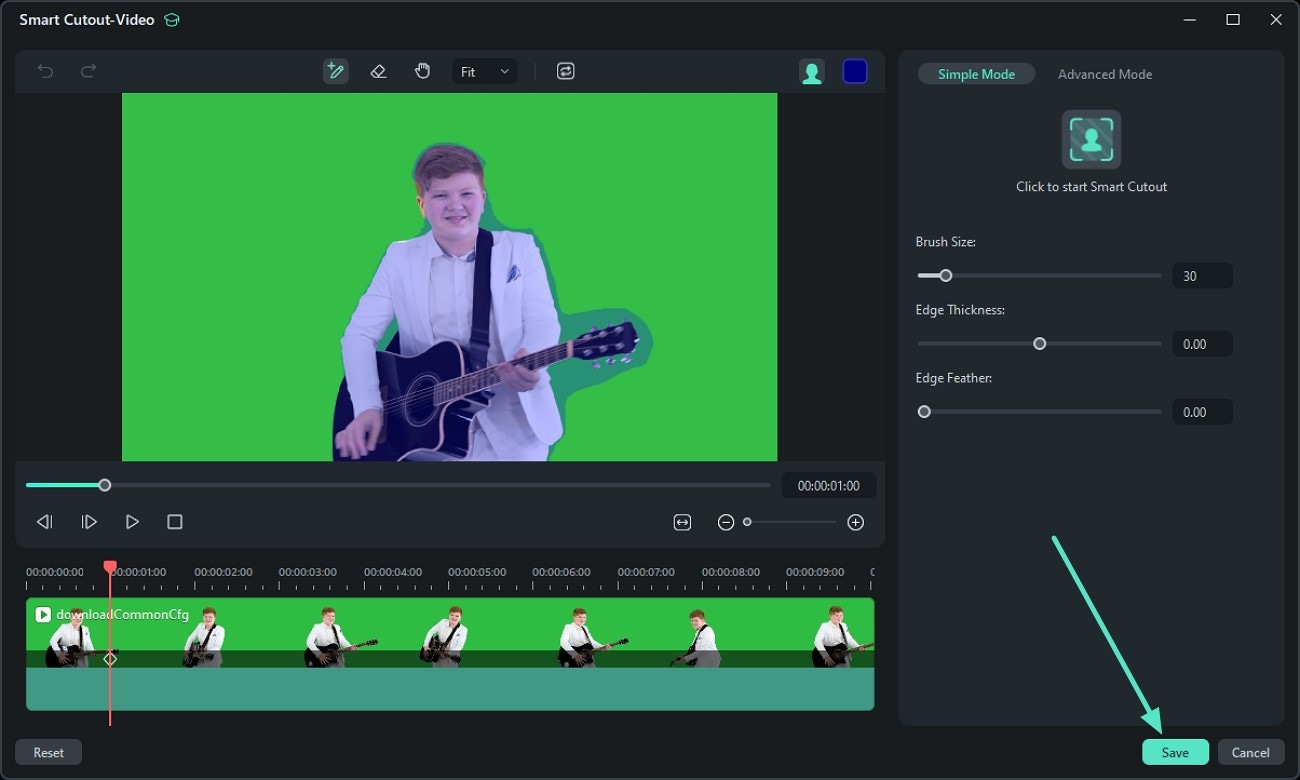
- Isolate a character in the storyboard by accessing the "Smart Cutout" option under "AI Tools."
- Next, select the subject by brushing over it to isolate it from the background.
- Press the "Save" button to apply the cutout changes successfully.
Step 7. Review and Export The Storyboard Video
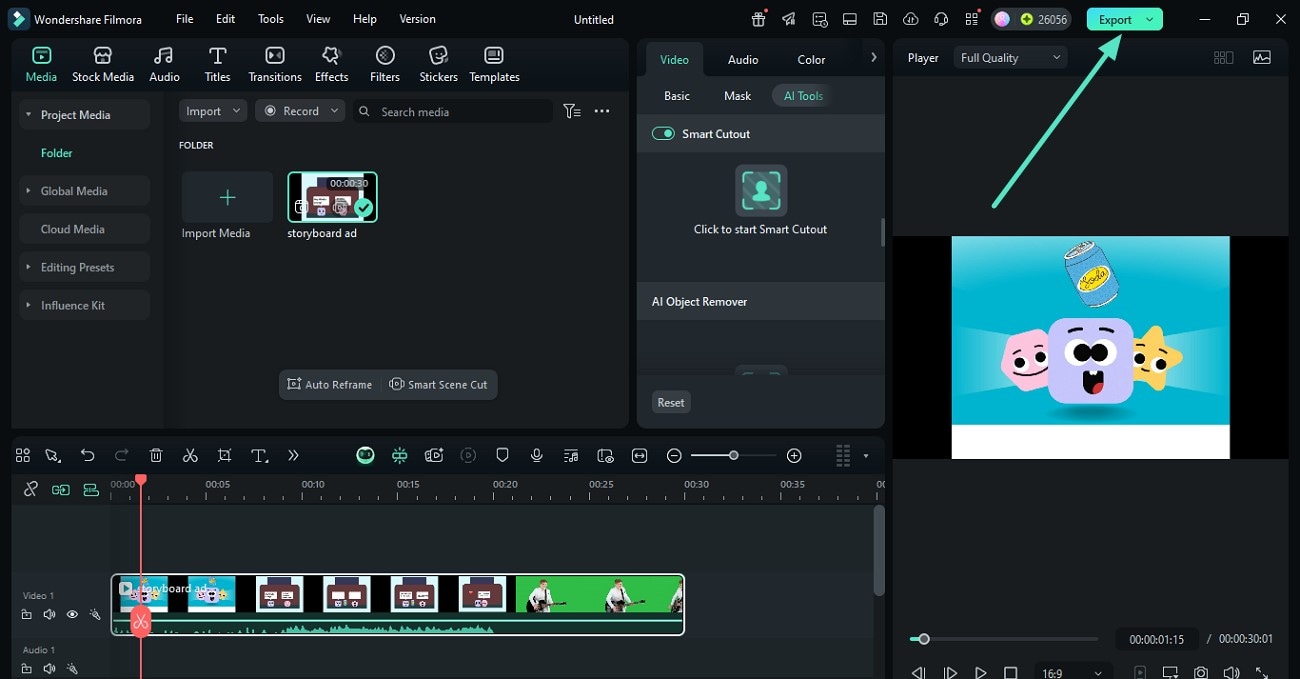
- Review the video within the preview window by clicking on the "Play" icon.
- Save your clip by pressing the "Export" button located at the top-right corner of the screen.
From Idea to Video in Just Clicks: Seamless AI-Driven Storyboarding
Traditionally, creating a storyboard involves sketching scenes by hand, writing detailed descriptions, and gathering video clips—a process that can be time-consuming and prone to miscommunication.
Thanks to Filmora's latest AI Text to Video feature, you can now skip these complex steps and transform your ideas into visual storyboards with just a few clicks.
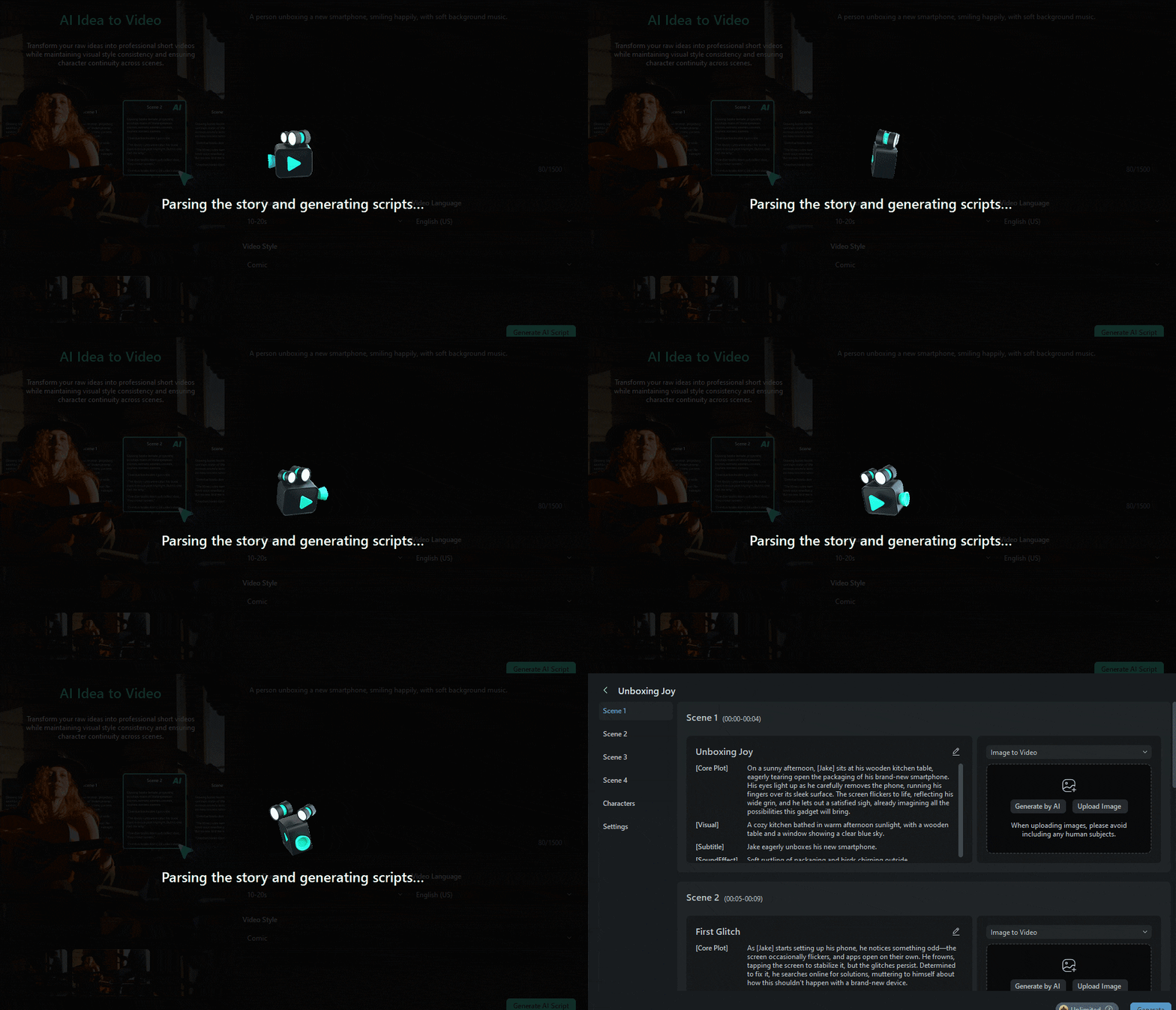
Filmora's AI Text to Video feature makes storyboarding easy and fast:
- Input your story idea or scene description to generate a refined script and storyboard materials.
- Confirm the storyboard content, characters, and visual styles, and adjust basic video settings.
- Then, the AI creates video clips and adds them to the timeline for quick editing.
- Export your video and share it using Filmora's social video planner for smart distribution.
- With just a few clicks, you can transform your ideas into a polished video effortlessly.
Part 4. Critical Mistakes to Avoid in Video Storyboarding
Having discussed how to make a video storyboard with Wondershare Filmora above, here are the critical mistakes to avoid:
- Starting without planning a complete script leads to confusion in scene planning and direction.
- Spending too much time on detailed drawings slows your progress.
- Leaving out directions like zooms and angles weakens the viewer's experience and production accuracy.
- Failing to plan how scenes transition to one another can make the final video look awkward.
- Creating scenes that don't align with audience expectations can lead to poor engagement.
Summary & Next Steps: Create Your First Storyboard Today
To wrap it up, this article discussed what video storyboarding is and how to create a storyboard for a video effortlessly. One of the reliable tools that offers various creative assets to create incredible videos is Wondershare Filmora. The AI automation integrated within the tool allows users to craft and modify visual content without minimal to any previous skills.

Filmora
⭐⭐⭐⭐⭐
The Best AI-powered Video Editing Software and App