
Skype remains a staple for video conferencing, yet it falls short in one crucial area: built‑in call recording. Ecamm Call Recorder for Skype fills that gap by letting you capture both audio and video of your Skype conversations with ease.
Table of Contents
- What Is an Ecamm Call Recorder?
- Main Features
- How to Use Ecamm Call Recorder
- Pros & Cons
- Alternative: Wondershare Filmora
- How to Use Filmora for Skype Recording
- Conclusion
What Is an Ecamm Call Recorder?
The Ecamm Call Recorder is a macOS‑only utility designed to capture your Skype audio and video streams directly to your Mac. It delivers high‑resolution recordings and supports both audio‑only and full‑video capture.
Main Features
Its user‑friendly interface hides a robust set of capabilities:
- Dual‑side recording with crystal‑clear audio and multiple video formats.
- Optional audio compression to save disk space.
- Choice of audio‑only, local, remote, split‑screen, picture‑in‑picture, or multi‑track video recordings.
- Adjustable video quality, image size, and frame rate.
- Timestamping and basic call‑editing tools.
These features make it simple for Mac users to preserve their Skype interactions for reference, training, or compliance purposes.
How to Use Ecamm Call Recorder
- Visit the Ecamm Call Recorder website and click Try it Free.
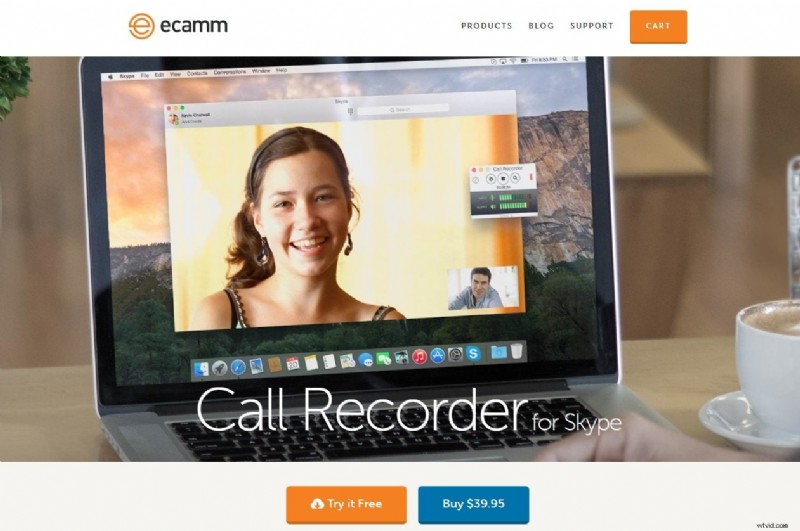
- Download the installer for the Call Recorder for Skype.
- Open the downloaded folder on your Desktop and double‑click the installer.
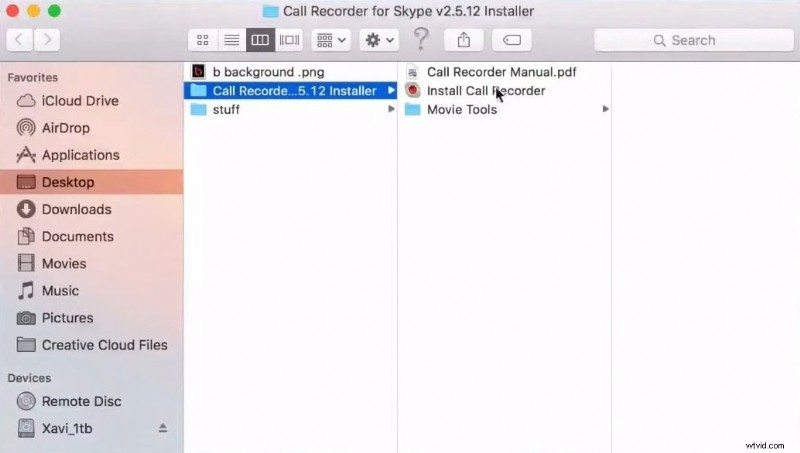
- Follow the on‑screen prompts, accept the terms, enter your Mac password, and confirm installation.
- After installation, click Open Skype when prompted.
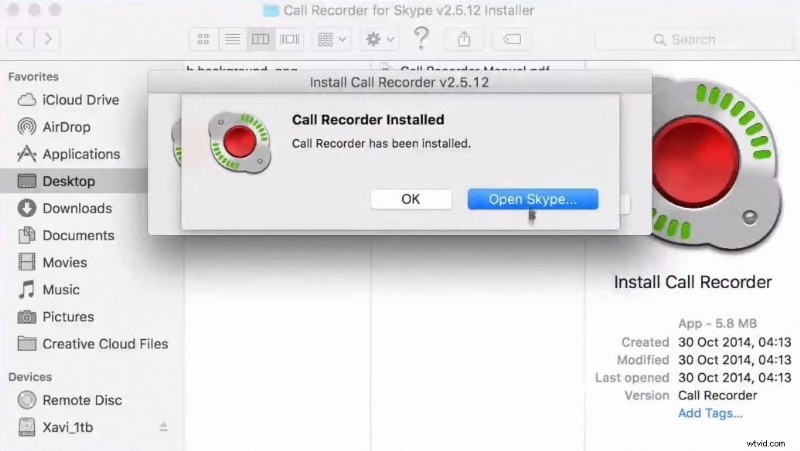
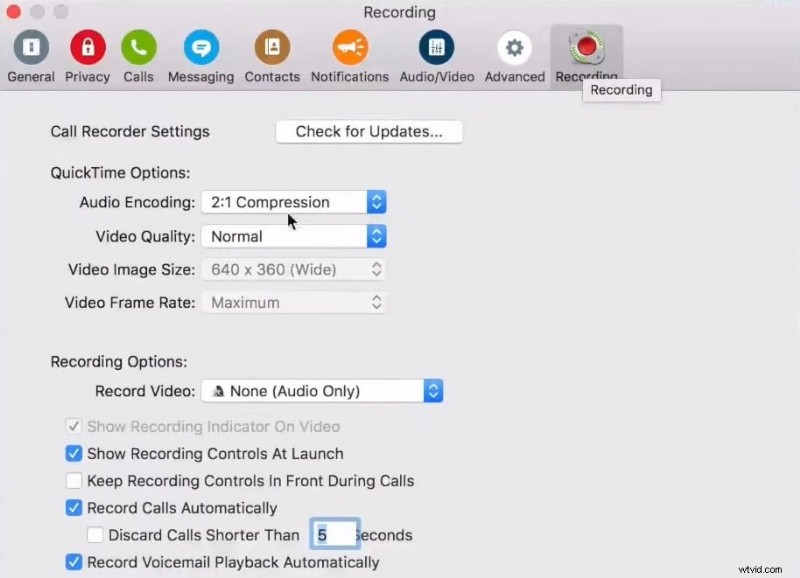
- Launch Skype, go to Skype > Preferences, and select the Recording tab.
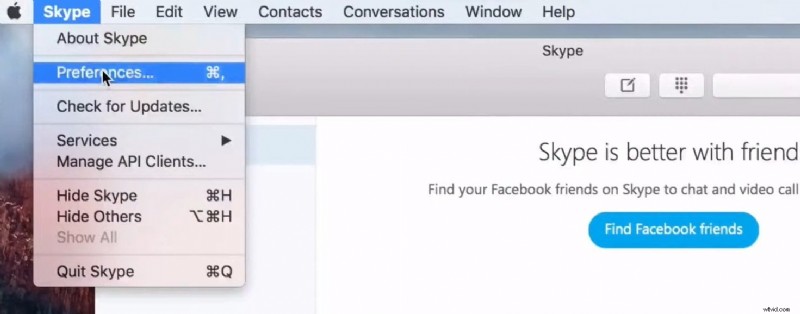
- Enable Record Calls Automatically and adjust compression, quality, and storage settings to your preference.
Pros & Cons
Pros
- Seamless integration with Skype; recordings start automatically.
- Intuitive, beginner‑friendly interface.
- Extensive customization for audio, video, and editing.
- Built‑in sharing options for quick distribution.
Cons
- Premium price of $39.95 after the free trial.
- macOS‑only; no support for Windows or Linux.
- Compatible only with Intel‑based Macs—Apple Silicon (M1/M2/M3) users are excluded.
- No updates planned for newer Apple Silicon Macs.
- Requires macOS 10.12–10.15 (macOS 26 Tahoe).
Alternative: Wondershare Filmora
For users outside the narrow Ecamm ecosystem—especially those on Windows or Apple Silicon—Wondershare Filmora offers a powerful, cross‑platform recording and editing suite.
Filmora’s screen recorder can capture the entire screen, a specific window, or a custom region while recording webcam footage and system or microphone audio simultaneously. Its AI‑powered editor adds professional polish with minimal effort.
Key Features
- Available on Windows, macOS, iOS, and Android.
- Customizable recording area and high‑definition output.
- Simultaneous capture of screen, webcam, system sounds, and mic audio.
- Hands‑free recording mode with timers and hotkeys.
- Keystroke and mouse‑click visualization for clear playback.
- Single‑key hotkey to start/stop recording.
How to Use Filmora for Skype Recording
- Open Filmora and choose Screen Recorder.

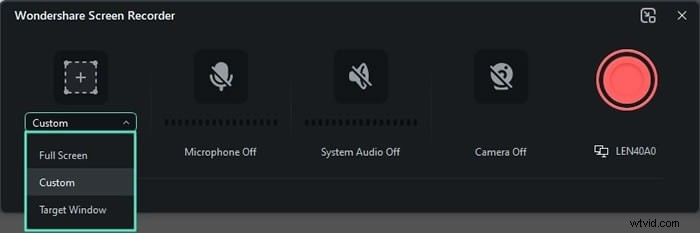
- Select the recording area: full screen, specific window, or custom region.
- Enable microphone, system audio, and webcam as needed.
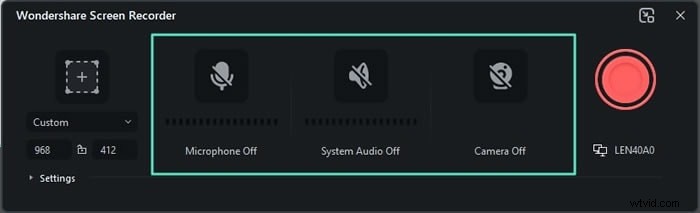
- Adjust frame rate, quality, countdown, and hotkey settings in Settings.

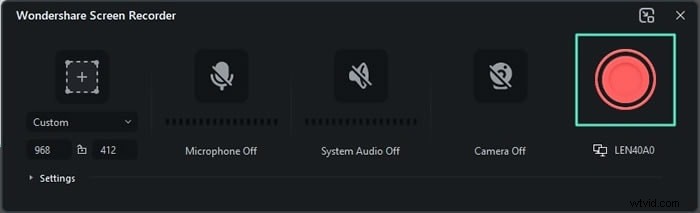
- Start recording with the red button or press F9.
- Stop recording when the call ends (or pause/resume with F10).
After capturing your Skype session, Filmora’s video editor lets you trim, add effects, overlay text, and export in any format—making the workflow seamless from recording to final delivery.
Conclusion
While Skype still dominates as a conferencing tool, its lack of native call recording can hinder many users. Ecamm Call Recorder fills this void on Intel‑based Macs with robust features, yet its platform restrictions and cost limit its reach.
For those needing a versatile, cross‑platform solution, Wondershare Filmora delivers comprehensive screen‑recording capabilities and AI‑enhanced editing, making it a superior choice for both Mac and Windows users.