
You know your training videos should look consistent. Same colors, same fonts. Your brand guidelines probably live in a folder somewhere, and you’ve got the approved color codes saved… somewhere else.
But your system feels chaotic. Logo files are scattered across different drives. Someone on your team uses the wrong shade of blue. And you have contractors creating new content that doesn’t look like your other content. By the time videos reach review, you’re fixing brand issues instead of improving the content.
Brand kits in Camtasia control the chaos. Set up your colors, fonts, and logos once. Then anyone on your team can automatically apply them to new videos. No more hunting for the right files or fixing off-brand videos during final review.
In this article, we’ll show you how to use brand kits in Camtasia Editor and Camtasia Online to keep your workflow flowing and produce quality, on-brand videos.
Key takeaways
- Brand kit tools in Camtasia help teams apply approved colors, fonts, logos, and layouts consistently across videos.
- Using themes, templates, and saved styles reduces rework and prevents off-brand visuals when multiple people create content.
- Camtasia Editor is the central place to build and manage reusable brand elements, while Camtasia Online supports fast recording and early-stage styling.
- Starting videos from branded templates improves production speed and makes brand consistency the default, not a final review step.
- Consistent visual branding in training, education, and marketing videos builds trust, recognition, and a more professional viewer experience.
Why brand consistency matters in video content
When your videos look consistent, people recognize them. They trust what they’re watching. Using the same colors, fonts, and logos in every video gives your brand an ‘in’ with consumers — and 87% of those consumers say they’ll pay more for products from brands they trust.
Inconsistent branding works against you. One video uses Arial, another uses Times New Roman, and the blue is different every time. Your logo shows up all over the place, or doesn’t show up at all. Even when the information is solid, these mismatches make your content look disorganized.
This matters especially for training videos, where 65% of employees say video is the most engaging format for learning. Brands have to meet brand guidelines and support consistent learning experiences, and that’s a big ask for teams that lack the right tools.
What brand kits in Camtasia do (and how they work)
Brand kits are reusable presets for your videos. Save your colors, fonts, and logos in Camtasia once, then use them in every project. When someone on your team creates a new video, they’re not wondering what blue to use or searching for logo files. The brand kit has everything ready.
You don’t need design experience to use brand kits. IT can make training videos that match the ones created in HR. Everyone works from the same colors, fonts, and layouts.
Components of a Camtasia brand kit
Your brand kit includes:
- Brand colors: Your colors are saved in themes, so callouts and text match across videos.
- Fonts and text styles: Your fonts and text styles are consistent, which means headings look like headings and captions look like captions.
- Logos and brand assets: These live in your Asset Library or templates, right where you need them.
- Templates and themes: You have reusable starting points with your layouts, colors, and transitions already there.
You can also create custom branded intros and outros. Drop them into every video so you’re always starting on-brand.
Start in Camtasia Editor — that’s where you build and manage your brand kit.
- Create a theme with your organization’s colors and fonts.
- Save your common text settings as styles (your heading, caption, and callout formats).
- Add your logos or graphics to the Asset Library, or build a project template that includes them.
- Share these templates with your team so everyone can start new videos with the branding already there.
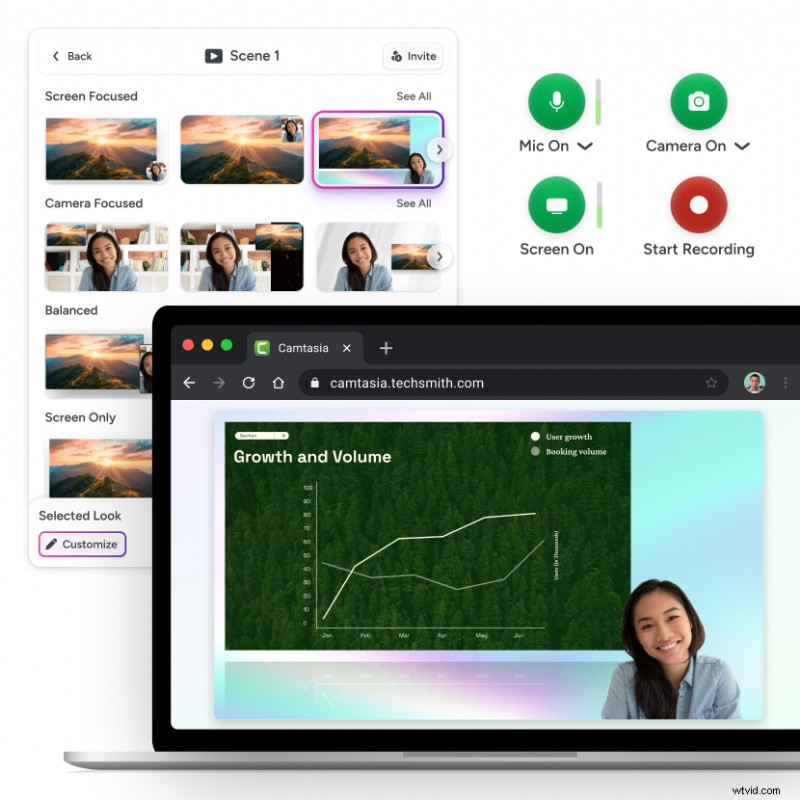
Need to grab a quick screen recording? Camtasia Online works great for that. Record your software demo or presentation right in your browser. When you’re ready to polish the video and apply your full brand kit, open it in Camtasia Editor.
Need to show your screen?
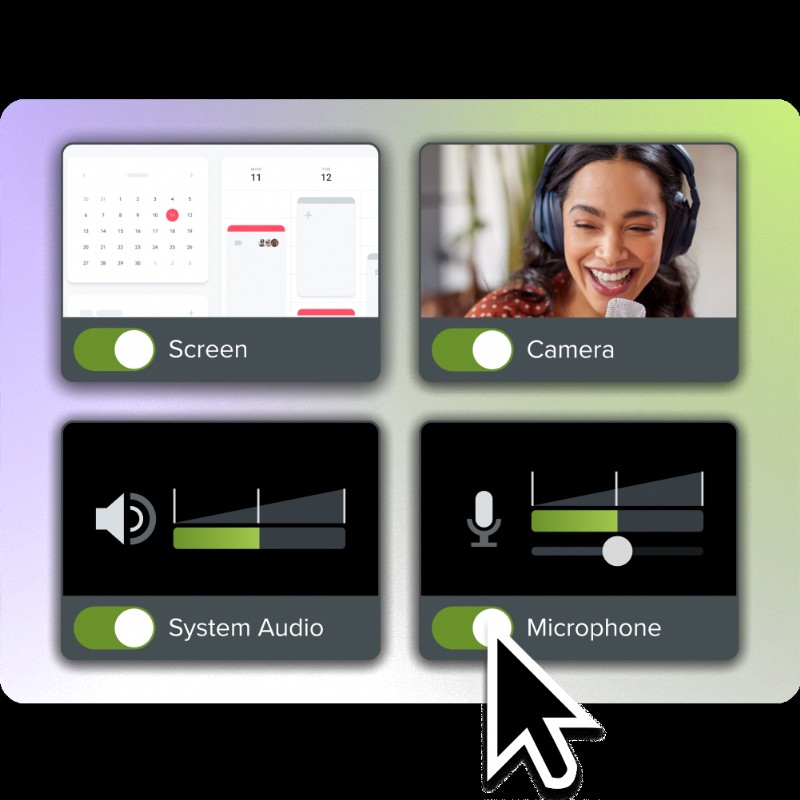
Skip the downloads. Use Camtasia online to record your screen, camera, and microphone right in your browser for free.
Start Recording
Importing your organization’s brand assets
Getting your brand assets into Camtasia is easy. Install your brand fonts on your computer first (Camtasia pulls from your system fonts). Then add your logos, images, and backgrounds to the Editor.
Store them in the Library or templates so everyone can access them. That means Sarah in HR won’t have to dig through shared folders trying to find the right version of your logo.
Applying your brand kit across Camtasia projects
After you’ve set up your themes, templates, and saved styles, use them in any project. Start from a template, and your colors, fonts, and layouts are already locked and loaded. Your videos automatically look consistent without the setup time.
Templates work great for content you make regularly — training materials, product demos, explainer videos, and tutorials. Apply your theme with one click instead of manually adjusting colors and fonts in every video. When you’re teaching people how to use software or explaining a process, consistent visuals help them focus on the content instead of noticing that the fonts changed.
Editing and updating brand kits
Brand guidelines change. New logo, updated colors, different fonts — it happens. And Camtasia makes updating your brand kit easy. Change your themes, templates, and saved styles whenever you need to. New projects automatically use the updated theme. For videos you’ve already made, apply the updated theme or swap in new assets to match your current branding.
Sharing brand kits with others
Without a shared brand kit that’s easy to access, teams use whatever they can find. Outdated logos, wrong colors, and incorrect fonts are all up for grabs.
Share your branded templates, themes, and Library assets by saving them to a shared drive or wherever your team keeps files. When someone starts a new project, the resources are handy. They get the assets they need without asking permission every time, so nobody has to be the brand police.
Benefits of using brand kits in Camtasia
Brand kits help you in several ways:
Efficiency
Brand kits save you time. You’re not reformatting text in every video or adjusting colors to match the last project. Set it once and use it everywhere.
Collaboration
When everyone starts from the same templates, you’re not getting videos back from review with notes like ‘wrong blue’ or ‘use the other logo, please.’ Branding is already covered.
Professionalism
Your videos look more polished. Consistent colors, fonts, and layouts make your content look professional, even if the person creating it isn’t a designer.
Scalability
Whether you’re making five videos or five hundred, brand kits work the same way. A training team can build templates that work across hundreds of modules, ensuring everyone gets a consistent learning experience. Marketing can use the same branded intro in every campaign video. Over time, people immediately recognize your content.
Brand kits for training, marketing, and education
Brand kits work for everyone:
- Trainers create templates that follow brand guidelines and compliance requirements.
- Educators keep their visual style consistent so students focus on the lesson, not the changing fonts.
- Product teams keep demos looking top-notch and credible.
When your videos look consistent, people trust what they’re viewing. It doesn’t matter who on your team created them.
Crystal-clear screen recording
Why settle for blurry screen content? Camtasia Editor’s screen recorder captures everything at up to 4K!
Free Download
Troubleshooting and best practices
As you create content with your brand kits, you’ll want to watch for a few things:
- Check your color contrast so text is readable, especially on callouts and overlays.
- Use fonts and sizes that work across screen sizes.
- Test your videos to make sure your brand colors look right everywhere.
- Check that your logo isn’t getting cut off or distorted.
When your organization rolls out new brand guidelines (new logo, different colors, revised fonts), update your brand kits. That way, new projects automatically use the current standards. Remember: save a backup before you make major changes to themes or templates.
Brand kits in Camtasia help you create consistent, professional videos without design skills. You’re a trainer, a marketer, an educator — you don’t have to be a designer, too. These tools speed up your work and keep your team aligned.
Set up your colors, fonts, and logos once, and use them in every project. Your team can finally focus on making great content instead of fixing formatting.
Ready to keep videos on brand without the hassle? Check out Camtasia to see what it has to offer.
Go from screen recording to polished video
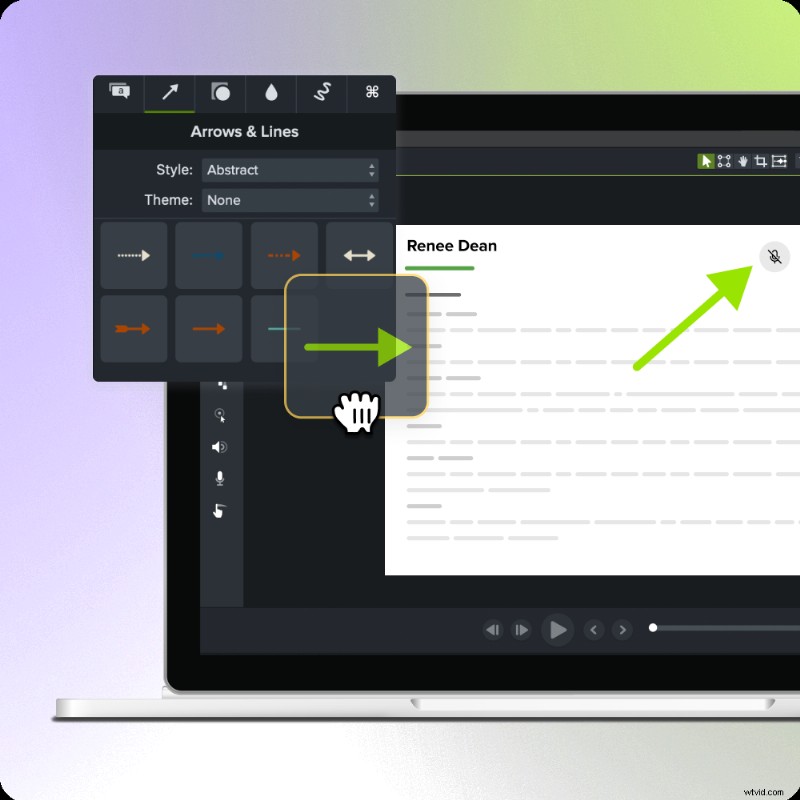
A screen recording is just the start. Camtasia’s editor helps you add the callouts, animations, and edits you need to create a truly professional video.
Free Download
FAQs
What tools does Camtasia offer to help keep videos on-brand?
Camtasia includes built-in features for visual consistency. Themes let you set approved colors, fonts, and logos once and apply them with a single click. Templates give your team reusable starting points with correct layouts, intros, and lower thirds already in place. Saved styles standardize text formatting across callouts and annotations. And the Library stores branded graphics and motion assets so you don’t have to search for them every time you make a video.
Can I create different branding presets for different teams or clients?
Yes. Camtasia Editor lets you create and manage various themes, templates, and style sets. This is useful for organizations with many departments, sub-brands, or client-facing work. You can build a theme for each audience and select the right one for each new project. You can also duplicate or customize templates to support unique workflows for each team.
How do I reuse branded elements across multiple videos?
You can save your brand fonts, colors, and text styles so they’re automatically available in every future project. Save logos, watermarks, intros, lower thirds, and other graphic elements to your Library or build them into a template. When you start a new video from that template, all the branding is already applied!
Does Camtasia Online support branded styling?
Camtasia Online supports quick styled videos, but Camtasia Editor gives you the ability to create and manage themes, templates, and shared assets. If you need reusable branded themes across many projects, use Editor or move your online workflow into Editor for final polish.