
YouTube is a well-known platform where you can watch lots of funny, educational, or entrainment videos. While enjoying YouTube videos, you sometimes may want to save some interesting, informative, or useful moments and export them as images for sharing with friends. But how to screenshot YouTube videos?
If you have no idea, don't fret, this post will help you solve the problem. Here we will show you some working solutions to help you take screenshots of YouTube videos in high quality.
Best Way - Customize Screenshot YouTube using EaseUS RecExperts
Need to Know: This program is compatible with Windows and macOS
First, we'd like to introduce a powerful snapshot tool to you: EaseUS RecExperts, which can run perfectly and smoothly on both Windows PC and Mac.
This program will let you flexibly take a full or partial screenshot of your favorite YouTube videos, so that you can snapshot anywhere on your YouTube screen. Once done, this software allows you to export the screenshots in PNG or animated GIF format for sharing.
Apart from being a snapshot tool, it is also an excellent YouTube recorder. With its help, you are able to capture high-quality YouTube audio, videos, and even live streams effortlessly. To conclude, RecExperts is an all-in-one recording software that is worth trying!
EaseUS RecExperts
- Screenshot YouTube videos with one simple click
- Record screen, audio, and even webcam freely
- Record YouTube live stream
- Offer some basic editing tools
- Export recordings or snapshots in MP4, MP3, GIF, PNG, or other formats
How to snapshot YouTube videos on Windows or Mac:
The tutorials are similar about screenshotting YouTube on Windows and Mac, so here we take
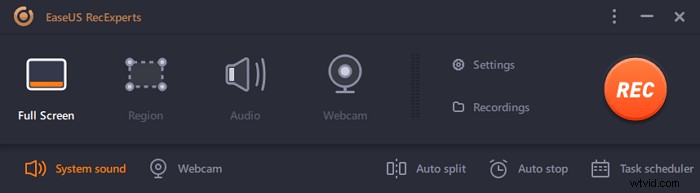
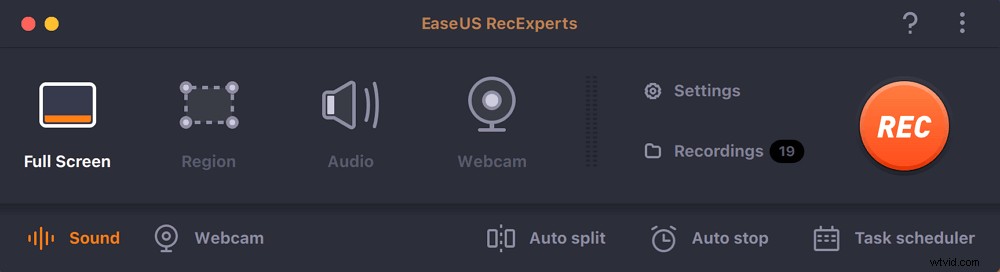
Step 1. Download and launch this program on your computer. You will see all features it offers, including Webcam recording, Audio recording, Region capturing, and other options like Settings and Full Screen recording.
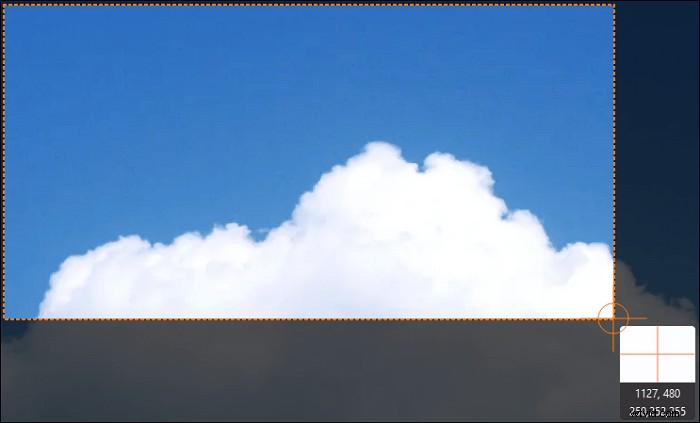
Step 2. Click "Full Screen" or "Region" according to your need. The screen will go dim, and drag your cursor covering what you want to capture.
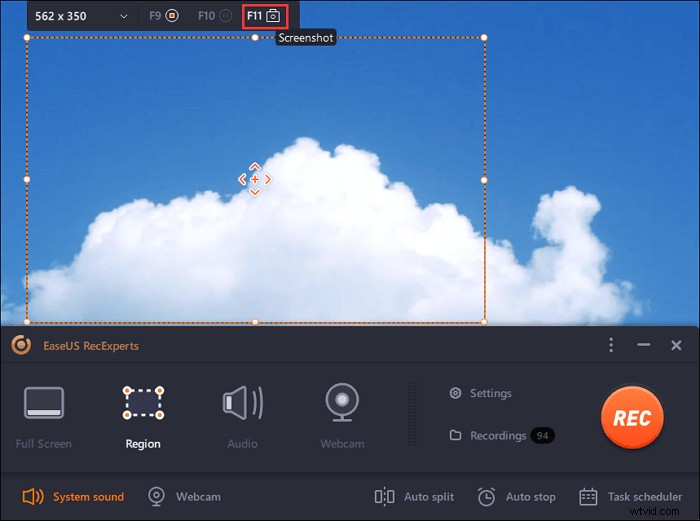
Step 3. Now press F11 or click the "Screenshot" icon to take screenshots.
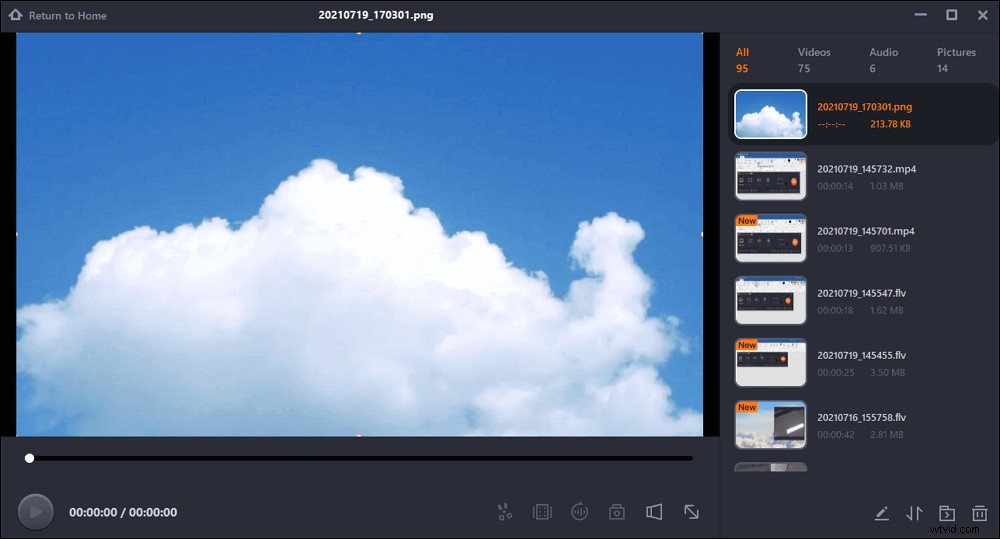
Step 4. The screenshots will be saved in the "Recordings" > "Pictures", where you can rename the screenshot with ease.
How to Screenshot YouTube Videos on Windows 10
When it comes to taking screenshots of YouTube videos on Windows 10, you can easily get the task done with some inbuilt features:
#1. Take Whole Screenshot of YouTube Videos with Print Screen
Step 1. Play your desired YouTube video, and hit the Print Screen or PrtSc key on your keyboard when you are ready to snapshot the video.
Step 2. Press the Ctrl + V with the keyboard to paste the image in Word or other programs.
Note: Before snapshotting, you'd better play the YouTube video in full-screen mode for getting good quality images.
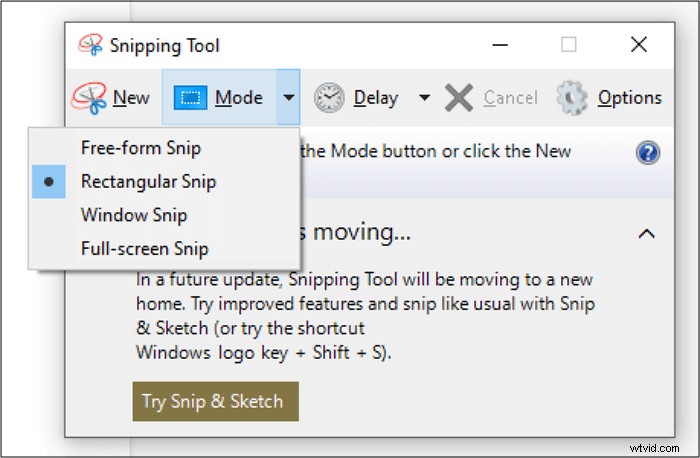
#2. Screenshot Part of YouTube using Snipping Tool
Step 1. Open the Snipping tool on Windows 10 PC and play a YouTube video.
Step 2. Click "Mode" > "Rectangular Snip" to take the screenshot.
How to Take Screenshots of YouTube Videos on Mac
Similar to the Windows PC, there are also some quick ways to capture some still images from your YouTube videos by hitting certain keys on your Keyboard:
#1. Get Full Screenshot of YouTube on Mac
Step 1. Hit and hold Shift + Command + 3 keys.

Step 2. When you see a thumbnail in the corner of the screen, click on it to edit or save the screenshots to the desktop.
#1. Take a Portion Screenshot of YouTube Video
Step 1. First, play the YouTube video, then press Shif + Command + 4.

Step 2. When you see a crosshair, drag it to select the area of the YouTube video to capture.
How to Take High-Quality YouTube Screenshots Online
If you watch the YouTube videos in Chrome, you can snapshot the videos easily with some Chrome extensions and online tools' help. Here we are going to share 2 ways with you.
#1. YouTube Screenshot Extension
If you use Google Chrome to play YouTube videos, you can rely on some YouTube screenshot extensions to get the screenshots you want. Here are the steps.
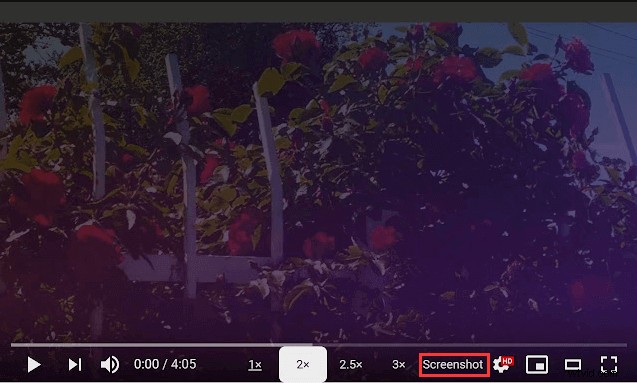
Step 1. Open Google Chrome and add the YouTube Screenshot Extension.
Step 2. Fina a YouTube video to play, then click the "Screenshot" button in the lower right of the video to take YouTube screenshots.
#2. YouTube Screenshot Generator
Another way is to use the special website called "YouTubeScreenshot" (https://youtubescreenshot.com/). This service allows you to get screenshots or thumbnails from a YouTube video by copying and pasting its link. Does it sound easy? Yes! Check the below tutorial.
Step 1. Go to its official website, then copy and paste the YouTube video's URL in the given space.
Step 2. Click "Show screenshots" > "Take Screenshot" to get your desired images.
The Bottom Line
This post covers several methods to help you screenshot YouTube videos on Windows, Mac, and even online, and you can opt for your desired way to do it! If you want to find versatile software that combines screenshotting, recording, and audio capturing features, EaseUS RecExperts is your best choice!