
If you encounter an app that refuses to start or install because it “requires Java”, the quickest fix is installing a modern JDK or JRE. While macOS no longer ships with Java, many legacy enterprise tools, scientific utilities, and even popular games still depend on it. The easiest, most reliable way to get Java on your Mac today is through Eclipse Temurin, the free, open‑source distribution of OpenJDK that supports multiple versions side‑by‑side.
Why You Might Need Java on macOS
Apple removed Java from macOS a few years ago, but a surprisingly large number of applications continue to rely on it. These include:
- Legacy enterprise and trading platforms
- Scientific and engineering tools
- Data‑analysis utilities and database administration suites
- Educational software and cross‑platform games (e.g., Minecraft mods)
- Network and system utilities
- Development environments and IDEs
When an app demands Java, it will typically display a clear prompt or error message indicating that a JRE or JDK is missing.
Installing Java on macOS 13+ (Ventura, Sonoma) with Eclipse Temurin
- Navigate to the Eclipse Temurin download page and select the macOS installer for the version you need (e.g., 25.0.3).
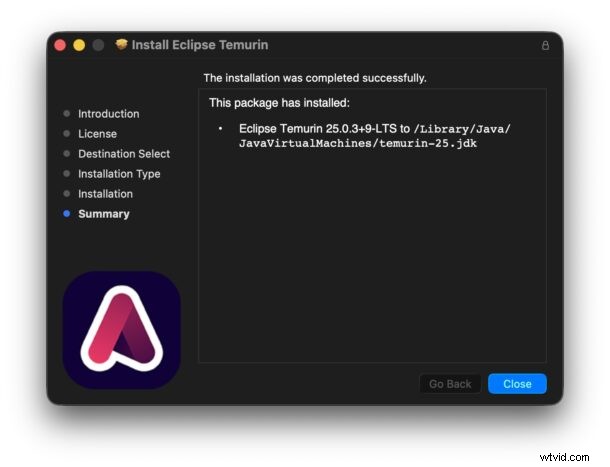
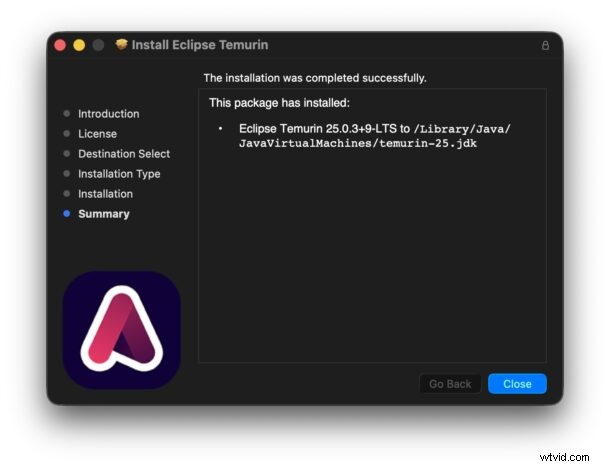
- Run the downloaded .pkg file to launch the installer. Follow the on‑screen prompts to complete installation.
- After the installation finishes, verify the installation by opening Terminal and running:
java --version
You should see output similar to the following, confirming that OpenJDK has been installed:
openjdk 25.0.3 2026-04-21 LTS
OpenJDK Runtime Environment Temurin-25.0.3+9 (build 25.0.3+9-LTS)
OpenJDK 64-Bit Server VM Temurin-25.0.3+9 (build 25.0.3+9-LTS, mixed mode, sharing)
username@M4-MacBook-Pro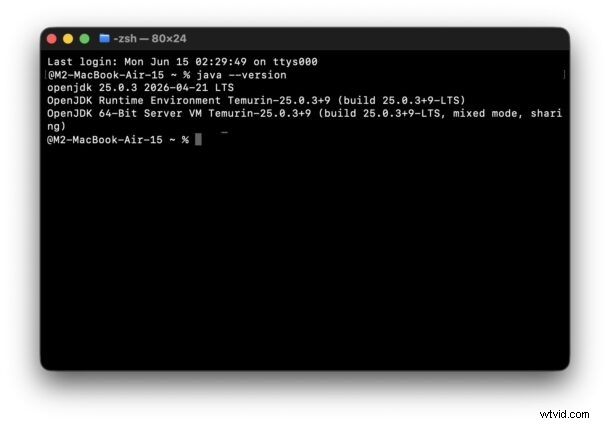
If a previously blocked application still fails to start, a quick Mac reboot usually resolves any lingering references to the new Java installation.
Many applications are version‑specific, so Temurin’s ability to host multiple JDKs (e.g., Java 8, 17, 21) concurrently is invaluable. You can switch the default Java version by adjusting your shell’s JAVA_HOME environment variable or using jenv if you prefer.
For most users, installing Java is unnecessary. However, when an essential tool requires it, a lightweight OpenJDK distribution like Eclipse Temurin delivers a secure, fully supported solution that works across macOS, Windows, and Linux.
Why Eclipse Temurin Over Oracle Java?
Oracle’s Java transitioned to a paid licensing model for commercial use, whereas Eclipse Temurin remains completely free, even for enterprise production. This means you can legally deploy applications that rely on Temurin in any environment without incurring licensing fees or navigating complex compliance requirements.
Choosing Eclipse Temurin ensures you stay compliant, avoid vendor lock‑in, and benefit from an active community that continually updates the platform.