
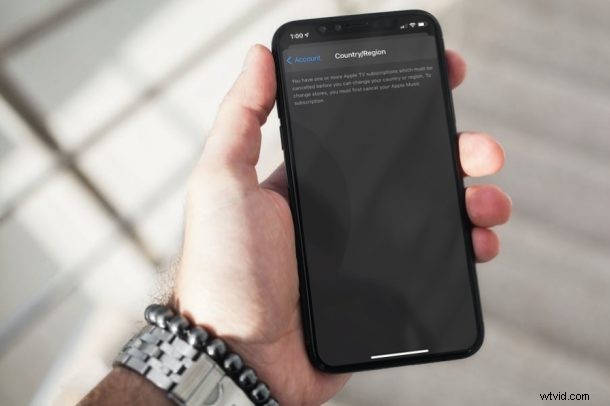
Are you unable to change your Apple ID’s country or region on your iPhone or iPad? Although the option to change this is easily accessible from account settings, you may often need to go through additional steps to get it done.
Apple doesn’t make it easy to change your account’s country and region settings simply because your payment details are associated with it. When you switch to a different country for your Apple ID, you’re basically accessing App Store, iTunes, and other content in that particular region and you’ll need to make payments in their local currency. This is exactly where your payments could clash.
To avoid this altogether, you’re required to meet certain conditions that are set by Apple. Therefore, if you couldn’t change your Apple ID country by following our guide, here are the various reasons why:
Here’s Why You Cannot Change Your Apple ID Country or Region
When you try to change the country or region from your account settings, you’ll be shown why you’re unable to change it. However, more often than not, there’s more than one reason why you’re not allowed to switch to a new country and they all don’t show up here.
1. Active Subscriptions
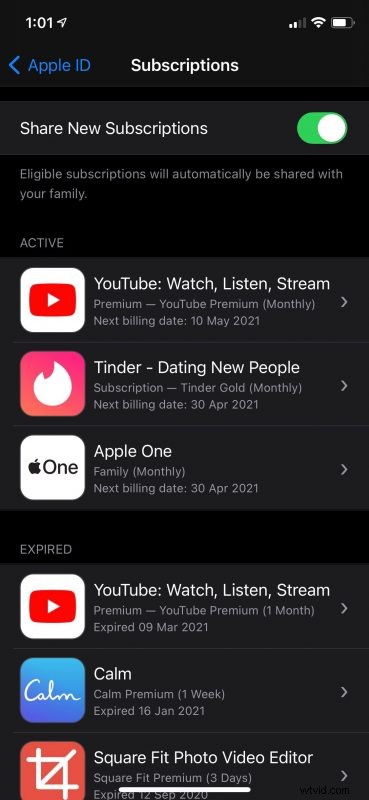
A lot of Apple users are subscribed to various services these days like Apple Music, YouTube Premium, Disney+, and many more. Even a single active subscription can prevent you from changing your Apple account’s country or region. You’ll need to first cancel your active subscription and wait until the end of the subscription period. That’s right, you cannot simply cancel your subscription and switch the country right away.
To cancel a subscription, go to Settings -> Apple ID -> Subscriptions and select the active subscription from the menu. You’ll find the option to cancel it.
If you’re interested, you can learn about the procedure in detail right here.
2. Apple ID Balance / Credit
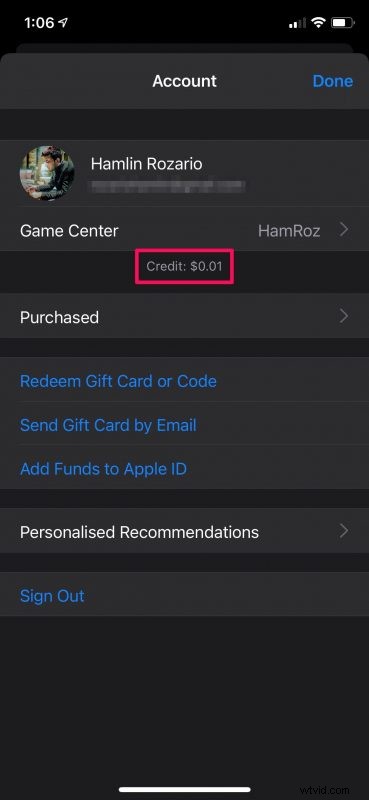
Another reason why you’re unable to change your Apple ID country or region is that you likely have some pending balance or store credit in your Apple account. Since Apple ID Balance cannot be transferred to iTunes or App Store in a different region, you’ll need to spend it all first before you’re allowed to switch countries. Even if you have $0.01 as credit, you will not be able to change your account’s country.
To check your Apple ID Balance, open App Store on your iPhone or iPad and tap on your profile icon at the top-right. You’ll be able to see the credit as shown below.
3. Pending Pre-orders and Movie Rentals
If you’ve pre-ordered a movie on iTunes, you’ll need to cancel it first before you’re allowed to change the account’s country or region. On the other hand, if you’ve rented a movie on iTunes or Apple TV, you’ll need to wait until the end of the rental period. Also, you’ll need to wait for any pending store credit refunds to process. Don’t forget that once they’re processed, you’ll need to spend them all and bring the balance down to zero.
You can check your pre-orders from your account settings, but to make it easier, you can click this link and head directly to the menu.
4. Family Sharing
A lot of people tend to overlook this, but if you’re using Family Sharing, you’ll need to stop using it. This applies regardless of whether you’re the Family Sharing organizer or just a member of the Family Sharing group.
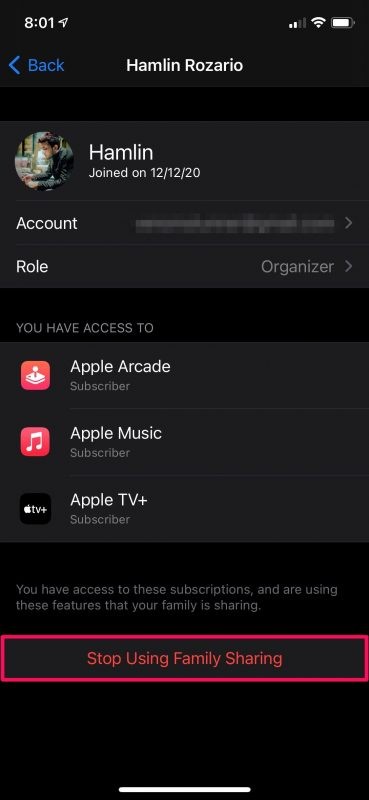
To leave the group or stop using Family Sharing, you can head over to Settings -> Apple ID -> Family Sharing on your iPhone or iPad, select your Apple account name from the list of members and then choose “Stop Using Family Sharing” as shown in the screenshot below.
There you have it. These are all the various possible reasons why you couldn’t change your Apple ID region on your first attempt.
Now that you the reason why, you can follow the above steps and make sure you’ve met all the requirements to actually switch the region for your account and start downloading content from a different App Store. Make sure you have a payment method for your new country or region though since you’ll need to pay in local currency and your existing credit card may be rejected.
When you’re finally eligible for a region change, you’ll be prompted by Apple to review the Terms & Conditions which you need to agree to. You’ll also be asked to enter a new billing address and payment information for the new country or region.
Hopefully, you were able to meet all the necessary requirements and change your Apple account’s country without any more trouble. Did this article help you fix your issues with changing the region of your Apple ID? Should Apple make region change a lot easier for its users? Share your personal experiences in the comments section.