
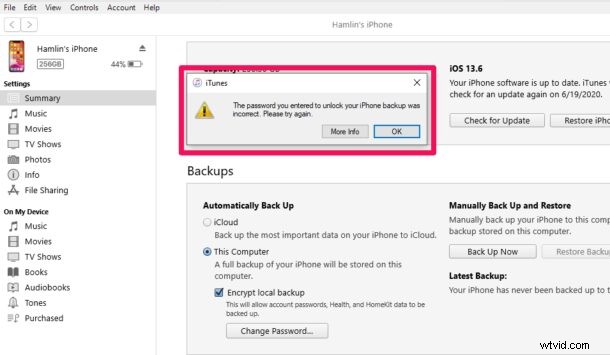
If you use iTunes or macOS Finder to locally back up your iPhone or iPad, you could run into a situation where you forgot the devices backup password, and you’re no longer able to use this backup to restore your device. That’s not a great feeling, but don’t panic quite yet because if you find yourself unable to remember the encrypted device password, read along for some help.
Both iTunes and macOS Finder provides users with the option to encrypt local backups of iOS and iPadOS devices. Encrypted backups have an advantage over regular backups, as they allow account passwords, Health, and HomeKit data to be backed up to the computer, plus since they’re encrypted they are also more secure to have stored on your computer. However, to restore your iPhone or iPad to an encrypted backup, you’ll need to manually enter the encryption password first and there’s no password recovery feature in case you forget it. This leaves the encrypted backup unusable, but if you’re stuck in a similar situation, don’t lose hope. In this article, we’ll cover what you can do if you can’t remember the password for your encrypted iPhone backup.
How to Reset Encrypted Backup Password for iPhone or iPad
Although you cannot restore an encrypted backup without the actual password for it, you can create a new encrypted backup of your device with a different password by just resetting the password from your iOS or ipadOS device. Simply follow the steps below to get started.
- Head over to “Settings” on your iPhone.

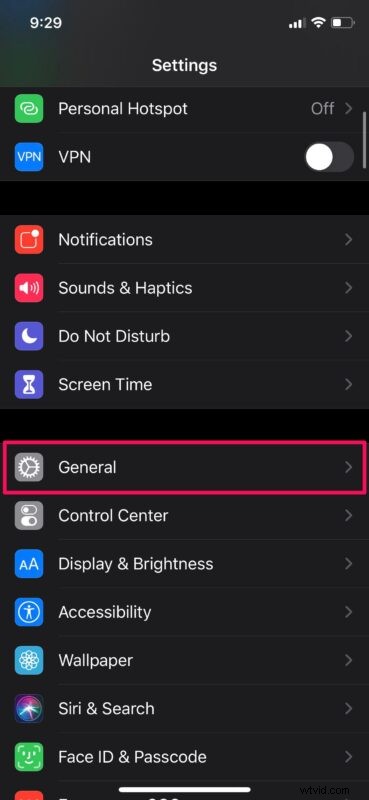
- In the settings menu, scroll down and tap on “General”.
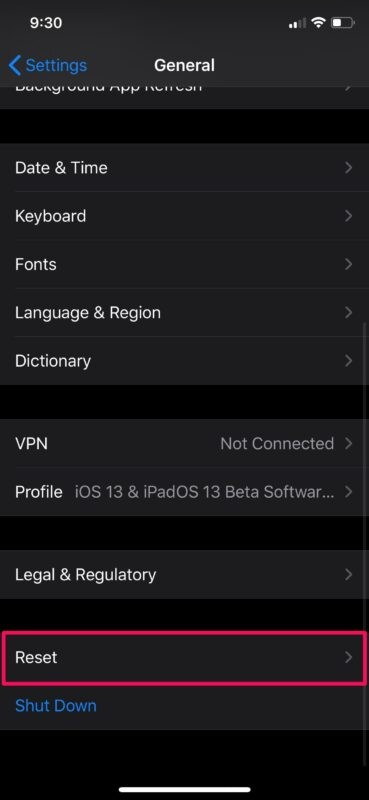
- Next, scroll all the way to the bottom and tap on “Reset”.
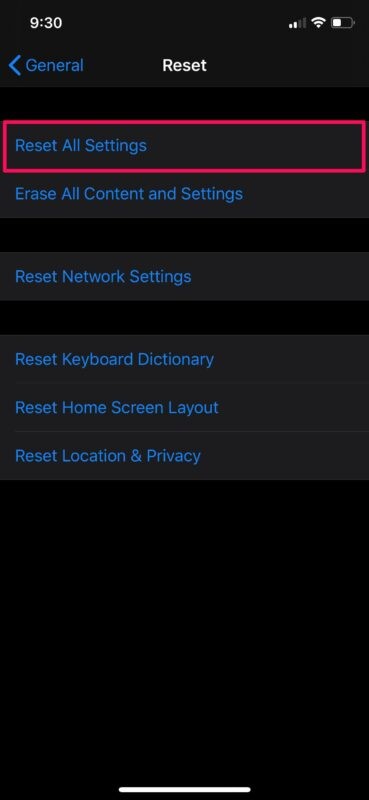
- Now, choose “Reset All Settings” which is the first option in the menu.
- You’ll be asked to enter the passcode for your iOS device before you can proceed to the next step.

- Tap on “Reset All Settings” to confirm your action.
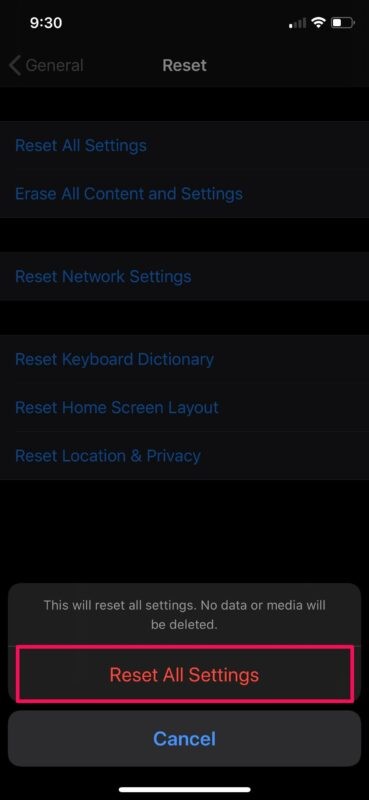
There you go. By doing this, you’re resetting settings like display brightness, home screen layout, wallpaper, etc. but to top it all, it also removes your encrypted backup password. This won’t affect your user data or other passwords, however.
Now, you can just simply connect your iPhone to the computer using the included Lightning to USB cable and create a new encrypted backup of your device in iTunes or macOS Finder. Make sure you note down the password somewhere safe so that you don’t forget it next time.
If you’re a Mac user, you could technically recover a lost or forgotten iPhone backup password using Keychain Access in macOS. You can use the search bar in the software to find the iPhone backup, and if you find any results, you don’t really have to follow the above steps. Instead, you can just click on the result and choose “Show password” to reveal it. Windows users are out of luck as there’s no Keychain feature on PC.
Although we were focusing primarily on the iPhone, you can follow this procedure to reset the encrypted backup password for your iPad or even iPod Touch, if you still have one lying around.
We hope you were able to reset the password for encrypted backups from your iOS device. If you own a Mac, did you try recovering the password first using Keychain access? Share your thoughts and experiences in the comments section.