
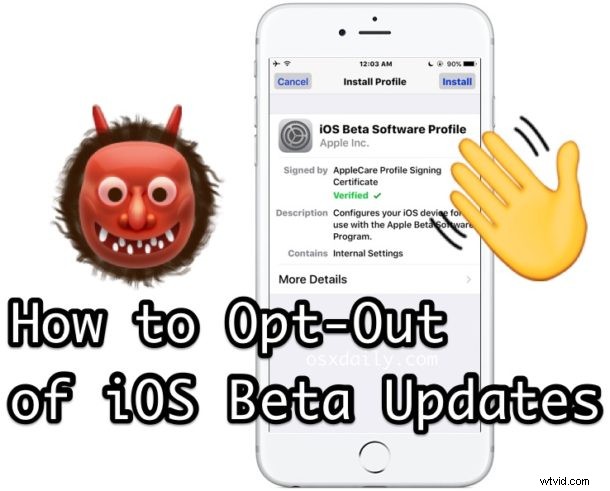
Installing an iOS beta onto an iPhone or iPad places an iOS Beta Software Profile certificate onto the device, which allows that hardware to receive new iOS beta builds through Software Update. If you decide you no longer want a specific device to receive beta updates however, you’ll want to remove the iOS beta profile certificate from the device, which will effectively opt the device out of being in the beta program.
Keep in mind this is only removing the iOS beta software certificate profile from Apple, thereby preventing future iOS beta update builds to be available on the device, it does not remove the beta system software itself from an iPhone or iPad. If you already installed a beta release and want to go back to a stable build you’d need to downgrade, for example you can downgrade iOS 10 beta to iOS 9.3.x with this guide, which also has the effect of removing the downgraded device from the beta program. This is the same with both the iOS developer beta and public beta releases.
Removing iOS Beta Profile Certificate from iPhone / iPad to Stop Getting iOS Beta Updates
This works the same on any iOS device with any iOS beta release:
- Open the “Settings” app on the iPhone, iPad, or iPod touch running the iOS beta (or with the beta profile installed)
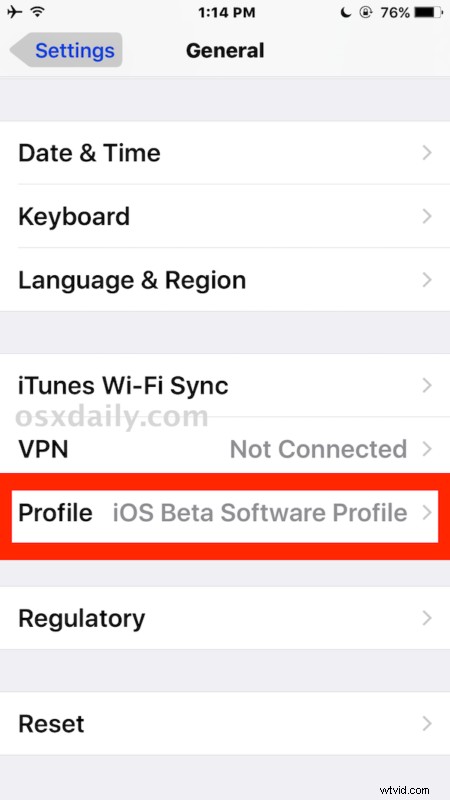
- Go to “General” and then to “VPN & Device Management” or “Profile”
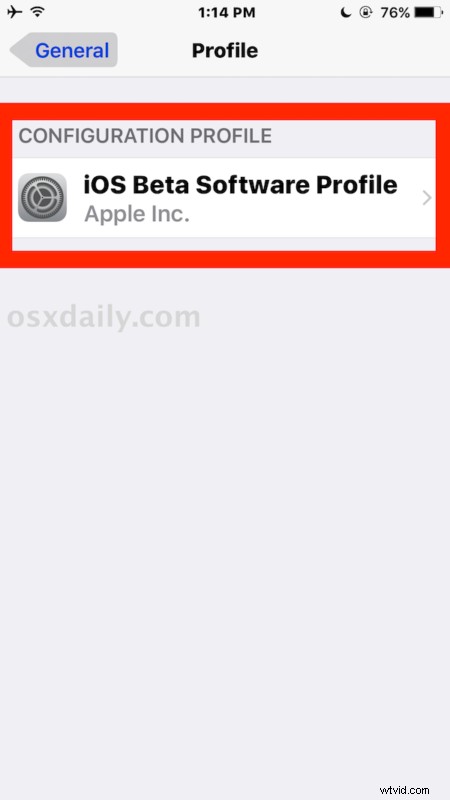
- Under the ‘Configuration Profile’ list, choose “iOS Beta Software Profile – Apple Inc.”
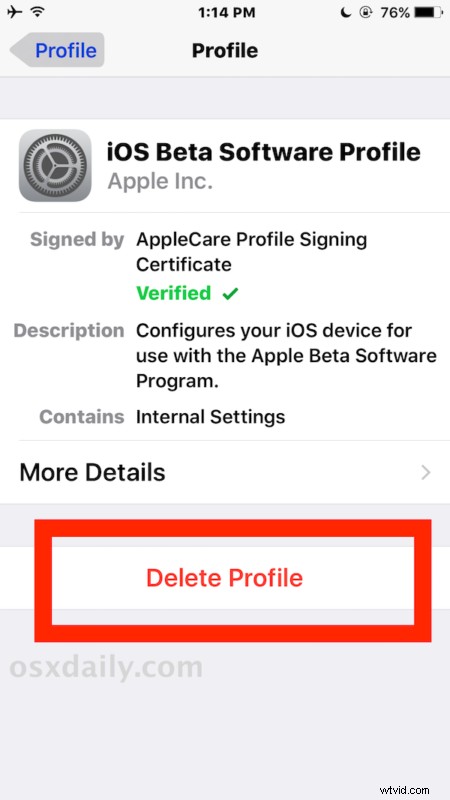
- Tap on the “Delete Profile” button, then enter the device passcode and confirm that you want to delete the beta profile from the device
- Repeat with other beta profiles as desired (perhaps individual app betas)
- Exit out of Settings as usual, the device will no longer receive future iOS Beta software updates

Again, this prevents the device from getting future iOS beta builds through the OTA Software Update mechanism. This does not remove the beta iOS system software from the device, it just opts the specific iPhone or iPad hardware out of the beta release program. The only way to remove the iOS 10 beta is by downgrading back to a stable prior supported iOS 9.x release.
Once the beta profile is removed, the said device will not get any future beta updates, unless the device re-installs another beta certificate profile from Apple again (these certificates are what allow anyone to install iOS 10 beta right now if they get their hands on one, but practically nobody aside from developers should do that for many reasons). If the configuration profile list says “No profiles currently installed” then all beta update certificates for apps and iOS have been removed, or there wasn’t one on the device to begin with.
This obviously applies to the iOS beta releases, but Mac users can do something similar and opt out of macOS and Mac OS X beta software updates if desired as well.