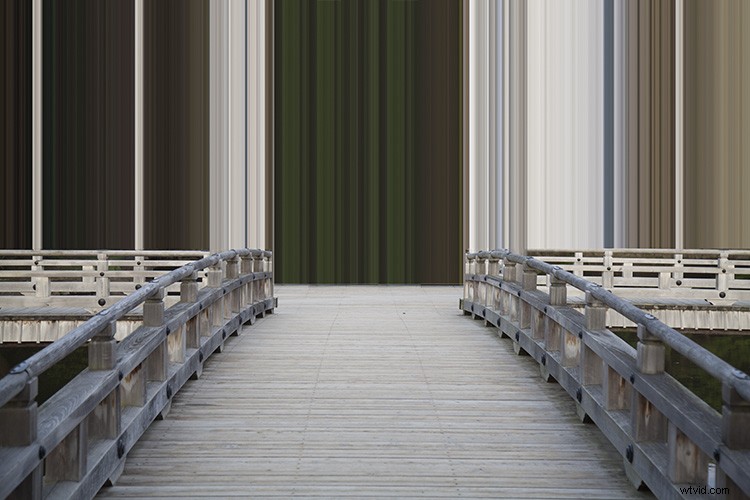
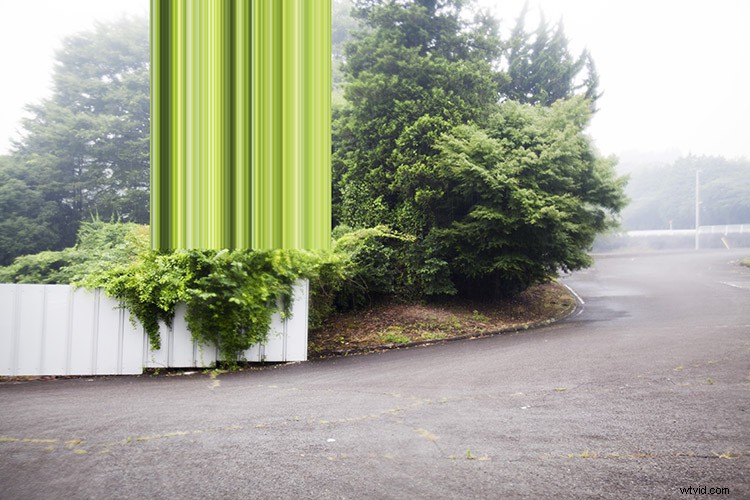
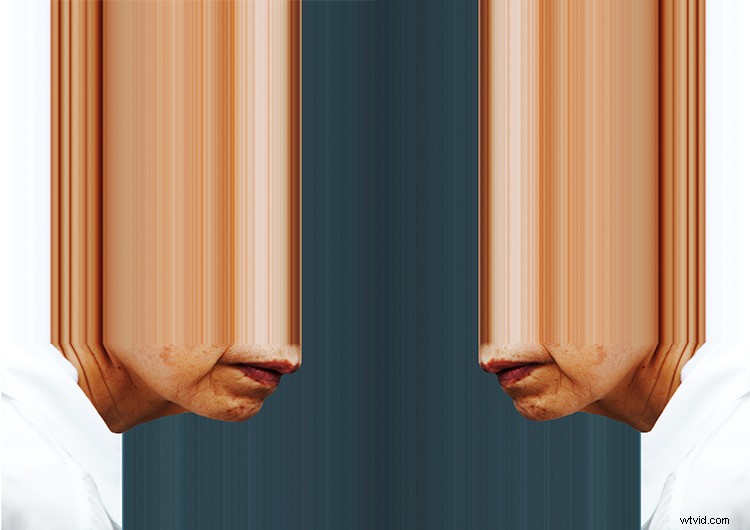
As photographers, we’re all too aware of the abundance of ways to edit a photograph in post-production. And as technology progresses, so will the potential for image making. Pixel stretching is one way to investigate the construction of a digital image through creative means.
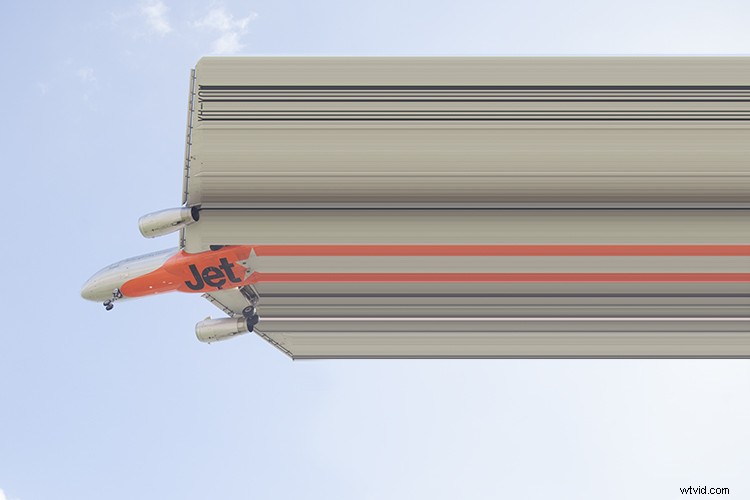
Compared to other glitch-style editing techniques, pixel stretching is pretty straight-forward. The process involves selecting a single row or column of pixels and stretching them out over an image to create a warped, surrealistic visual effect. The results highlight the nuances of a digital image and explore the action of altering photographs through non-traditional means.
Getting started
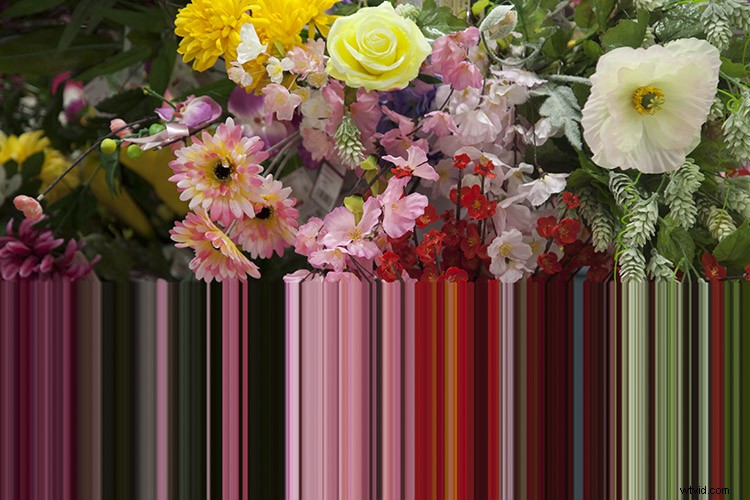
First, open an image in Photoshop. It doesn’t have to be anything special, just an image with a few varying tones or colors. I’m using this photograph of blossoms because its colorful and I’m excited that it’s finally spring, here in Australia.

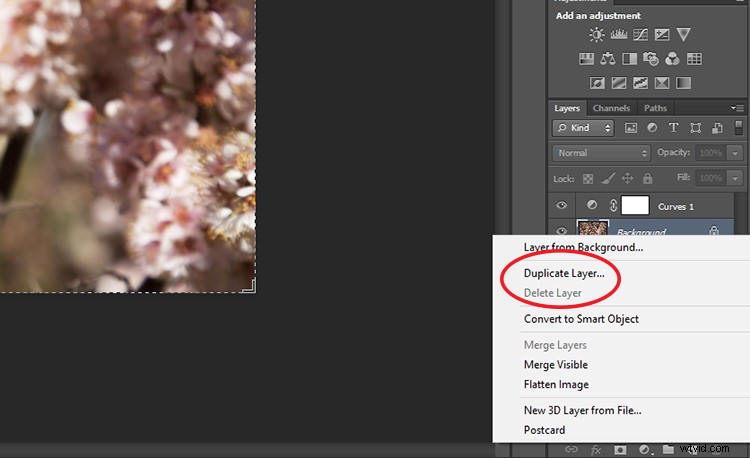
Duplicate your original image, which will be labeled as Background in the Layers panel. Right-click on the Background layer and select Duplicate Layer. It’s important that you don’t apply the pixel stretching technique directly to the original image in case you need to revert back to earlier stages of the project.
To preserve layers, photographers use Adjustment Layers to apply adjustments to an image without altering it directly. This process is called non-destructive editing. Pixel stretching, however, is by nature a destructive technique. The process applies an effect directly to the layer you have selected. This means that if your history is so stretched that you can’t return to a certain spot during editing, there’s no going back.
The process
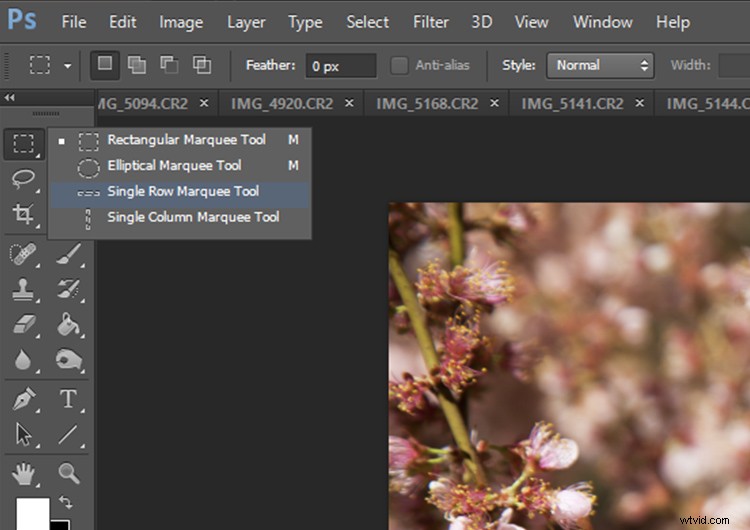
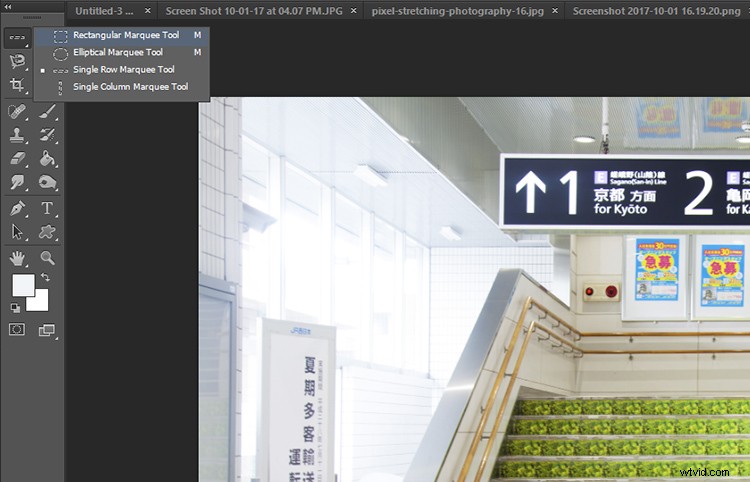
On the Photoshop tools pallet, select the Single Marquee Tool. You may have to click and hold down the mouse over the Rectangular or Elliptical Marquee Tool until it reveals a small menu.
The Marquee Tool panel will reveal a choice between the Single Row Marquee Tool and the Single Column Marquee Tool. I’m going to use the Single Row Marquee Tool, but you can easily come back and experiment further once you get the hang of the technique.
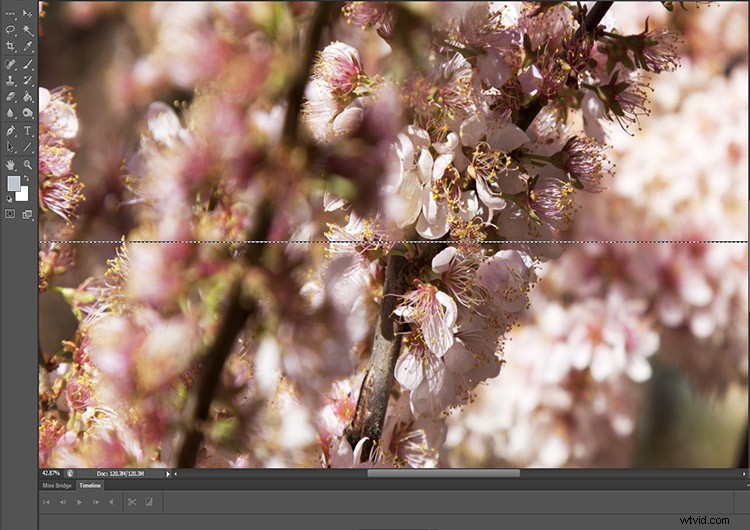
With the Single Row Marquee Tool selected, click on an area in your image that you think is interesting. A dotted line stretching across your image will appear. This outlines the row of selected pixels that line up with the point you clicked on.
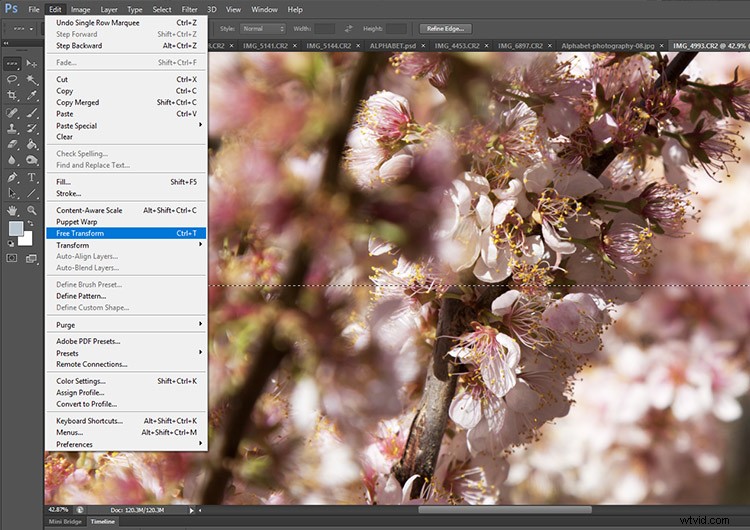
Once you have your pixels selected, click on Edit in the menu bar and select Free Transform. You can also select Free Transform by right-clicking on the dotted line of the Marquee Tool.
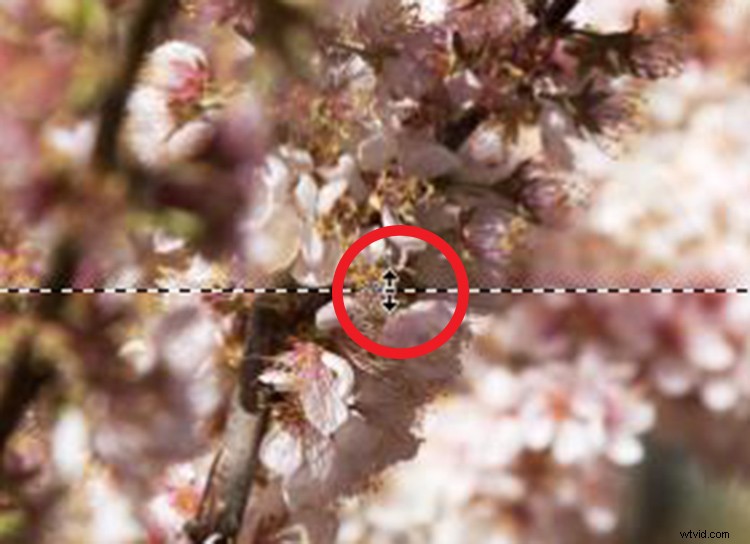
After you click on the Free Transform option, the cursor will appear as two opposing arrows when you hover over the Marquee Tool line. Click on the line where the opposing arrows appear and slowly drag the cursor down over the image.
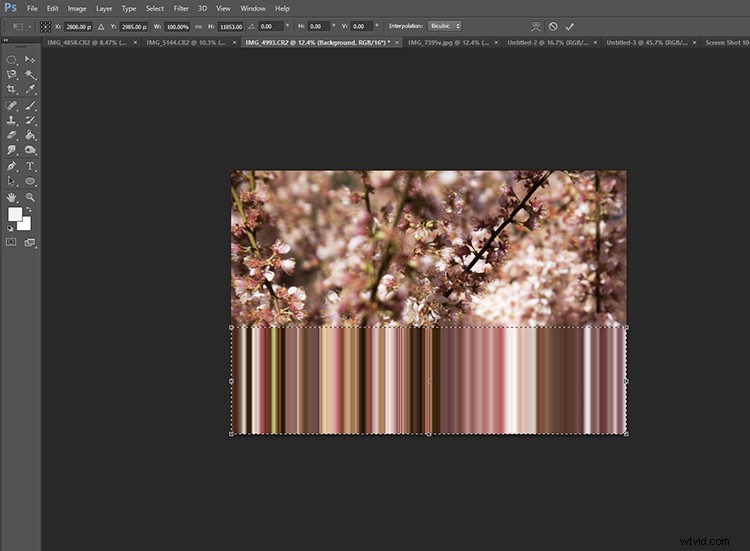
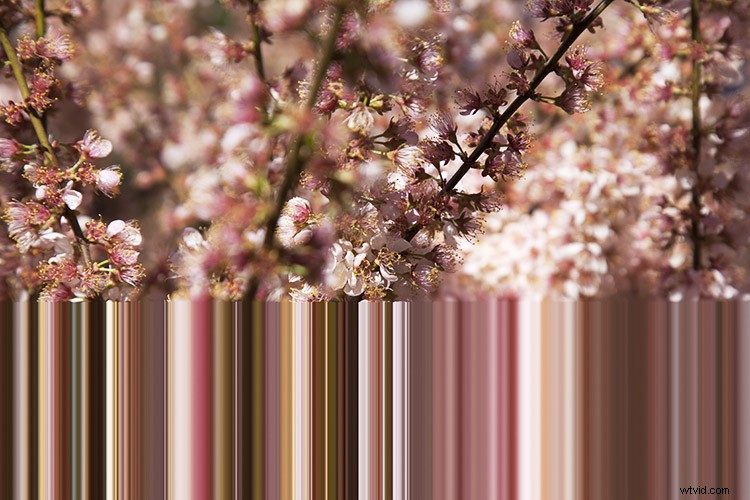
You’ll see that whole row of pixels will stretch as far as you drag the mouse. When you’ve finished stretching the selection, press enter and there you go. Looks kind of neat, right?
Shaping the area of pixels to stretch
The next step is to fit our stretched pixels into the landscape of the image. This time, open a photograph featuring straight, hard lines. Bridges and streets are good subjects to start with.
Select the Single Column or Single Row Marquee Tool and align the Single Marquee Tool with a hard line in your image. Again, I’m using the Single Row Marquee Tool but feel free to experiment with the Single Column Marquee Tool instead.
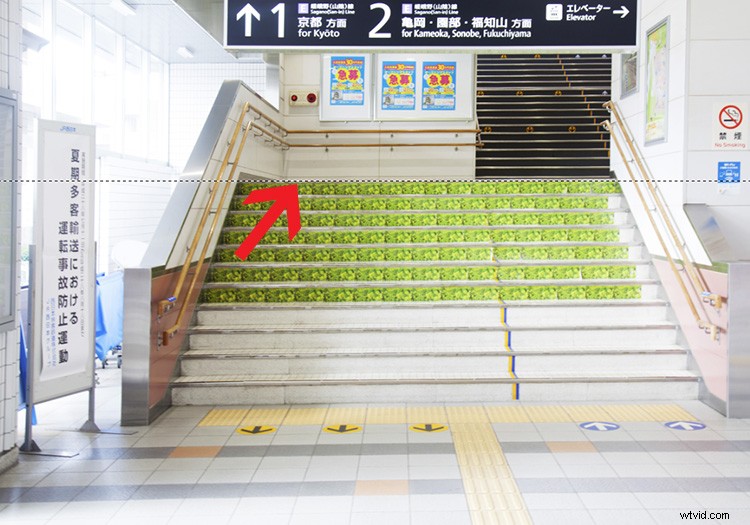
Once you have your Single Marquee Tool lined up, select the Rectangular Marquee Tool from the Photoshop toolbar. You’ll need to depress the cursor over the Marquee Tool icon to reveal the Rectangular Marquee Tool.
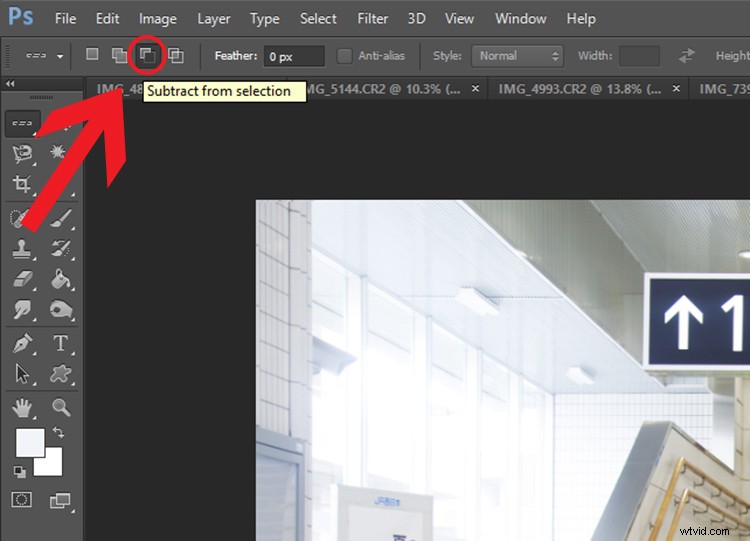
With the Rectangular Marquee Tool selected, click on the Subtract option just below the menu bar (big red arrow below). The Subtract mode of the Rectangle Marquee Tool means that any portion of the selected line of pixels within the perimeter of the rectangle will be deleted. Drag the Rectangle Marquee Tool over an area of the Single Marquee Tool line and release the mouse.
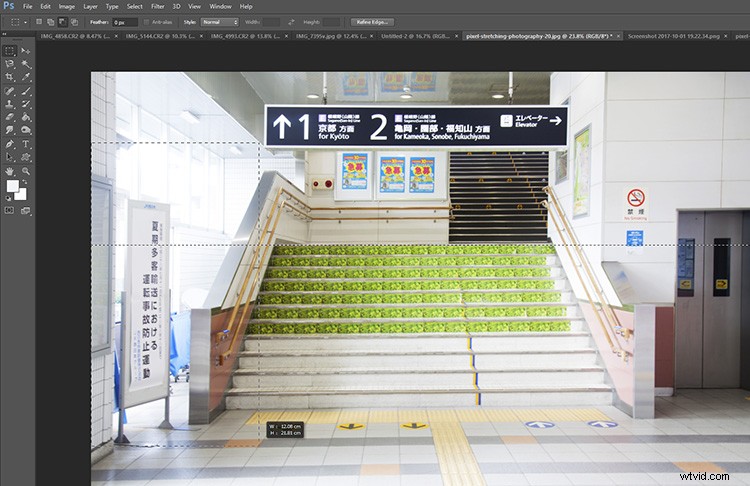
Rectangular marquee in subtract mode on the left of the image.
You’ll notice that a section of the Single Marquee Tool line will be deleted. This means that only the remaining Single Marquee Tool line will be available for stretching pixels later. For the image below, I deleted the lines that intruded outside the perimeter of the staircase. It’s hard to see, but the remaining dotted line is still aligned with the top of the green staircase.
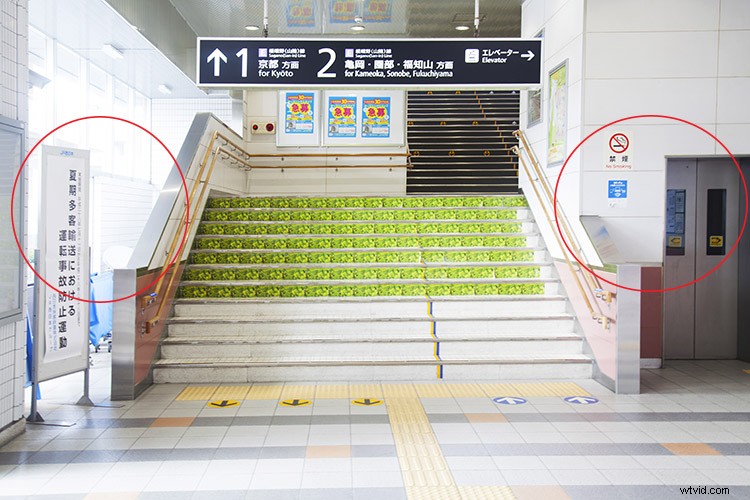
Now that you have a smaller portion of pixels selected, right click on the remaining dotted line and select Free Transform. This time when you drag the selected line of pixels up or down the image, only the remaining pixels selected by the Single Marquee Tool line will be stretched.
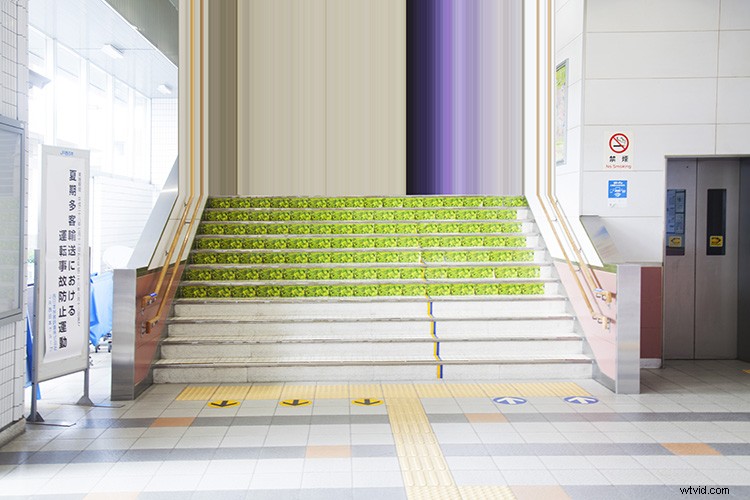
Pixels stretched up but only within the staircase area.
Conclusion
Now that you know the basics of pixel stretching, it’s time to experiment. This simple process has some distinctive painterly characteristics that alter the perspective of an image. The nature of digital photography often yields predictable, formulaic results…But be careful, you never know exactly how a pixel stretched image will turn out – which makes it quite addictive!
I would love to see your creations in the comments below. Happy pixel stretching!