
When you’ve been using a program like Photoshop for a length of time, you begin to develop a wish list of things you’d like to see in future versions. Sometimes these are addressed by new releases and sometimes they’re not.
Now I know Photoshop CS5 has just been released but there are still things on my wish list that aren’t in Photoshop. Here are some things I’d like to see in the next version of Photoshop:
1. Clarity
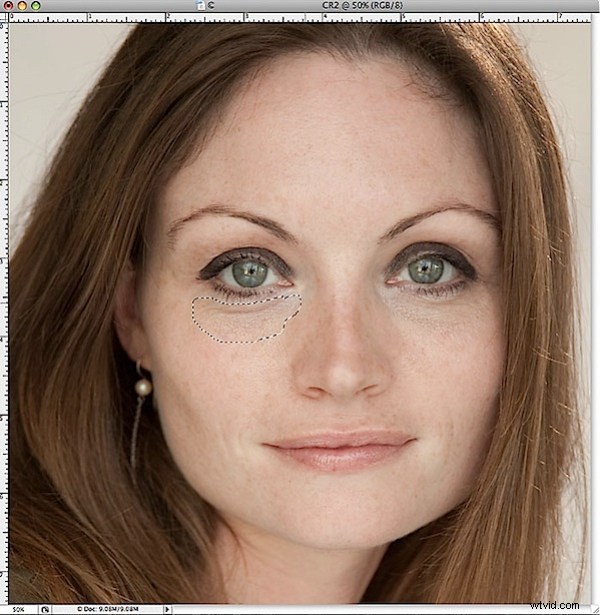
While Vibrance, which first made its appearance in Lightroom, has now been included as an adjustment in Photoshop, Clarity has not yet made the grade – it’s available in Camera Raw but not in Photoshop itself.
In Lightroom and ACR the Clarity slider lets you adjust the midtone contrast and it gives a much needed boost to the midtones in an image with quite spectacular results. At the top of my list for the next version of Photoshop would be the inclusion of a Clarity adjustment.
2. Paste into a Selection
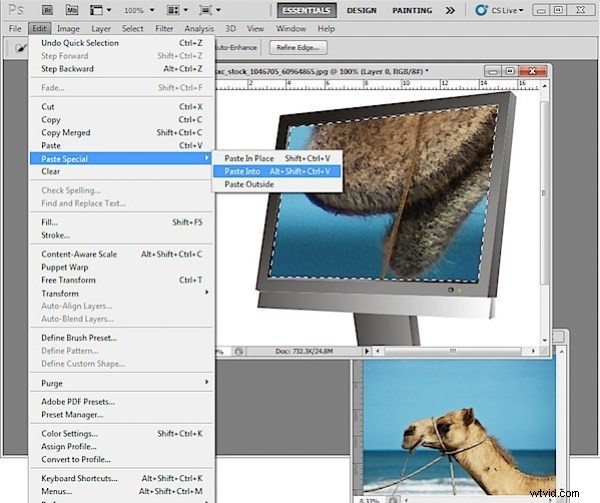
One thing I’d love to see in Photoshop is the ability to paste a copied item from one image in Photoshop into a second image but with the copied selection being pasted in at a specific size.
In short, I’d like to make a selection on the target image with the marquee tool and have Photoshop paste the clipboard contents into the marquee area at a size that fits it to the selection.
You can make a selection and paste the clipboard contents into it but the pasted image isn’t resized to fit – I’d like the option to do both.
3. Print Multiple Images
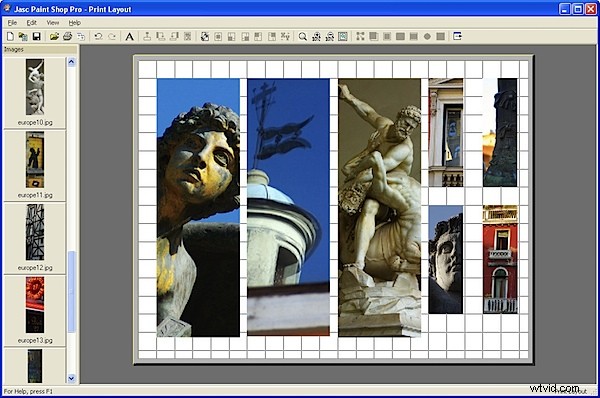
Having used Paint Shop Pro for many years, the feature that I’d love to see Photoshop ‘borrow” from that program is some means of easily assembling multiple images to a layout for printing on a single sheet of paper.
PaintShop Pro has a very smart Print Layout tool which displays images down the left of the screen which you can drag and drop into a page for printing. You can drag to resize the images, right click and size them to a fixed size or add them automatically in position on a pre-designed template – built in or custom made.
Adobe has some workarounds to this problem available: Lightroom 3 has a multiple print feature which is reasonably flexible and simple to use and which I wrote about in this post. You can assemble multiple images for printing on a single page through Adobe Bridge but the tool is a little cumbersome and it’s in Bridge and not where most people will expect it to be – in Photoshop itself.
You can add the Picture Package tool back into Photoshop CS4 and CS5 (which Adobe removed in these versions) as I explained in this post.
But, workarounds aside, I dream of the day a really smart multiple picture print tool appears in Photoshop.
So, now you know the top three things I’d like to see in Photoshop CS6 – now it’s up to you – what’s on your wish list?