
This tutorial with photoshop techniques for making your images ‘pop’ has been submitted by Elise Hennen from 28 Studios. Read more about Elise below.
Get more tutorials like this via with our free weekly newsletter.
In this tutorial I will be demonstrating some quick, easy methods for adding drama and/or interest to your shots. As always, talk to me in the Post Processing Section of the Forums with any questions or comments. As far as I know, these methods should work for both Photoshop and Photoshop Elements.
4 Easy Photoshop Techniques to Make Your Pictures Pop!
Photoshop Technique #1: blur/overlay
Duplicate your picture layer by dragging the layer to the ‘new’ icon in the layers palette (ctrl+j).
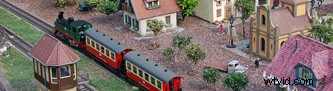
Apply a gaussian blur (Filter > Blur > Gaussian Blur…). Blur it enough that the detail disappears but the shapes mostly keep their form.

In the layers palette, change the blending mode from ‘Normal’ to ‘Overlay.’
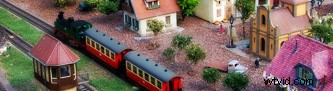
If you look at the before and after, you can see that this method makes the light tones lighter and the dark tones darker while softening it a touch. Basically, it softly boosts the contrast. If you want a more dramatic effect, try changing the blending mode to ‘Vivid Light’ instead of ‘Overlay.’
Try it on all kinds of shots: portraits, nature shots, you name it. I use this method ALL the time. It works so well with everything!
Photoshop Technique #2: filter the background
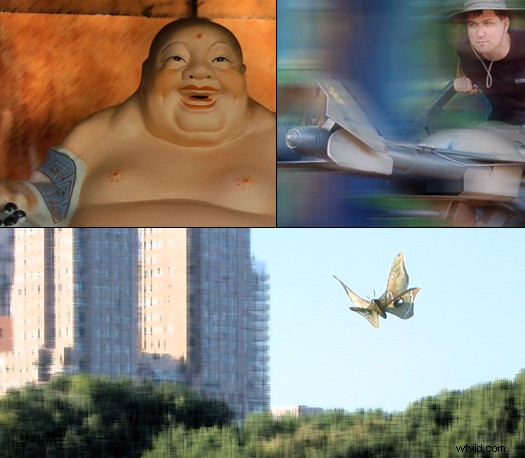
This one can be fun… With a picture open, duplicate the layer (as always). Use your lasso tool to roughly select the subject of your image.
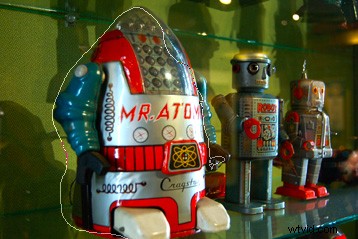
Feather the selection by going to Select > Feather (ctrl+alt+d). We want a pretty large feather, so what you input depends on your picture. Try 50 pixels. Go to Layer > New > Layer via copy. You should end up with just your subject on a new layer with a nice feather to it (fades at the edges).
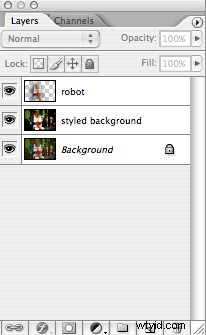
Select the layer copy below your subject layer. Start trying out filters. I used Filter > Brush Strokes > Dark Strokes for this example. Most of the Brush Stroke filters work well with this effect. Using blurs tends to look a little funny. When you’ve got it all done, your layers palette should look a little like this:
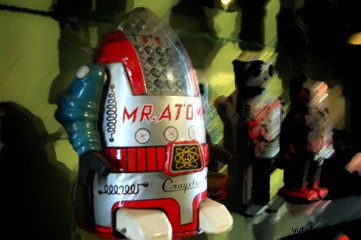
That’s it. Try this out with lots of different filters. If you want to tone down the effect, change the opacity of the effect layer. If you want to get more advanced with your subject selection, you can duplicate the layer, mask it out, and use a large soft white brush to paint the subject back in.
Photoshop Technique #3: neon glow
Have you ever played with neon glow and wondered when the heck you were ever going to use it? Well, it’s time to give it another shot. This can add a touch of color and drama to your shot.
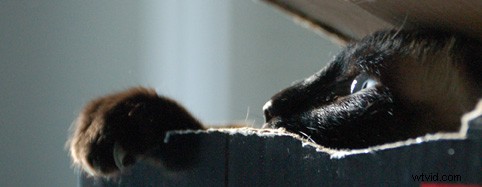
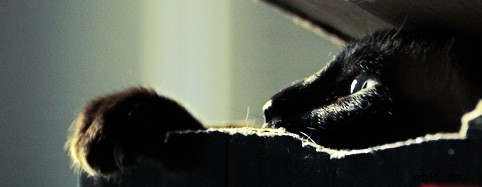
Duplicate your layer, then pull up Filter > Artistic > Neon Glow. Pick a color that you think will complement your shot. In mine, the cat is lit with sunlight, so I went with a yellow to exaggerate that. Start with a glow size of 4 and a glow brightness of 18, then tweak it to suit your shot. This is what I ended up with:
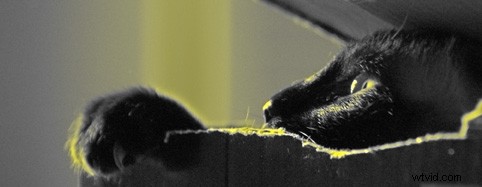
I’ll bet you can guess what’s next. You got it — change the blending mode to ‘Overlay.’ Also cycle through those modes: soft light, hard light, vivid light, and linear light. I prefer overlay and vivid light with this effect.
Photoshop Technique #4 easy blur
This one nearly passed me by… it’s a wonderfully easy effect to soften a picture. Try it on portraits.
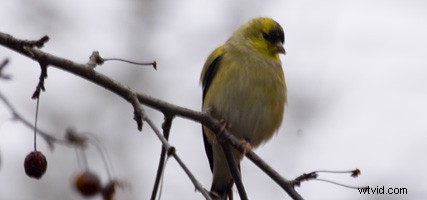
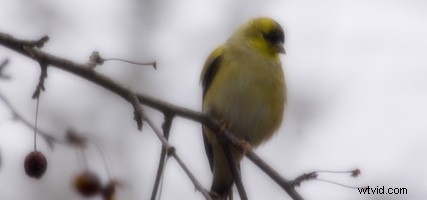
Duplicate your layer and apply a Gaussian Blur (Filter > Blur > Gaussian Blur) so that the details start to go, but not too much.
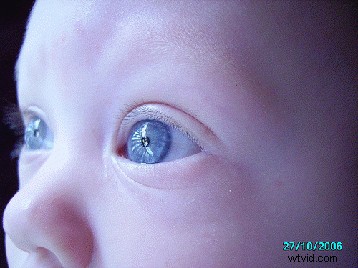
Set the opacity of the layer to 50%. This is a great, super-simple way to soften a picture. It can give it almost a dreamy look. Play with opacities until you find something that works really well with your shot.
Want to learn more post production techniques? Check out our popular eBook – Photo Nuts and Post: A Guide to Post Processing