

For photographers shooting at high ISO, Lightroom’s new AI‑powered Denoise offers a powerful yet user‑friendly way to tame noise while preserving detail. The feature relies on machine‑learning algorithms and lives in an intuitive interface that both novices and professionals can trust.
In this review, I examine Lightroom’s most advanced noise‑reduction capability, outlining its strengths, limitations, and practical impact on a typical post‑production workflow.
Let’s dive right in.
Longtime Lightroom users will notice that the program has always provided noise‑reduction sliders in the Develop panel. These controls—Luminance, Color, Detail, Contrast, and Smoothness—give granular manual control, but mastering them takes time and effort.
While those sliders can deliver decent results, they often blur fine textures and dull subtle color gradients. Lightroom’s AI‑powered Denoise automates the bulk of the work, providing clean noise removal while maintaining the sharpness and color fidelity that manual sliders frequently erode.
Traditional methods smooth speckles and grain at the cost of detail. By contrast, the AI approach learns how to separate noise from image structure, allowing you to keep hair strands, pine needles, and skin tones crisp and realistic.

The AI‑powered Denoise makes a photo shot at ISO 6400 look like it was captured at ISO 100.
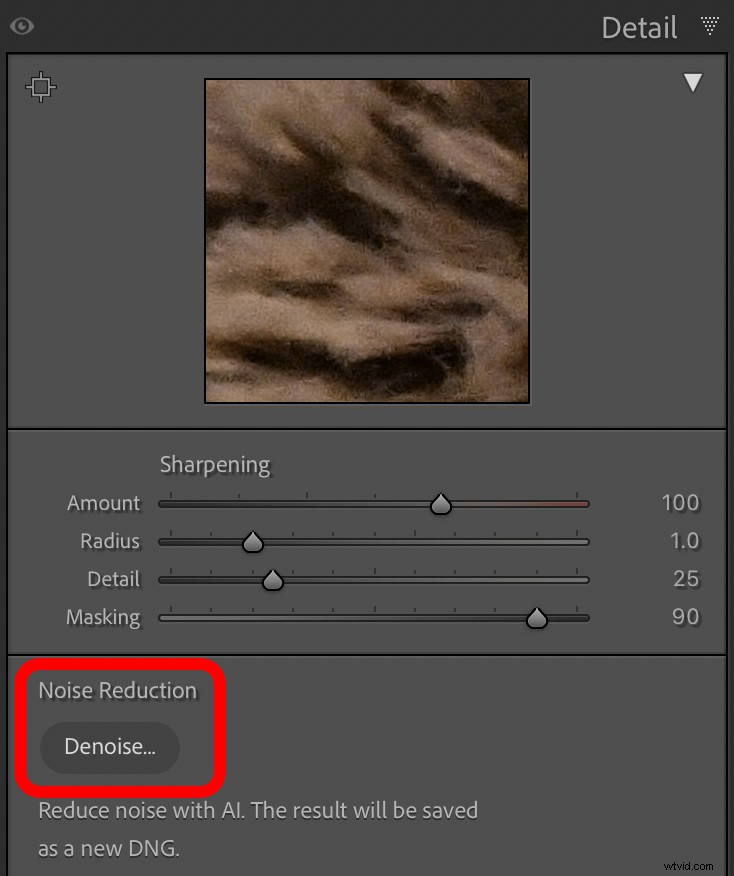
Using the feature is straightforward. Open the Detail panel in Develop and click the Denoise button:
Lightroom presents the Enhance Preview dialog with Denoise pre‑selected. The same window appears when you choose Enhance… from the Photo menu, but here the Denoise toggle is active. Deselect it to apply other enhancements such as RAW detail boosting or Super Resolution.
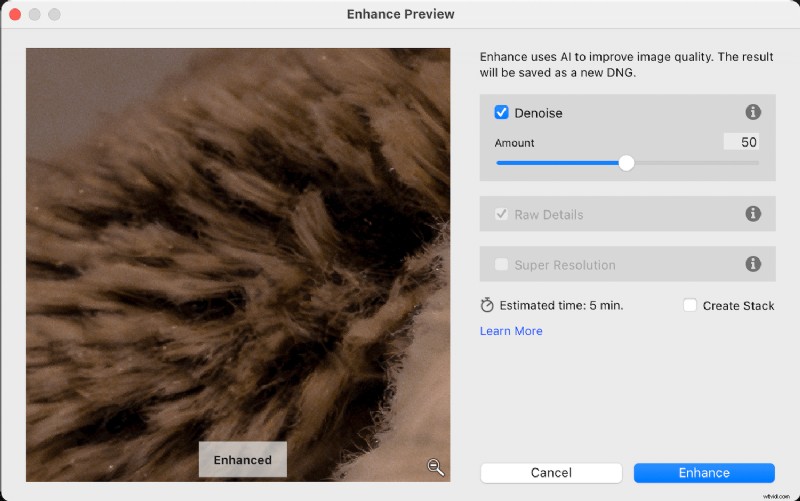
A slider controls the strength of the AI‑powered Denoise, or you may enter a numeric value. The preview pane shows a side‑by‑side comparison of the denoised output and the original, and clicking it toggles a before‑and‑after view.
When satisfied, click Enhance in the bottom right to apply the changes.
Tip: Selecting Create Stack places the denoised image atop the original in the Library. I usually leave it unchecked to keep both thumbnails visible side by side.

Consistent with Lightroom’s non‑destructive workflow, the source file remains untouched. The software writes a new DNG that incorporates the denoised data, which you can export, edit in Photoshop, or discard at will.
Several limitations are worth noting:
- AI‑powered Denoise works only on RAW files from cameras with Bayer or X‑Trans sensors—most mainstream DSLRs and mirrorless systems fall into this category. Verify compatibility on Adobe’s support site if you use a niche camera.
- The tool processes images individually; runtime ranges from a few seconds to several minutes depending on CPU/GPU power, making batch processing of large high‑ISO stacks time‑consuming.
- The resulting DNGs can be four to five times larger than the original RAW, which may strain storage for frequent users.
I consistently found Lightroom’s AI‑powered Denoise to deliver superior noise suppression compared to the legacy sliders, with clean detail and vibrant color. Nonetheless, a few caveats merit mention.
To demonstrate its capabilities, I captured two images of my son—one at ISO 800 and the other at ISO 12,600—using the same camera and lens.
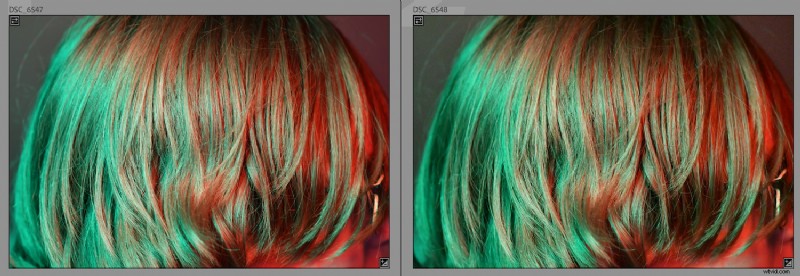
At thumbnail size, the ISO difference is subtle, but zooming in reveals stark differences.
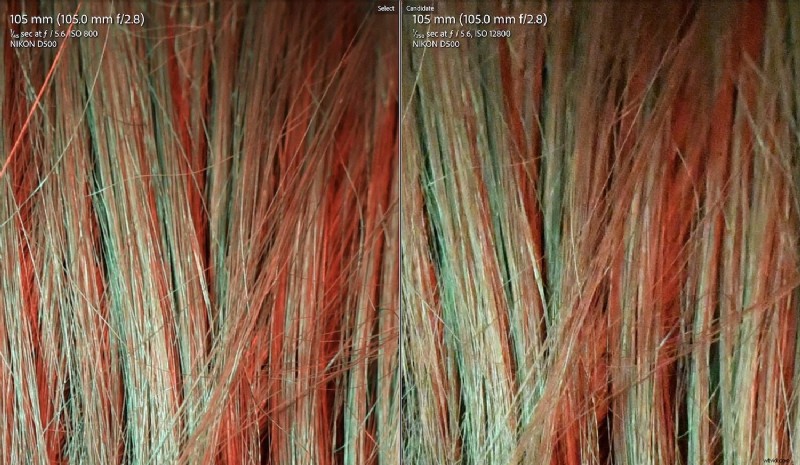
The ISO 800 shot retains clean detail; each hair strand is visible, colors shift smoothly, and even the dark corner shows fine texture. The ISO 12,600 version is riddled with muddied hair, splattered colors, and a greasy‑looking corner.
Without denoising, I would discard the high‑ISO image. After applying Lightroom’s AI‑powered Denoise, it becomes a print‑ready photo. The following comparison juxtaposes the ISO 800 image (left) with the ISO 12,800 version (right) after denoising.
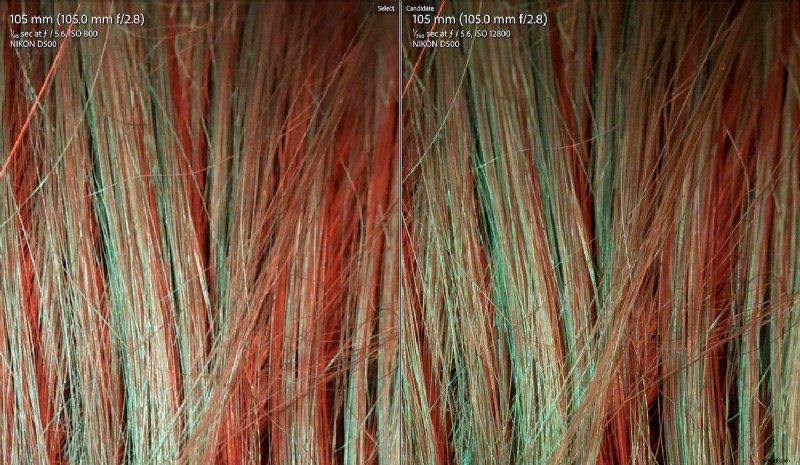
With the Amount slider set to the default 50, the denoised file not only retained but enhanced color richness and detail, and the problematic corner now looks sharp.
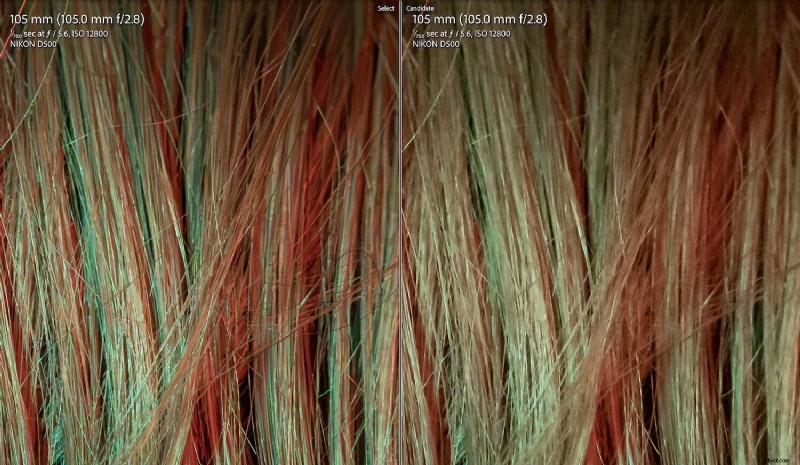
Comparing the AI‑powered Denoise to the standard sliders underscores its superiority. The sliders reduce noise but also blur fine details and dull color. Even with meticulous slider settings, AI‑powered Denoise outperforms. The image below shows the ISO 12,800 photo after AI‑denoising (left) versus the same shot processed with the legacy sliders (right).
Another compelling example is a toy lawnmower perched on pine needles, captured on an older Nikon D200 at ISO 3,200—well beyond its practical limit. The resulting image is littered with harsh noise, making it unfit for printing or online use.
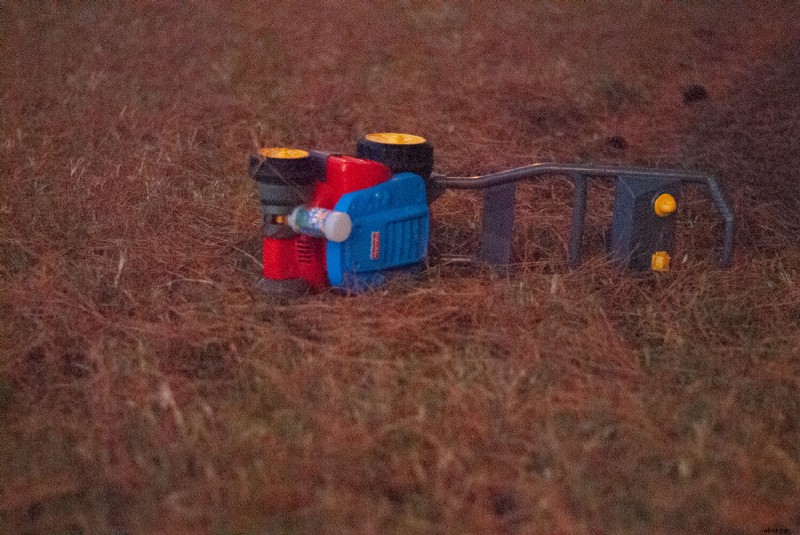
The legacy sliders only marginally reduce the noise, and in doing so, they obliterate the pine needles’ texture. Manual masking and selective noise control would be compulsory, but it is laborious.
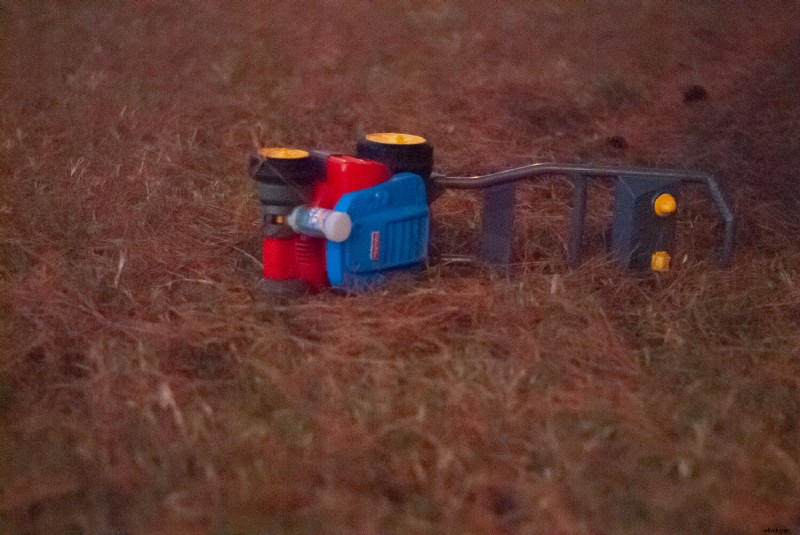
AI‑powered Denoise delivers crystal‑clear results in seconds, preserving the pine needles’ intricate detail and giving better overall quality.
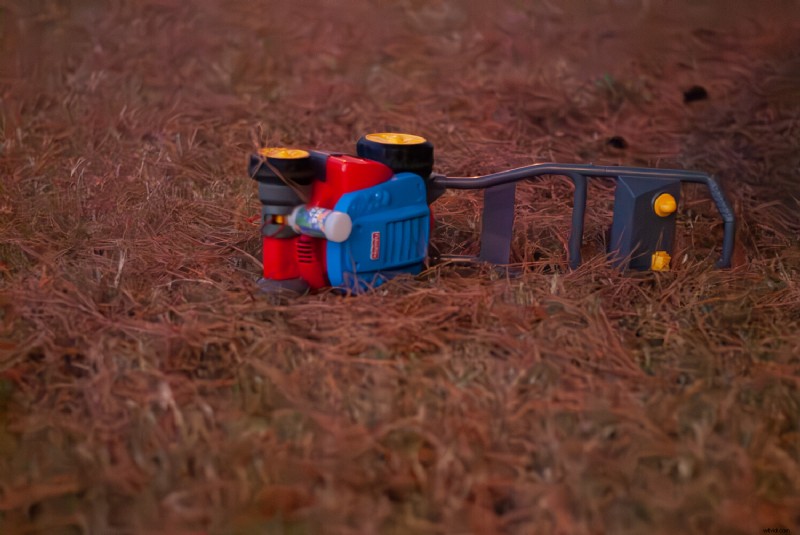
While the AI algorithm can sometimes produce a slightly plastic look—especially at very high noise levels—adjusting the Amount slider to a lower value can mitigate this. In many cases, the denoised image still looks preferable to the grainy original.
It is important to remember that AI‑powered Denoise cannot conjure detail that isn’t present in the source. A low‑ISO image shot at ISO 100 retains fine color gradations and texture that the algorithm cannot recover from a noisy high‑ISO counterpart.
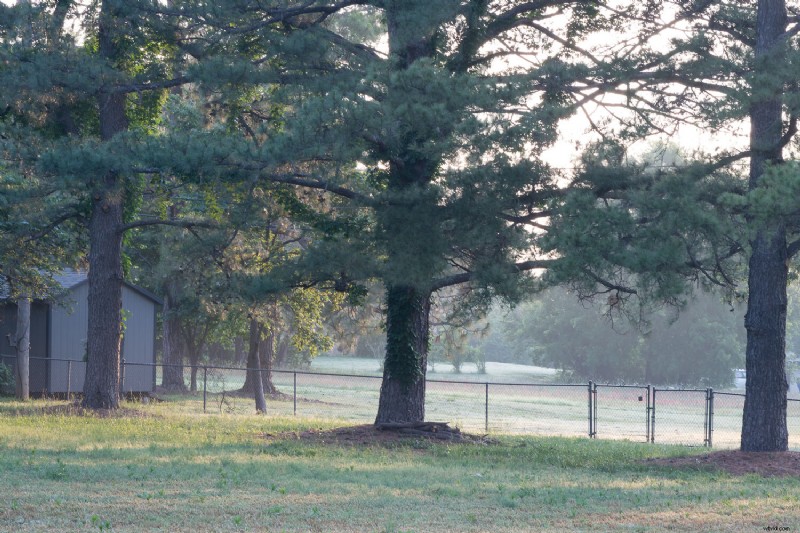
A 100% crop of the low‑ISO image shows vibrant color and detail.
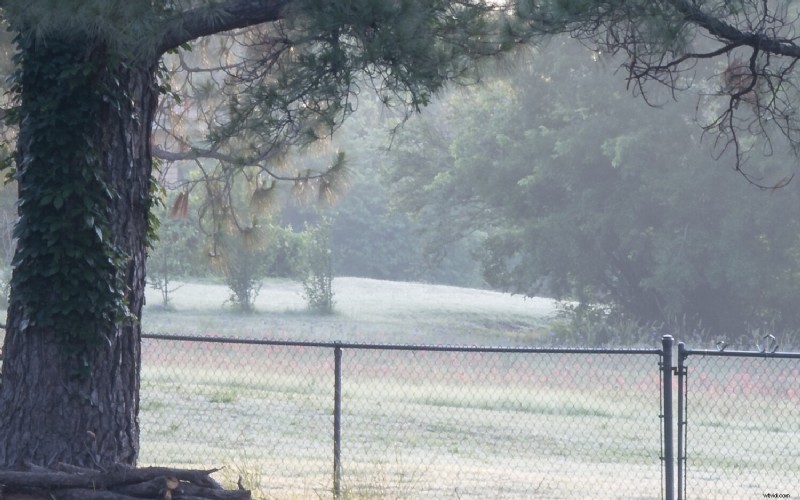
The identical composition shot at ISO 12,800 collapses into a muddy mess; pine needles are obliterated and color fades to gray.
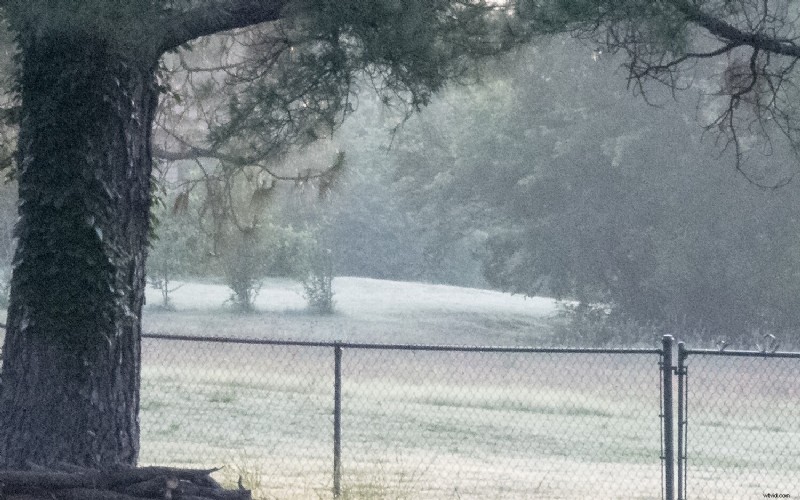
After AI‑powered Denoise, noise disappears, but the lack of source detail remains evident.
Although the denoised image is cleaner, the low‑ISO capture is still superior.
One final caveat: most of the examples in this review use older cameras that struggle at high ISO. Modern DSLRs and mirrorless bodies now handle ISO 6,400 and even 12,800 with relative ease, reducing the everyday need for aggressive denoising.
Nonetheless, Lightroom’s AI‑powered Denoise offers impressive results and remains a valuable addition to any post‑production toolkit.
In summary, Lightroom’s AI‑powered Denoise excels at noise removal while preserving detail, texture, and color—outperforming the traditional sliders and rescuing images that would otherwise be unusable.
Even though shooting at lower ISO values is ideal, it’s not always possible. In those scenarios, Lightroom’s AI‑powered Denoise can be a lifesaver.
What do you think of this new tool? Are you impressed? Disappointed? Will you use it regularly? Share your thoughts in the comments below!