

One task I perform regularly in Photoshop and Lightroom is to assemble multiple images on a single page for printing. I love displaying my photos, for example, as triptychs –which are three side by side images.
I’ve posted before on the process in Lightroom here and here and today I’ll show you how to do this in Gimp using a set of templates that you can find free for downloading on the web.
I downloaded my templates from http://www.gingerpixel.com/review/storyboard-templates. There are eight templates in all zipped into a single downloadable PSD file.
Update: Since we published this post, the GingerPixel.com site is down so the storyboard templates are no longer available. To assist you, we have created a custom set of templates for both Gimp and for Photoshop. You can find these templates for download at http://projectwoman.com/articles/45PhotoshopTemplates.html
The triptych.psd template file which is in the zip download can be used along with the instructions that follow to create the collage in Gimp.
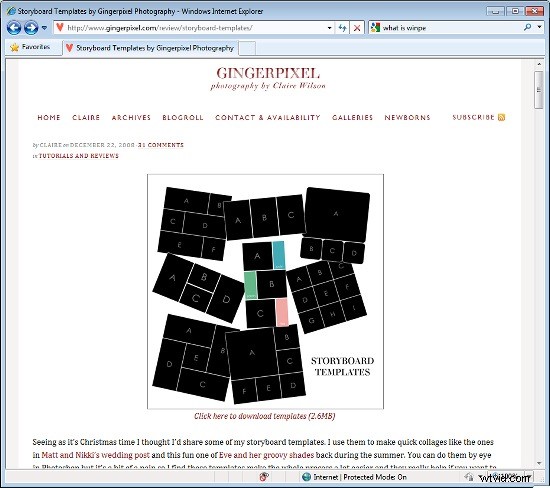
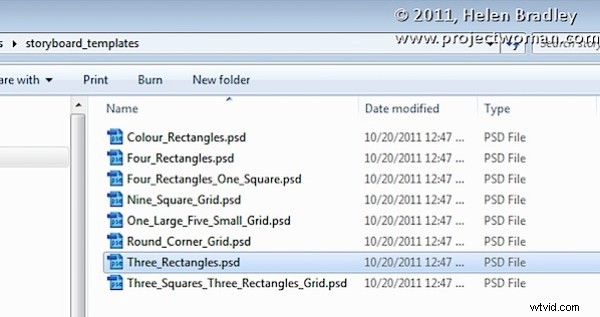
Unzip the files and open the one to use in Gimp along with the images that you want to use. I’m using the Three_Rectangles.psd file.
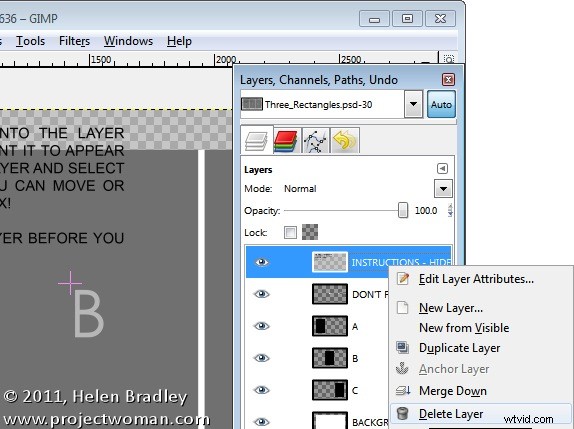
Start by viewing the template you are using and, in the Layers palette select and discard the top two layers which include the instructions.
Select the first of your images, choose Select > All and then select > Edit > Copy to copy the image to the clipboard.
In the template click on the layer marked C and choose Edit > Paste as > New Layer. This pastes the image from the clipboard into the layer immediately above layer C.
Click the Move tool (set it to Layer) and drag the image over the top of the shape on the right. If desired, click the Scale tool and scale the image to size it larger than the black rectangle.
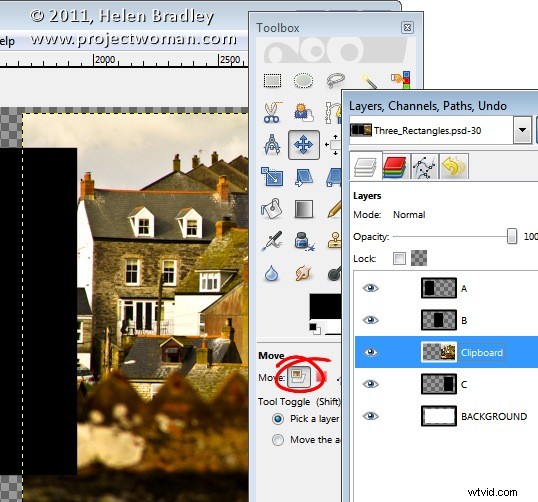
Move the portion of the image that you’re most interested in seeing over the shape.
Now, to crop the image to size, click layer C, right click and choose Alpha to Selection.
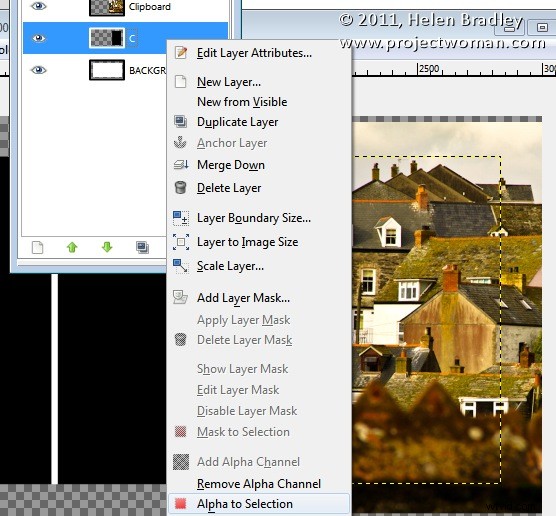
Now select the Clipboard layer that you’ve been working on, choose Select > Invert and press Delete. The image will be clipped to size using the template shape as a guide to the size. Choose Select > None before continuing.
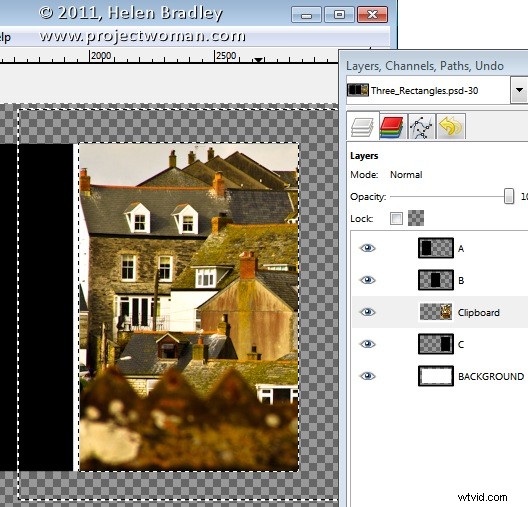
Repeat this process for layers B and A – select and copy the image to use, click the layer you’re working with (B or A) and choose Edit > Paste As > New Layer.
Move the image into position and scale it if desired. When scaling, making sure to lock the width and height so that the image is scaled in proportion.
Right click the layer you’re working with – Layer B (or A) and choose Alpha To Selection. Click your newest clipboard layer and choose Select > Invert and then Delete.
When you are done you should have all 3 images in position.
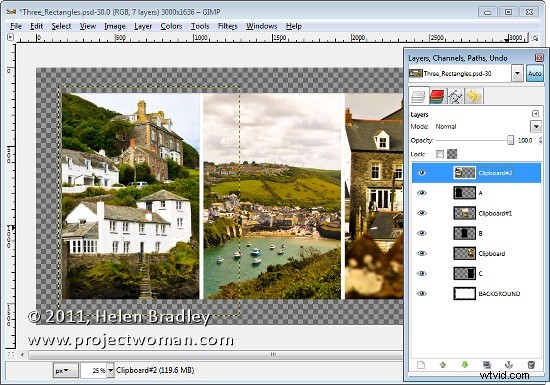
This image has a background layer behind the pictures which currently shows white. If you prefer to add a solid color behind everything, delete this layer and add a new layer filled with your choice of color. Here I’ve added a new black filled layer.
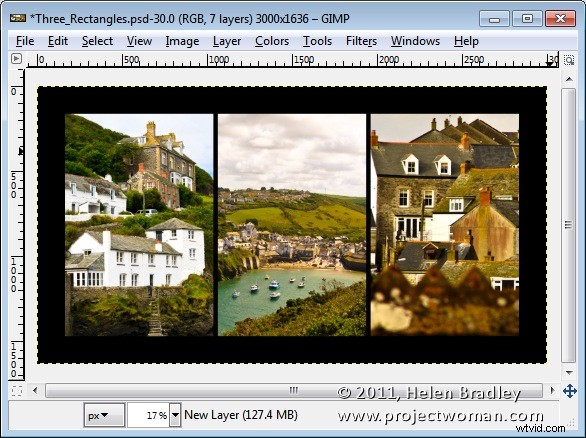
You can finish off the design with some text or simply save the resulting image.
These storyboard templates are a good place to start with your picture layouts. You can find similar templates elsewhere on the web so start with a search for “Free Photoshop Clipping Mask Templates” or “Free Storyboard templates”.