
Meta Description: Learn why your Sony A6400 may not display videos and discover step‑by‑step solutions to fix format, corruption, and hidden file issues.
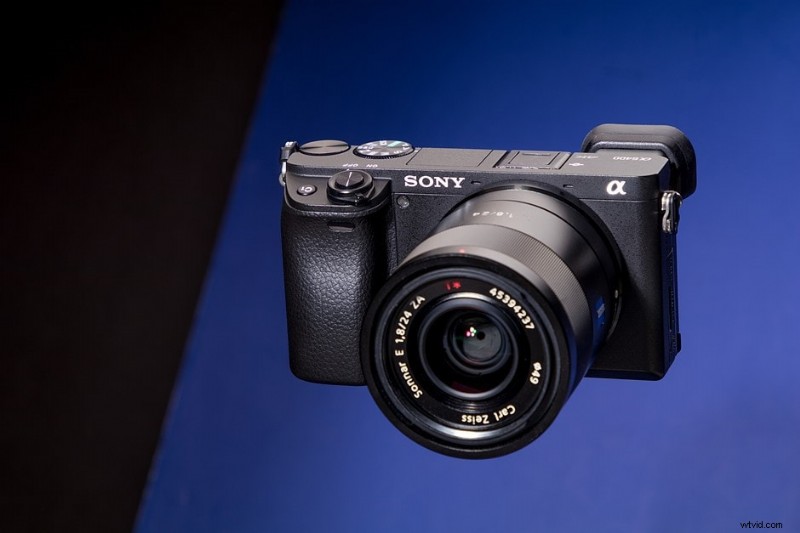
All Sony camera problems differ in complexity. When the A6400 displays an “Unable to display” message while attempting to view a video, it can be frustrating. Fortunately, most causes are straightforward to diagnose and resolve with a clear troubleshooting guide.
In this article we break down the most common reasons you can’t see videos on your Sony A6400, and provide proven solutions—ranging from format compatibility checks to SD‑card recovery tools.
Common Reasons You Can’t View Videos on the Sony A6400

- Unsupported Video Format: The camera records in XAVC S (MP4/H.264), which may not be supported by all playback devices or software.
- Corrupted Files: Malware, power loss, or bad sectors on the SD card can corrupt video files, preventing playback.
- Hidden Files: Files marked as hidden on the SD card will not appear when the card is mounted in the camera or a computer.
- Deleted Files: Accidental deletion removes the file from the card’s index, making it invisible in the camera’s playback menu.
Step‑by‑Step Solutions
1. Verify the Video Format Is Supported
Most modern operating systems support MP4, AVI, MOV, and FLV. If your computer or software does not, consider installing a codec pack such as K-Lite Codec Pack or using a media player like VLC.
To change the recording format on the A6400, navigate to Menu > Recording > Video Format and select a supported option (e.g., MP4 1080p). Re‑record a test clip and attempt playback again.
2. Check for SD‑Card Corruption
Corruption is a frequent culprit. Use Windows’ built‑in error‑checking utility:
- Insert the SD card into your PC.
- Open File Explorer, right‑click the card icon, and choose Properties.
- Go to the Tools tab and click Check under Error checking.
- Follow the prompts to scan and repair any issues.
For deeper analysis, use Wondershare Recoverit or similar recovery software to scan for and fix damaged files.
3. Reveal Hidden Files
Hidden items may be invisible to the camera. On Windows, enable them by:
- Opening File Explorer and selecting the SD card.
- Clicking the View tab.
- Checking the box next to Hidden items.
Once visible, you can delete or move the files as needed.
4. Recover Deleted Media
If you suspect accidental deletion, use a reputable recovery tool. Wondershare Recoverit can scan the SD card for lost video files, supporting all major formats and card types.
5. Rebuild the Camera’s Database
Sometimes the “Unable to display” error is due to a corrupted internal database:
- Back up all files on a PC.
- In the camera’s menu, select Setup > Recover Image DB.
- After the database rebuilds, restore your files or format the card and re‑import them.
6. Ensure Compatibility with Play Memories Home
If videos fail to play in Sony’s Play Memories Home, confirm that the software version matches your camera’s firmware. Update the application, driver, and power settings on your PC to optimal performance.
Editing Your Sony A6400 Footage on PC
For professional video editing, Wondershare Filmora offers a user‑friendly interface with advanced effects. Follow these steps to edit:
- Step 1: Download and install Filmora.
- Step 2: Launch the program and select Create New Project.
- Step 3: Import media by clicking File > Import Media File or Import from Camcorder after connecting your SD card.
- Step 4: Locate and open the video file.
- Step 5: Use editing tools—trim, split, add transitions, effects, audio tracks, text overlays, and still images—to enhance your footage.
- Step 6: Export the final video, adjusting bitrate, resolution, and frame rate as required.
Filmora’s intuitive workflow allows you to convert your Sony A6400 files into formats suitable for any device or platform.
Final Thoughts
Understanding why your Sony A6400 fails to display videos empowers you to resolve the issue quickly and efficiently. Whether it’s a format mismatch, corrupted card, or hidden file, the steps above provide a comprehensive roadmap to recovery and playback.
For additional guidance, consult Sony’s official support resources or reach out to the community forums.