
There is no doubt that in today’s digital world, video is a stunning storytelling tool. Therefore, it doesn’t matter if you are creating content for social media, personal projects, or professional use; the perfect video editing app can make all the difference.
How to Edit Videos on My iPhone? Which is the Best Video Editing App for iPhone? Thankfully, with the amazing capabilities of iPhones, you can easily create professional videos anytime, anywhere. But have no idea about apps that work best for iPhones?
Well, this article is here to help you know the 5 best apps for editing videos on iPhone, including their standout features, ease of use, and overall value.
So, are you ready? Let’s get into it!
In this article
- Wondershare Filmora
- Canva
- iMovie
- Canva
- LumaFusion
Part 1: How Useful Are Video Editing Apps for iPhone Users?
Video editing apps are extremely useful for iPhone users. These provide stunning tools for editing, adding effects, and sharing videos on the move, hence increasing creativity and productivity for both casual and professional creators.
If you’re still on second thoughts, do you use a free video editing app for iPhone? Then below we have shared some exciting factors that will inspire you to use video editing software apps on your iPhone device.
1. Convenience and Flexibility
With iPhone video editing apps, you don’t need to stick around as they offer you convenience and flexibility to edit your videos from anywhere, whether at home, travelling, or outdoors.
2. Professional-Quality Edits
Many apps, such as Wondershare Filmora, come with advanced features like multi-track editing, transitions, and effects. With this, users can create professional-grade videos directly on their iPhones.
3. Cost-Effectiveness
No worries about the cost, as you can use these apps for free and get an affordable subscription plan for advanced editing features.
4. Creativity
You get a wide range of templates, effects, and filters to enhance creativity and help you express your unique style.
5. Customization
To personalize your video, these iPhone apps offer you customization options such as adjusting video speed or audio levels, using an AI color palette, LUT feature, and more.
6. User-Friendly
A user-friendly and intuitive editing interface helps users with effortless editing; therefore, opting for iPhone video editing apps is beneficial.
Part 2. Best Video Making Apps for iPhones You Must Have!
In this section, we will explain in depth the 5 best video-making apps for iPhone. So, go through the comparison table and key features:
| App Name | Key Features | Best For |
| Wondershare Filmora | Intuitive and user-friendly interface, multi-track editing, AI advanced features, 4K export, audio editing, green screen, etc. | Beginners, professionals, and content creators |
| iMovie | User-friendly interface, simple transitions, 4K support | Quick edits for beginners |
| LumaFusion | Multi-track editing, professional-level features, advanced effects and transitions | Professionals and content creators |
| KineMaster | Multi-layer video editing, chroma key, transitions, audio effects, 4K support | Advanced editing and social media creators |
| Canva | Drag-and-drop editor, templates, social media-sized videos | Beginners and casual creators |
Wondershare Filmora
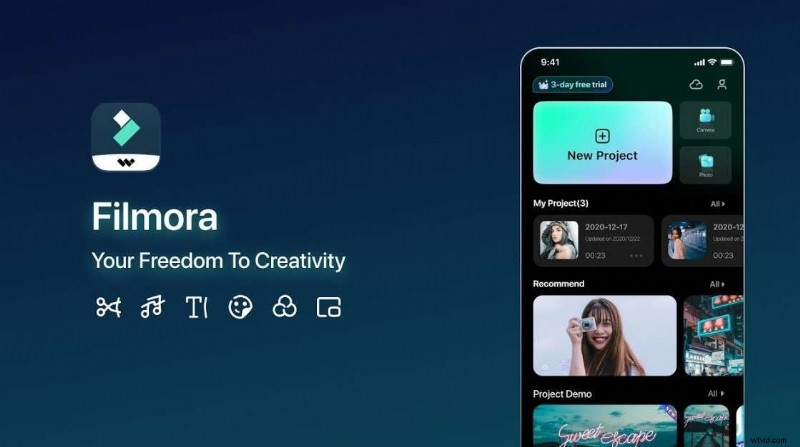
If you are looking for the best free video editing app for iPhone that uses AI to achieve professional results, Wondershare Filmora is powerful software.
It is a user-friendly video editor, making it ideal for beginners and professionals. This app provides a range of advanced features, such as 4K export and a vast library of built-in effects, stickers, transitions, and templates. What's more? You can edit your audio to grab the attention of the audience without any hassle.
Great, right? To know in-depth, get into its key features:
Key Features:
- Offers you AI-powered features such as thumbnail creator, music generator, vocal remover, text-to-video converter, and more to create video effortlessly.
- Provides you with video editing features such as a planar tracker, motion tracking, multi-camera editing, and keyframing.
- Easy to edit audio with features such as voice cloning, auto beat sync, silence detection, audio ducking, and more.
- Get a vast library of preset templates, filters, titles, and preview changes before saving your video.
- Export video into different formats without compromising the quality.
iMovie
iMovie is the default video editor for iPhones, and it is ideal for users who require to make quick edits without getting into complicated features.
It is a free video editing app for iPhone without a watermark and offers tools such as cutting, trimming, and adding basic effects. So, if you want to create fast, polished videos for social media, personal use, or professional work, then this software can be a perfect fit for you.
Key Features:
- Offers video effects such as color correction, image stabilization, video transitions, and more.
- Easy to add background music and fade audio to enhance audio.
- Provides you with recording video directly using a webcam.
- Completely free for iPhone users.
KineMaster
KineMaster can be the best iphone app for editing videos for users who are looking for advanced editing features with an intuitive interface. With this software, you can opt for multi-layer video editing and easily add audio, video effects, and professional features like chroma key.
Key Features:
- Easily enhance the video quality with the color filter.
- Remove unwanted audio and add the desired one seamlessly.
- Provide complete control over the speed of the video.
Canva
Another ideal tool is Canva, which is well-known for its graphic design features and is a free video editing app for iPhone. It is an excellent choice for creating quick, social-media-friendly videos.
Its templates are tailored for different social platforms, and with a drag-and-drop editor, you can easily create eye-catching videos in no time. While it may not have advanced editing capabilities compared to some other apps, it is ideal for simple video creation with a creative touch.
Key Features:
- Offers a large library of templates, including social media images, banners, blog graphics, and more.
- Provides real-time collaboration, which means multiple users can edit the project.
- You can easily add transitions, effects, animations, and filters.
LumaFusion
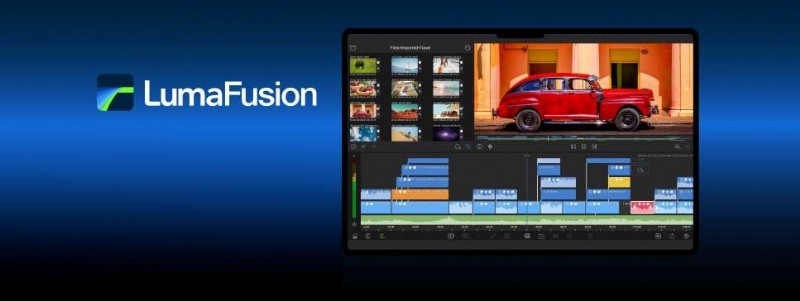
Last but not least, LumaFusion is a highly advanced video editing tool. It is ideal for someone looking for extensive editing capabilities on an iPhone.
You get advanced features such as professional-grade audio mixing, multi-track editing, and more. While it is a bit hard to learn how it works as compared to other tools, it is perfect to use on your iPhone.
Key Features:
- You will get speed ramping with unlimited keyframes.
- Easily adjust font, color, face, border, and shadow.
- Provides you with audio editing features such as audio ducking and fine-tuning to enhance the audio quality.
Part 3: Wondershare Filmora: Create Stunning Videos With Ease!
Though all the mentioned software is worth using on an iPhone, in this section we are explaining the step-by-step guide of Wondershare Filmora. With this, you will learn how easy it is to use this software on your iPhone device.
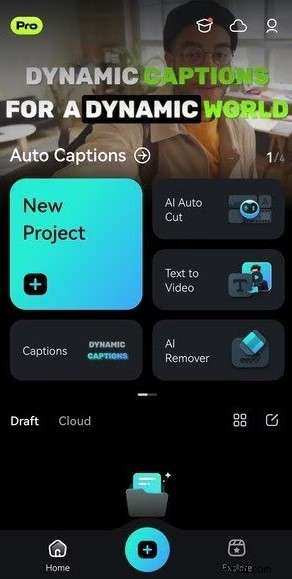
1
Launch the program
Download and launch Wondershare Filmora on your iPhone and click on the New Project option.
2
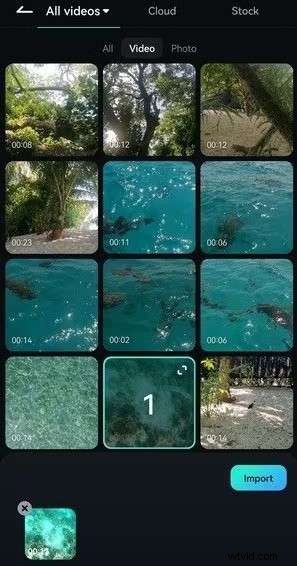
Import Videos
Select the video you want to make changes to and click on the Import option.
3
Trim the Video
You can trim the video while moving the playhead on the particular part.
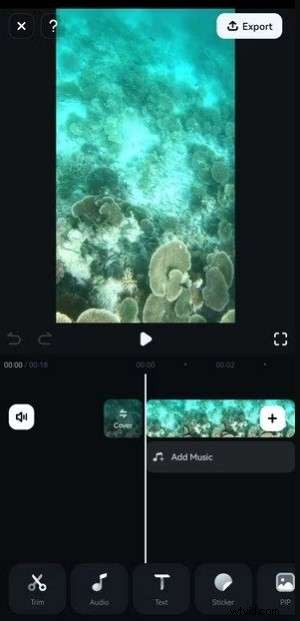
4
Trim the Video
To add Animation, click on it and hit the Checkmark to save the changes.
5
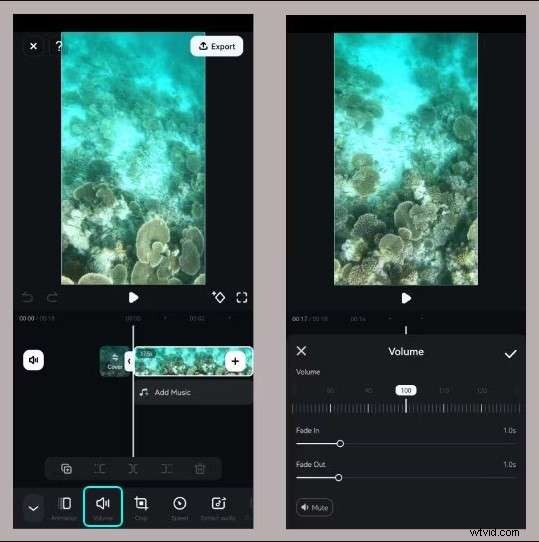
Adjust the Audio Settings
Tap on the Volume option to adjust the volume of the video. You can add either a fade-in or fade-out effect as per your preference.
6
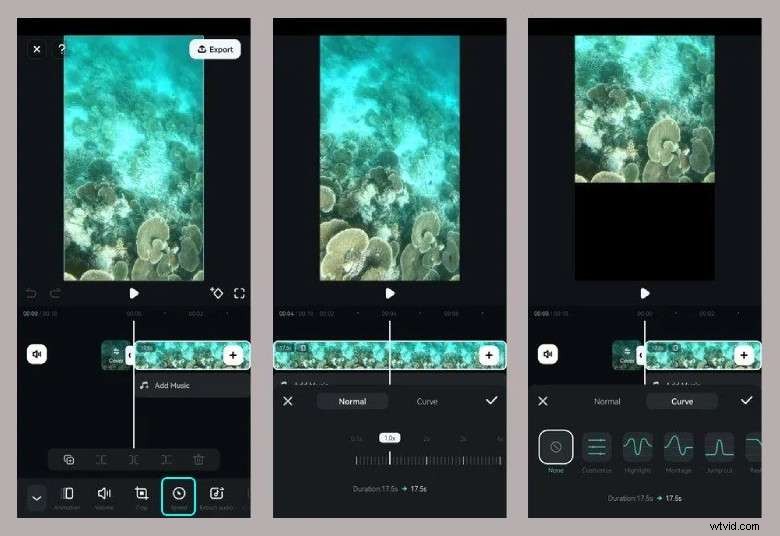
Adjust the Speed
Go to the Speed option to change the speed of the video. You can opt for the Curve option to speed ramping and highlight specific parts.
7
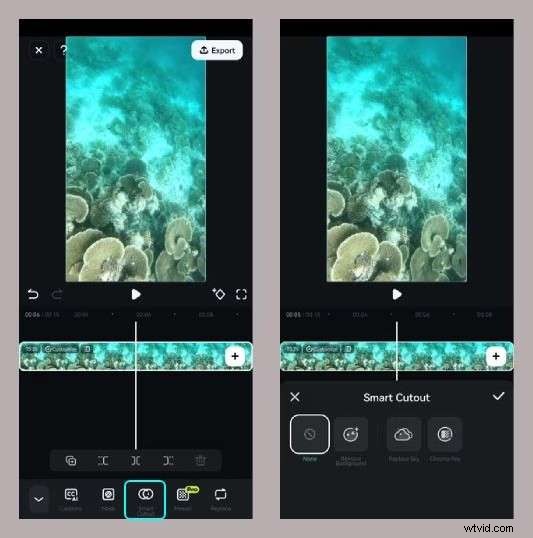
Apply Chroma Key
Click the Smart Cutout option to apply the chroma key or change the background or sky.
8
Apply Chroma Key
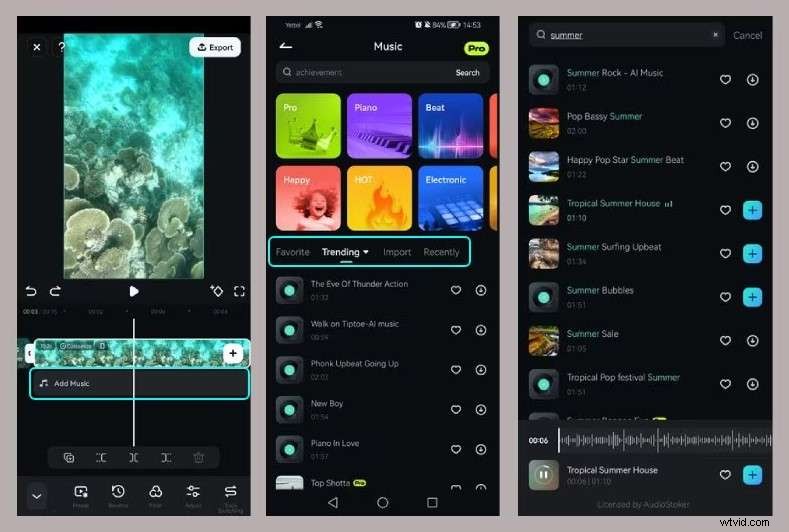
Tap the Add Music option to add music and import or search for tracks that fit the video's style. Again, tap them to playback and download, then press the Plus button.
9
Apply Chroma Key
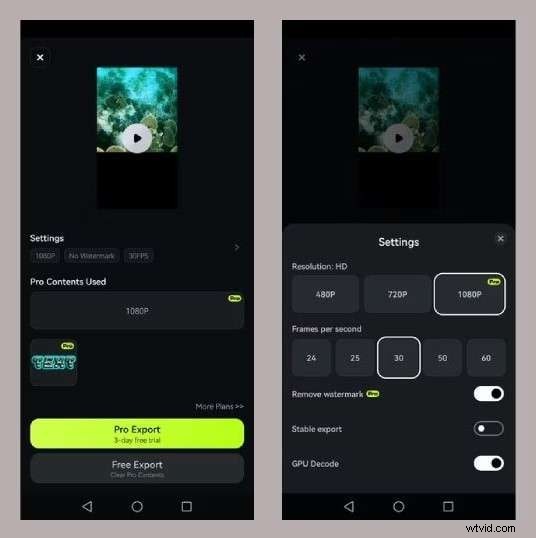
Once the editing job is done, tap on the Export option and select settings as per your need.
Conclusion
Hope, while going through this article, you got to know about the best app for editing videos on the iPhone that fits your requirements. These apps are easy to use and affordable while providing your professional quality in no time.
Though all tools have their unique features, Wondershare Filmora stands out the best. Its intuitive and user-friendly interface with advanced features using AI makes it an ideal tool for beginners as well as professionals.
To explore more about it, visit its official website today!