
Chromebooks combine affordability with the speed of Chrome OS, making them ideal for web browsing, document editing, and light productivity. When you need to trim a clip, add a transition, or merge footage, the right video editor can turn a simple idea into a polished piece—all without installing bulky software.
Below are eight free video editors that run natively on Chromebooks. Each balances functionality with a user‑friendly interface, so you can edit quickly and confidently.
Table of Features
| App | Key Features | Pros | Cons |
|---|---|---|---|
| Invideo AI | 4,000+ templates; 9M+ premium media; flexible timeline; AI‑powered editing | Fast support; simple AI tools; rich templates | Browser version may lag; adding multiple sounds can be tricky |
| Clipchamp | Core editing tools; webcam recording; green‑screen; auto captions | Lightweight; free version sufficient; social‑media integration | Limited color correction; steeper learning curve for beginners |
| Shotcut | Audio filters; cross‑fade transitions; frame‑accurate seeking; 4K support | Clean interface; free & open source; low‑spec friendly | Basic animation; not ideal for complex projects |
| Kapwing | AI video generation; customizable captions; smart cut; canvas resize | Easy use; free features; AI subtitles | Export size limits; font changes during render |
| CapCut | Cutting; speed adjustments; reversals; 4K repair | Runs smoothly on Chromebooks; cloud integration; simple learning curve | Limited multi‑layer editing; paywalls in free version |
| Flixier | Real‑time collaboration; stock media libraries; fast cloud rendering | Web‑based; quick loading; vast stock collection | Basic editing can be complex; limited storage and export time |
| KineMaster | Multi‑layer support; video effects; transitions; real‑time preview | Advanced control; extensive effects library | Some features locked behind subscription; cramped mobile UI |
| WeVideo | Animated text; green screen; motion titles; screen recording | Team collaboration; many templates; beginner‑friendly | Free version limited; watermark on exports |
Invideo AI
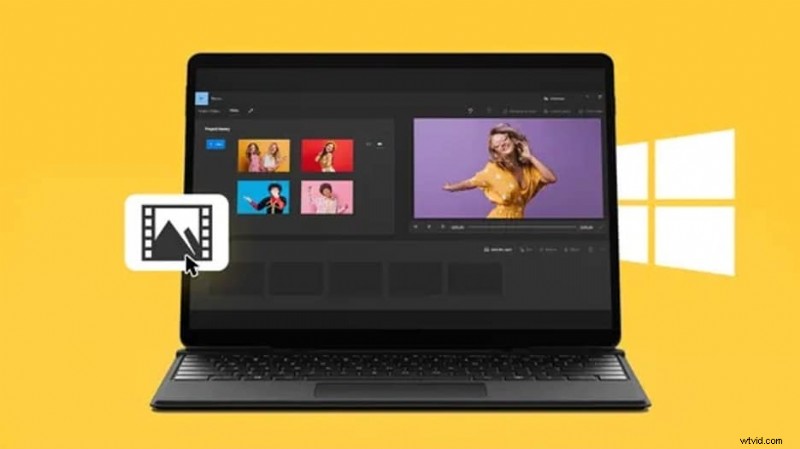
Invideo AI is an online editor that harnesses artificial intelligence to streamline video creation. Its drag‑and‑drop interface lets users assemble professional videos in seconds, drawing from thousands of templates and millions of premium media assets.
Key Features
- 4,000+ customizable templates for marketing, social media, and more
- Millions of high‑quality stock videos, images, and music tracks
- AI‑driven captioning, transitions, and effects to accelerate workflow
Pros & Cons
| Pros | Cons |
|---|---|
| Responsive chat & email support; automated processes save time; versatile templates | Browser may slow with large files; audio editing less advanced |
Rating
4.6/5 on Capterra.
Clipchamp
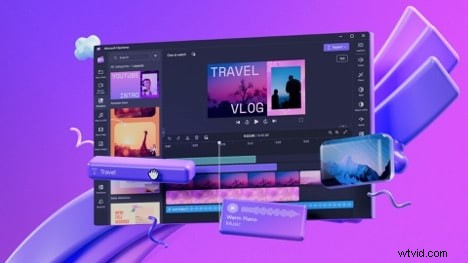
Clipchamp offers a lightweight, web‑based editing experience tailored for Chrome OS. With core tools, webcam recording, green‑screen, and auto‑captioning, it enables quick production of polished videos.
Key Features
- Essential editing tools: trim, split, merge, volume control, noise removal
- Chroma key for background replacement with real‑time preview
- One‑click captions in 80+ languages, fully editable
Pros & Cons
| Pros | Cons |
|---|---|
| Optimized for low‑spec devices; fast loading; free version fully functional | Some features require learning; fewer tutorials compared to rivals |
Rating
4.3/5 on Capterra.
Shotcut
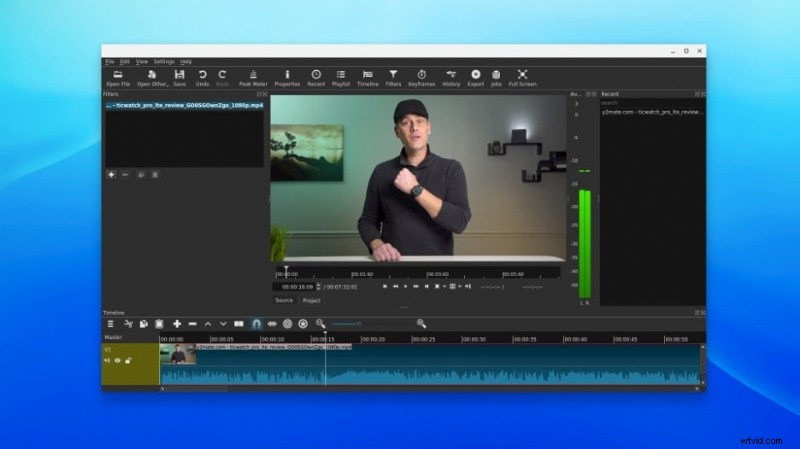
Shotcut is a free, open‑source editor that supports all major formats and 4K/8K resolutions. Its minimalist design makes it approachable for novices while offering advanced tools for professionals.
Key Features
- Rich audio filters for clarity and balance
- Cross‑fade transitions for smooth audio flow
- Frame‑accurate seeking and 8K support
Pros & Cons
| Pros | Cons |
|---|---|
| Clean UI; completely free; low resource usage | Limited animation and motion graphics; not ideal for complex edits |
Rating
4.4/5 on Capterra.
Kapwing
Kapwing is a cloud‑based collaborative platform that leverages AI to automate subtitle generation, background removal, and audio cleanup. It’s a go‑to tool for quick, multilingual video creation.

Key Features
- AI video and subtitle creation
- Customizable caption styles and positions
- Smart Cut to detect and trim silence automatically
Pros & Cons
| Pros | Cons |
|---|---|
| Intuitive drag‑and‑drop; clean layout; fast workflow | Export size limits for free users; upgrade required for larger projects |
Rating
4.6/5 on Capterra.
CapCut
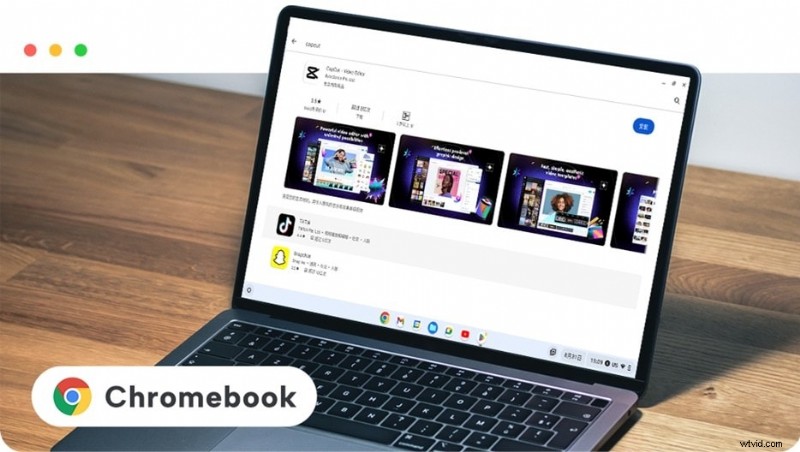
CapCut delivers a streamlined editing experience on Chromebooks, offering precise trimming, speed control, and 4K repair tools—ideal for polishing smartphone footage.
Key Features
- Frame‑by‑frame trimming and speed adjustments
- Reversal effects for creative flair
- 4K repair: color correction, noise reduction, sharpening
Pros & Cons
| Pros | Cons |
|---|---|
| Optimized for Chromebooks; quick start; cloud integration; beginner tutorials | Limited multi‑layer editing; core features locked behind subscription |
Rating
4.0/5 on Product Hunt (36 reviews).
Flixier
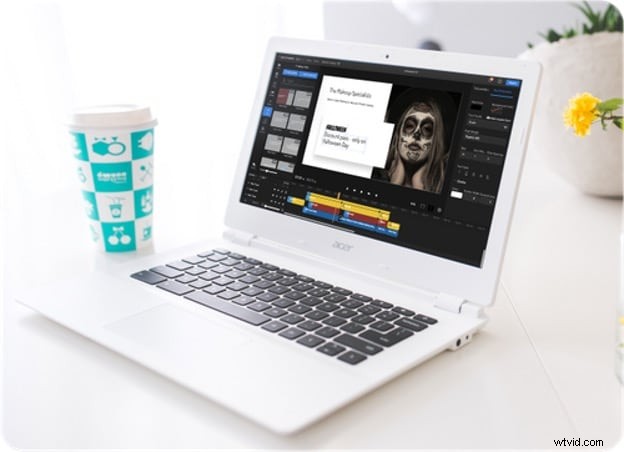
Flixier is a web‑based editor that eliminates installation hassles and leverages cloud rendering for swift production. Its vast stock library and real‑time collaboration make it a solid choice for team projects.
Key Features
- Real‑time collaboration with comments and feedback
- Millions of free stock videos, images, and music
- Fast cloud rendering for large files
Pros & Cons
| Pros | Cons |
|---|---|
| No installation required; quick load times; extensive stock media | Limited tutorials; storage and export time restrictions |
Rating
4.8/5 on Capterra.
KineMaster
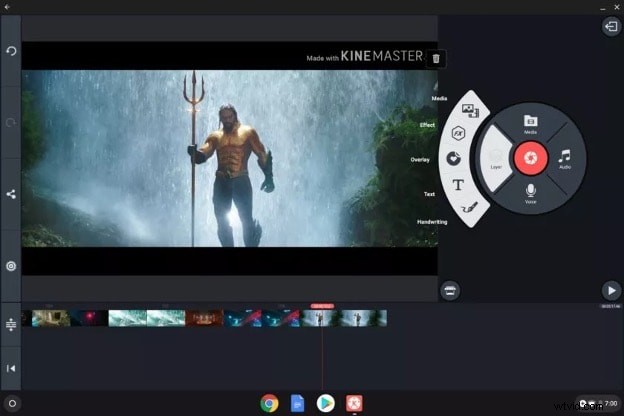
KineMaster offers advanced multi‑layer editing, effects, and real‑time previews directly on Chromebooks—ideal for creators who need more than basic cuts.
Key Features
- Real‑time preview without rendering delays
- Wide range of video effects and transitions
- Multi‑layer support for text, images, and video tracks
Pros & Cons
| Pros | Cons |
|---|---|
| Comprehensive control; extensive effect library | Premium features behind paywall; UI cramped on small screens |
Rating
4.6/5 on Capterra.
WeVideo
WeVideo is a cloud‑based editor designed for teams and educators. Its animated titles, green‑screen, and screen‑recording tools enable collaborative storytelling across devices.
Key Features
- Animated and motion titles for dynamic visuals
- Chroma key for background replacement
- Integrated screen recording and editing
Pros & Cons
| Pros | Cons |
|---|---|
| Rich template library; intuitive UI; helpful tutorials | Free version limited; watermark on exported videos |
Rating
4.7/5 on Capterra.
Bonus: Powerful Video Editing on Mac & Windows
Chromebooks excel at lightweight tasks, but for more demanding projects—especially when editing footage from iPhones or Android devices—you’ll benefit from a machine with greater horsepower. Wondershare Filmora offers an intuitive yet robust editing experience on both Mac and Windows, bridging the gap between Chromebook simplicity and professional depth.
Filmora Highlights
- Multicam editing for synchronized multi‑angle footage
- Advanced color correction controls
- Motion tracking to keep overlays in sync with moving subjects
- Chroma key for clean green‑screen effects
- Hundreds of effects, transitions, and animated titles
- Comprehensive audio editing and screen recording
Filmora’s streamlined workflow and extensive feature set make it an excellent choice when a Chromebook’s resources are insufficient.
Choosing the Right Chromebook Editor
- Lightweight – Ensure the editor consumes minimal system resources to keep your Chromebook responsive.
- App or Web‑Based – Prefer a dedicated Chromebook app or a fully web‑based solution to avoid installation headaches.
- User Experience – Look for intuitive timelines, clear toolsets, and a gentle learning curve.
- Export Options – Verify supported formats, resolution limits, and direct sharing to platforms like YouTube.
- Cloud Integration – Seamless access to Google Drive or other cloud services streamlines workflow.
For everyday edits, the free Chromebook editors above cover most needs. When you require deeper control, consider upgrading to Filmora on a Mac or Windows machine.
Conclusion
Whether you’re creating a quick social‑media clip or a more involved project, the free editors listed here provide reliable, Chromebook‑friendly solutions. For high‑end editing, Filmora remains the go‑to option on more powerful systems.