

Jul 14, 2025• Proven solutions
Probably, you are using VLC player that is why you are here on this page. And the strange fact is that you still don’t know that it has ability to convert video formats. Yeah! That’s true. So if you are struggling hard to play your favourite videos that are not compatible with VLC player due to format issues then simply get them converter with built in VLC converter itself. If you need some assistance regarding how to convert then keep reading this article below.
How to use VLC as a converter:
VLC media player is capable enough to play all media file formats, and in case if it cannot play then it will convert it to desired or acceptable format. You can follow these simple steps to get your media files converted:
Step 1: Convert from Media Menu directly:
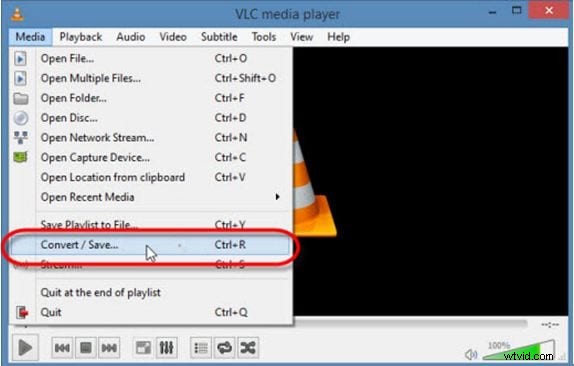
Simply open your VLC media player on your system and then hit Media option available on top left corner. From the drop down menu you can select “Convert/Save” option.
Step 2: Select Videos to Convert:
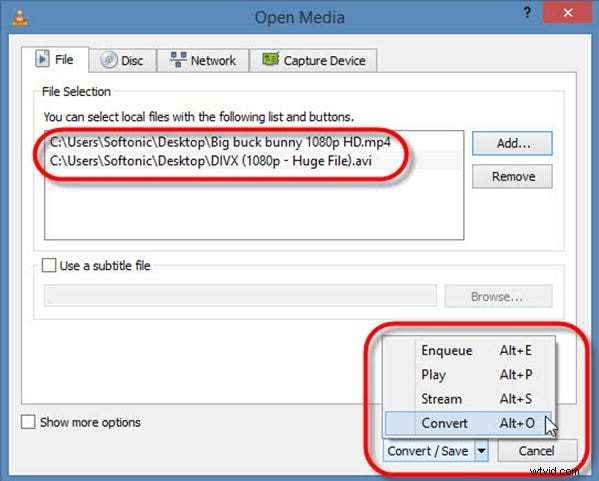
It is also possible to convert multiple videos at a time using VLC convert. Simply go to Add button available on VLC window and then select numbers of files from your folder that you need to get converted.
Step 3: Select file name for converted video:
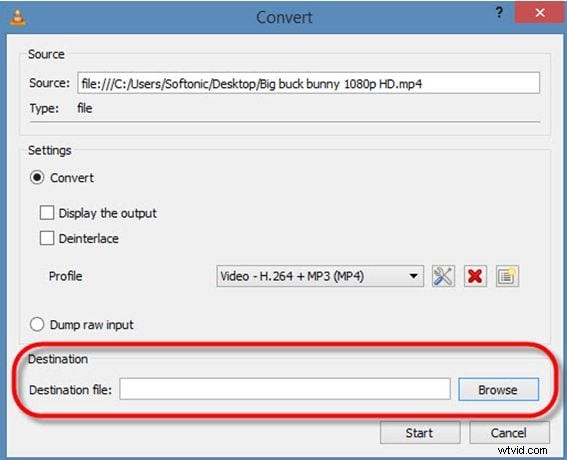
To execute this step, you need to enter your source file name at specified space and then move towards target file box and then simply choose your destination folder. Enter name of your new or converted video.
Step 4: Select video format for conversion:
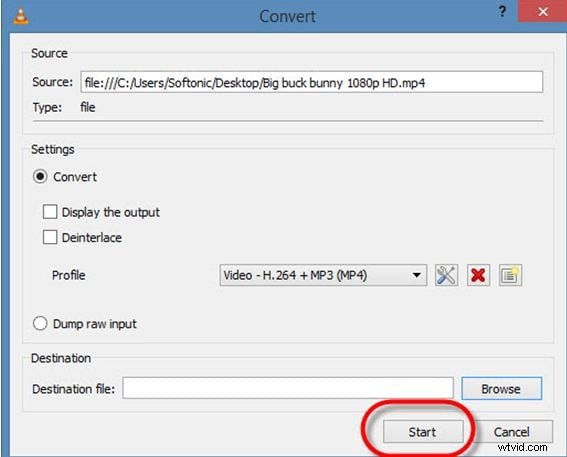
You will find a profile section under convert window. Here you need to select your target file format from available list. You will be glad to know that VLC media player is capable enough to convert videos from DVD, WMV, ASF, Divx, AVI, MP4 and MPEG file formats to the compatible ones.
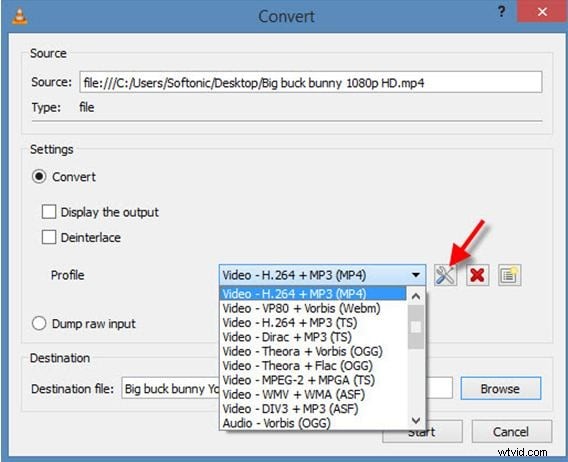
In case if you want to optimize your video clip then VLC also allows users to enter codec, frame rate and resolution like values manually.
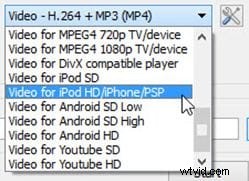
Advanced Settings:
To the right side of profile option you will find a menu with tool icon, it is possible to manipulate settings for conversion using this icon.
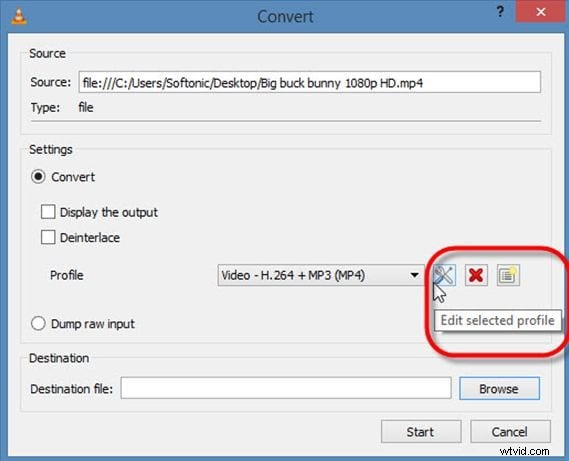
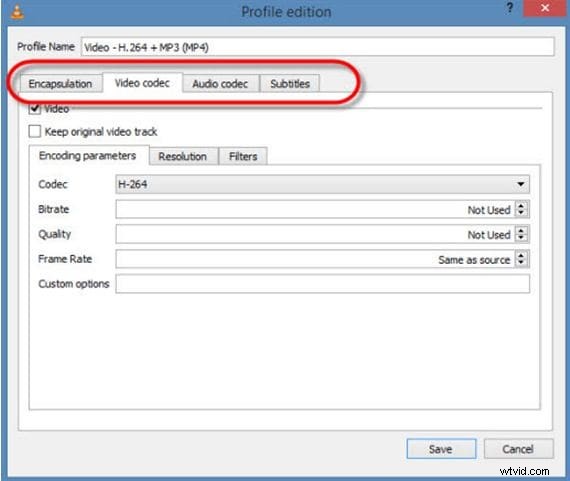
Users can easily make selections for supported audio and video codecs from this list and it will provide easy access to other personalized settings like audio quality, frame rate, resolution and bit rate etc.
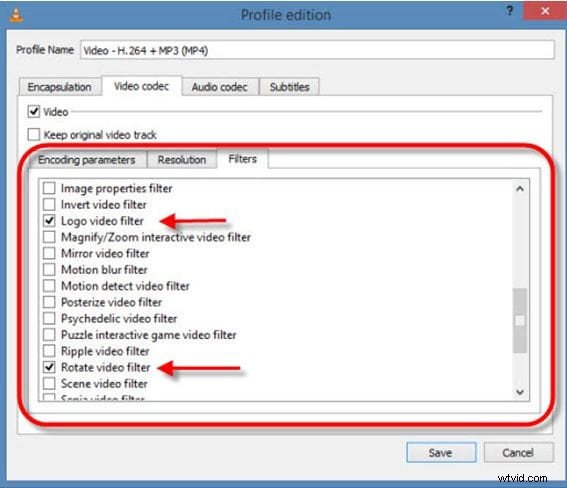
One can also apply special filters for conversion process.
Step 5: Start Conversion: Videos saved in target format:
Once you are done with all above settings as discussed in previous steps then hit the start button on screen to begin conversion process. VLC media player will take few seconds to convert your file depending upon its size and after conversion file will be automatically saved to your target folder.
VLC Converter Alternatives:
1. Clipconveter (Online Solution):
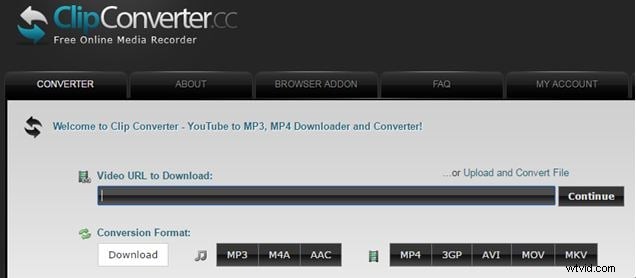
Clip Converter is a powerful online solution for easy format conversion. It also assists users to download and record videos or audios from internet with many popular file formats. You will be able to get videos from YouTube with 4K, 1080p and 720p resolution level and it also supports vimeo videos. The best thing to know about Clip converter is that it is available free of cost and you can also save your YouTube videos to offline mode using this converter so that they can be watched later on TV or PC etc.
2. Video Converter Ultimate (Desktop Solution):
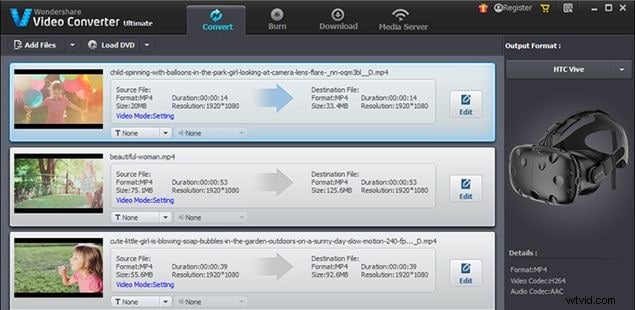
If you are searching for a desktop based solution to get your files converted anytime from anywhere even without an active internet connection then it is good to choose wondershare video converter ultimate. It can help users to get their video content in any popular file format so that it can be played on any media player. It currently supports VR, YouTube, DVD, HD, 3D, , Ultra HD and 360 videos. The best thing about Wondershare converter tool is that it works on so many platforms like Gear 360, Xbox, android devices, apple TV, iPad and iPhone etc. You can convert all your 360 videos on this platform with higher speed and it will never cause quality losses.
Ollie Mattison
Ollie Mattison is a writer and a lover of all things video.
Follow @Ollie Mattison